















Connecting Systems with MCP and Copilot Studio – Part 1: AI Agents in Business Central
AI is becoming increasingly capable of reasoning over business information, but the real value comes when that intelligence can work with the systems where your business operates.
That is where Model Context Protocol (MCP) comes in.
What is Model Context Protocol?
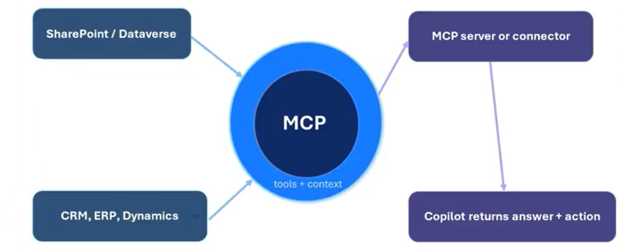
At a basic level, MCP is a standardized layer that allows AI applications to interface with other systems. A useful way to think about MCP is like a USB port: USB provides a standardized connection between electronic devices, while MCP provides a standardized interface between AI applications and business systems. Rather than building custom connections and hard-coding queries for every system, MCP provides definitions of the tools, context, inputs, and outputs that those systems make available to AI applications.
This creates an important shift for organizations using Microsoft business applications. Instead of simply asking an AI assistant about information, an agent can reason over live business data, retrieve the information it needs, and—in the right circumstances—take action against that data. MCP doesn't replace the ERP or CRM system. Instead, it acts as a translator between those systems and AI helpers like Copilot agents.
How Does Model Context Protocol Operate within Business Central?
MCP gives Copilot Studio agents access to Business Central data and functionality without requiring custom integrations. With the right configuration, an agent can retrieve information, answer questions, and complete tasks using live Business Central data.
In this example, you'll configure an agent that can:
- Look up item information.
- Review assembly requirements.
- Identify shortages.
- Check incoming inventory.
- Create a sales quote.
The goal is not to expose all of Business Central. Instead, you'll configure the MCP server to provide only the data and actions the agent needs to perform its job.
This article is the first in a three-part series. You'll learn how to configure MCP in Business Central, connect it to Copilot Studio, and build a sales quote and assembly scenario.
Part 2 explores MCP for Dynamics 365 Finance and Supply Chain Management. Part 3 covers Dataverse MCP, Copilot Studio, and Visual Studio Code.

MCP in Business Central: Setup and Configuration Walkthrough
In this section, you'll:
- Verify that MCP is enabled.
- Create an MCP server configuration.
- Select the topics the agent can access.
- Configure permissions and editing capabilities.
The first step is to configure the MCP server in Business Central.
Go to Feature Management to verify that the MCP server is enabled. The feature is automatically turned on in newer versions of Business Central.
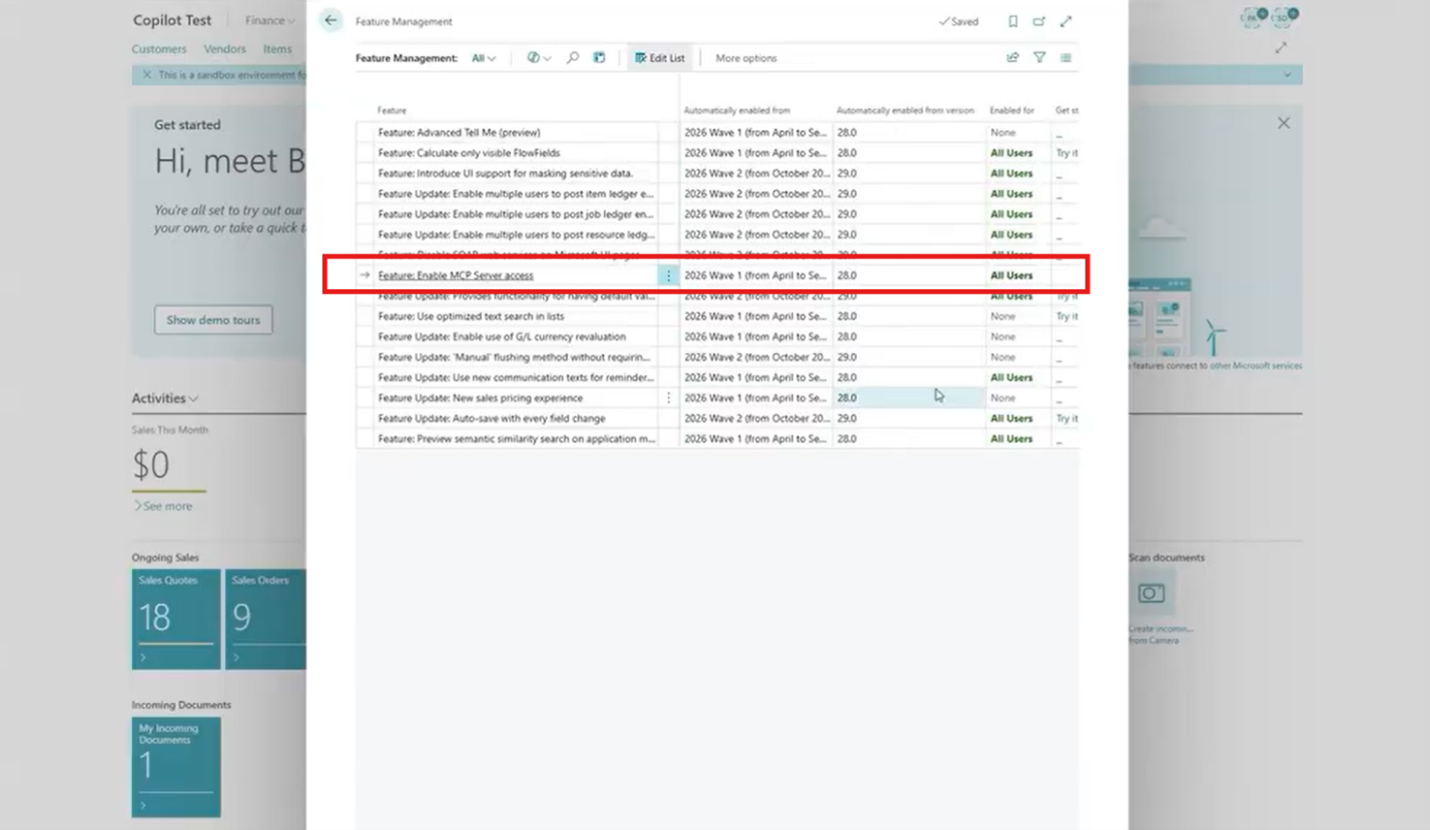
Search for Model Context Protocol (MCP) and add a server configuration. Create as many configurations as needed, allowing different agents to work with distinct Business Central data sets.
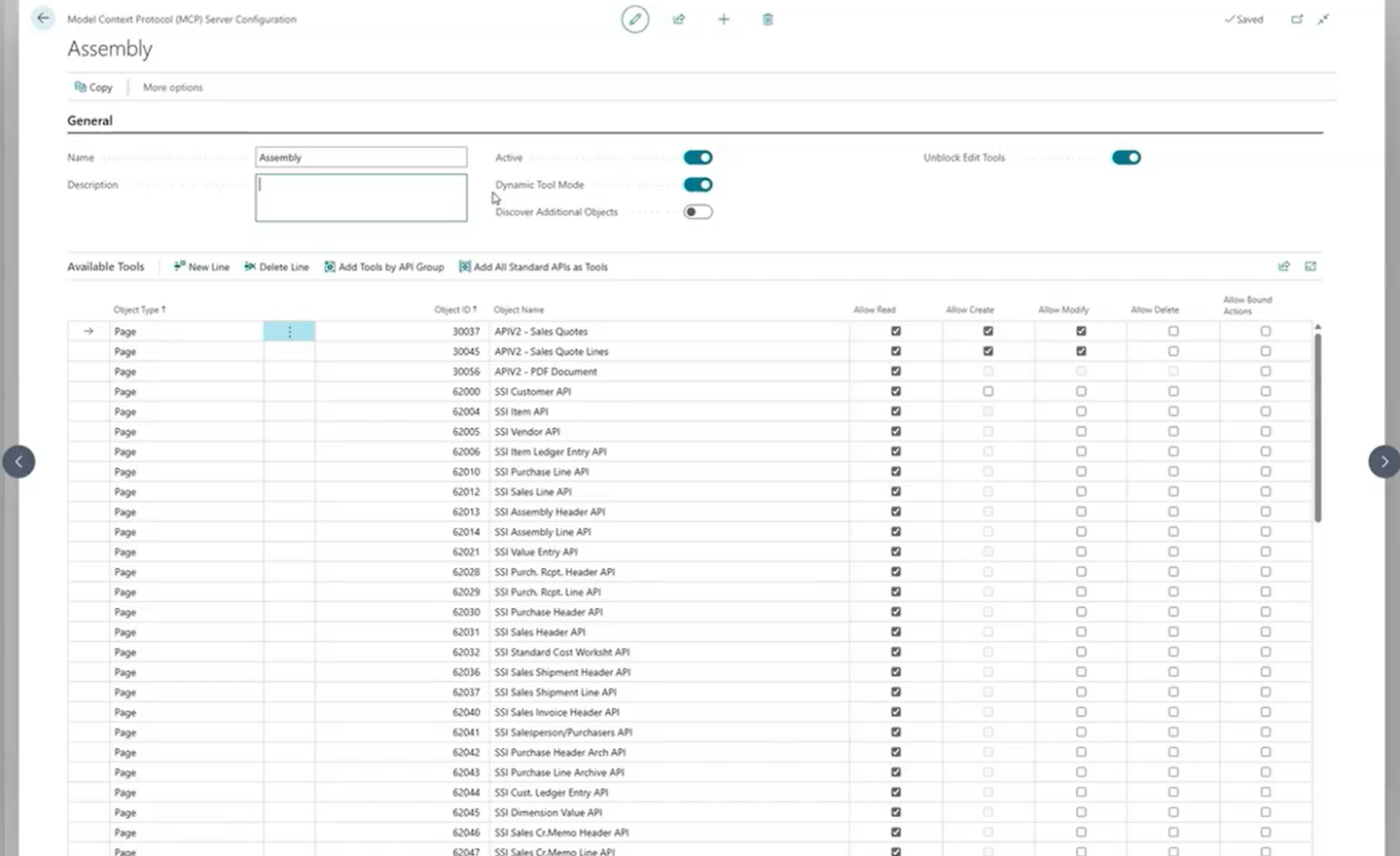
What should the MCP server be able to access?
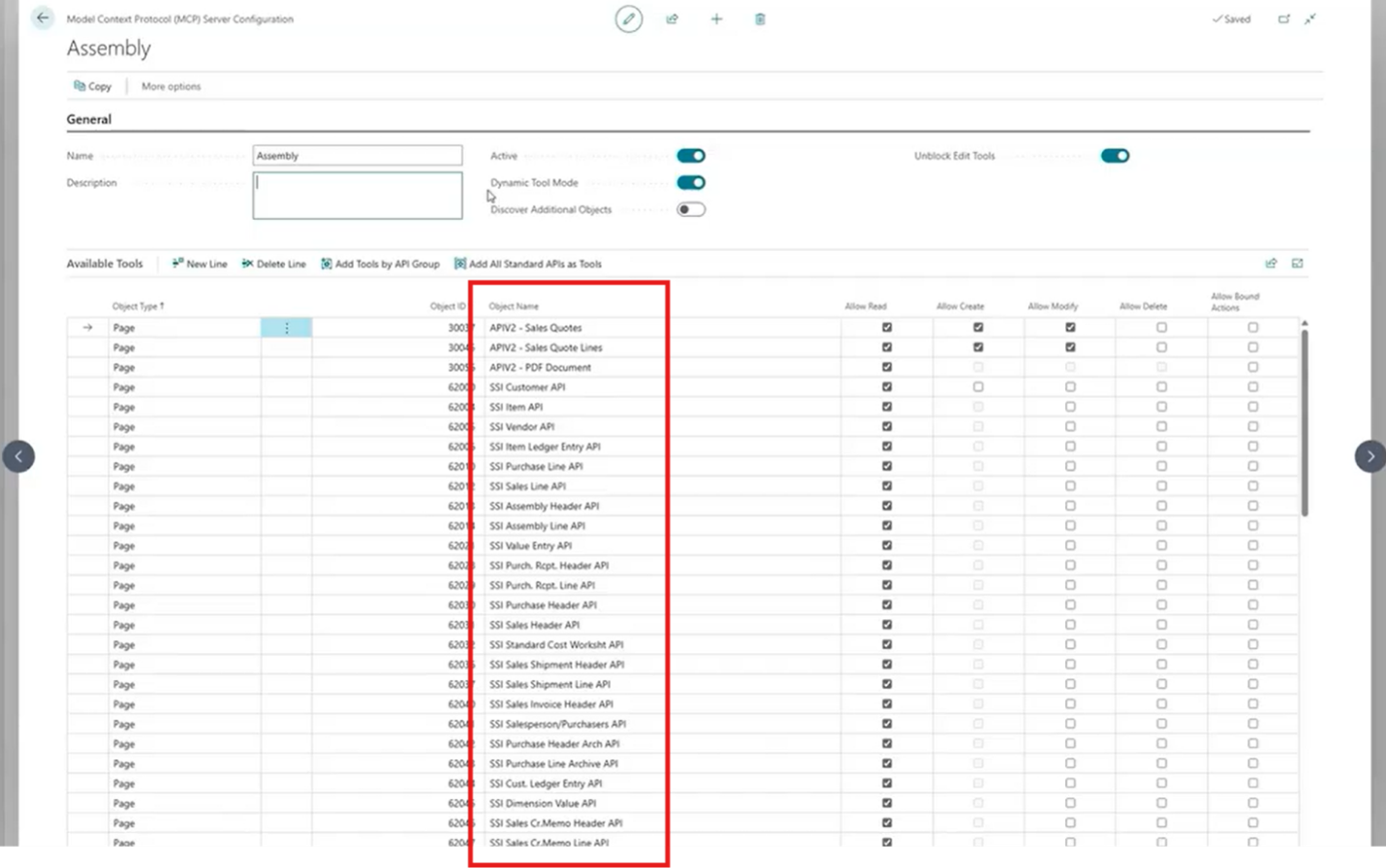
In the MCP configuration, choose the API pages you want to expose. Think of each API page as a topic the agent can work with, such as customers, items, inventory, or sales quotes. The agent uses these topics to answer questions and complete tasks. API Page is similar to the standard page in Business Central. The standard page lets a user view data, while the API page lets an integration access it.
For this walkthrough, expose the following topics:
- Assembly Headers
- Assembly Lines
- Purchase Lines
- Customers
- Items
- Sales Quotes
- Sales Quote Lines
These topics provide the information needed for the sales quote and assembly scenario we'll build later.
The configuration also controls what actions the agent can perform.
Use the Unblock Edit Tools toggle to allow or prevent data changes. Edit permissions are defined at the API page level, giving you granular control over which records the agent can update.
Most API pages in the list are read-only. For example, a customer service agent can view customer, item, assembly, and purchasing information without making changes.
Some API pages, such as Sales Quote and Sales Quote Line, also support record creation and updates. Record deletion remains disabled.
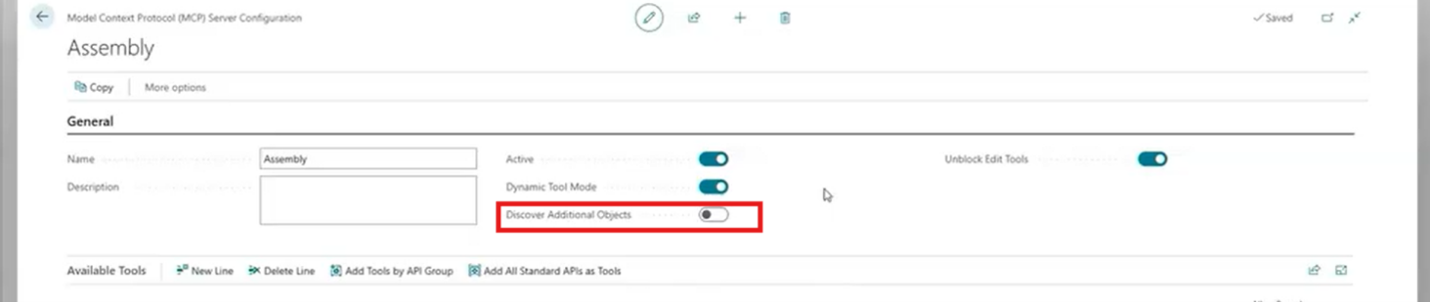
Use the Discover Additional Objects setting to control which additional Business Central objects are available to the agent.
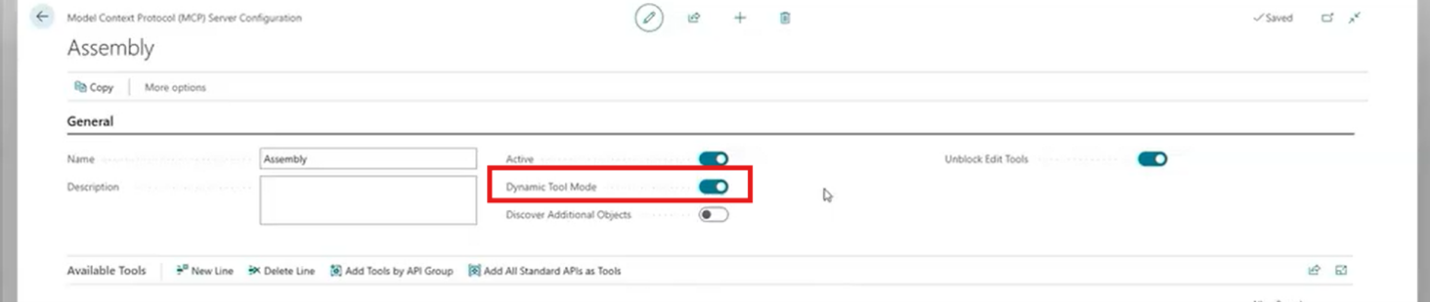
Always enable Dynamic Tool Mode. Copilot Studio can discover only a limited number of tools, and Dynamic Tool Mode helps make larger Business Central configurations available to the agent.
MCP respects the security model already defined in Business Central. AI agents do not receive unrestricted access. User permissions and business logic continue to govern every interaction.
Connecting Business Central to Copilot Studio with MCP
Now flip over to Copilot Studio.
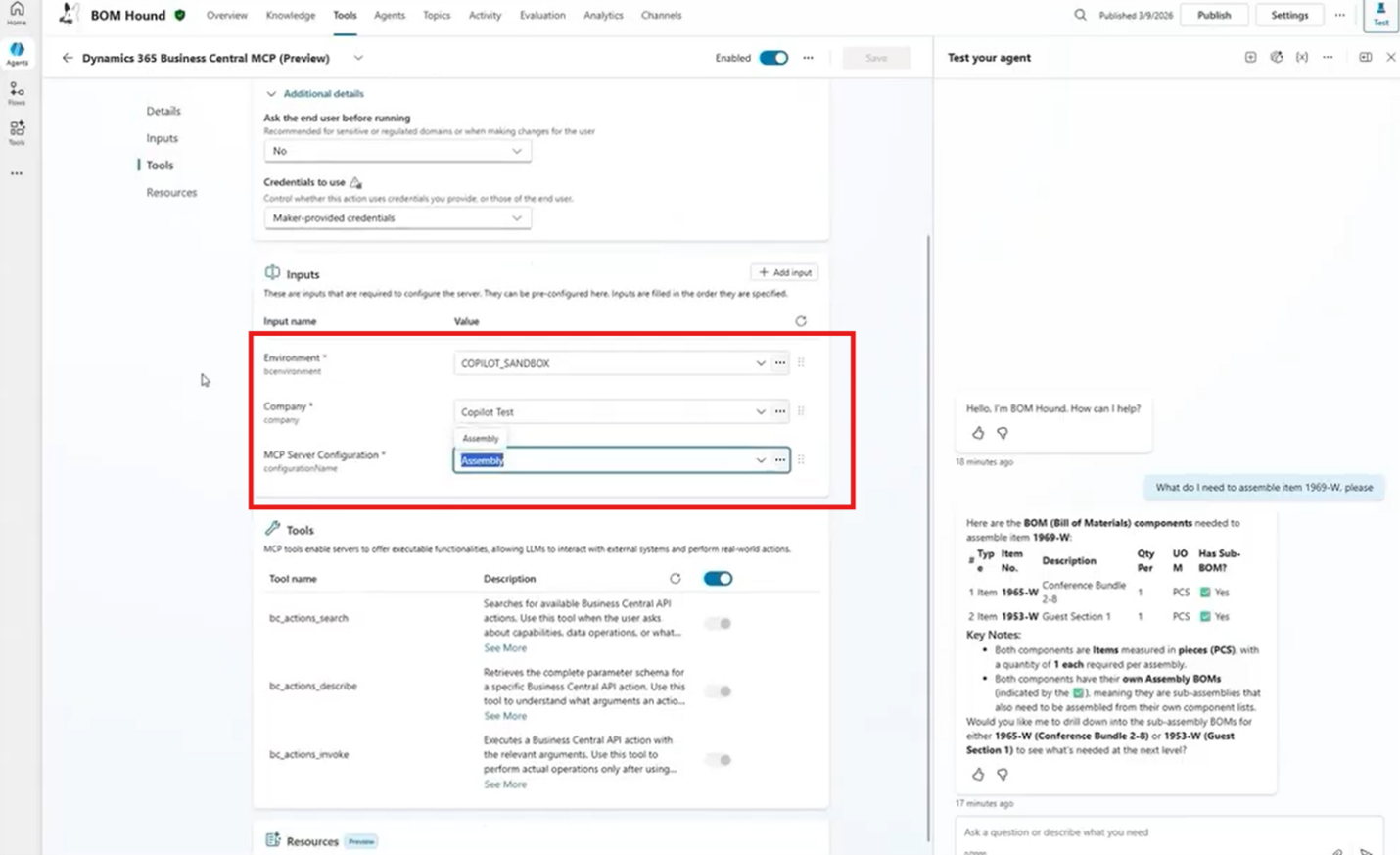
Create a new Tool Business Central MCP. Select the Business Central environment and MCP Server Configuration the agent should use.
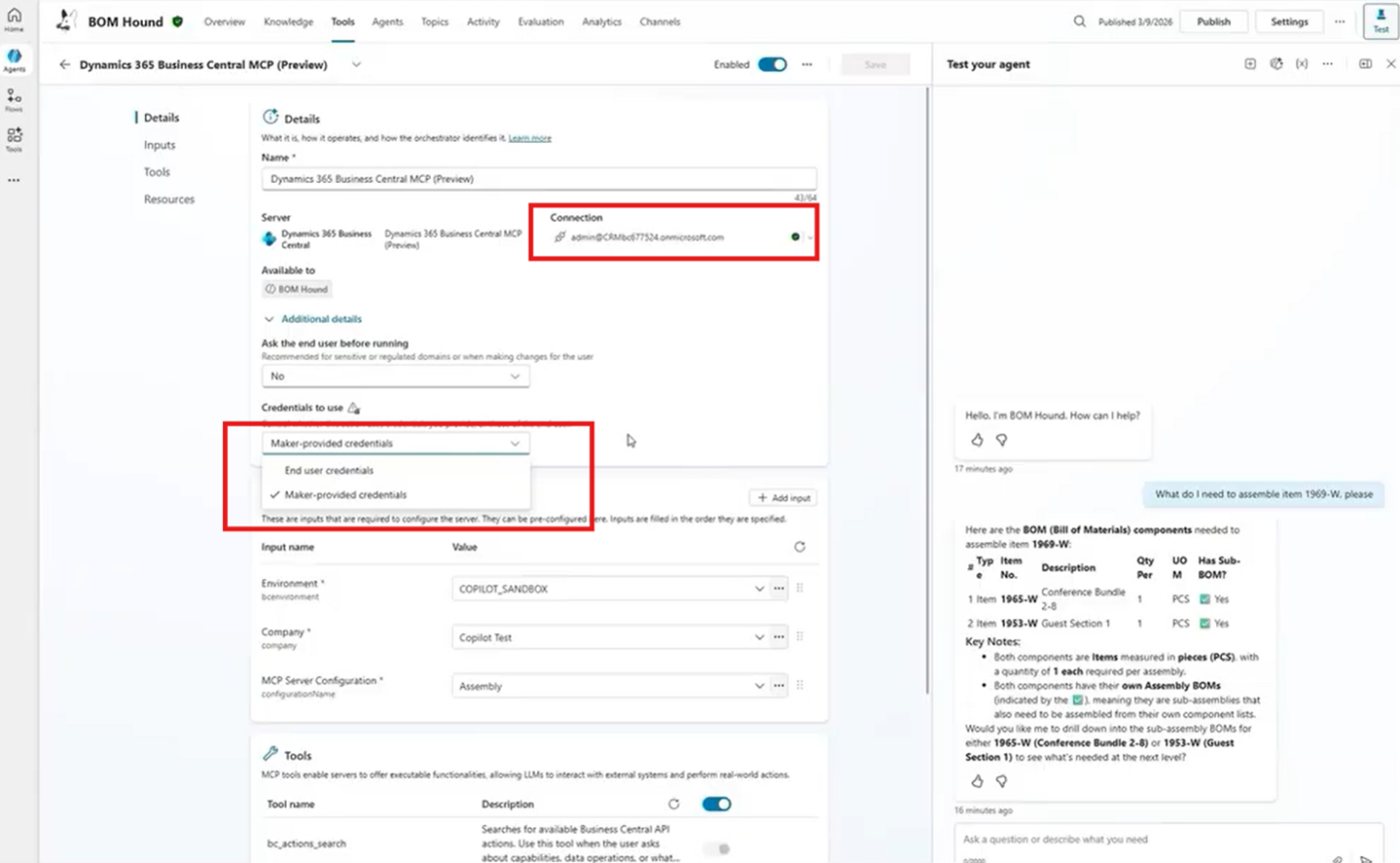
Then choose the permissions the agent should use.
If everyone using the agent already has a Business Central account with the required permissions, select End user credentials. The agent will then operate using each user's existing permissions.
If users do not have Business Central licenses or permissions, select Maker-provided credentials instead. This allows the agent to use a predefined set of permissions for all interactions.
Sales Quote and Assembly Walkthrough
Now let's put the configuration to work.
In our scenario, we will use a hypothetical company that assembles products to order. Imagine a customer service representative is on the phone with a customer who wants to purchase an item. Traditionally, the rep might need to jump between several Business Central pages during this call to:
- Determine what components are required.
- Check whether those components are available.
- Identify shortages.
- Check whether additional inventory is incoming.
- Find the customer.
- Build a quote.
Potentially draft an email to the customer.
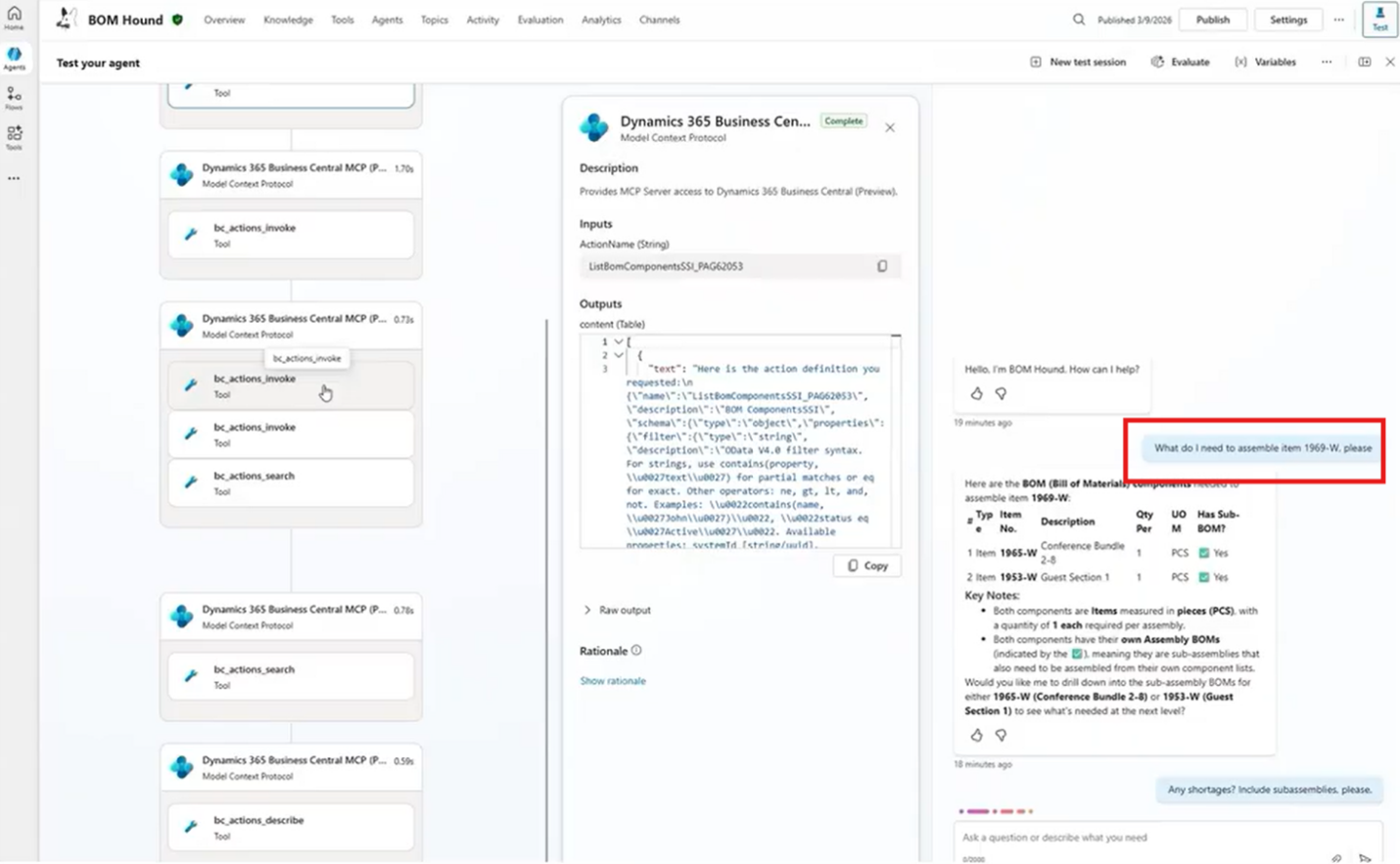
Step 1: Review Assembly Requirements
Ask the agent what is required to assemble a specific item. The agent identifies the necessary components and assemblies.
Note: The agent reasons through the available Business Central information and identifies the relevant bill-of-materials components and assemblies.
Step 2: Check for Shortages
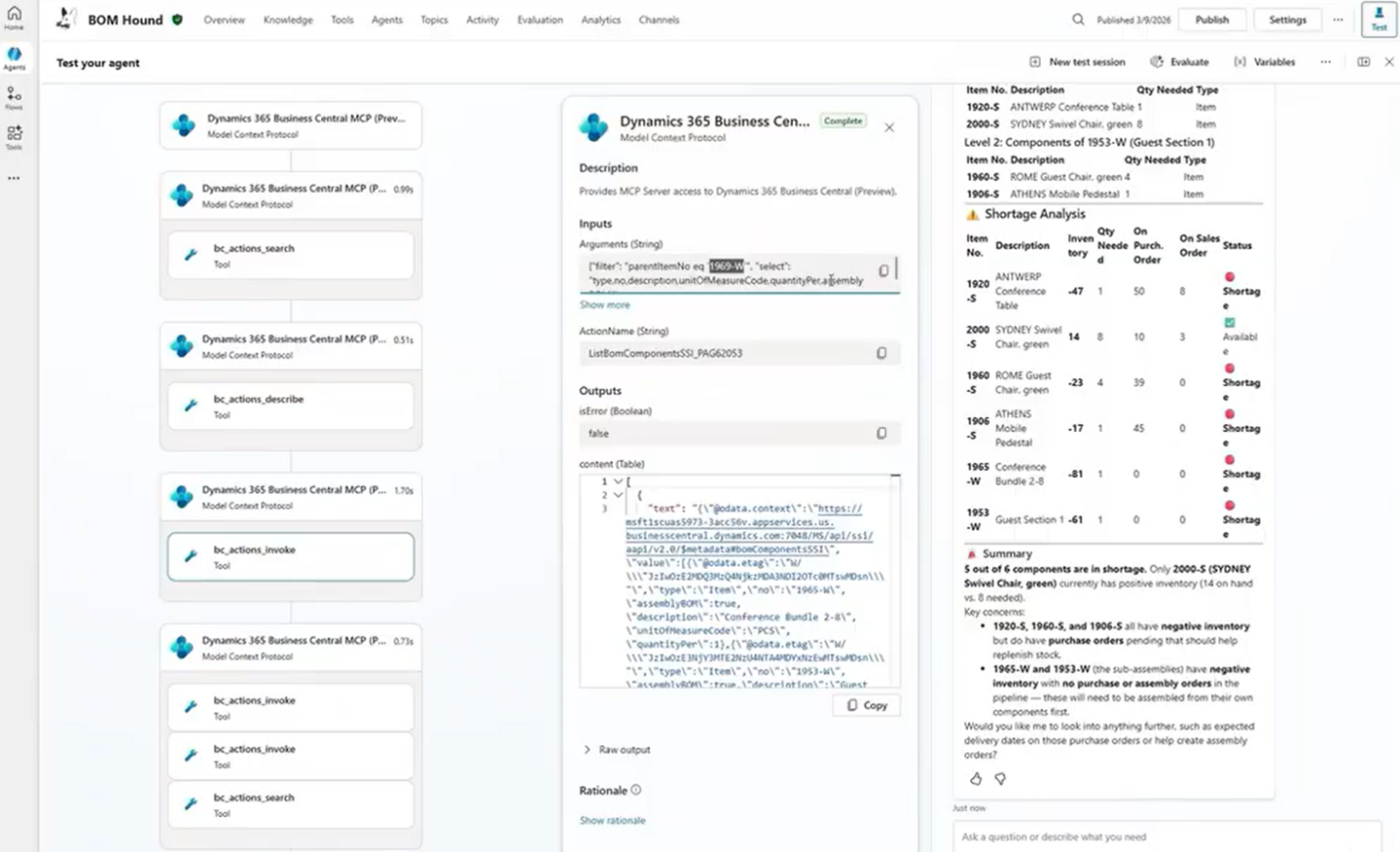
Next, ask whether any shortages exist, including shortages within subassemblies. The agent reviews the available information and identifies any gaps.
Note: The agent continues reasoning over the available information to identify shortages and associated subassemblies.
Step 3: Create a Sales Quote
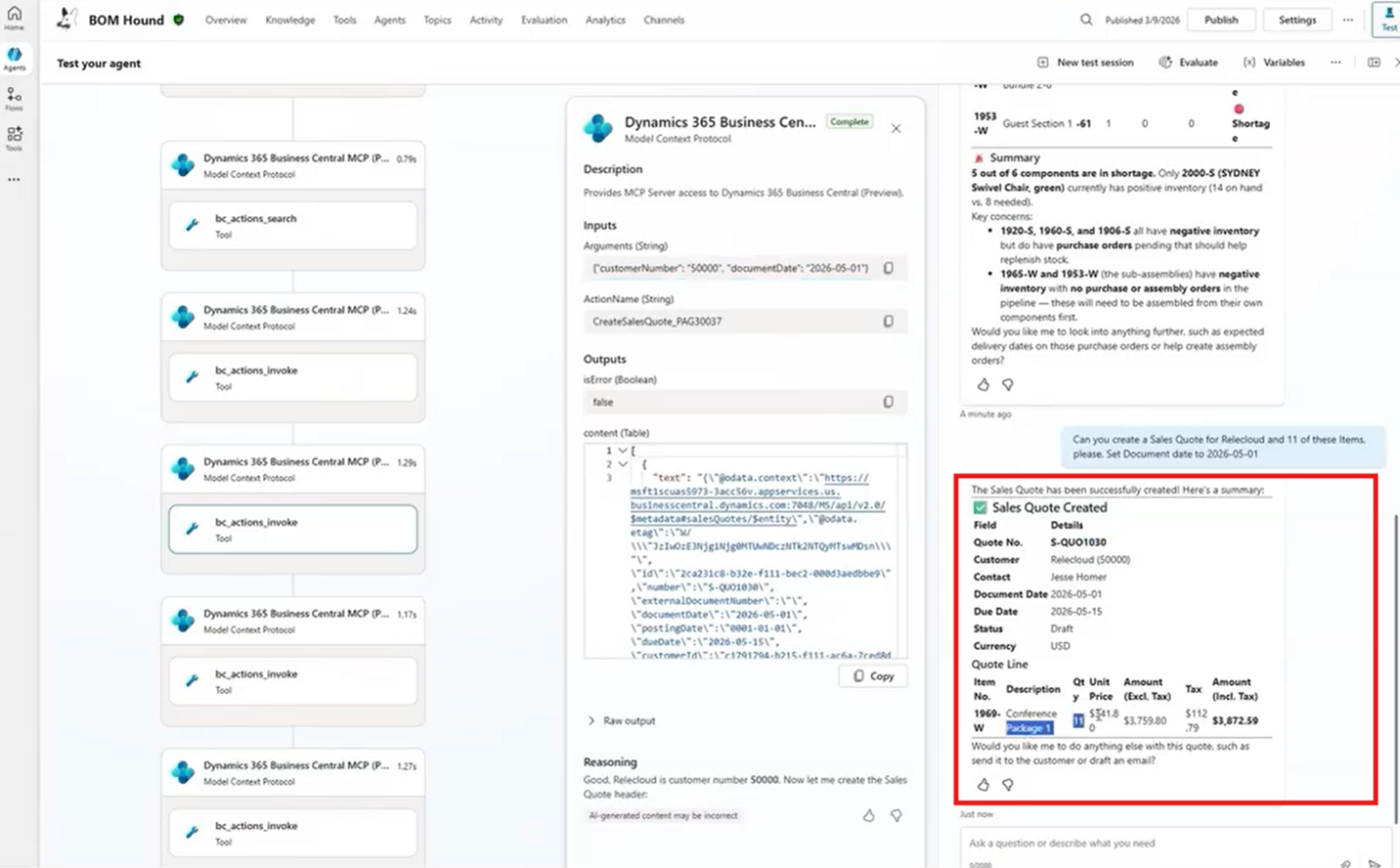
Finally, ask the agent to create a sales quote using the customer name and quantity. The agent locates the correct customer record and creates the quote.
Notice: we did not specify the Customer No. Required by Business Central, no did we say how many we want. The Agent figured that out from the conversation.
Step 4: Verify the Result
Verify the quote in Business Central. Confirm the quantity, pricing, and other details before sharing it with the customer.
Using Copilot Agents in Other Tools That Connect to Business Central
The agent can also work with other tools. In this example, Copilot Studio is connected to Outlook in addition to the Business Central MCP configuration.
As a result, the agent can retrieve data from Business Central, generate a summary, and draft an email using details such as the customer's email address and quote number.
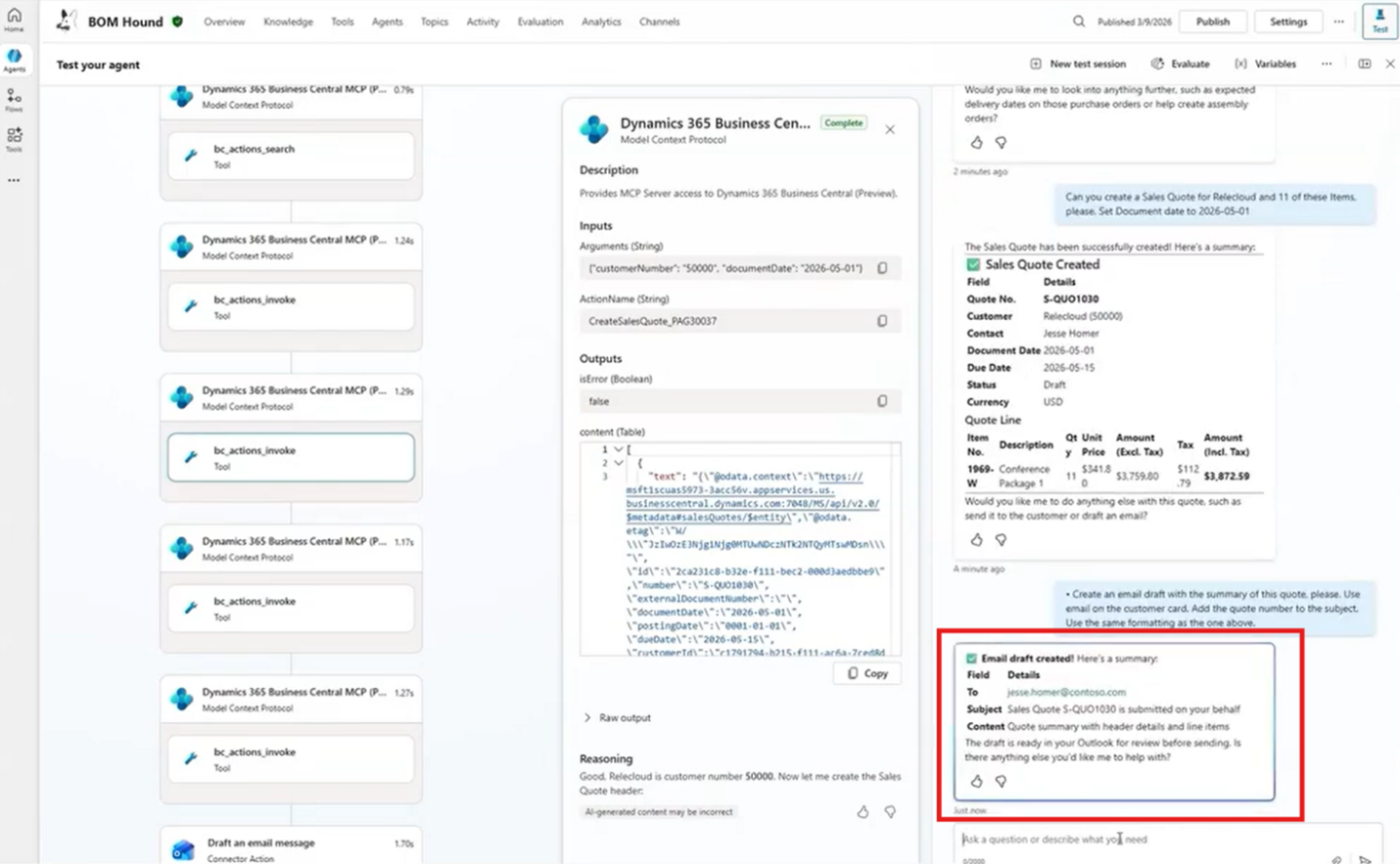
Once Outlook is involved in the workflow, the email generated by the agent is automatically available as a draft.
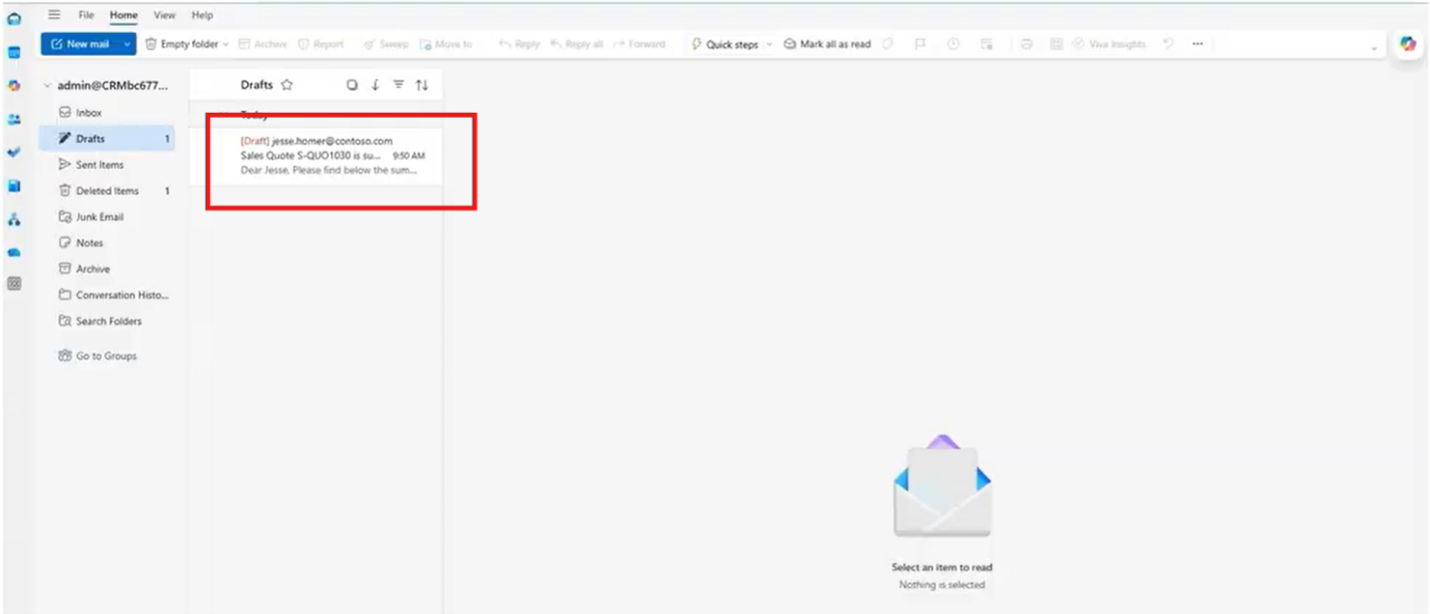
Review the draft and make any changes you need, or prompt the agent to adjust the content to align with your brand guidelines.
This example highlights an important principle: the MCP server does not need to handle every task.
Use the MCP server to provide Business Central data and context. Then connect other tools, such as Outlook, for specialized tasks. Copilot Studio coordinates these tools and combines them into a single workflow.
The tools you connect are important, but so is how you describe the information available to them.
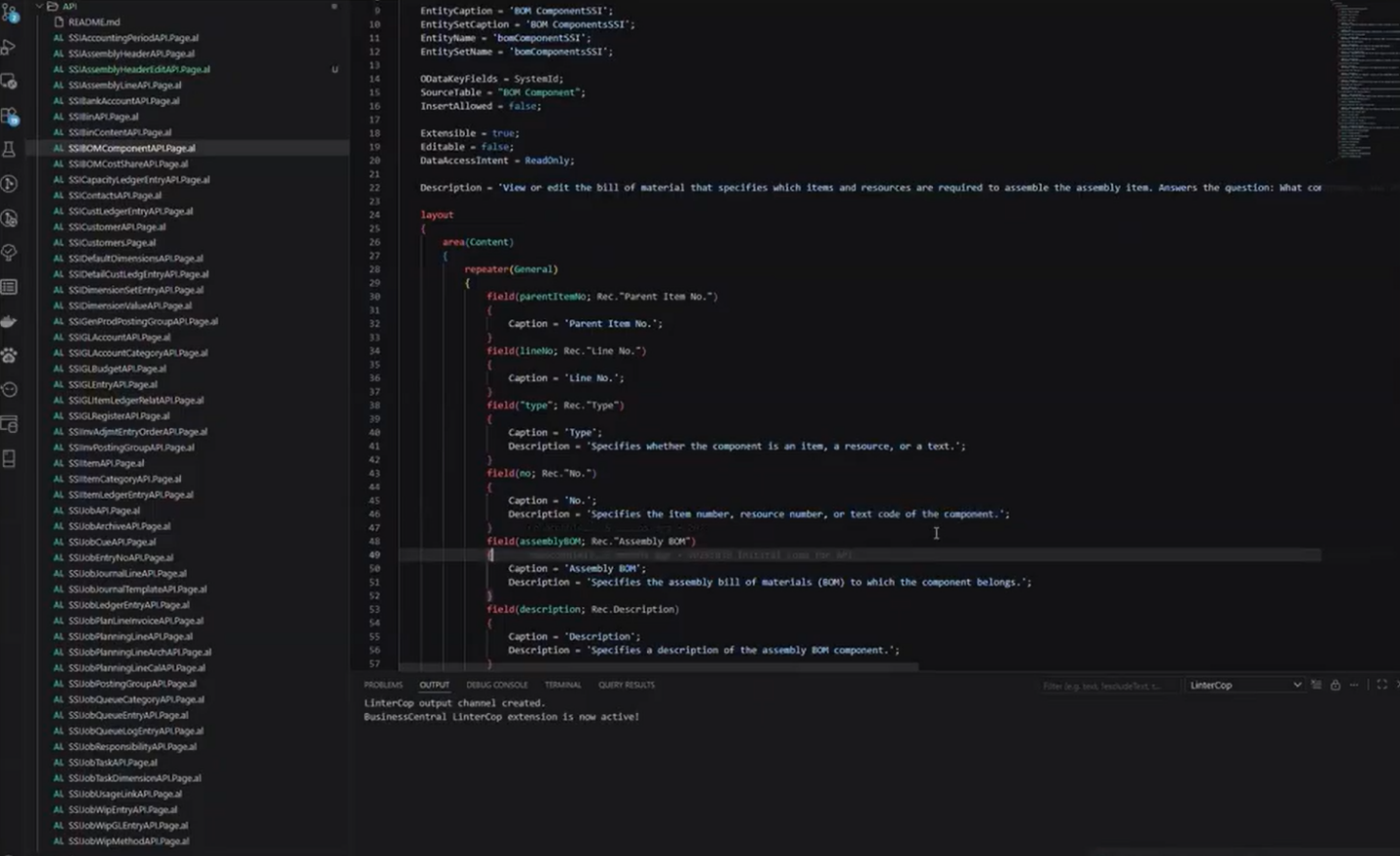
To improve the quality of the agent's responses, review the descriptions on your API pages. These descriptions help the MCP server identify the right topic for each request.
Review the descriptions for your topics and API pages. Use the same terminology employees use every day when talking about customers, orders, inventory, and other business processes.
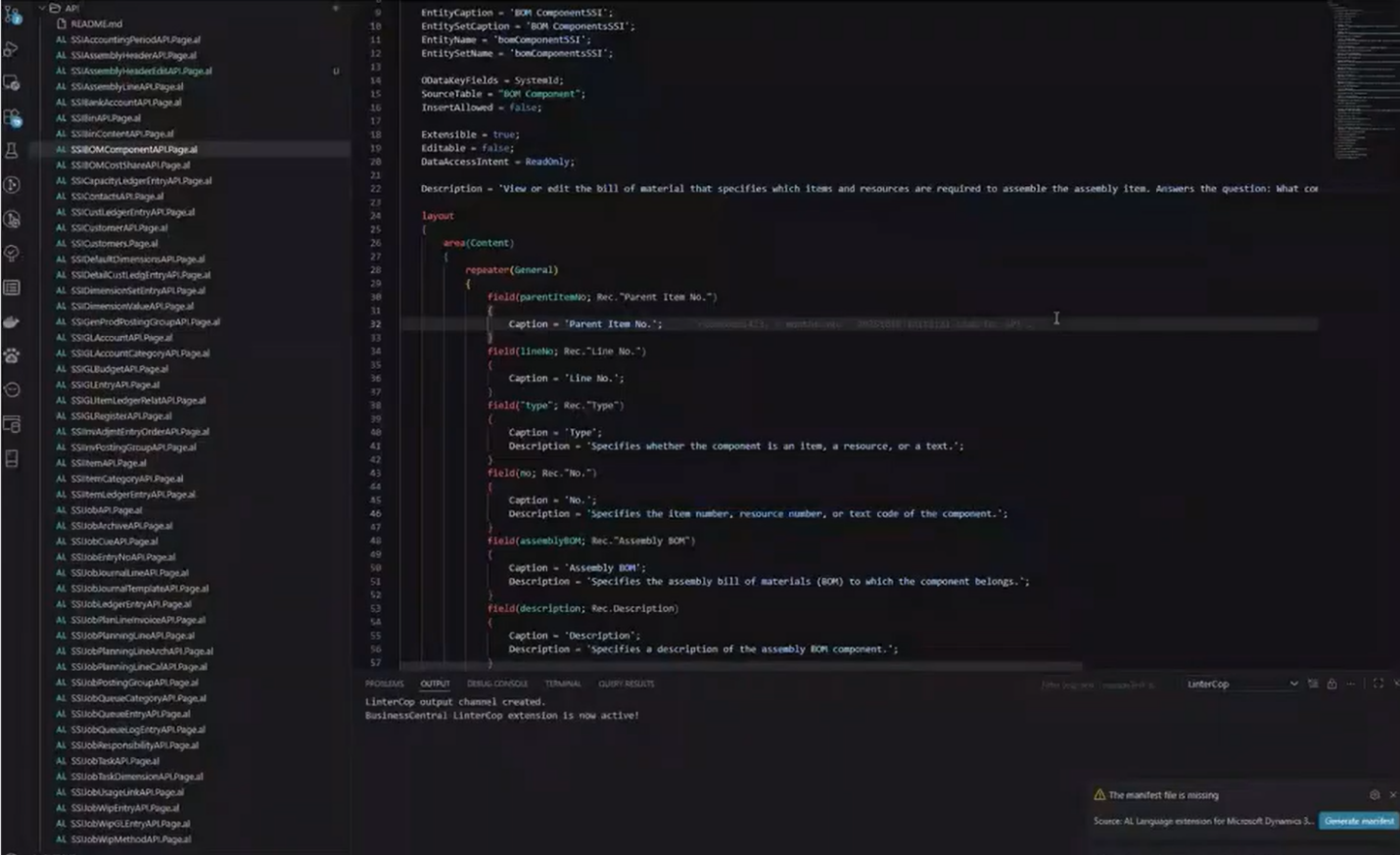
Configuring MCP is not just about connecting data. Clear, business-friendly descriptions help the agent identify the right topic and respond more effectively.
Get More from MCP with Stoneridge Software
MCP opens the door to a very different way of working with Business Central. The real opportunity is figuring out where MCP can make a measurable difference in your business—and then configuring it correctly. From Business Central configuration and security to Copilot Studio agent design, API page descriptions, permissions, and multi-tool workflows, the details matter.
That's where Stoneridge Software can help. Our team understands both the Microsoft technology and the business processes behind it, helping organizations move from experimenting with AI to building practical solutions that improve how their people work.
If you're ready to connect Business Central to Copilot and put MCP to work, contact the Stoneridge experts today!

Under the terms of this license, you are authorized to share and redistribute the content across various mediums, subject to adherence to the specified conditions: you must provide proper attribution to Stoneridge as the original creator in a manner that does not imply their endorsement of your use, the material is to be utilized solely for non-commercial purposes, and alterations, modifications, or derivative works based on the original material are strictly prohibited.
Responsibility rests with the licensee to ensure that their use of the material does not violate any other rights.