














Copilot in Excel: AI for Smarter, More Effective Spreadsheets
Excel is a powerful and effective tool when it comes to data organization and analysis, but for the average user, it can be intimidating.
Between formulas, formatting, and enhanced analysis, even experienced users sometimes find themselves searching Google for instructions. However, Copilot and AI capabilities in Excel are here to change the game.
In this blog, we’ll show you how Copilot helps users build spreadsheets, generate formulas, clean data, and analyze results faster and more effectively using simple natural language prompts. Instead of memorizing functions or manually building complex logic, Copilot acts like a smart assistant working alongside you in real time.
Read this blog or watch the video for a look at what you can do with Copilot in Excel and how it can become an invaluable tool for your business.
Starting From Scratch: Let Copilot Build Your Spreadsheet
One of the most impressive features demonstrated was Copilot’s ability to generate a fully structured spreadsheet from a simple prompt. Instead of manually creating column headers and formatting tables, you can simply tell Copilot what to do or choose from suggested prompts. For example, you can ask Copilot to create a table for tracking sales leads. To do this, follow these steps:
- Click the Copilot Icon in the top navigation ribbon.
- Enter a custom prompt or choose an out-of-the-box one – in this case: “Create a table that tracks sales leads in progress.”
- Click on the arrow to generate your spreadsheet.
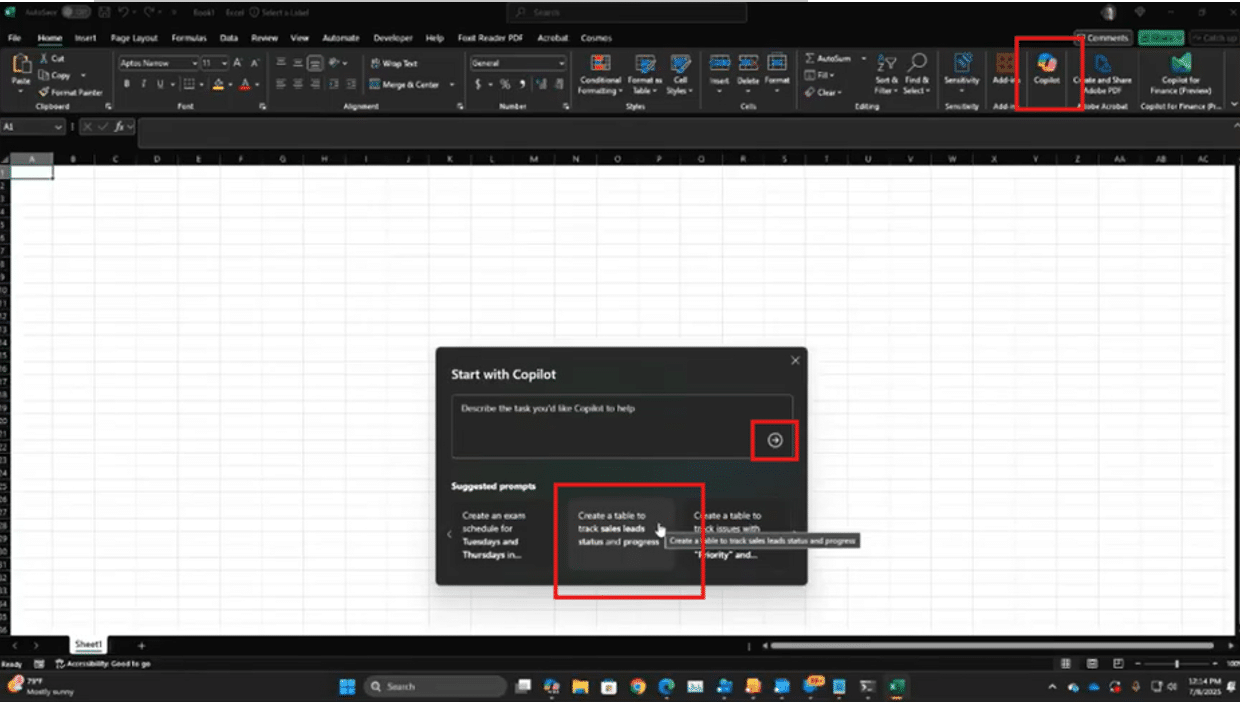
Copilot pulls information from your system and find key data points to instantly create a structured table. In this case, it would contain relevant fields such as:
- Lead name
- Company
- Contact information
- Lead source
- Deal value
- Lead status
It also applies formatting, color coding, and sample data automatically, which eliminates the tedious setup to ensure your spreadsheet follows best practices from the start. You can also add more fields, columns, or datapoints.
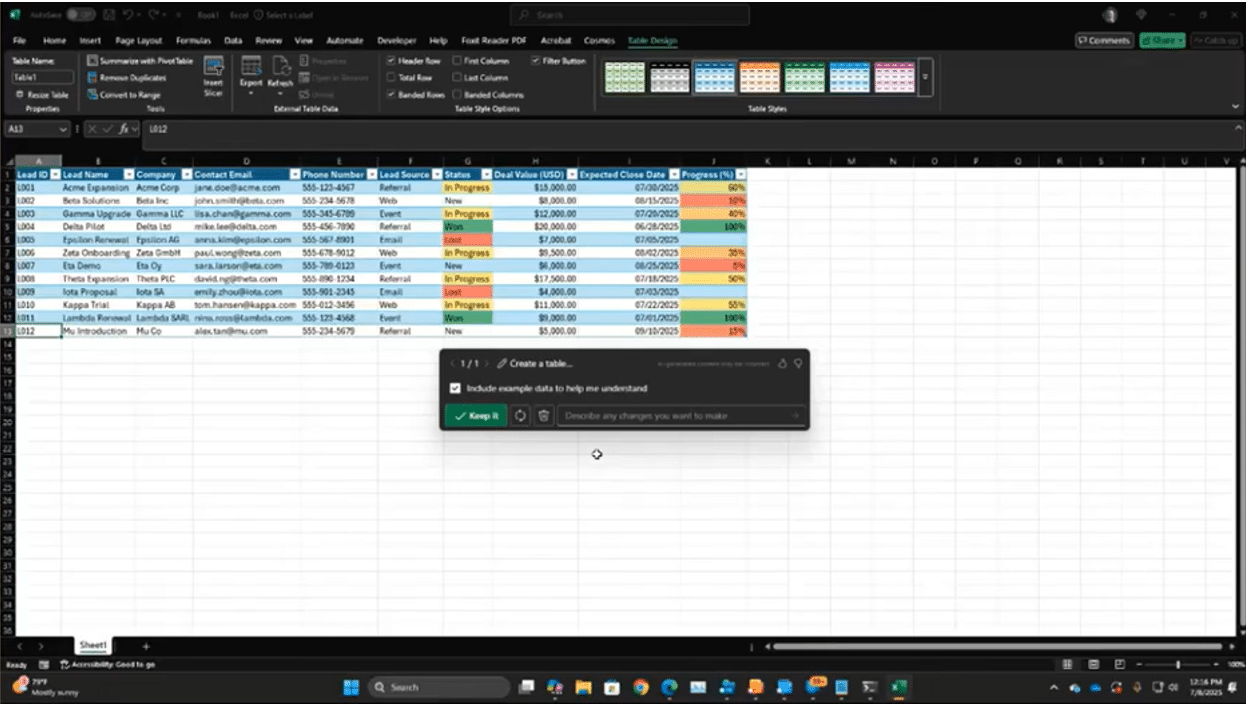
Note: For Copilot to interact with your data, you need to have the autosave feature turned on, and your spreadsheet (or another document) will need to be saved on the tenant where Copilot features are enabled. This ensures that your data stays secure and within your organization.
Once you are done, you can turn on autosave, give your spreadsheet a name, and pick a data sensitivity label (Unrestricted, Confidential, Restricted) for compliance.
There you have it! You have now created an Excel spreadsheet with Copilot.
Accessing Copilot Chat: Your AI Assistant Inside Excel
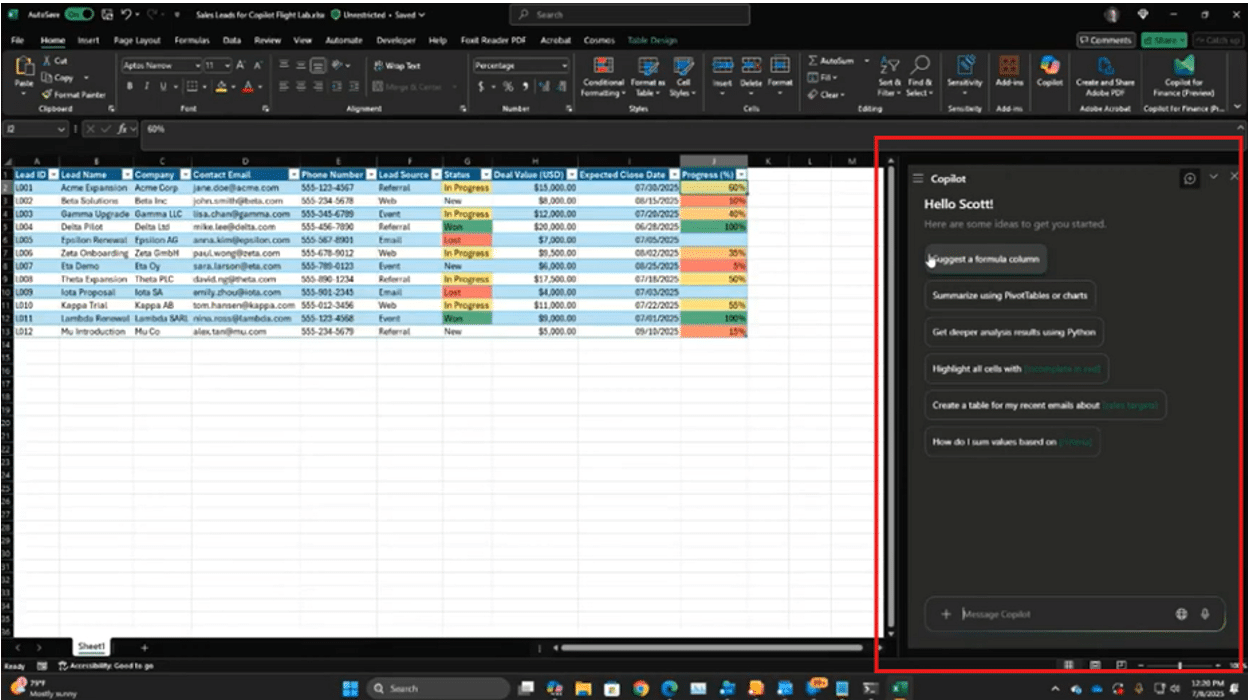
Once your spreadsheet is ready, Copilot becomes your interactive assistant, ready to assist you with various edits, tasks, or additional needs with your spreadsheet.
You can open the Copilot in one of two ways:
- Clicking the Copilot button in the ribbon, or
- Selecting a cell and choosing Chat with Copilot
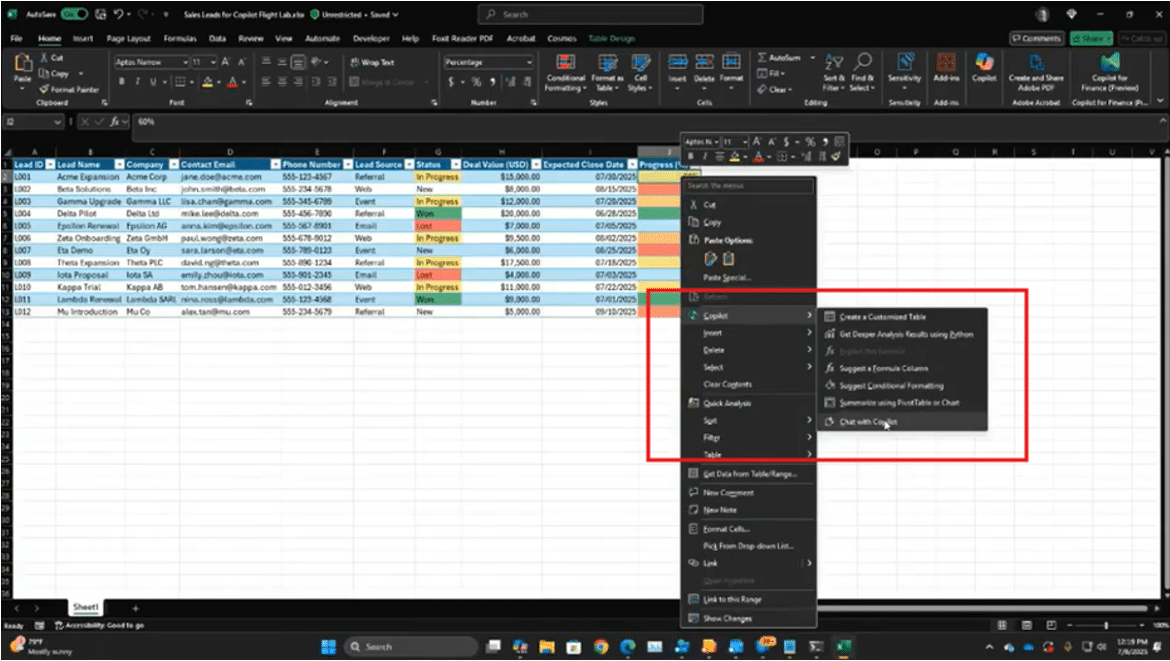
This opens the Copilot side panel, where you can type instructions in natural language or pick from built-in prompts like summarizing, suggesting formulas, highlighting specific cells, and more.
Instead of writing formulas manually, simply tell Copilot what you want and watch it work.
Automatically Creating Formulas (No Syntax Required)
One of the best features of Copilot in Excel is generating formulas based on instructions. Sticking with our example, we asked Copilot to calculate the cost associated with each deal by prompting: “Can you create a new field called 'Deal Cost (USD)' that takes the 'Deal Value (USD)' and apportions 20% of that value as a cost in a new number field that has two decimals.” You can also hit the microphone button in the bottom right corner of the Copilot side chat to talk with Copilot.
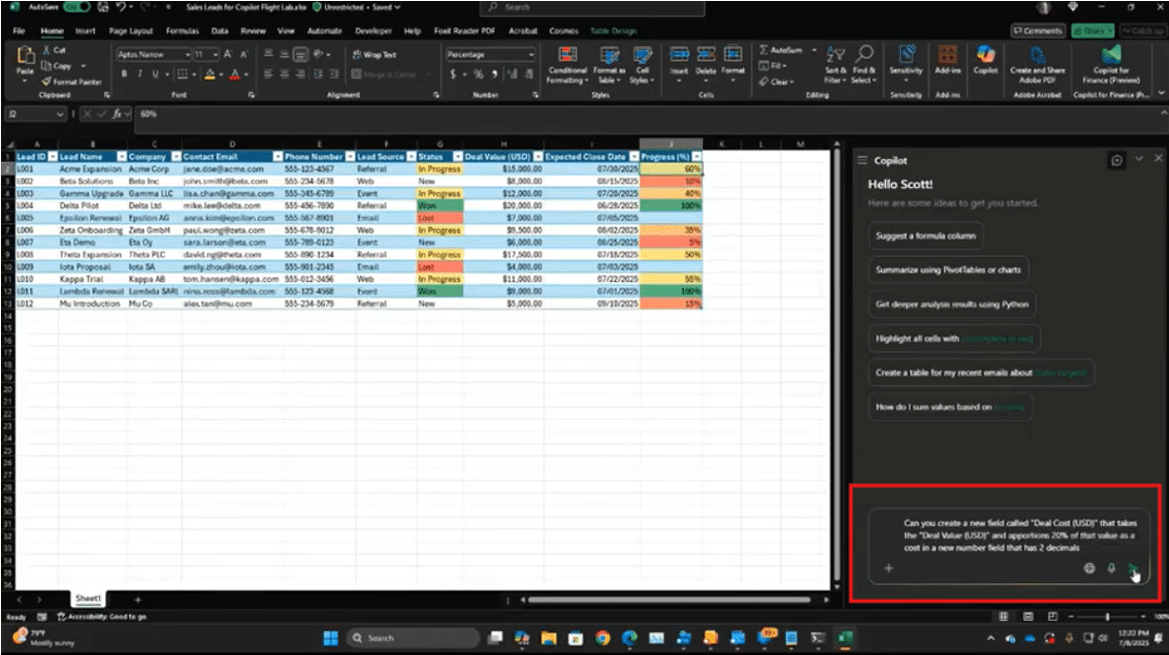
Copilot then analyzes the data, generates the correct formula, shows you a preview, and automatically inserts the new column. The formula then applies to all rows instantly, without the user needing to memorize formulas or check for errors.
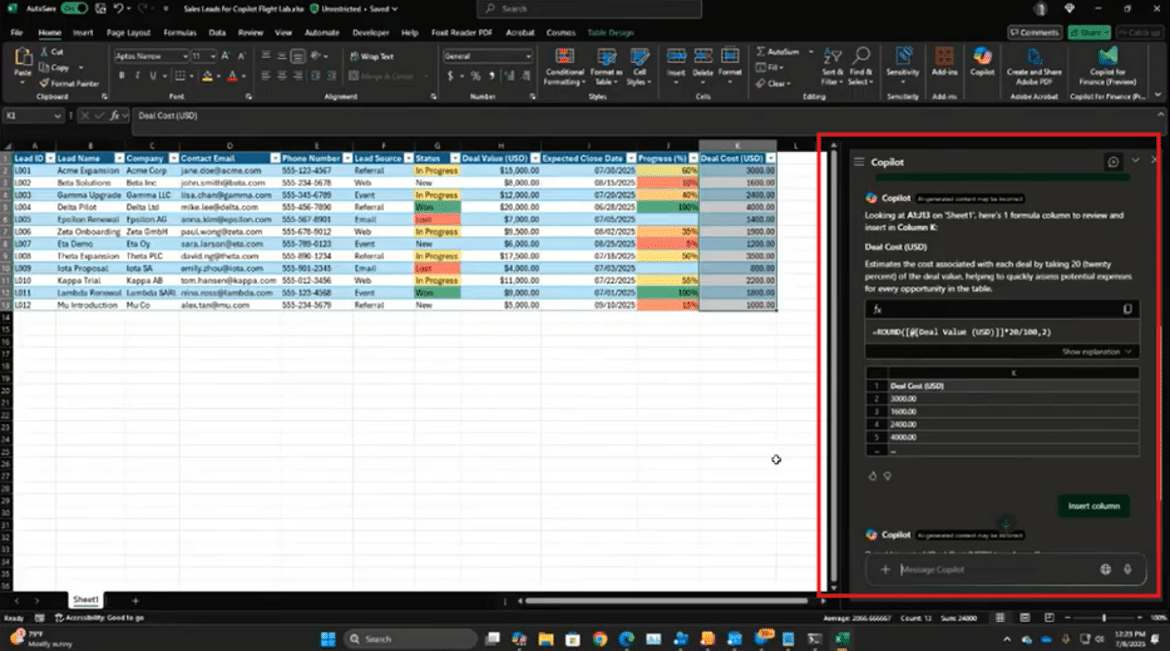
Understanding Formulas with Copilot’s Explanation Feature
Copilot can also explain formulas to you. You can simply ask it to “Explain this formula.” Copilot breaks it down simply and can show you:
- What each part does
- How values are calculated (rounding, decimal places, etc.)
- Why certain functions were used
- Column names
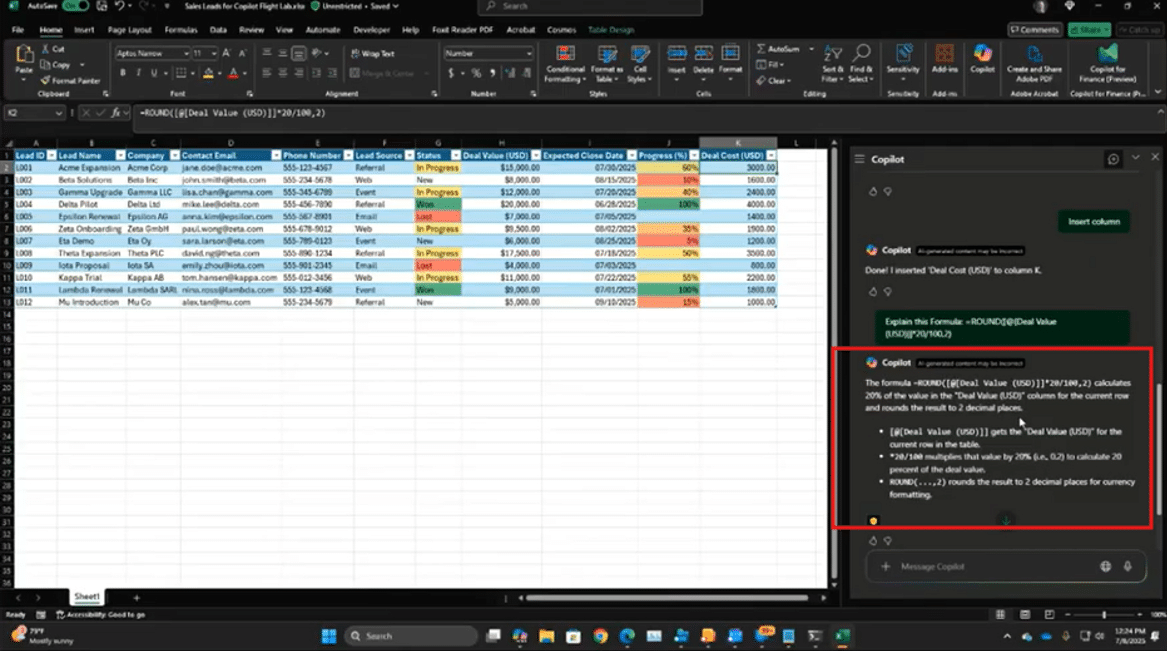
You can also ask it to do an analysis based on other numbers. For example, you could ask Copilot to do the same calculations with an apportion of 25% instead of 20%. It will then provide that to you. You can then click + Insert column if you want to put it directly into the spreadsheet. This helps users learn Excel faster and build confidence in their data and abilities to navigate and work with spreadsheets.
Quick Step Back: Don’t Forget to Stay Involved!
It might be easy for some users to get carried away with letting Copilot run wild, but it’s important that you stay smarter than the machine. You still need to approach the data with a critical lens and remember that AI operate from patterns it's trained on that can sometimes be inconsistent. Don’t get complacent, and you will be fine.
Creating Advanced Logic with Natural Language
Copilot truly shines when creating more complex calculations. In our example, we’ll create a progressive cost structure based on deal value that looks like:
- Deals under $5,000 → 30% cost
- Deals between $5,000 and $12,000 → 40% cost
- Deals over $12,000 → 50% cost
You can do this with a simple prompt:
“I’d like to create another column called ‘Deal Cost (Progressive)’, in which all leads that have a deal value from 0 to $5000 have a cost of 30% of the Deal Value (USD). Where they have a cost of 40% for all values that are between $5,000 and $12,000. And that has a cost of 50% where all deal value is over $12,000.”
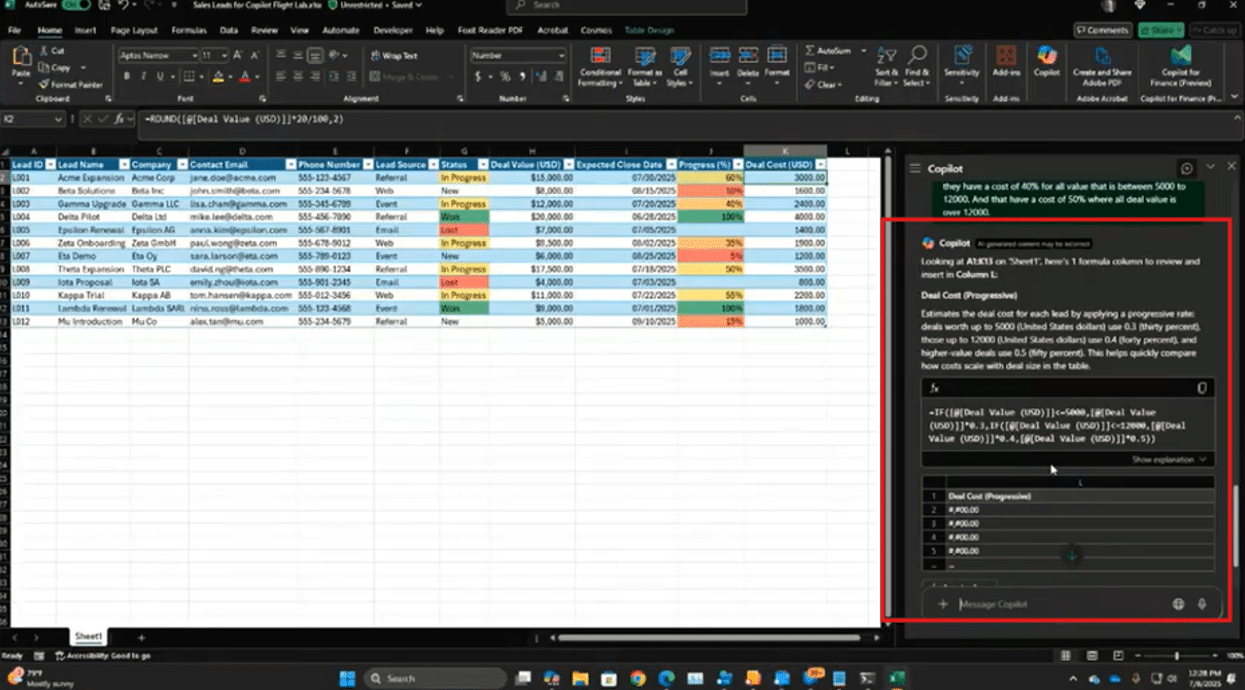
Copilot will generate a complex nested formula automatically, which is something a lot of users would really struggle to write manually. This allows anyone to create sophisticated and complex logic without advanced Excel skills.
Formatting and Cleaning Data Automatically
Copilot can also handle formatting and cleanup tasks. For example, when formatting needs adjustment, you can simply ask:
“Remove the custom formatting and apply a general format.”
Copilot immediately corrected the formatting. Several common examples of ways you can use Copilot to format and clean data include:
- Fix formatting issues
- Apply number formats
- Remove errors
- Address inconsistent data
- Standardize columns
This dramatically reduces manual cleanup work, freeing your team up to focus on more important things.
Creating Business Insights Instantly
You can also utilize Copilot in Excel to generate business insights like identifying trends, calculating key performance metrics, spotting outliers, providing summaries, and more.
Creating Deal Margins
In our example, we’ll ask Copilot to create a deal margin. Here is the prompt we will use:
“Go ahead and create a new field called “Deal Margin (USD)” and take the Deal Value minus the Deal Cost (Progressive) to generate that value.”
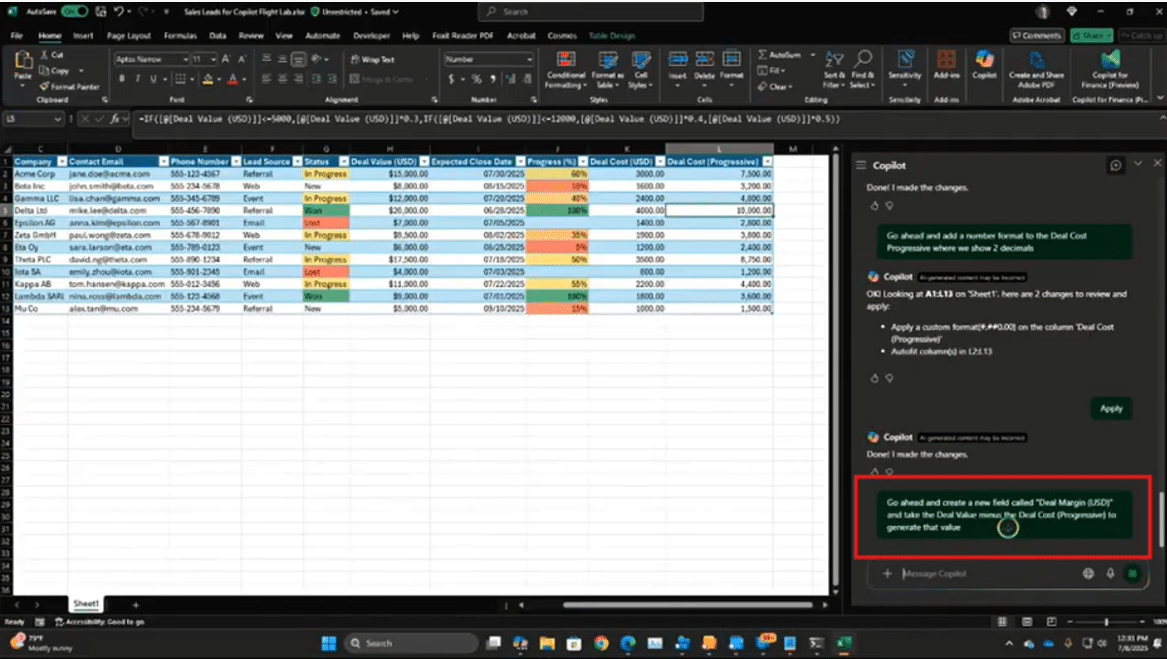
In the example, we’ll ask for a formatting change by prompting: “Remove the custom format from the Deal Margin and apply a general format to it.” (This is something you can do manually, but why not stay in Copilot if you already have it open!)
Copilot created a new column and applied the calculation across all rows. In fact, it generated something more robust that accounted for potential data inconsistencies, which can improve spreadsheet reliability.
Once it returns those results, you can apply them, and it will be updated immediately.
Highlighting Specific Data
In our example, I’ll ask Copilot to “Highlight any of the deal costs (Progressive.) that exceed $3,000.”
Once it returns the information and defines the fill color and font color. You can tell them to apply it, and it will make the changes.
Using Copilot to Create Charts Out of Data
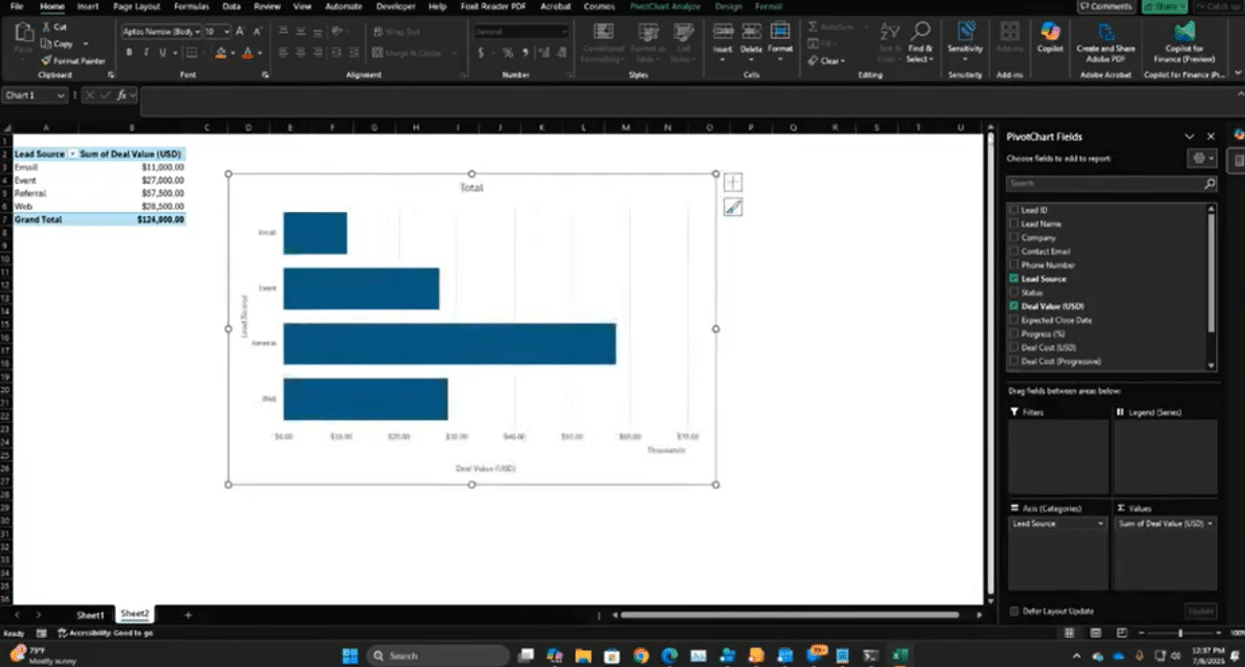
While Excel sheets are effective for data analysis, they aren’t always the most visually appealing or easy to understand. With Copilot in Excel, you can ask it to create a data visual. For example, we can take our Sales Leads spreadsheet and ask Copilot to “create a bar chart that shows the Total Deal Value by Lead Source in this spreadsheet.”
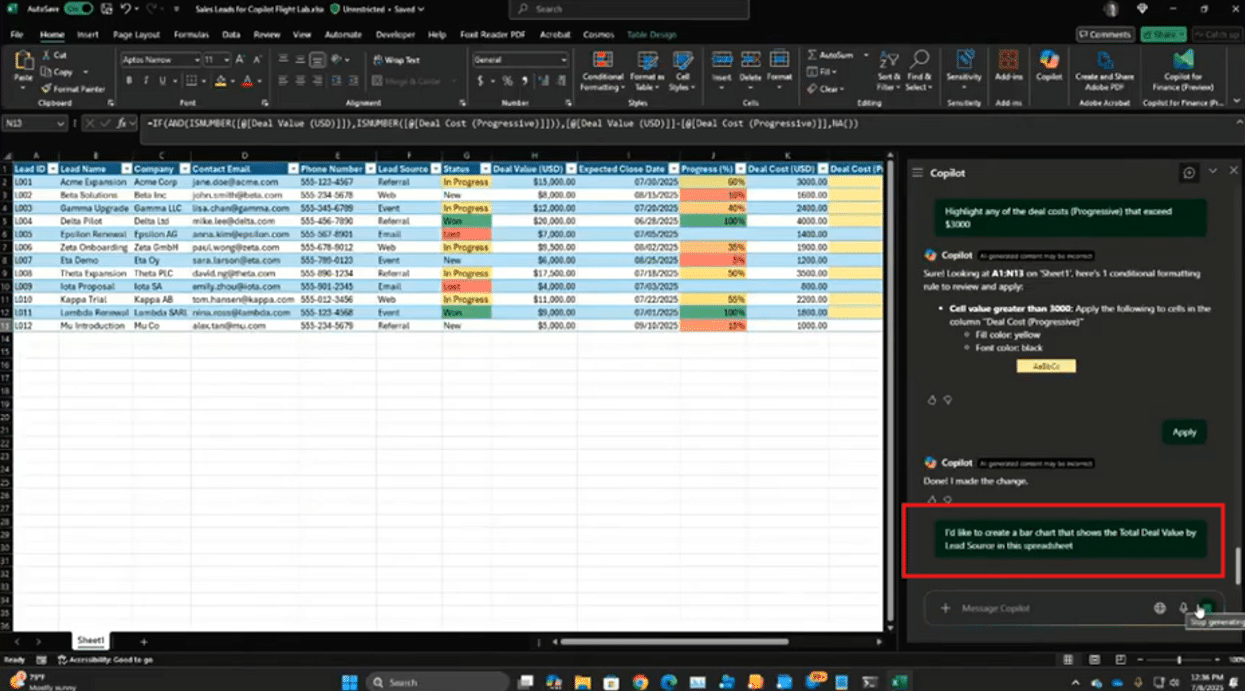
Copilot will give you a bar chart that you can quickly put on a second sheet. This provides you and anyone looking at the data with a more visually appealing and easier-to-understand method of analyzing the data.
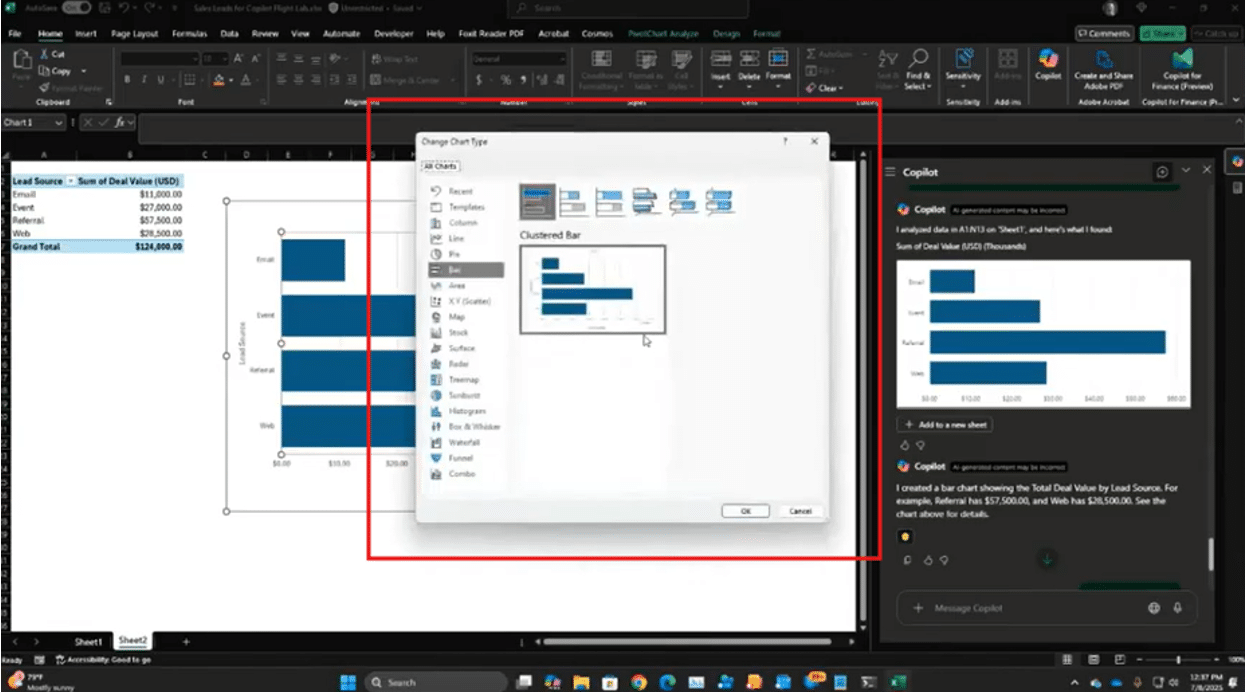
You can also change the type of chart or appearance of it depending on your personal preference or brand guidelines in terms of colors.
Ask Questions of the Data to Find Specific Information
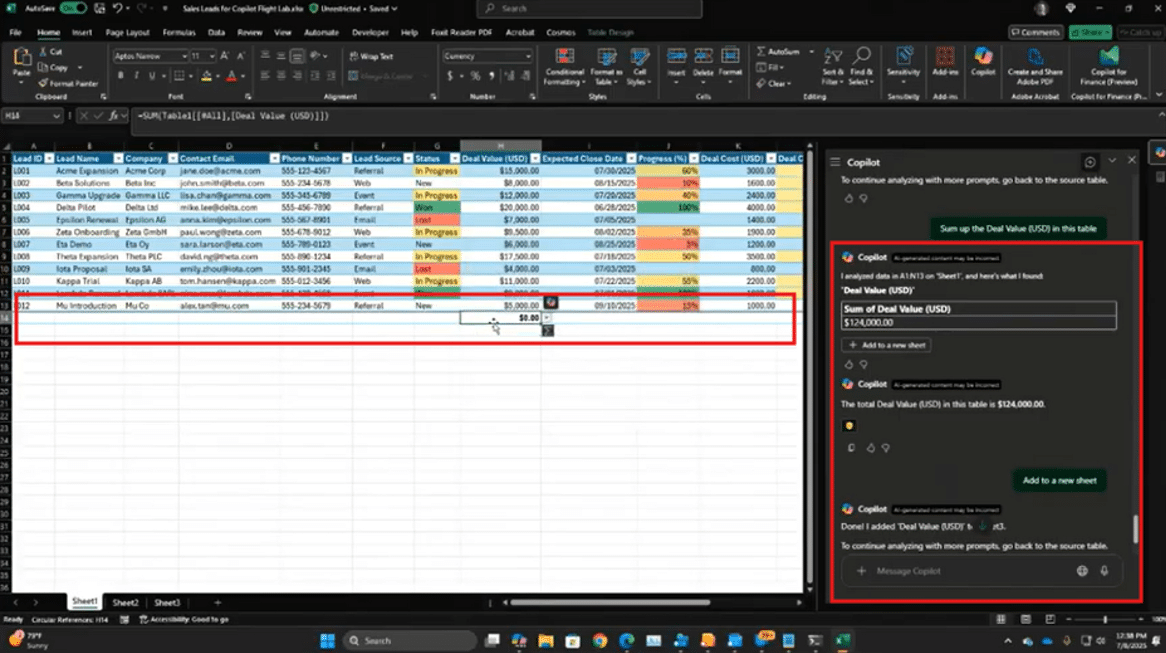
By using a simple prompt of “Sum up the Deal Value (USD) in this table,” you can gain quick and easy business insights. In this case, you will get the sum value. From there you can add it to another sheet or add it as another cell within the original spreadsheet.
Create More Complex Pivot Tables and Scenarios for Drill Down Analysis
Let’s ask Copilot, “Can you create a pivot table that sums the Deal Value (USD) AND THE Deal Cost (USD) by Lead Source and by Status?”
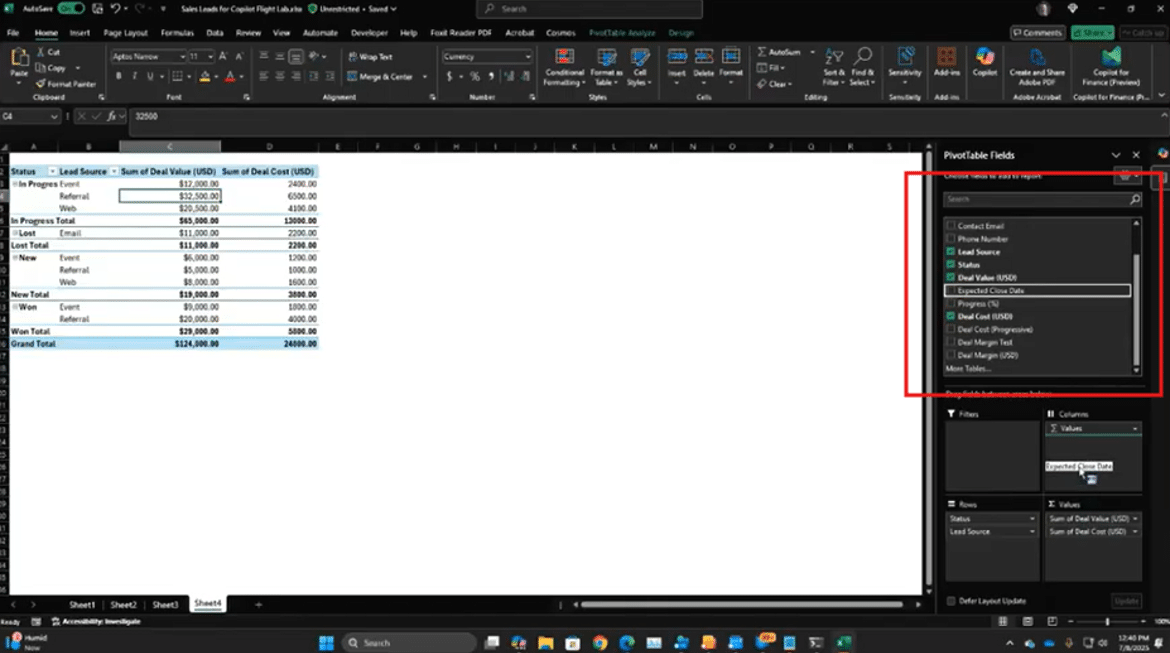
It gives us an entirely new pivot table with the sum of the Deal Value and the sum of the Deal Cost. You can then add that to a new sheet. This is a feature that you would typically reserve for bigger spreadsheets with a lot of rows and columns.
From here, you can use the check box menu on the right-hand side to add more fields to the PivotTable, increasing the amount of analysis you can do.
More Advanced Capabilities: How Far Can You Take Copilot in Excel?
There are a ton of great ways you can use Copilot in Excel to improve data management and enhance your spreadsheets. There are several things many clients wonder about, such as how far you can take it in its current form:
Data Analysis
While Copilot in Excel is great for compiling, organizing, sorting, and optimizing data for analysis, it’s not quite an analysis tool itself just yet.
However, in the Copilot experience, you can select an option called “Get Deeper Analysis with Results using Python.” It takes the table you have and uses a concept called “clustering” to determine where there are going to be similarities within the data, so you can create narratives based on what you are analyzing.
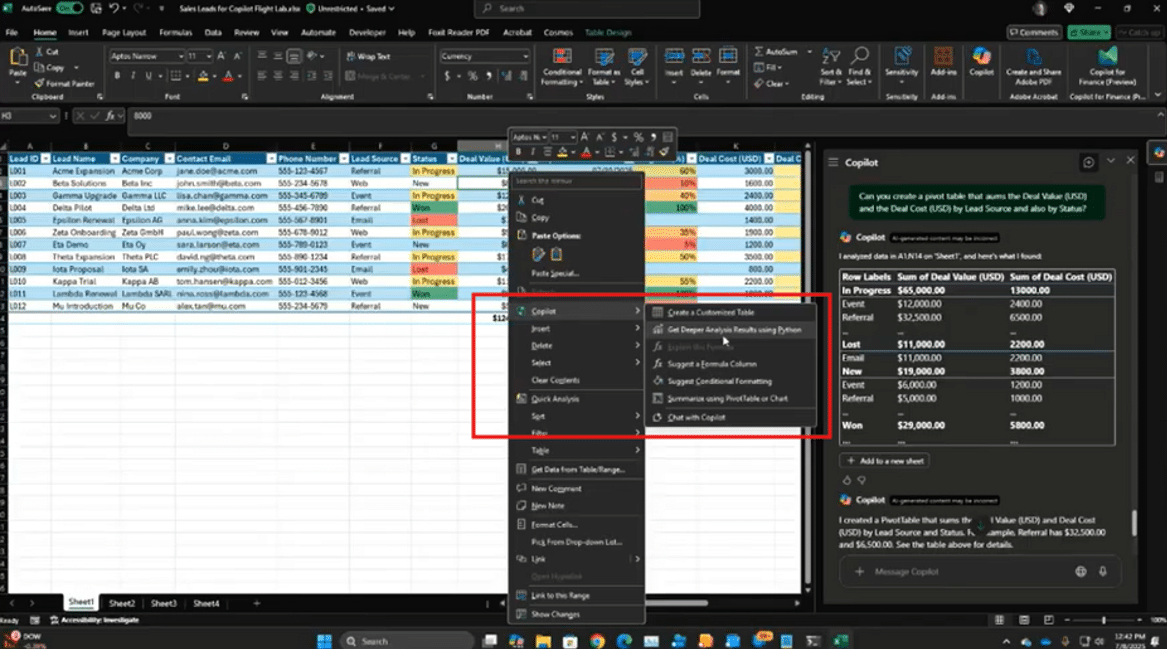
You might be wondering, “Python is a programming language. Isn’t that very complicated?” While the short answer is yet, the beauty of this is that you can still use the natural language abilities of Copilot to prompt the data analysis through Python, allowing you to sidestep complex programming needs.
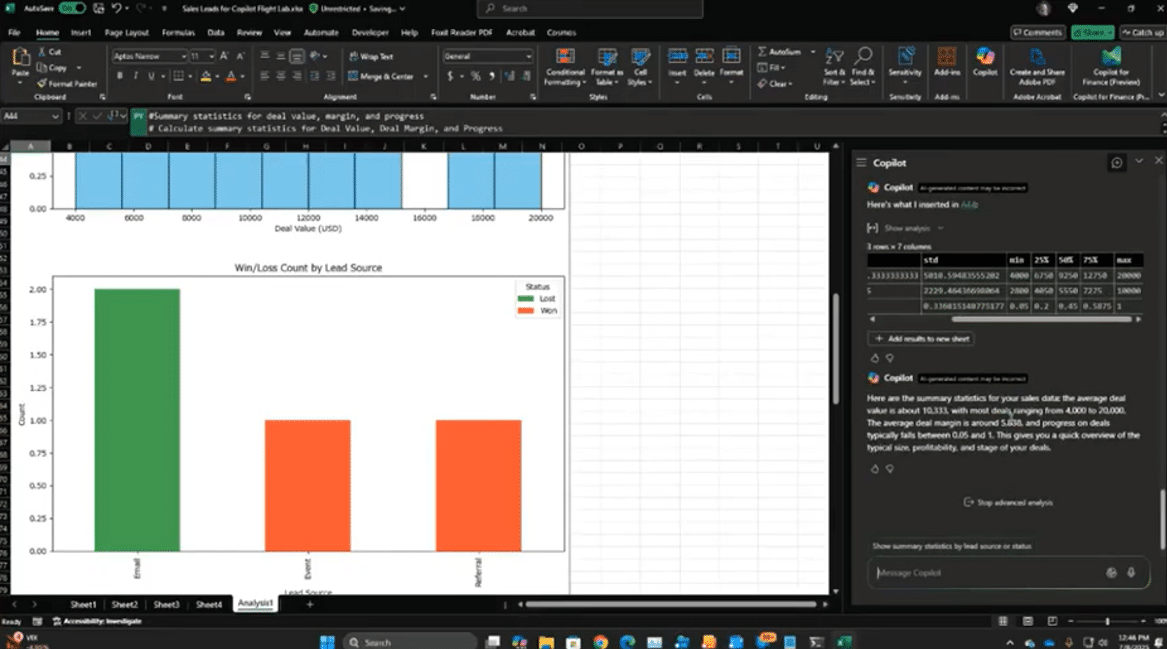
The result of using this feature is a much more thorough breakdown of your data and more intelligent analysis capabilities.
Copilot Helps You Work Smarter, Not Harder
Copilot in Excel represents a major shift in how we interact with spreadsheets. Instead of learning Excel’s language, Excel now understands yours. While this example is just that, you can hopefully use it as a base for your business in determining how you can use it to optimize performance and make work easier for your team members.
Whether you’re creating reports, analyzing financials, tracking sales, or building forecasts, Copilot helps you:
- Work faster
- Reduce errors
- Gain insights sooner
- Focus on decision-making instead of manual tasks
It transforms Excel from a tool you operate into a partner that supports your work.
Learn More About Copilot with Stoneridge Software!
Are you a Microsoft Dynamics user new to Copilot and looking for a place to start? Looking to boost internal adoption rates of Copilot and AI? Or are you wanting to optimize performance but aren’t sure what workflows to tackle? Stoneridge can help.
We have Copilot specific trainings that you and your team can take part in:
- Copilot M365 Flight Plan: A guided journey to effective, secure AI adoption across your organization through hands-on training and expert support.
- Copilot Flight Schools: Just getting started? No problem! You and your team can gain the skills, understanding, and confidence to use Copilot effectively in M365 and Dynamics 365.
- Copilot Agent Lift Off Lab: Hands-on workshops where you can build your very own Copilot agents that address your unique business needs.
Copilot is an extremely powerful too, but to truly maximize its value and drive ROI, working with the right partner can take you to the next level. That’s where we come in.
Stoneridge Software can help you implement Copilot across your organization, whether its within M365 tools like Excel, Outlook, or Teams, or within your Dynamics 365 ERP and CRM software systems. Whether you’re just getting started or are looking to optimize or boost internal adoption of Copilot, our experts an help.

Under the terms of this license, you are authorized to share and redistribute the content across various mediums, subject to adherence to the specified conditions: you must provide proper attribution to Stoneridge as the original creator in a manner that does not imply their endorsement of your use, the material is to be utilized solely for non-commercial purposes, and alterations, modifications, or derivative works based on the original material are strictly prohibited.
Responsibility rests with the licensee to ensure that their use of the material does not violate any other rights.