














How to Digitize Documents Effortlessly with OneDrive Mobile App’s Scan Feature
The OneDrive mobile app makes scanning and saving documents simple and secure—perfect for busy teams and clients who need quick access to digital files. Whether it’s a receipt, a signed contract, or meeting notes, you can turn paper into digital files in seconds without a scanner. In this blog, we'll explore the benefits of the scan feature and walk you through how to use it in OneDrive.
Why the Scan Feature Is Useful
- Convenience: Scan paperwork, receipts, or multi-page documents directly from your phone—no need for a separate scanner
- Easy Editing: Crop, rotate, add text, mark up, and reorder scanned pages before saving
- Organization: Save scans directly to your OneDrive folders, making them easy to find and share with colleagues or clients
- Security: All scanned documents are stored safely in your OneDrive, accessible only to you and those you choose to share with
How to Use the Scan Feature
- Install the OneDrive App: Download from the Play Store (Android) or App Store (iPhone).
- Sign In: Use your company email and authenticate as prompted.
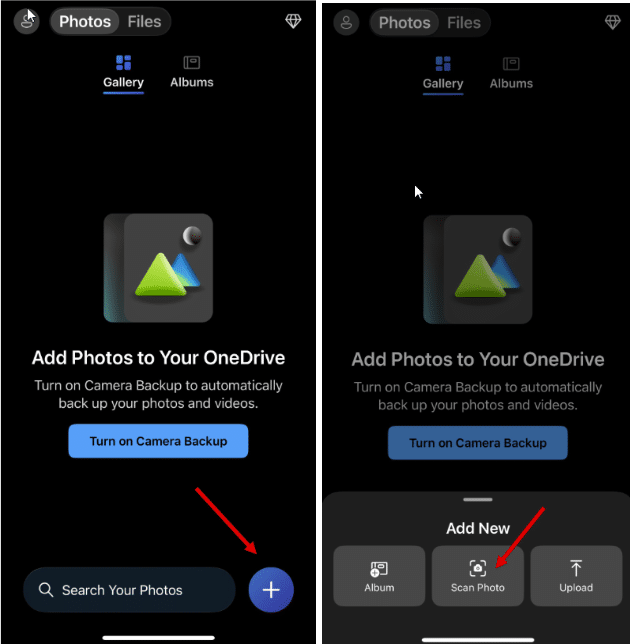
- Start Scanning: Tap the "+" icon, then select "Scan Photo." Allow camera access if prompted.
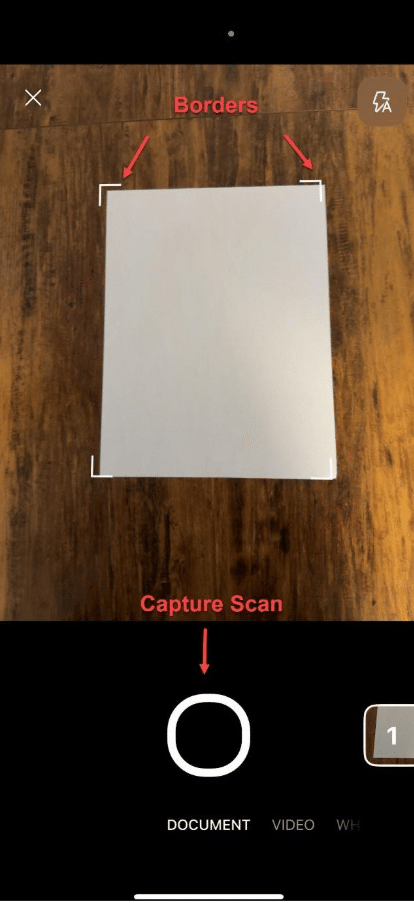
4. Capture Your Document: Align with the border guides and tap to scan. For multiple pages, use the "add image" icon.
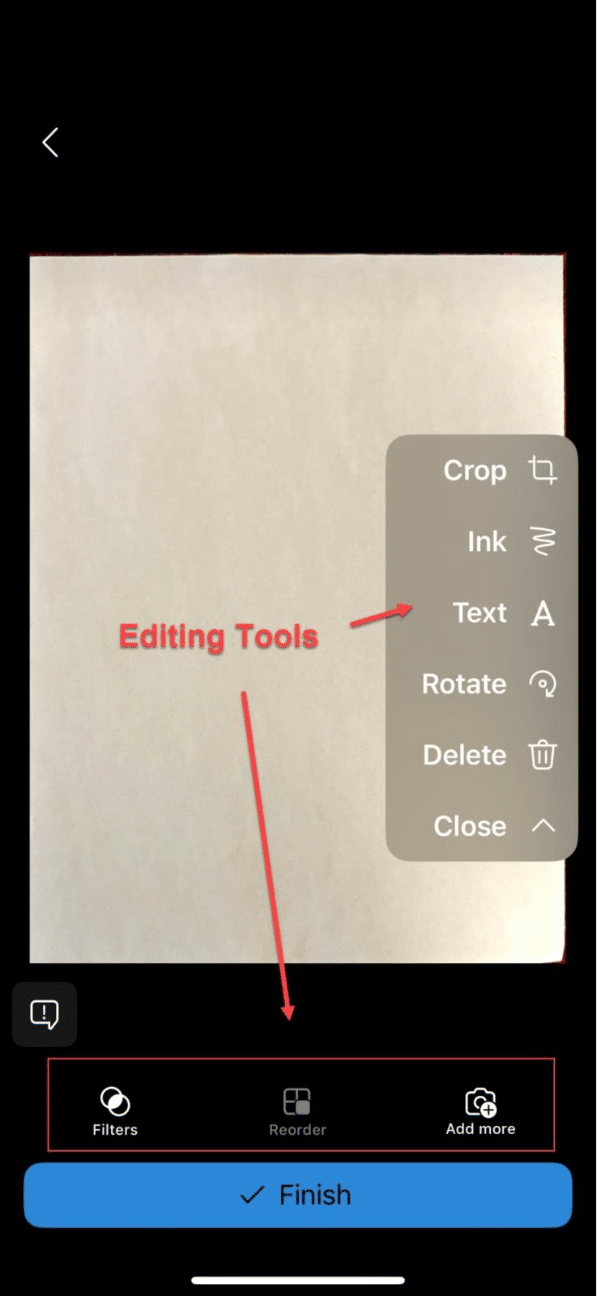
5. Edit and Organize: Use on-screen tools to crop, rotate, add text, or reorder pages. Click "Review and Edit" to finalize.
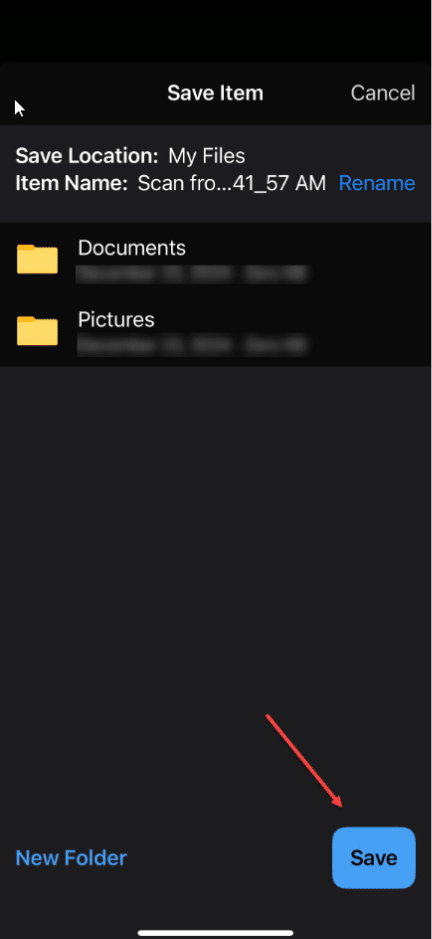
6. Save to OneDrive: Choose your folder and tap "Save." Your scan is now ready, stored in your OneDrive for easy access!
Keep Your Workflow Simple
Scanning with OneDrive is just one way to make document management easier. If you're looking for more tips on using Microsoft 365 tools to stay organized and collaborate better, reach out to our team—we’re here to help you get the most out of your Microsoft solutions!

Under the terms of this license, you are authorized to share and redistribute the content across various mediums, subject to adherence to the specified conditions: you must provide proper attribution to Stoneridge as the original creator in a manner that does not imply their endorsement of your use, the material is to be utilized solely for non-commercial purposes, and alterations, modifications, or derivative works based on the original material are strictly prohibited.
Responsibility rests with the licensee to ensure that their use of the material does not violate any other rights.