















How to Request Approval to Close an Opportunity in Dynamics CE Using Power Automate and Adaptive Cards
As a Sales Manager, you want a streamlined way for your sales team to request approval before closing an Opportunity in Dynamics 365 Customer Engagement (CE). Instead of relying on emails or manual notifications, we can automate this process using Power Automate Flows and Adaptive Cards—making approvals faster, clearer, and actionable right from Teams or Email.
How It Works
1. Sales Rep Triggers the Approval Request
When a sales rep is ready to close an Opportunity in Dynamics CE, they check a field to kick off an approval request and a Flow runs automatically based on this field changing.
2. Power Automate Sends an Adaptive Card to the Sales Manager
A Power Automate Flow is triggered, which:
- Pulls key details from the Opportunity (e.g., Deal Amount, Customer Name, Close Date,).
- Formats this information into a visually appealing Adaptive Card (an interactive message).
- Sends the card directly to the Sales channel in Microsoft Teams.

3. The Sales Manager Reviews & Approves, Rejects or requests more information in One Click
The Adaptive Card includes:
- Key Opportunity Details (Customer, Amount, Closing Date)
- Approval Decision drop-down list (No need to log into Dynamics)
- Additional Info Field (Optional comments if unable to approve without additional information)
When the manager clicks Submit, Power Automate updates the Opportunity in Dynamics CE, which could drive any amount of additional automation — all without manual data entry.
Why This is Better Than Email Approvals
- Faster Decisions – Approve or reject with one click
- No Logins Required – Works in Teams or email
- Real-Time Updates – Dynamics CE stays in sync
- Audit Trail – Approval history is tracked in Dynamics
Flow Overview:
This automated approval process triggers when an opportunity is created or modified in Dynamics 365, specifically when the "Request Approval to Close" field is set to "Yes".
Flow Components:
1. Trigger:
- "When an Opportunity is Added or Modified" (Dynamics 365 connector)
- Activates when an opportunity record is created or updated
- Checks if "Request Approval to Close" field equals "Yes"

2. Actions:
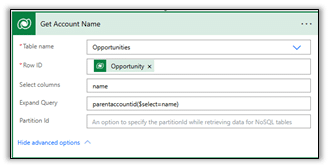
- Get Account Name:
- Retrieves the related account name using "Get Row" action
- Used to display the account information in the adaptive card
- Post Adaptive Card and Wait for Response:
- Sends a rich interactive card to the approver via Teams/email
- Uses the provided JSON to construct the card with:
- Company logo/image
- Clear approval request title
- Opportunity details (name, probability, account, value, close date)
- Decision dropdown with 3 options (Approved, Not Approved, More Information Needed)
- Optional comments field for additional information
- Action buttons (View in CRM and Submit)

This is the JSON that was used:
{
"type": "AdaptiveCard",
"version": "1.5",
"body": [
{
"type": "Image",
"url": "https://<YourImage>"
},
{
"type": "TextBlock",
"text": "Approval Request: Close Opportunity",
"weight": "bolder",
"size": "large"
},
{
"type": "TextBlock",
"text": "Opportunity ** @{triggerOutputs()?['body/name']} ** with a Probablity of @{triggerOutputs()?['body/closeprobability']}% ** needs your approval to close **",
"wrap": true
},
{
"type": "FactSet",
"facts": [
{
"title": "Account",
"value": "@{outputs('Get_Account_Name')?['body/parentaccountid/name']}"
},
{
"title": "Estimated Value",
"value": "$@{triggerOutputs()?['body/estimatedvalue']}"
},
{
"title": "Close Date",
"value": "@{triggerOutputs()?['body/estimatedclosedate']}"
}
]
},
{
"type": "Input.ChoiceSet",
"id": "approvalDecision",
"label": "Your Decision",
"style": "compact",
"isRequired": true,
"choices": [
{
"title": "Approved",
"value": "approved"
},
{
"title": "Not Approved",
"value": "notApproved"
},
{
"title": "More Information Needed",
"value": "moreInfoNeeded"
}
]
},
{
"type": "Input.Text",
"id": "additionalInformation",
"label": "What additional information is required?",
"isMultiline": true,
"placeholder": "Please specify what information you need...",
"wrap": true
}
],
"actions": [
{
"type": "Action.OpenUrl",
"title": "View in CRM",
"url": "https://<YourOrg>.crm.dynamics.com/main.aspx?appid=<YourApp>&pagetype=entityrecord&etn=opportunity&id=@{triggerOutputs()?['body/opportunityid']}"
},
{
"type": "Action.Submit",
"title": "Submit",
"data": {
"action": "submitApproval"
}
}
]
}
- Parse JSON:
- Processes the response from the adaptive card
- Creates easily referenceable outputs for the decision and comments

This is the Schema we used:
{
"type": "object",
"properties": {
"responseTime": {
"type": "string"
},
"responder": {
"type": "object",
"properties": {
"objectId": {
"type": "string"
},
"tenantId": {
"type": "string"
},
"email": {
"type": "string"
},
"userPrincipalName": {
"type": "string"
},
"displayName": {
"type": "string"
}
}
},
"submitActionId": {
"type": "string"
},
"messageId": {
"type": "string"
},
"messageLink": {
"type": "string"
},
"data": {
"type": "object",
"properties": {
"approvalDecision": {
"type": "string"
},
"additionalInformation": {
"type": "string"
},
"action": {
"type": "string"
}
}
}
}
}
It's also worth noting that we get the sender in the response, so we are able to use that to capture who has made the approval.
- Switch Control:
- Branches based on the approval decision:
- Case 1: "approved"
- Case 2: "notApproved"
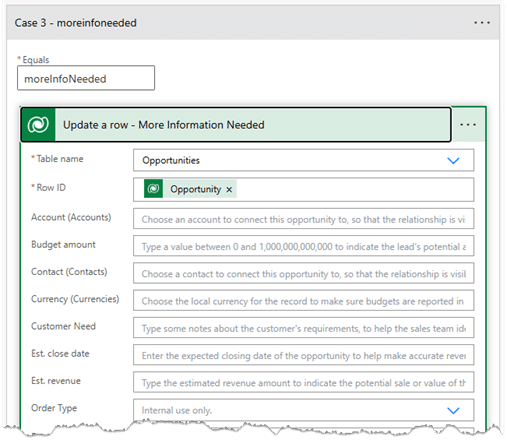
- Case 3: "moreInfoNeeded"
- Branches based on the approval decision:

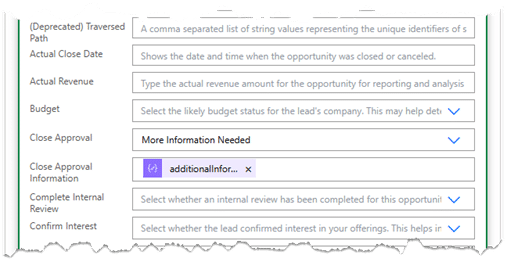
- Update Opportunity:
- For each case in the switch:
- Updates the opportunity record with:
- The approval decision
- Any additional information provided by the approver
- For each case in the switch:
Key Features:
- Dynamic Data: Pulls real-time opportunity details into the card (name, probability, value, etc.)
- User-Friendly Design: Includes the company logo and clear formatting
- Actionable: Provides direct link to view the opportunity in CRM
- Comprehensive Options: Three decision paths with space for comments
- Tracking: Captures both the decision and rationale in Dynamics
This flow creates an efficient approval workflow that maintains all communication and decisions directly within the CRM record for auditability and reference.
For More Information
Whether you're looking to simplify sales approvals, automate key processes with Power Automate, or explore how Adaptive Cards can improve communication in Dynamics CE, our team is here to help you implement a solution that fits into your workflow. Contact us to get started!

Under the terms of this license, you are authorized to share and redistribute the content across various mediums, subject to adherence to the specified conditions: you must provide proper attribution to Stoneridge as the original creator in a manner that does not imply their endorsement of your use, the material is to be utilized solely for non-commercial purposes, and alterations, modifications, or derivative works based on the original material are strictly prohibited.
Responsibility rests with the licensee to ensure that their use of the material does not violate any other rights.