














Microsoft Entra PIM: How to Assign Users as Eligible for Privileged Roles
What is Microsoft Entra Privileged Identity Management (PIM)?
Microsoft Entra PIM is a security feature within Microsoft Entra ID (formerly Azure Active Directory) that helps organizations manage, control, and monitor access to important resources. By implementing just-in-time privileged access and robust auditing, Entra PIM reduces risks associated with excessive, unnecessary, or misused permissions.
In this blog, you’ll learn how to assign users as eligible for privileged roles, configure approval and activation settings, and understand how these roles appear for your users.

Why should I configure Entra PIM?
Configuring Entra PIM strengthens identity and access security by reducing the risk of excessive privileges, enforcing governance, and supporting zero-trust. Key features include:
- Just-in-Time Access: Users can request temporary access to privileged roles, minimizing the period during which high-level permissions are active.
- Approval Workflow: Admins can require approval before privileged access is granted.
- Time-bound Access: Access can be limited to a specific time window, automatically expiring afterwards.
- Access Reviews: Regular reviews ensure that only necessary users retain privileged roles.
- Audit History: All activation and deactivation events are logged for security and compliance.
How do I get started with Entra PIM?
Enabling PIM requires a Microsoft Entra ID Premium P2 license, which is included with Microsoft 365 E5 plans.
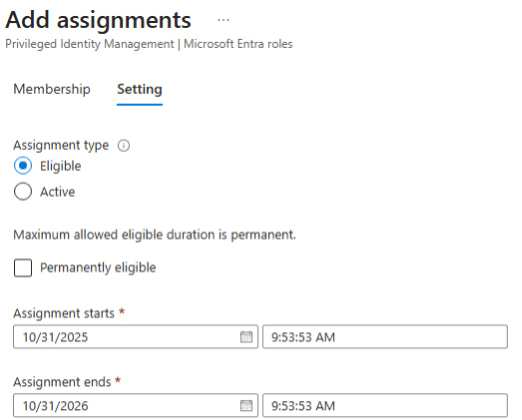
1. Assign Eligible Roles: This blog focuses on assigning users as eligible for roles rather than permanent assignment. Eligible users must activate their roles when needed, and admins are notified during the request. This approach will be illustrated in the screenshot below and in the steps outlined later in the blog.
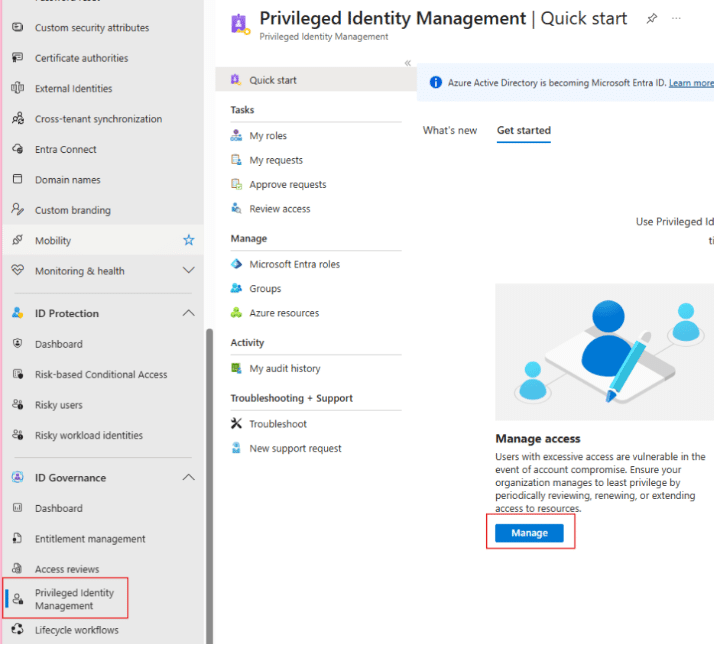
2. Configure Settings: Set up approval requirements, activation durations, and notification preferences for each privileged role assigned. This is especially helpful for scenarios like team member vacations, short-term role additions, and infrequent role-dependent activities.
What does this look like for my users?
When a user needs elevated permissions, such as Global Administrator or Security Administrator, the process is streamlined and secure:
1. Sign In: The user accesses the Microsoft Entra admin center and navigates to PIM. This can also be done via an email link.
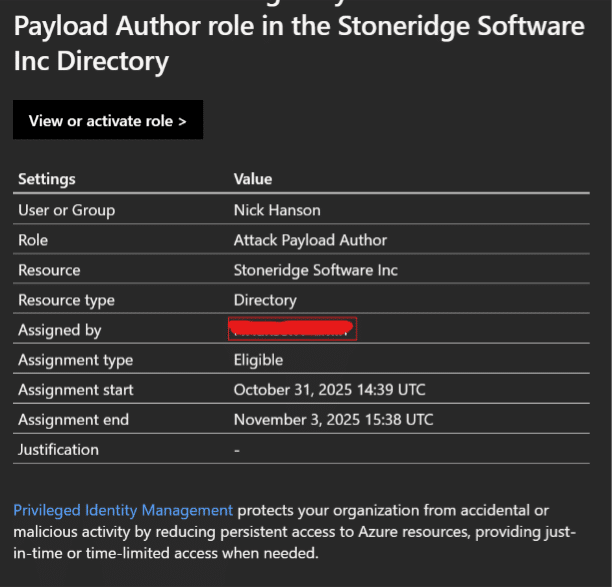
2. Request Activation: The user selects the eligible role and clicks ‘Activate.’ Depending on the configuration, they may need to specify a reason for activation and set a duration. The duration determines the time before another activation request must be completed and can be set between 1 and 24 hours.

3. Approval (if required): If approval is set, the request is routed to designated approvers. The user receives a notification once approved.
4. Perform Tasks: After activation, the user has privileged access for the specified time. All actions taken during this period are logged.
5. Automatic Deactivation: Once the time expires, the role is automatically deactivated, and the user returns to standard access.
Highlights and Best Practices
These key features in Entra PIM help you manage privileged roles effectively:
- Dashboard: Displays eligible roles, status, and pending approvals
- Notifications: Users and approvers receive email alerts for activation requests and expirations
- Audit Logs: Users can view their activation history for compliance and accountability
Follow these guidelines to reduce risk and ensure proper governance:
- Assign privileged roles as eligible rather than permanent to minimize risk
- Require justification and approval for activating sensitive roles
- Set activation durations as short as practical
- Regularly review audit logs and perform access reviews
How the Stoneridge Team Can Help
Every tenant and user base is different. The Stoneridge team can help:
- Configure a custom strategy to enhance security across your organization
- Train users and admins on best practices for your zero-trust journey
- Assist with licensing assessment and procurement
Our team is happy to answer questions, talk through your goals, and guide you through next steps at your pace. Reach out to start the conversation.
Under the terms of this license, you are authorized to share and redistribute the content across various mediums, subject to adherence to the specified conditions: you must provide proper attribution to Stoneridge as the original creator in a manner that does not imply their endorsement of your use, the material is to be utilized solely for non-commercial purposes, and alterations, modifications, or derivative works based on the original material are strictly prohibited.
Responsibility rests with the licensee to ensure that their use of the material does not violate any other rights.