









Deep Dive into Microsoft Copilot Cowork Agents: Turning AI into Action Across Your Business
What if your AI assistant could do more than answer questions? Imagine turning meeting notes into a polished newsletter, generating reports from your Dynamics 365 data, or coordinating workflows without completing every step manually.
That's the promise of Microsoft Copilot Cowork. While traditional Copilot experiences focus on generating content and answering questions, Cowork takes things further by helping you execute multi-step tasks, connect with business data, and automate repeatable processes.
In this blog and video, we'll explore how Cowork works through practical examples from our recent Stoneridge Software Flight Lab session. You'll learn how to use Cowork with Microsoft 365, Dynamics 365, Power Automate, and OneDrive, along with tips for creating reusable skills and avoiding common pitfalls.

What Is Microsoft Copilot Cowork?
Microsoft Copilot Cowork represents a shift from traditional prompt-and-response AI toward an agent that helps complete tasks on your behalf.
Instead of asking Copilot a question and manually completing the next steps, you can describe your desired outcome and let Cowork develop a plan to achieve it.
For example, you could ask Cowork to review your recent project activity, generate a weekly status report, format it in Word, and prepare an email for your leadership team.
Cowork can coordinate the tools and information needed to produce that deliverable.
Three characteristics make Cowork particularly useful:
- Connected: It works with Microsoft 365 information and, through supported integrations, business systems such as Dynamics 365.
- Action-oriented: It can create documents, generate reports, and perform supported actions rather than simply recommending next steps.
- Skill-driven: It uses reusable instructions called skills to complete tasks consistently.
You also don't need to remain in the conversation while Cowork processes a request. You can start a task, continue working, and return when it's ready.
Copilot Chat vs. Cowork: Key Differences
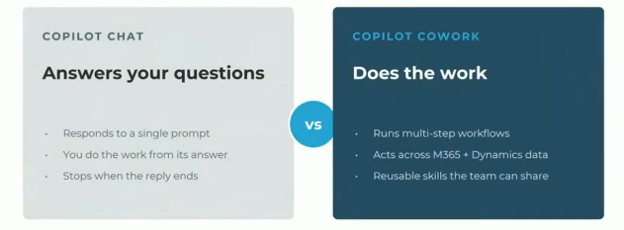
Although Copilot Chat and Cowork share similarities, they serve different purposes.
Copilot Chat is ideal for brainstorming, researching information, asking questions, and refining content.
Cowork is better suited for coordinating activities and producing a specific outcome.
| Copilot Chat | Copilot Cowork |
| Responds to questions and prompts | Executes multi-step tasks |
| Supports brainstorming and research | Coordinates workflows and actions |
| Helps you develop plans | Helps you carry out plans |
| Primarily conversational | Action-oriented and skill-driven |
Consider preparing a weekly leadership update. With Chat, you might summarize project activity, copy the results into a document, and prepare an email yourself.
With Cowork, you could request the entire workflow: gather project information, organize it into a report, create the document, and draft the email.
Chat helps you think through your work, while Cowork helps you get that work done.
Demo: Creating Content and Workflows from Meeting Data
One practical use for Cowork is transforming information you already have into useful business content.
During our Flight Lab demonstration, we turned a Microsoft Teams meeting recap into a polished newsletter and established a repeatable process for future meetings.
Step 1: Start with Your Meeting Transcript
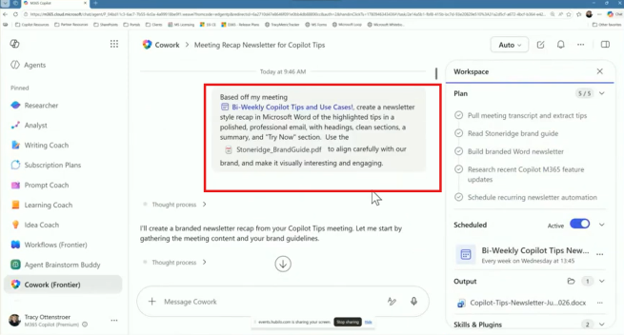
We asked Cowork to review a recorded Copilot Tips and Tricks meeting and create a professional newsletter highlighting its key lessons.
Our instructions included:
- A polished Microsoft Word document.
- Clear headings and organized sections.
- A summary of key takeaways.
- A "Try Now" section with practical recommendations.
- Formatting aligned with the Stoneridge Software brand guide.
Providing the brand guide gave Cowork a reference for the document's appearance and presentation.
Step 2: Refine the Task While Cowork Works
One interesting capability is that you can provide additional instructions while Cowork processes your request.
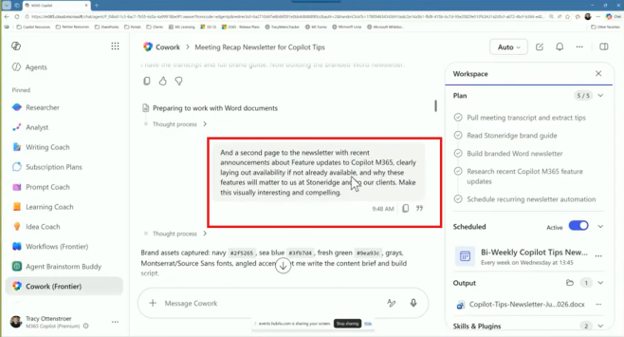
During the demonstration, we decided the newsletter should include recent Microsoft 365 Copilot feature announcements.
We asked Cowork to add that information and conduct deeper research to distinguish features already available from those still rolling out.
Cowork incorporated these requirements without requiring us to restart the task.
Step 3: Make the Process Repeatable
Once Cowork generated the newsletter, we asked it to repeat the process after future Copilot Tips and Tricks meetings and deliver the document for review before publication.
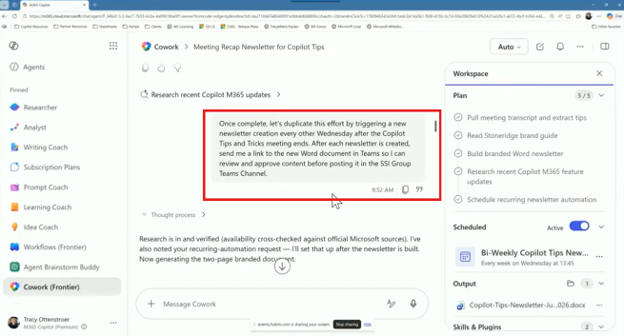
Cowork established a scheduled task that could be activated or deactivated with the single click of a toggle button.
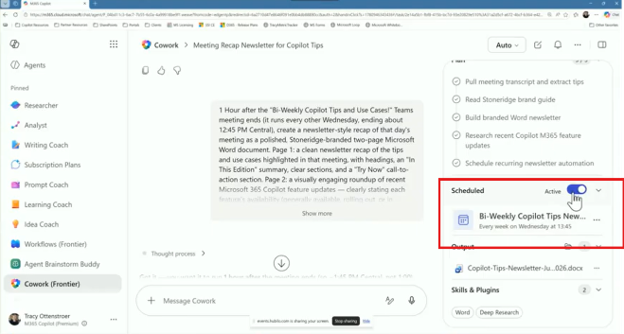
This demonstrates an important advantage: you can turn a successful one-time task into a repeatable workflow.
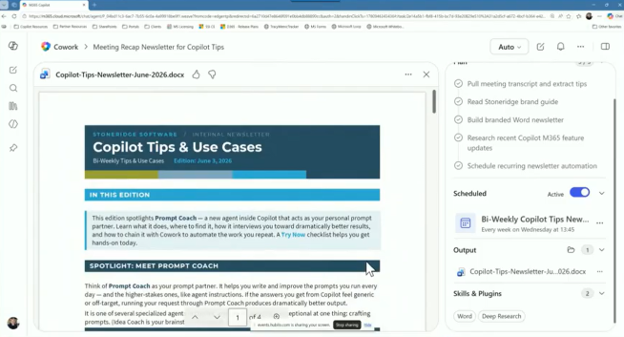
The same approach could help you create customer meeting summaries, training recaps, project updates, or internal communications. Here is a preview of the finished product from the video demonstration:
Skills in Copilot Cowork: What They Are and How They Work
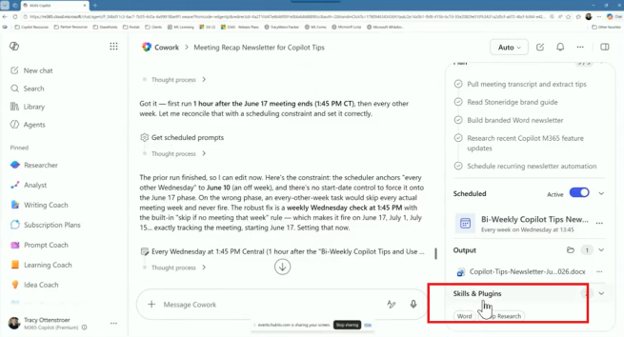
One of Cowork's most interesting features is its ability to use skills.
What Are Copilot Cowork Skills?
A skill is a reusable set of instructions that tells Cowork how to accomplish a particular task.
For example, you might regularly create weekly status reports that follow the same format.
Instead of providing detailed instructions every time, you could create a skill defining the report's structure, required information, formatting, and expected output.
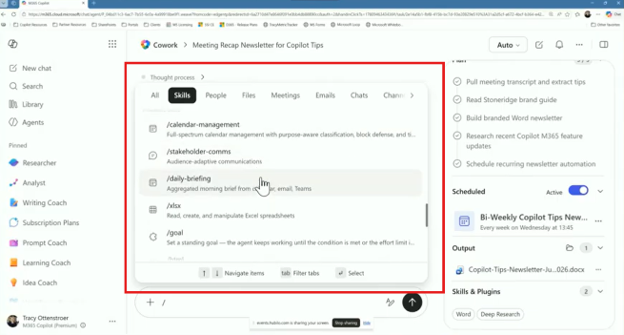
During our demonstration, we explored custom skills and installed skills for activities such as:
- Creating branded Word documents.
- Generating Excel spreadsheets and dashboards.
- Preparing stakeholder communications.
- Managing calendars.
- Producing weekly reports and time sheets.
How Do Skills Work?
Skills can be defined using Markdown files, identified by the “.md” extension. These files contain structured instructions describing how a task should be performed and you don’t need extensive coding experience to create one.
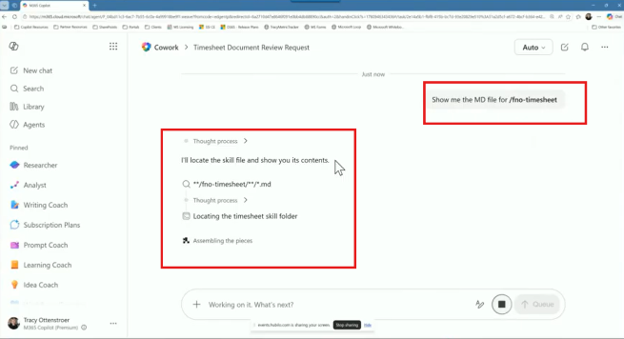
For example, imagine you want every Word document generated by your team to follow your organization's branding guidelines.
You could:
- Start a Cowork session and provide your brand guide.
- Ask Cowork to create a reusable skill for branded Word documents.
- Review and refine the instructions.
- Install the skill for future requests.
- Share it with colleagues where supported.
Rather than attaching the same instructions every time, you can create a reusable process that helps standardize results.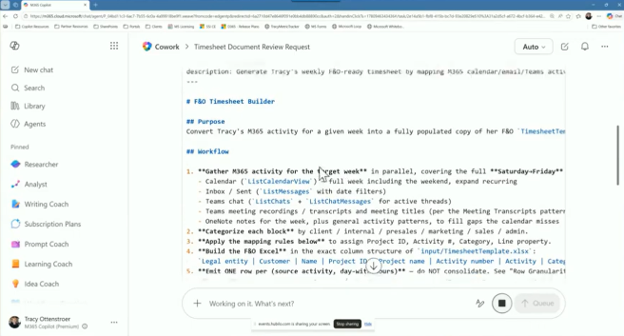
For teams producing similar documents or reports, shared skills can support greater consistency across the organization.
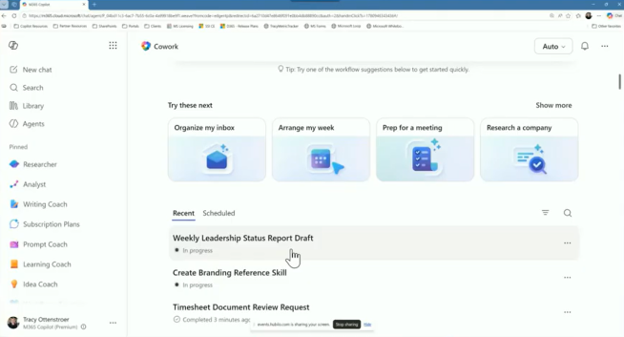
Connecting Copilot Cowork to Dynamics 365 and Business Data: Let’s See it in Action!
Many of your most important business processes depend on information stored in ERP, CRM, and other operational systems.
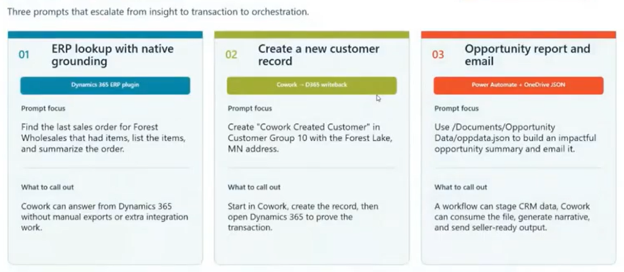
Connecting Cowork to Dynamics 365 allows you to work with that information through natural-language requests.
During our Flight Lab demonstration, we used plugins connecting Cowork to Dynamics 365 ERP, CRM, customer service applications, and Fabric IQ.
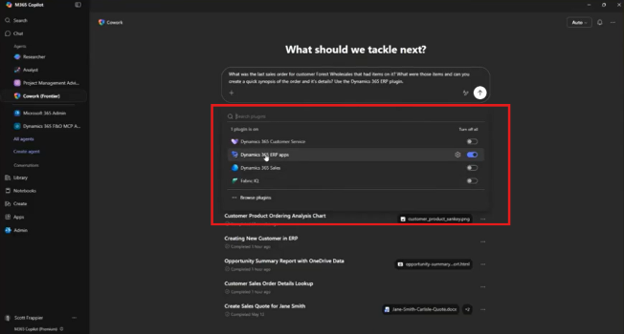
Demo 1: Looking Up a Customer's Sales Order
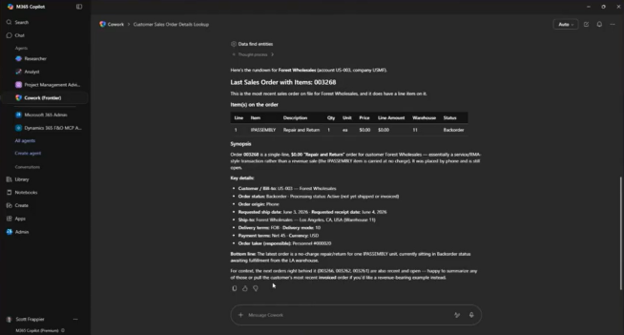
Our first example involved asking Cowork to find a customer's latest sales order, identify the items involved, and generate a summary.
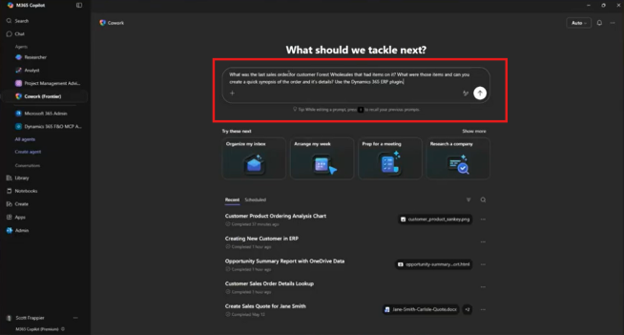
Cowork located the customer, retrieved the relevant sales order, and provided transaction details. Highlighting each step taken along the way.
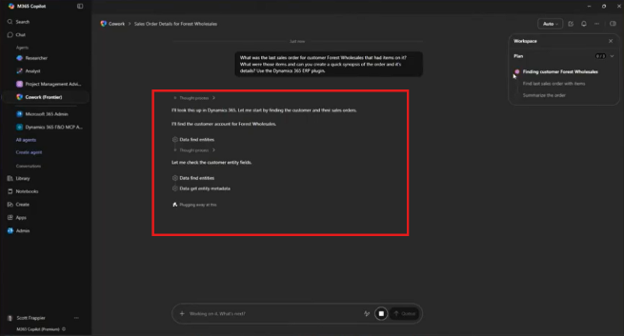
Imagine speaking with a customer and needing to quickly review their order history. Instead of navigating several ERP screens, you could ask Cowork for the information.
Demo 2: Creating Visualizations from ERP Data
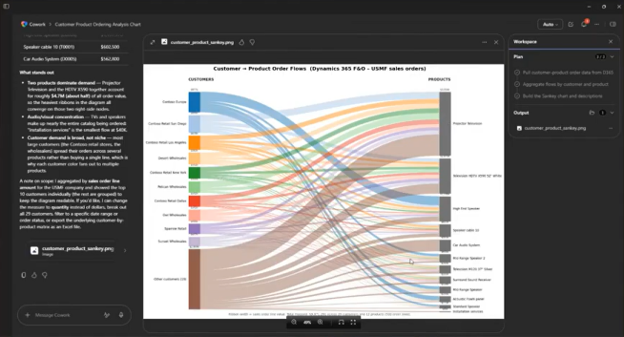
Next, we asked Cowork to generate a Sankey chart showing relationships between customers, products, and order values.
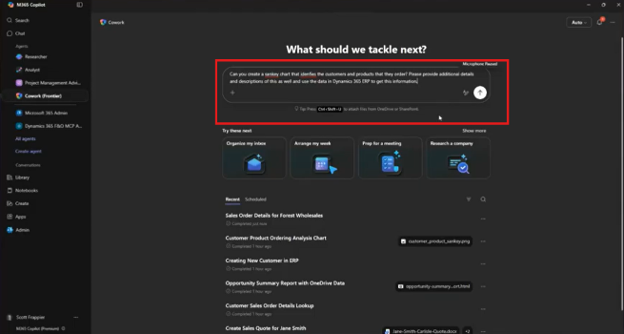
Cowork retrieved sales order information, connected the necessary data, and generated a visualization with additional observations.
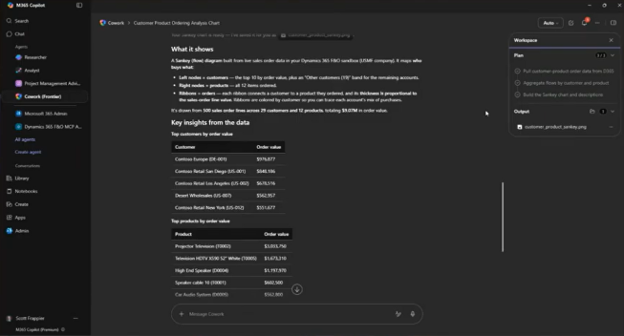
This demonstrates how Cowork can help you analyze larger datasets rather than simply retrieve individual records.
Demo 3: Creating Records in Dynamics 365
Cowork can also perform supported write operations such as creating Excel files, updating ERP records, or creating new records in CRM.
We asked it to create a customer record in Dynamics 365 Finance and Operations, providing details such as the customer’s name, group, currency, and address.
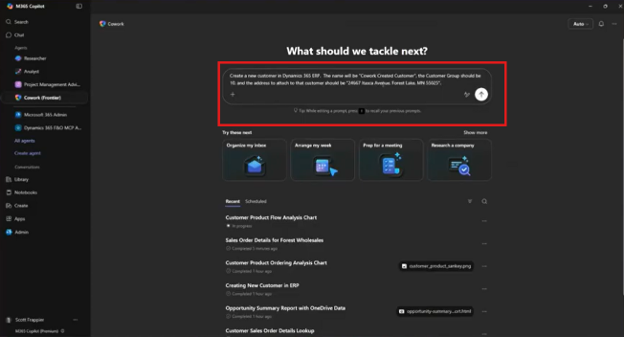
Cowork processed the request and created the record, which we then verified in Dynamics 365. You can then jump over to your Dynamics 365 ERP system and view or edit the record.
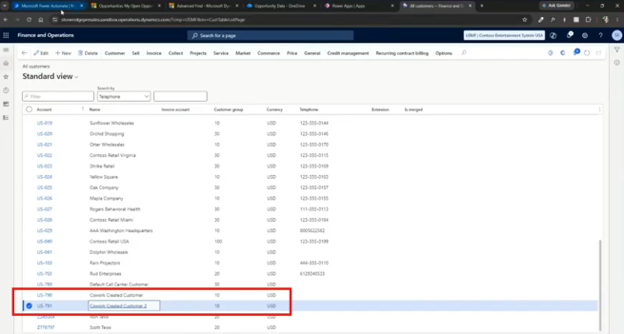
The takeaway is that Cowork can do more than read business data. With appropriate integrations and permissions, it can also perform actions within your systems.
Automating Reports and Workflows with Power Automate and OneDrive
What happens when your data isn't available through a direct Cowork plugin? This is a common scenario we find with a lot of our clients. The great news is you can still build useful workflows using Power Automate and OneDrive.
During the demonstration, we created an opportunity summary report using information stored in Dataverse.
Rather than connecting Cowork directly to the source, we used Power Automate to retrieve the data and save it to OneDrive for Business.
Using Power Automate to Prepare Your Data
The process involved:
- Creating a cloud flow: We configured an instant cloud flow with a manual trigger.
- Connecting to Dataverse: We selected the appropriate opportunity table. You can also connect to other services like Azure and Azure SQL.
- Retrieving records: We configured the flow to collect the relevant data. For example, we can select an opportunity table.
- Creating a OneDrive file: We saved the information in a designated folder as a JSON file.
- Testing the flow: We confirmed that the data was available for Cowork to use.
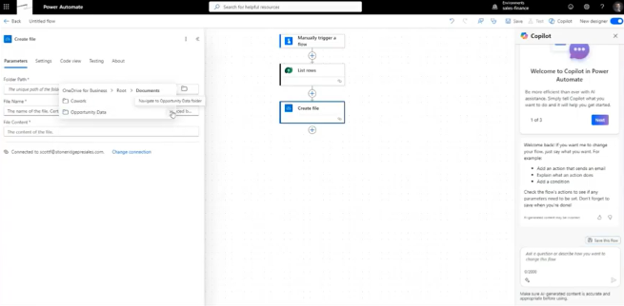
We also demonstrated how Copilot within Power Automate can help generate expressions, reducing the need to write them manually.
Turning Your Data into a Report
Once the information was available in OneDrive, we asked Cowork to generate an opportunity summary report.
The resulting report included information such as:
- Open opportunities and pipeline values.
- Won revenue.
- Opportunities categorized as hot, warm, or cold.
- Top customers by won revenue.
- The largest open opportunities.
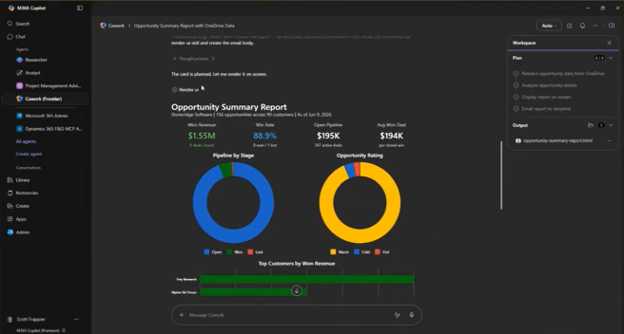
Cowork also generated an HTML email containing the report's key information.
Although our example used a manually triggered flow, you could configure Power Automate to refresh the source data on a schedule.
This creates opportunities for repeatable reporting workflows, even when a direct Cowork integration isn't available.
Governance and Permissions Considerations
As Cowork becomes more capable of accessing information and performing actions, governance becomes increasingly important.
One key point from our demonstration is that Cowork operates within the user's security context.
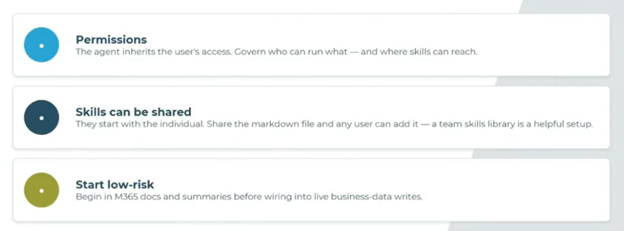
Its ability to retrieve information or modify records depends on the permissions available through the user's identity and connected systems.
Before expanding Cowork across your organization, consider:
- User permissions: Confirm employees have appropriate access to the information and systems they need.
- Identity management: Review Microsoft Entra ID and your organization's access policies.
- Data governance: Make sure information is accurate, relevant, and appropriately protected.
- Skills management: Maintain approved reusable skills where appropriate.
- Approval processes: Establish review requirements for sensitive actions and communications.
Starting with low-risk scenarios can help your team build confidence while maintaining appropriate oversight.
Common Traps to Avoid
Like any AI-enabled tool, Cowork works best when you understand its limitations.
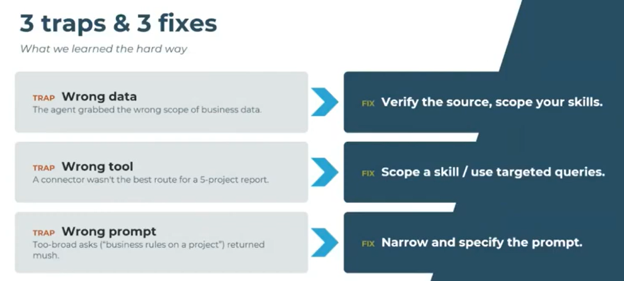
Here are three common pitfalls to watch for.
Not Verifying Your Data Sources
Cowork can retrieve information from multiple sources, but that doesn't mean every result will be accurate.
Review the data used in generated reports and confirm that the results are grounded in the correct documents or business records.
Choosing the Wrong Tool
Not every task requires a complex Cowork workflow.
Copilot Chat may be sufficient for a quick question, while Power Automate might be better suited for moving data between systems.
Choose your tools based on the outcome you're trying to achieve.
Making Your Prompts Too Broad
Asking Cowork to "analyze our business opportunities" leaves considerable room for interpretation.
A more useful request would be:
"Using the opportunity data in this OneDrive folder, summarize open opportunities by sales stage, including estimated revenue and the five largest opportunities."
Be specific about your data sources, requirements, and expected output. For important business fields, instruct Cowork to ask for missing information rather than make assumptions.
Key Takeaways and Where to Start Experimenting
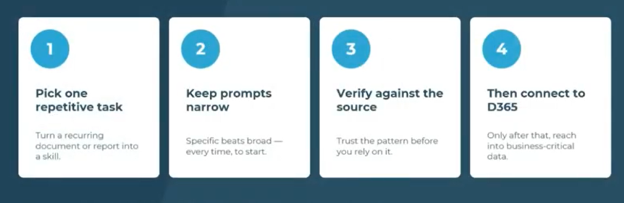
You don't need to begin with a complicated automation project to see the value of Cowork.
A better approach is to identify one repetitive activity that takes time away from more important work.
Here are five ways to start experimenting:
- Turn meeting recaps into content: Create summaries, newsletters, or action plans from Teams meetings.
- Generate recurring reports: Experiment with weekly project or leadership updates.
- Build your first skill: Create reusable instructions for a document or process you regularly complete.
- Explore business data: Retrieve and summarize Dynamics 365 information using supported connections.
- Try Power Automate: Make a small, controlled dataset available for Cowork to analyze.
Start with a focused request, verify the results, and gradually expand your workflows.
The most important takeaway is that Cowork helps you move from asking AI for assistance to delegating meaningful portions of your work.
Put Microsoft Copilot Cowork to Work with Stoneridge Software
Microsoft Copilot Cowork represents an exciting step forward in how AI can support your business.
But getting the most out of these capabilities requires a thoughtful approach. From configuring integrations and managing permissions to developing reusable skills and identifying automation opportunities, you need a strategy that connects AI to your business needs.
That's where Stoneridge Software can help. As a Microsoft Inner Circle partner, we help organizations implement, optimize, and get more value from Dynamics 365, Microsoft 365 Copilot, and Power Platform. Whether you're exploring Cowork for the first time or expanding AI-driven workflows across your organization, our team can help you turn these capabilities into practical business solutions.
Ready to put Copilot Cowork to work? Connect with Stoneridge Software to explore the possibilities.

Under the terms of this license, you are authorized to share and redistribute the content across various mediums, subject to adherence to the specified conditions: you must provide proper attribution to Stoneridge as the original creator in a manner that does not imply their endorsement of your use, the material is to be utilized solely for non-commercial purposes, and alterations, modifications, or derivative works based on the original material are strictly prohibited.
Responsibility rests with the licensee to ensure that their use of the material does not violate any other rights.