















Using Copilot Cowork with Dynamics 365 Finance and Supply Chain Management
What if you could talk to your ERP instead of navigating through it?
With Copilot Cowork and Dynamics 365 Finance and Supply Chain Management, (F&SCM) you can use natural language to ask questions about your business data, analyze information, create transactions, and even generate reports without relying solely on the traditional ERP interface.
This capability has the potential to change how you and your employees interact with Dynamics 365. Let's take a closer look at what Microsoft Copilot Cowork is, how the Model Context Protocol (MCP) enables these interactions, and how you can use the technology with Dynamics 365 Finance and Supply Chain Management.
What is Copilot Cowork?
Moving Beyond Conversations
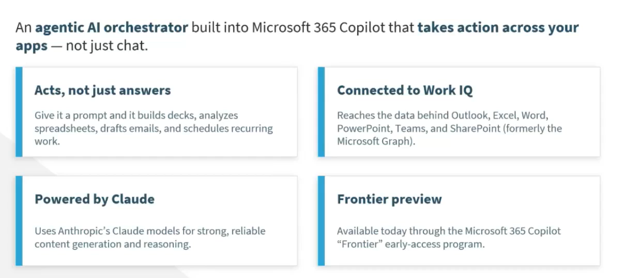
Microsoft Copilot Cowork is an agentic AI orchestrator built into Microsoft 365. While a traditional AI chatbot can answer questions, Cowork is designed to go further by helping you act across connected applications.
You can provide Cowork with a prompt and use it to support a variety of tasks, including:
- Building presentations
- Analyzing spreadsheets
- Drafting emails
- Supporting recurring work
- Gathering and analyzing information from connected Microsoft 365 applications
Cowork can work with information and context from applications such as Outlook, Excel, Word, PowerPoint, Teams, and SharePoint. When connected to your business systems, that broader context can become even more valuable.
For Dynamics 365 users, this means you can begin interacting with ERP data more conversationally. Instead of always knowing exactly where to navigate, which form to open, or how to filter a list, you can describe what you need in plain language.
What is Model Context Protocol (MCP)?
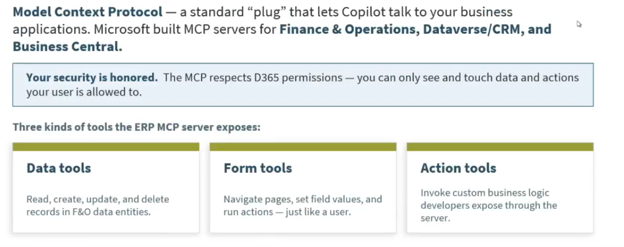
Model Context Protocol, or MCP, is the connection that helps provide AI with the context it needs to interact with an application.
Think of MCP as a way of explaining your application to Copilot. Dynamics 365 F&SCM contains business logic, data structures, workflows, and customizations that are not inherently obvious to an AI assistant. MCP helps expose the appropriate tools and context so Cowork can understand how to work with your environment.
Importantly, this interaction respects your Dynamics 365 permissions. Cowork acts on your behalf, which means you can only access data and perform actions that your user account is already authorized to access. Your existing security model remains an important part of the experience.
The MCP server can expose different types of capabilities, including:
- Data tools for working with records and data entities
- Form tools that can navigate through Dynamics 365 forms when necessary
- Custom business logic developed specifically for your Finance and Supply Chain Management environment
This flexibility is very effective because Cowork is not limited to simply retrieving data from a single source. If the information or action you need is not available through one approach, it can use other available tools to complete the task.
How Cowork Fits into an ERP and Dynamics 365
One of the biggest misconceptions surrounding AI is that it will simply replace traditional business applications.
The reality, however, is that your ERP still performs the critical work behind the scenes. Dynamics 365 continues to provide the business logic, workflows, security, controls, and data infrastructure your organization relies on. Your Azure SQL database still stores your business data, while the application layer continues to process the logic that supports your operations.
What changes is how you interact with that ERP.
Traditionally, you might access Dynamics 365 through a web interface, navigating through forms, dashboards, reports, and menus to find information or complete a task. Cowork introduces another layer of interaction: natural language.
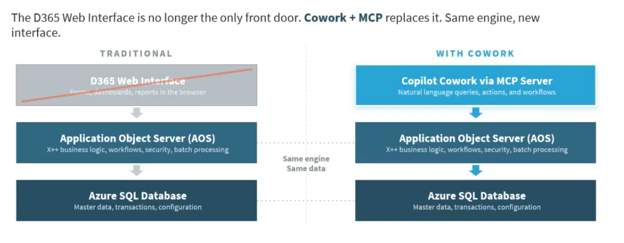
With Cowork, you can ask a question, request information, or tell Cowork what you want to accomplish. Through MCP, Cowork can then interact with Dynamics 365 on your behalf.
That opens the door to several useful scenarios:
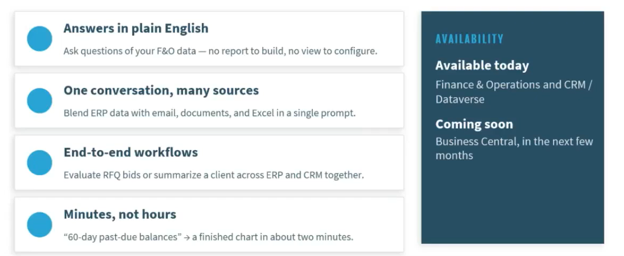
Ask Questions in Plain Language
You may no longer need to know exactly where a piece of information lives before starting your search. Instead, you can ask for what you need.
For example:
"Give me a list of all purchase orders created in the last week."
Cowork can then determine where it needs to look and return the available information.
Combine Information from Multiple Sources
Your ERP data does not always tell the complete story by itself.
Cowork can potentially combine ERP information with context from other connected sources, such as emails, documents, spreadsheets, and CRM data. This can help you bring together information that might otherwise require multiple searches across different applications.
Go Beyond Answers to Take Immediate Action
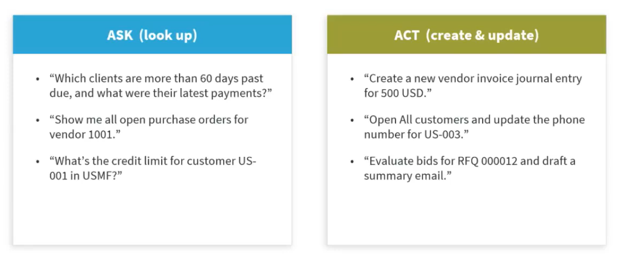
Perhaps the most significant capability is the ability to move beyond querying information.
Cowork can support actions and workflows, allowing you to describe a task in natural language and work through the information needed to complete it. That could mean creating a transaction, adding information, or initiating a process within Dynamics 365.
For you and your employees, the potential benefit is a more intuitive way to work with your ERP while still relying on the controls and business logic that Dynamics 365 provides.

Demonstration: How to Set Up Cowork and Use it in Dynamics 365 Finance and Supply Chain Management
Let's walk through how you can enable and begin using Cowork with Dynamics 365 Finance and Supply Chain Management.
Enabling Cowork for D365 Finance and Supply Chain Management
Before you can begin interacting with your ERP through Cowork, there are several configuration steps required.
Step 1: Join the Frontier Program and Enable Copilot Frontier
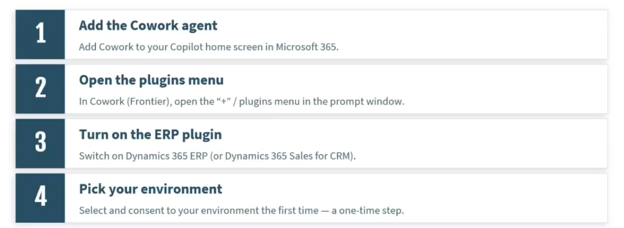
If your organization is not already participating in the applicable Frontier program, you will first need to enable the relevant Copilot Frontier capabilities through your Microsoft 365 administration settings.
This is an administrative step, so you may need assistance from your system administrator.
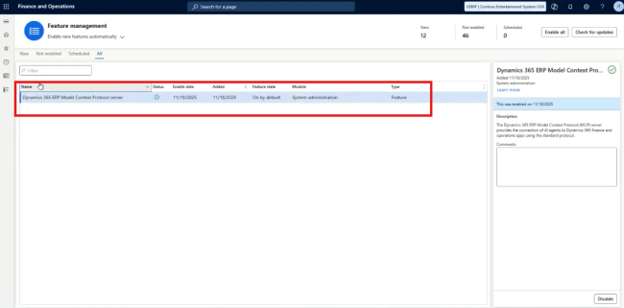
Step 2: Enable the D365 ERP Model Context Protocol Server
Next, go to your Dynamics 365 Finance and Supply Chain Management environment.
From the Feature management workspace, search for the D365 ERP Model Context Protocol server feature. The feature may already be enabled by default in your environment. If it is not enabled, you will need to enable it before continuing.
Step 3: Add Cowork as an Allowed MCP Client
You will then need to configure Cowork as an allowed MCP client.
Navigate to the allowed MCP clients configuration area and add the required client information. The key configuration items include:
- The client name
- The required client ID
- Setting the client to Allowed
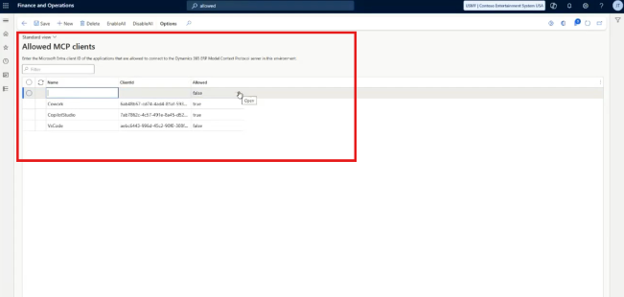
The demonstration notes that a specific Cowork client ID is required for this configuration rather than a client ID you generate yourself. Be sure to use the current Microsoft-provided configuration information for your environment.
Step 4: Add the Cowork Agent and Enable the ERP Plugin
Once the Dynamics 365 configuration is complete, open the Microsoft 365 Copilot application.
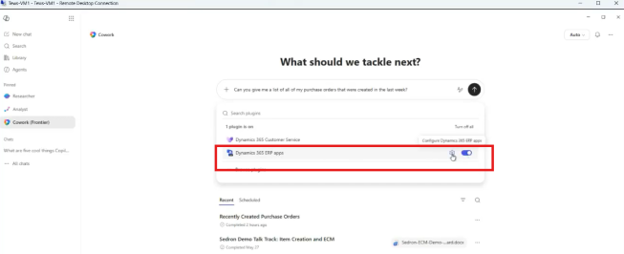
From there:
- Go to the available agents.
- Find and install the Cowork Frontier agent.
- Open Cowork.
- Go to Manage plugins.
- Turn on the D365 ERP apps plugin.
- Configure the plugin and select the correct Dynamics 365 environment.
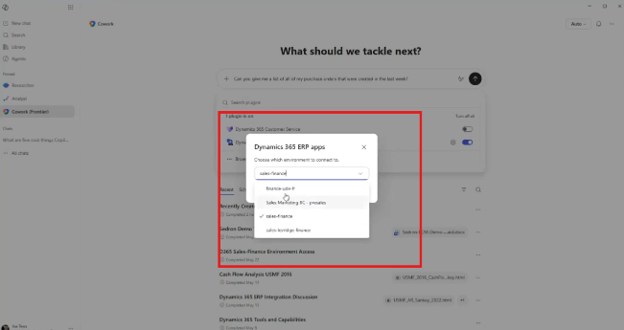
Selecting the correct environment is important, particularly if your organization has multiple environments available.
Once these pieces are in place, you are ready to begin talking to your ERP.
Querying with Cowork
The simplest place to start is by asking Cowork a question.
For example, you could enter a prompt such as:
"Can you give me a list of all of my purchase orders that were created in the last week?"
Cowork then begins working through the available Dynamics 365 data and tools to find an answer.
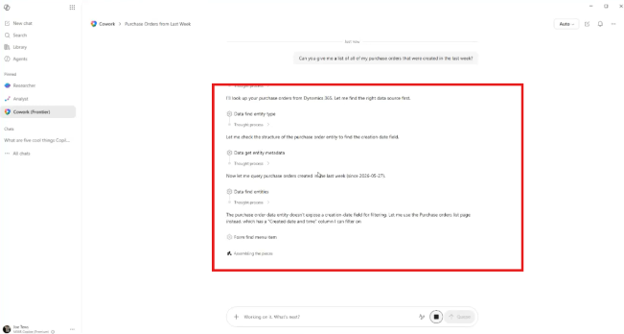
One particularly interesting part of this process is how Cowork adapts when the information is not immediately available through a data entity. In the demonstration, it first attempts to locate the required purchase order information through available data sources. When the desired creation-date information is not directly available in that location, Cowork looks for additional information and can navigate to the appropriate Dynamics 365 list page to continue gathering data.
Cowork can return the purchase orders it identifies, provide additional context about the information, and invite you to continue the conversation.
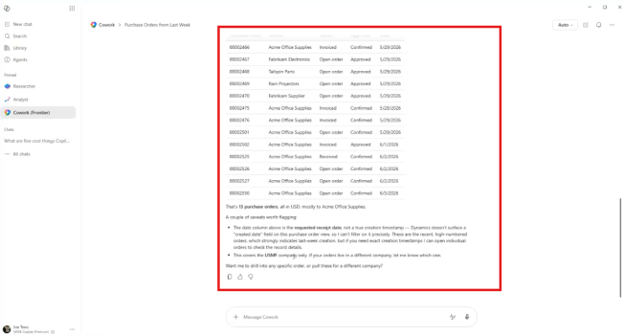
You could then ask something more specific, such as:
"Pull up the details for purchase order 2525."
Cowork can retrieve the available header and line-item information and help you analyze it without requiring you to manually navigate through the traditional Dynamics 365 interface first.
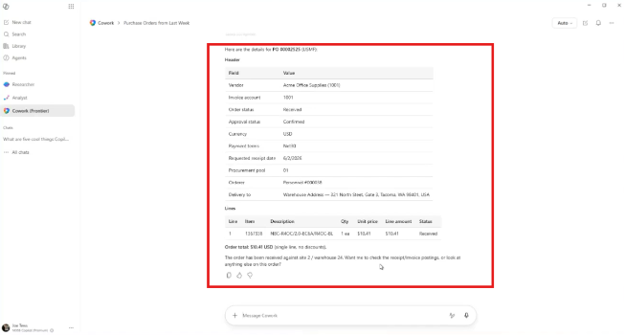
This approach can be especially useful when you know what you want to find but do not want to spend time navigating through multiple forms or determining where every piece of information is stored.
Creating and Confirming Transactions Using Cowork
Querying data is useful, but Cowork can also help you take action.
Consider a purchase order creation scenario.
You could provide Cowork with a prompt containing the information it needs, such as:
"I need to create a new purchase order in USMF. The company is Acme Office Supplies, and I need to order 10 A001 HDMI cables to site one, warehouse 11. Ask any clarifying questions."
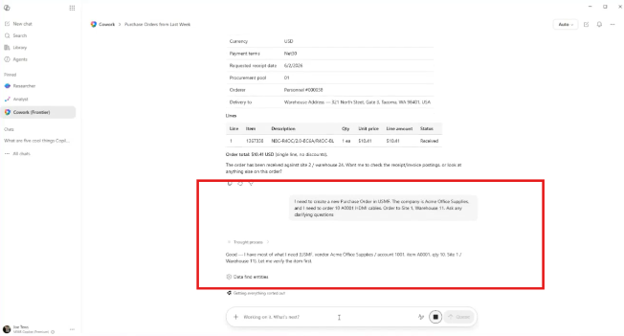
Cowork then begins gathering the information needed to complete the request.
Step 1: Provide the initial transaction details
Include as much relevant information as you have available, such as:
- The legal entity or company
- The vendor
- The item
- The quantity
- The site
- The warehouse
If information is missing, Cowork can ask clarifying questions rather than simply proceeding with incomplete information.
Step 2: Answer any follow-up questions
In the demonstration, Cowork asks for additional information about the requested receipt date. The response provided was to set the receipt date for one week in the future.
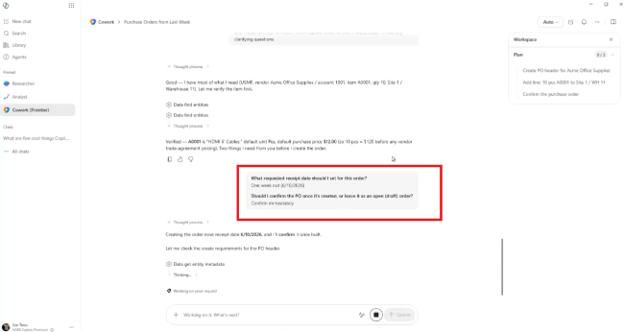
Cowork also asks whether the purchase order should remain open or be confirmed immediately.
In this example, the instruction was to confirm the purchase order immediately.
Step 3: Let Cowork complete the transaction
Cowork then works through the required actions.
The process includes:
- Creating the purchase order header
- Adding the purchase order line
- Confirming the purchase order
You can see the actions Cowork is taking as it works through the process.
Step 4: Allow Cowork to use the appropriate available tool
In the demonstration, Cowork attempts to find an available API action to complete the confirmation.
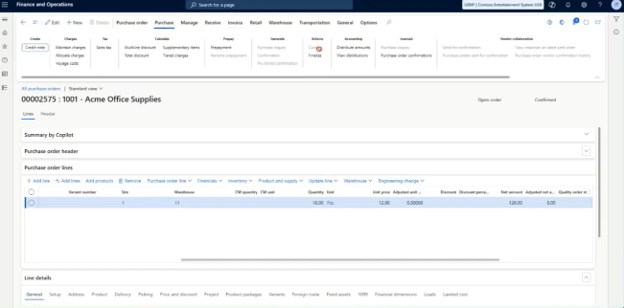
When that approach is not available, it adapts by opening the relevant Dynamics 365 form and working through the confirmation process through the interface.
This is one of the more compelling aspects of the MCP approach. Cowork can use the tools and pathways exposed to it to complete the task rather than being limited to a single method of interaction.
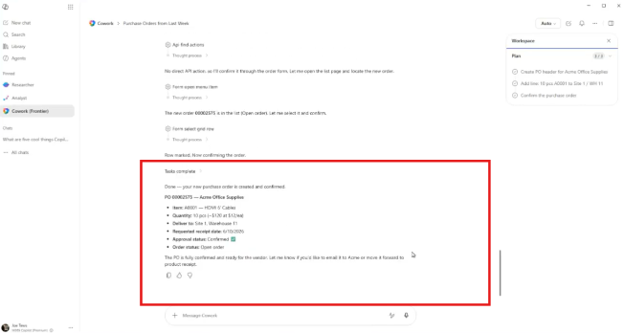
The completed purchase order is then verified in Dynamics 365. The demonstration confirms that the new purchase order was created with the requested item, site, warehouse, quantity, and pricing information. It will then show you that the purchase order was successfully confirmed.
Creating a Report with Cowork
Cowork can also help you create reports and visualizations on demand.
In our example, we’ll create a Sankey-style interactive visualization showing the movement of cash from customers through receivables and into cash accounts.
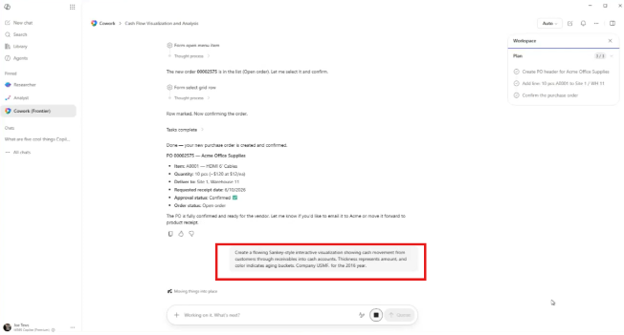
The prompt specifies:
- The type of visualization required
- The business information to analyze
- The company: USMF
- The reporting period: 2016
Cowork then gathers the required Dynamics 365 data and begins processing it to generate the visualization.
The reporting process can take time, particularly when Cowork is working through complex data or generating a one-off visualization. In this example, the process includes gathering raw data and parsing it to create the requested output.
This does not necessarily mean every regularly used report should be recreated through a prompt.
For highly repeatable reporting needs, a traditional report may still be the better option. The real opportunity here is the ability to create one-off reports and analyses on demand.
For example, you might have an upcoming board meeting and need a specific visualization that you do not already have readily available.
Cowork can also potentially bring together information from multiple connected sources, including:
- Dynamics 365 data
- CRM data
- Meetings
- Word documents
- SharePoint documents
- Other Microsoft 365 information
That ability to pull together information on the fly can make Cowork particularly useful when you need answers or analysis that do not fit neatly into an existing report.
Cowork ultimately generates an interactive visualization that allows users to explore the flow of information and view additional details. The example took approximately eight minutes to generate using Dynamics 365 data.
Stoneridge Software is Your Copilot Cowork Partner!
Copilot Cowork and MCP represent an exciting new way for you to interact with Dynamics 365 Finance and Supply Chain Management. They allow you to ask questions, analyze data, create transactions, and generate on-demand insights using natural language while continuing to rely on the ERP's underlying business logic and security.
As this technology continues to evolve, Stoneridge Software can help you understand where it fits into your environment, configure and optimize the right capabilities, and identify workflows where AI can deliver meaningful value.
Get in touch with us today to learn more!

Under the terms of this license, you are authorized to share and redistribute the content across various mediums, subject to adherence to the specified conditions: you must provide proper attribution to Stoneridge as the original creator in a manner that does not imply their endorsement of your use, the material is to be utilized solely for non-commercial purposes, and alterations, modifications, or derivative works based on the original material are strictly prohibited.
Responsibility rests with the licensee to ensure that their use of the material does not violate any other rights.