














Build a Powerful Microsoft Copilot Agent in 5 Easy Steps
Building your own AI-powered assistant might sound tedious and complicated, but did you know that with Microsoft Copilot’s integrated agent creation tools, you can design one in less than 15 minutes without any deep coding experience? Too hard to believe? It's true.
In this quick guide, we’ll walk you through how to create a custom Copilot Agent directly inside Microsoft 365, Copilot Studio Lite, to streamline your work.
Step 1: Understand What a Copilot Agent Is
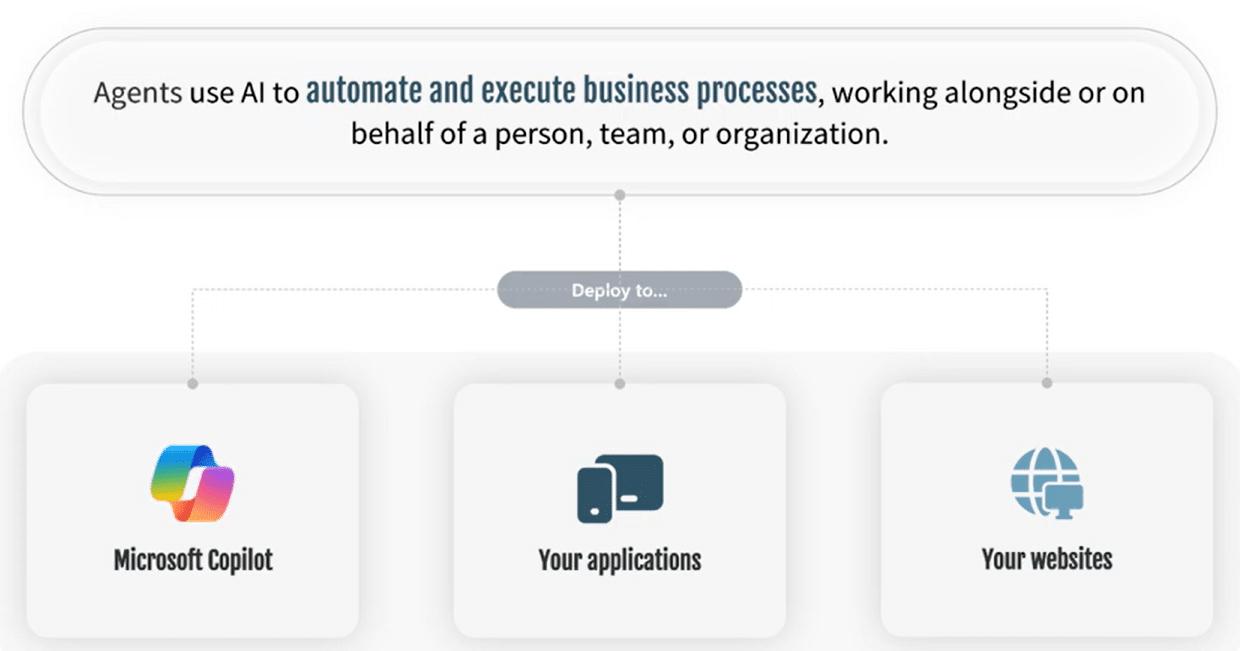
Before jumping in, it’s important to understand what an agent does.
A Copilot Agent is an AI-driven assistant designed to automate or augment specific business processes. These agents can perform retrieval-based tasks (like fetching information), task-based actions (like generating reports), or even operate autonomously to handle workflows without manual input.
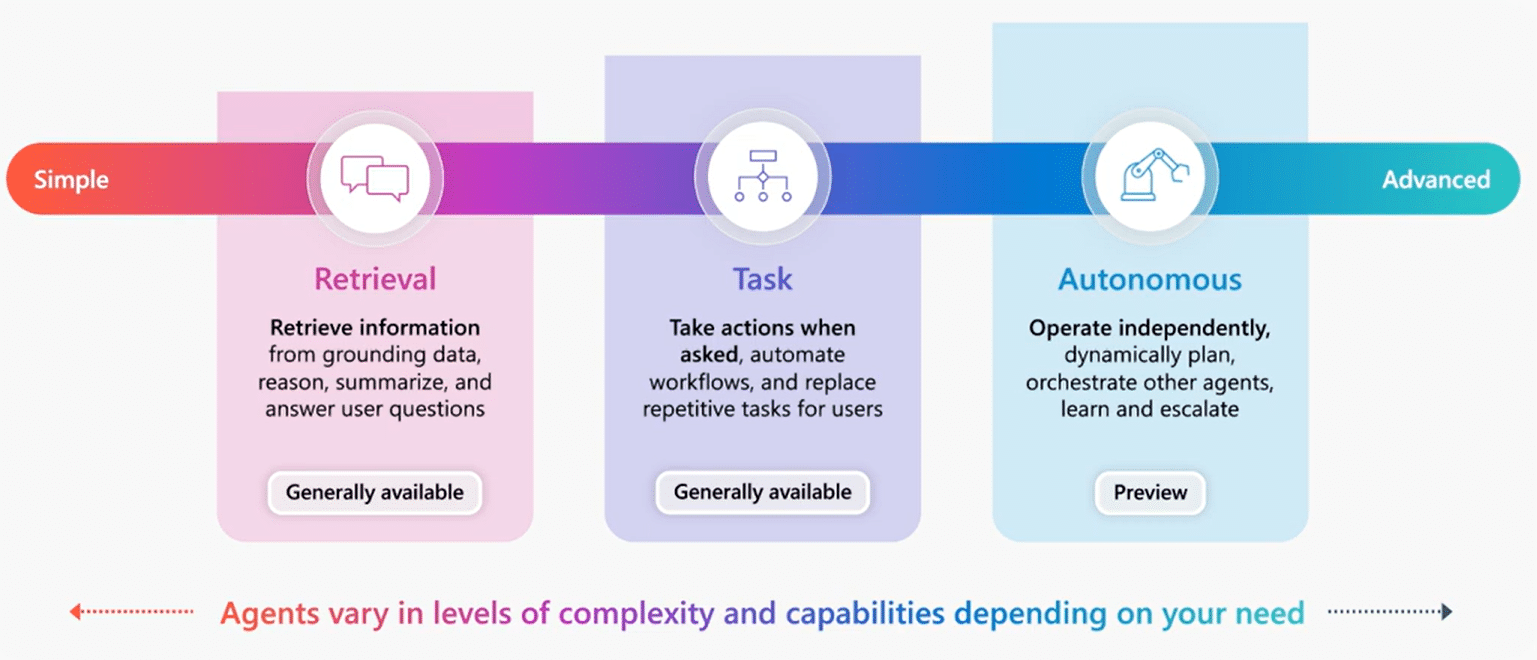
Agents are available across Microsoft platforms — from Dynamics 365 to Microsoft 365 — and can be built using low-code/no-code tools such as Copilot Studio, or through pro-code SDKs for developers. For this guide, we’ll focus on the quick, no-code route using Microsoft 365 Chat.
Step 2: Access Copilot in Microsoft 365
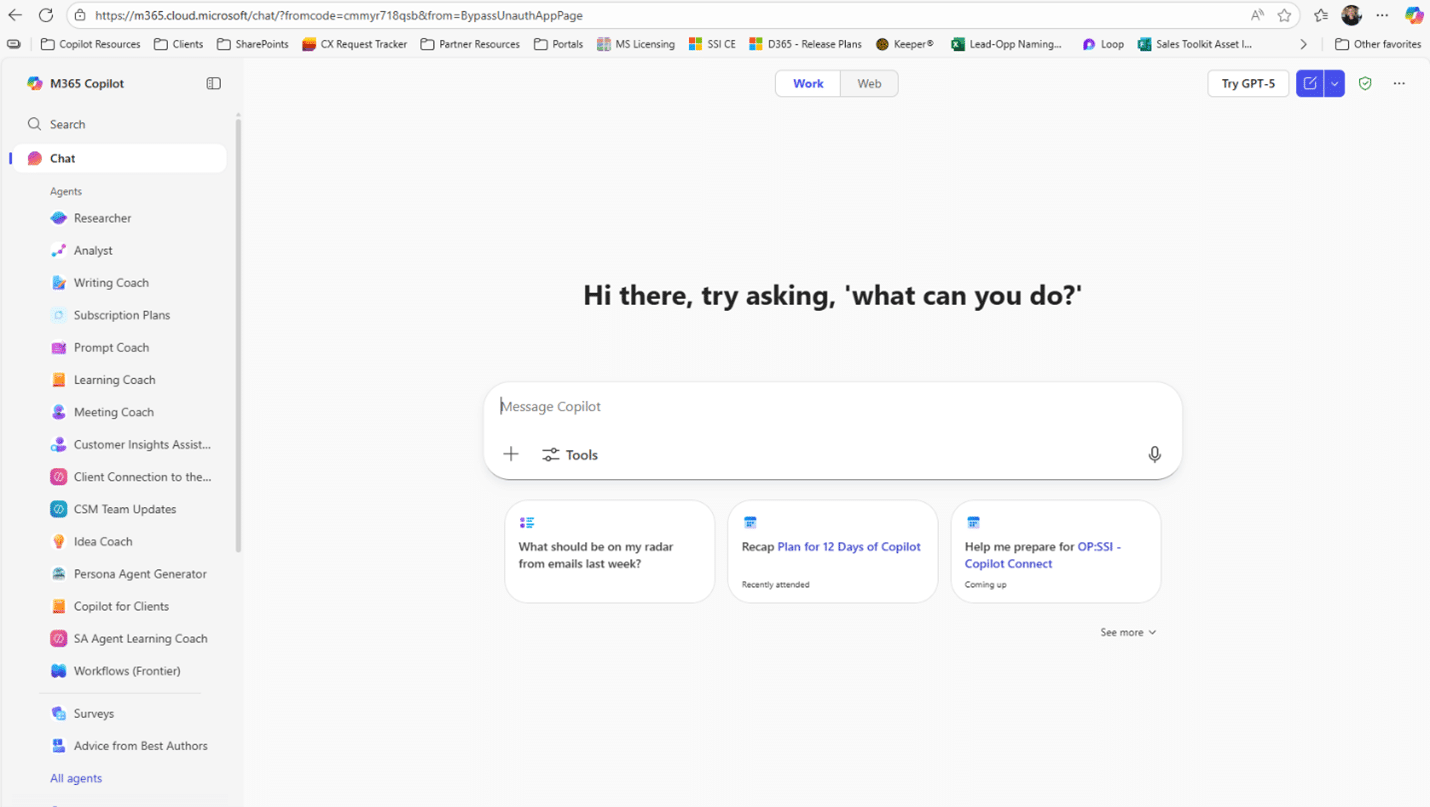
To get started, you only need to follow one step:
-
- Open Microsoft 365 Chat by visiting microsoft365.com/chat or open the Copilot Chat app on your desktop by clicking on the icon.
- On the left sidebar, select Create an agent.

- On the left sidebar, select Create an agent.
- Open Microsoft 365 Chat by visiting microsoft365.com/chat or open the Copilot Chat app on your desktop by clicking on the icon.

Here, you’ll see templates you can use to jumpstart your project — but for learning purposes, we’ll build one from scratch.
Step 3: Create Your Agent
For this example, let’s call our agent “Task Subtask Generator.”
This agent will take a primary task (such as “buy a car”) and automatically generate related subtasks (e.g., “schedule maintenance,” “register the vehicle,” etc.).
Here’s how to set it up:
- Click Create an Agent.

- In the description, define what you want it to do. For instance:
- “Create a Task Subtask Generator. Take a main task and generate a detailed list of subtasks with actionable details.”
- Your agent preview will appear and Copilot will ask you to confirm the agent’s name.

- When prompted, refine how the agent should behave by describing any specific requirements or guidelines — for example:
- “Ask for more input to refine the task list and always include estimated time, assign responsibility”
- For now, say None when asked to add external websites or data connections.
- Click Create to publish your new agent.


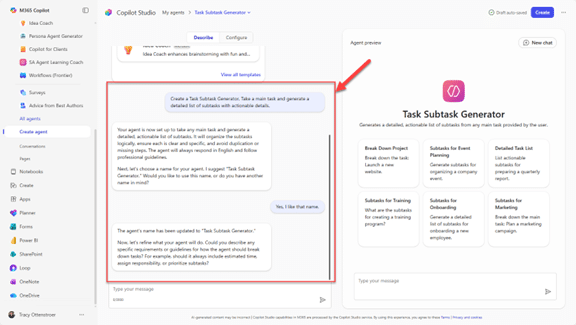
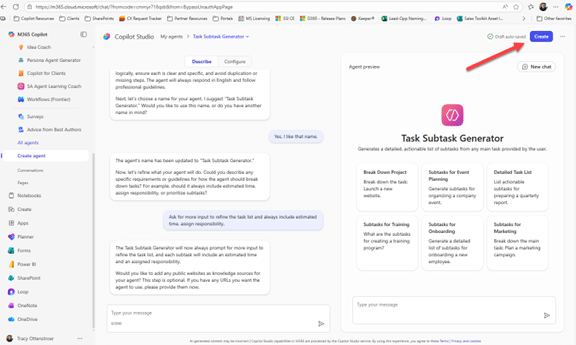
Once confirmed, Microsoft 365 will automatically build your new Copilot Agent in seconds.
Step 4: Test and Refine Your Agent
Now that your agent is live, it’s time to see it in action so you can determine how it can be deployed effectively across your business.
I recommend testing it with some real examples and then amending or tailoring it from there. Here are some example test prompts we can use for the Task Subtask Generator:
- Example 1: “I just purchased a 2025 Mach-E EV. Create a maintenance schedule with tasks at specific service intervals.” Your agent might return suggestions like:
- Check tire pressure every 6 months
- Perform battery diagnostics every 12 months
- Flush coolant every 24 months

- Example 2: “Create a preflight maintenance checklist for a Cardinal 172 airplane.” The agent can generate subtasks such as:
- Perform preflight inspection
- Conduct 50-hour and 100-hour service intervals
- Complete annual maintenance checks
- Example 3: “List the steps I should take before implementing Dynamics 365 Business Central.” The output could include:
- Assess business requirements
- Identify stakeholders
- Prepare data migration strategy
- Plan user training and change management
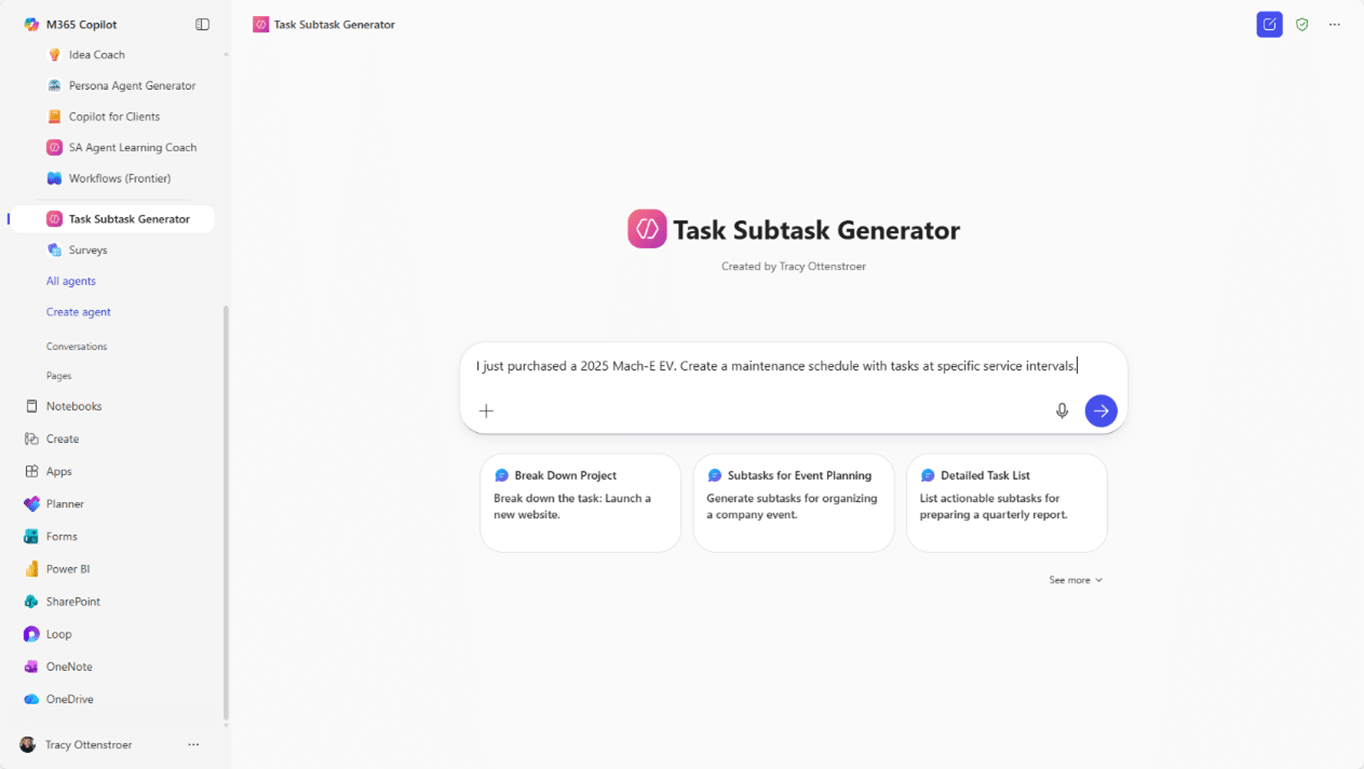
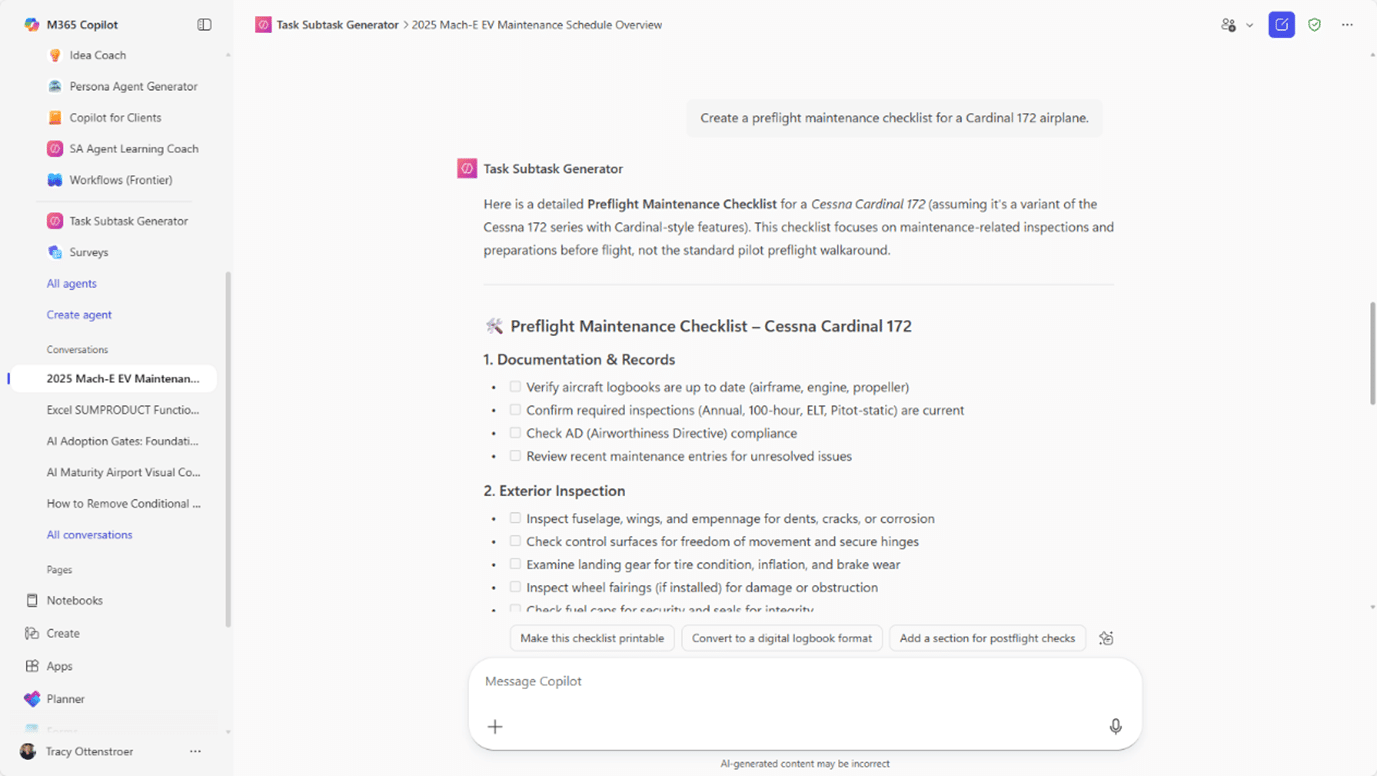
Each interaction helps refine the agent’s usefulness and accuracy for your specific needs.
Step 5: Deploy and Expand
Once your agent works in a way that suits your business, you can start deploying it within your environment by:
- Sharing it across your Microsoft 365 environment.
- Integrating it into Teams, Outlook, or other apps where it can assist with daily workflows.
- Customizing it further in Copilot Studio to connect with business data and add security controls cannot be done in this Lite version of Copilot Studio. To customize further and connect with business data and add security controls, recreate the Agent in the full Copilot Studio experience found at copilotstudio.microsoft.com.
As you grow more comfortable, you can experiment with more advanced agents for HR, customer service, or operations — each tailored to specific roles or departments.
Bonus Tip: Continuously Explore Copilot Capabilities
This quick exercise demonstrates how intuitive Microsoft’s AI ecosystem has become. In addition to empowering your team with Copilot in Microsoft 365 apps like Word, Excel, Teams, and more, you can also use it within Dynamics 365 ERP and CRM environments and in the Power Platform.
In just 15 minutes, you can create an intelligent agent that turns simple text instructions into actionable workflows — helping you (and your organization) work smarter with Microsoft Copilot. This ability can help you automate processes, reduce manual workloads, and boost productivity across your organization.
Harness the Power of AI and Copilot With Stoneridge!
To learn more about setting up Copilot for Microsoft 365 or to explore advanced agent-building in Copilot Studio, get in touch with our team of experts today. We can help you set up agents so that they work effectively for you and your unique business processes.

Under the terms of this license, you are authorized to share and redistribute the content across various mediums, subject to adherence to the specified conditions: you must provide proper attribution to Stoneridge as the original creator in a manner that does not imply their endorsement of your use, the material is to be utilized solely for non-commercial purposes, and alterations, modifications, or derivative works based on the original material are strictly prohibited.
Responsibility rests with the licensee to ensure that their use of the material does not violate any other rights.