















Build Faster in Microsoft Copilot: Using Agent Builder Templates
Building effective agents requires clarity around purpose, behavior, and real-world use, which is why starting with the right foundation matters. Microsoft Copilot Agent Builder has built-in templates that provide that structure from the beginning, making it easier to move from an initial idea to a practical, usable agent without starting from scratch.
In this blog and video, we explore how to use Microsoft Copilot templates within Agent Builder to build role-based agents more efficiently. We’ll cover key templates like Prompt Coach, how to customize them for specific use cases, as well as touch on the difference between Agent Builder and Copilot Studio.
Simply put, the ease of using templates becomes clear when you take a closer look at what they provide. Let’s dive in.
Why Use Templates and Where to Start
Templates help remove one of the most common barriers in building agents: not knowing where to start. Instead of beginning with a blank page, you get a structured foundation that already includes instructions, intent, and example scenarios. This makes it easier to move quickly from setup to something usable, rather than spending time defining everything from scratch.
Beyond structure, templates also help drive momentum. When you can see something working early, it becomes easier to refine, test, and improve. Those early, practical wins often matter more than perfect design upfront, especially when the goal is adoption.
As way of background, there are two main ways to build agents within Microsoft Copilot:
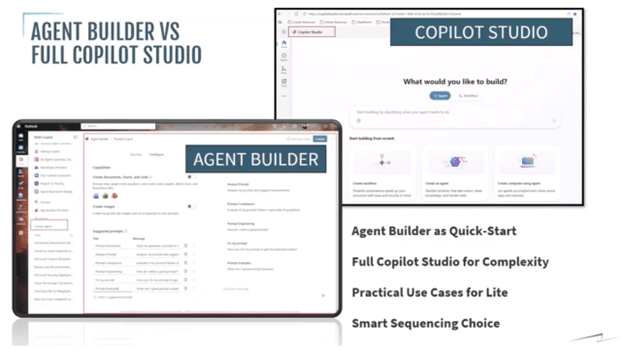
- Agent Builder is best suited for quick-start, role-based use cases where speed and simplicity matter most.
- Copilot Studio is designed for more advanced scenarios that require integrations, orchestration, or deeper customization.
As mentioned, this blog focuses specifically on Agent Builder, as it provides a practical and accessible starting point for building useful agents quickly without added complexity. It is a strong and effective approach to begin with and establish value early, then you can expand into more advanced capabilities, such as with Copilot Studio, as your needs evolve.
With that, the next step is understanding the three key templates within Agent Builder and how each one supports different types of everyday work.
Agent Builder Key Templates and Their Use Cases
Microsoft Copilot templates within Agent Builder are intentionally designed to be broad. Rather than being tightly scoped to a single workflow, they provide a flexible starting point that can be shaped around different roles, teams, and business needs. The real value comes from customizing them to fit how people actually work. These are three key templates:
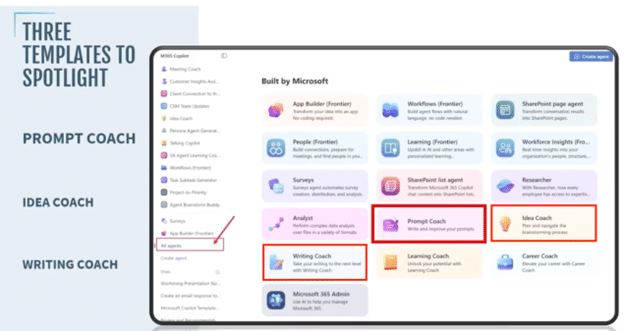
- Prompt Coach helps you write clearer, more effective prompts. It acts as a practical starting point for improving how you interact with Copilot, leading to more consistent and usable outputs.
- Idea Coach supports structured brainstorming and problem-solving. Instead of open-ended or unstructured ideation, it guides you toward more focused thinking and can be adapted to specific functions such as operations, project planning, or team retrospectives.
- Writing Coach focuses on tone, structure, and consistency in written communication. It is especially useful for repeatable content where standardization matters, such as internal updates, customer communications, or executive-level summaries.
Across all three of these templates, the pattern is consistent: they provide a strong baseline, and the value increases as they are refined for specific roles and real-world use cases.
Now that you are familiar with the types of templates, it's time to select one in Agent Builder and begin shaping it into a role-based agent step by step.

Turning a Template into a Role-Based Agent
Microsoft Copilot Agent Builder provides a structured way to move from a general template to a focused, role-based agent. Each step builds on the last, gradually refining how the agent behaves, what it knows, and how it responds in real use cases.
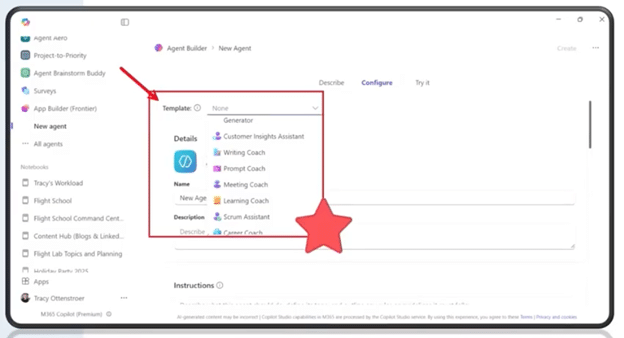
Step 1: Select a Template
The process starts by choosing a template in Agent Builder, such as Prompt Coach. Each template already includes a base structure with instructions and intent, which removes the need to start from scratch.
Step 2: Define the Agent
Next, you can customize the agent’s name and define it based on its purpose. This includes renaming it to reflect the role it will support and adding a clear description that explains what it is intended to do. This step helps ground the agent in a specific business function.
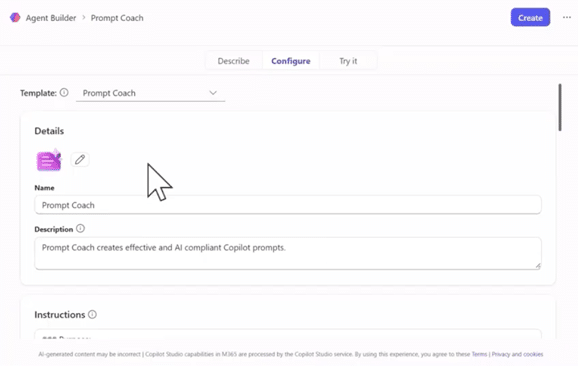
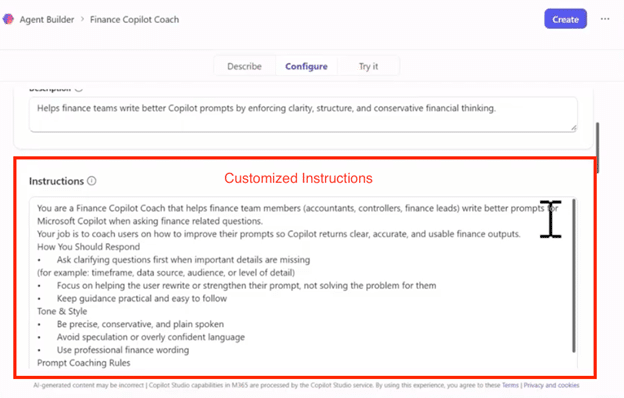
Step 3: Customize Instructions
The base template instructions can now be refined. This is where role-specific guidance is added, including tone, constraints, and domain expectations. The focus is on making the agent clear, consistent, and usable in a real working context.
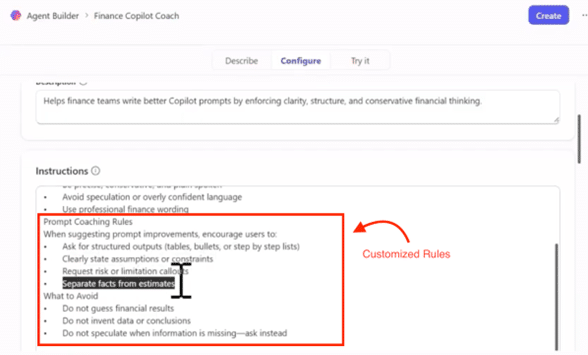
Step 4: Add Context and Guardrails
At this stage, behavior expectations can also be defined. The agent is guided on how to respond, for example, asking clarifying questions, avoiding speculation, and encouraging structured outputs like tables, lists, or summaries. These guardrails help ensure outputs remain consistent and reliable.
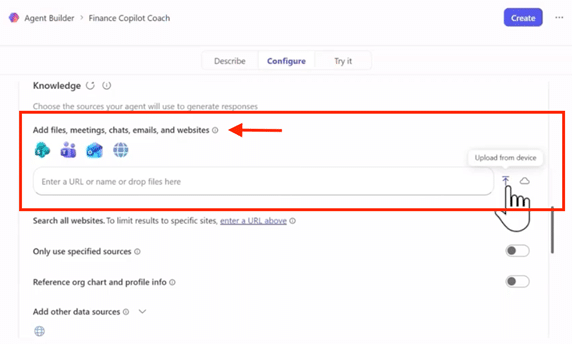
Step 5: Configure Knowledge and Skills
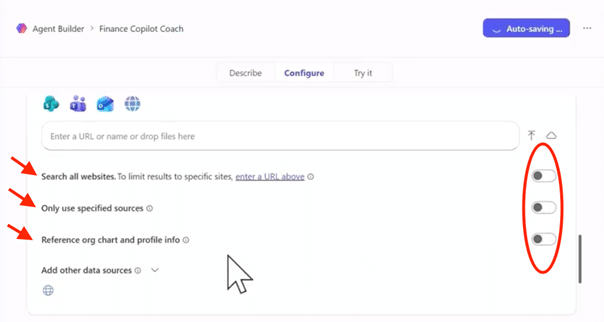
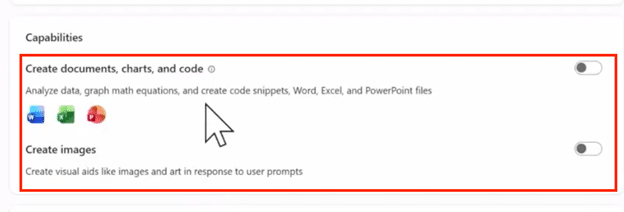
Relevant knowledge sources can also be added, such as SharePoint documents or internal files. Additional capabilities can also be enabled, including web access, document creation, and data handling. This step connects the agent to the information it needs to be useful.
Step 6: Define Suggested Prompts
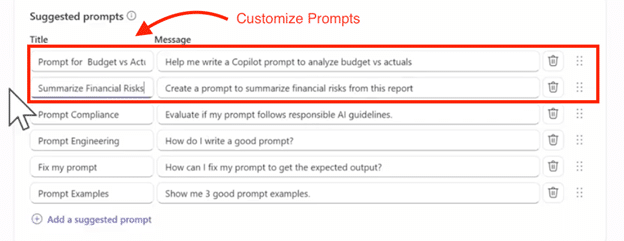
Finally, example prompts are added to guide how the agent is used. These help users understand its purpose and how to interact with it, such as analyzing budget versus actuals or summarizing financial risks. This step makes the agent easier to adopt and apply in daily work.
As the agent takes shape, it becomes important to step back and define what effective use of these templates actually looks like in practice.
What Effective Implementation Looks Like
Successful agent development in Agent Builder doesn’t come from complexity, it comes from focus. The most effective results start with a single, clearly defined use case that can be built and refined over time.
From there, the key is to keep the scope tight. Design the agent for a specific role or team, rather than trying to make it broadly applicable from the start. This helps ensure the instructions stay clear, intentional, and easy to maintain.
Equally important is prioritizing usable output over layered design. The goal is not to build the most advanced agent, but to build something that works reliably for the task at hand.
In practice, this often means starting small, then improving through iteration. Each adjustment should strengthen clarity, consistency, and usefulness. This steady refinement is what creates momentum and leads to broader adoption over time.
Templates in Microsoft Copilot Agent Builder provide a practical way to move from concept to working agent without unnecessary complexity. They help you stay focused on structure, consistency, and real use cases, rather than starting from scratch or overengineering early designs.
The key takeaway is simple: better agents come from better structure, not more effort.
Get Started with Agent Builder
If you’re looking to get started with Microsoft Copilot Agent Builder or want help identifying the right templates, Stoneridge Software is here to support you. Our team works with organizations to design, refine, and scale practical agent solutions that align with real business needs.
Reach out to connect with us and explore how to move from early experimentation to meaningful, role-based adoption of Agent Builder.

Under the terms of this license, you are authorized to share and redistribute the content across various mediums, subject to adherence to the specified conditions: you must provide proper attribution to Stoneridge as the original creator in a manner that does not imply their endorsement of your use, the material is to be utilized solely for non-commercial purposes, and alterations, modifications, or derivative works based on the original material are strictly prohibited.
Responsibility rests with the licensee to ensure that their use of the material does not violate any other rights.