















Copilot Studio Explained – Part 2: Creating, Publishing, and Tracking AI Agents
Microsoft Copilot Studio makes it easier than ever to create AI agents that retrieve information, interact with business systems, and automate everyday tasks.
While it’s great in theory, the real value begins when you learn how to create them, when and how to make them available to employees, and methods for tracking their value within your organization.
This is Part 2 of our three-part Copilot Studio blog series! In Part 1, we gave you an overview of what Copilot Studio is and how you can configure the settings to get you started on the right foot. In this part, we will put those fundamentals into action, walking you through how to create AI agents from scratch, publishing agents to Microsoft 365 Copilot and Teams, and tracking their activity once your team start using them.

How to Create an AI Agent in Microsoft Copilot Studio
One of Copilot Studio's biggest advantages is that creating an AI agent doesn't have to involve a complicated development project.
You can create a blank agent, configure its capabilities, connect it to business information, and begin testing within the same environment.
Let's walk through the process using an email inquiry agent as our example.
Step 1: Access Copilot Studio and Select Your Environment
First, open Copilot Studio and make sure you're working in the appropriate environment.
- Navigate to copilotstudio.microsoft.com.
- Sign in using your organization's Microsoft account.
- Familiarize yourself with the interface, including the navigation menu for agents, flows, and tools.
- Review your selected environment before creating anything.
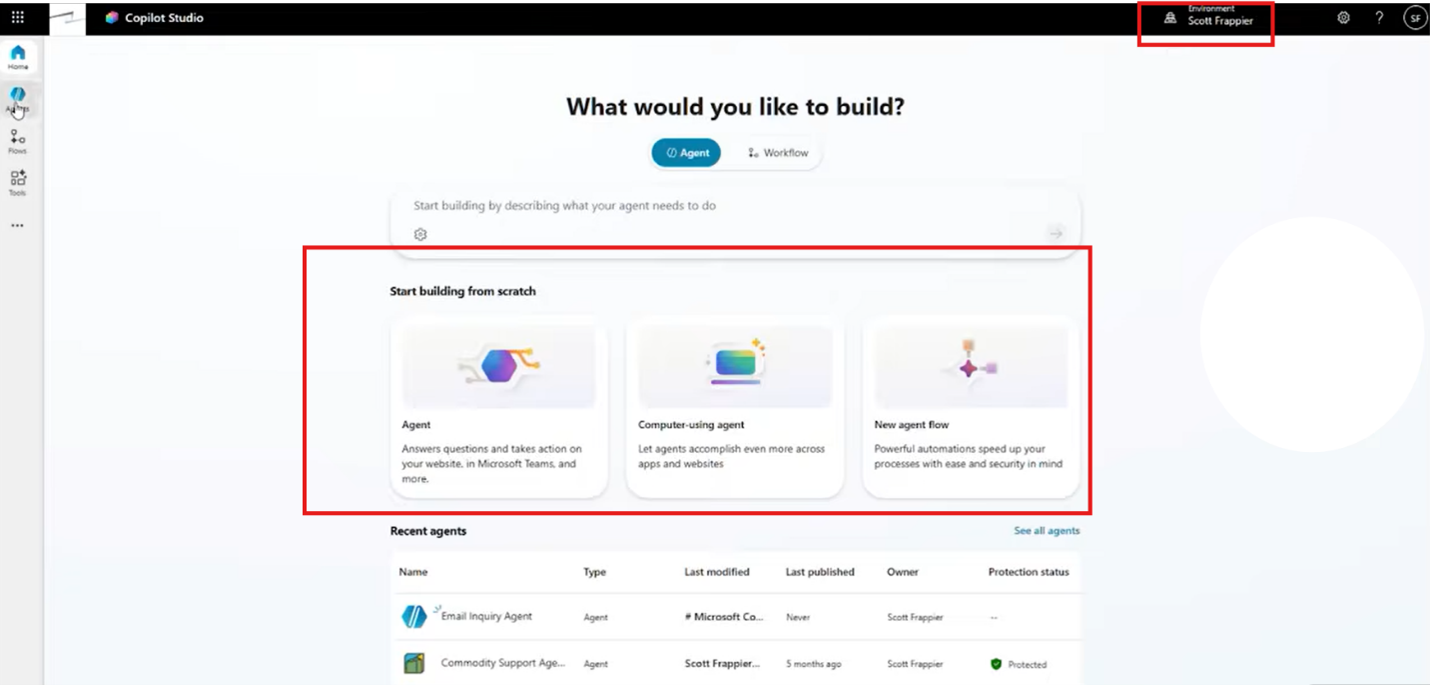
That last step is particularly important. If you're developing agents for your business, you'll generally want to work in a dedicated development or sandbox environment rather than production.
This allows you to experiment, test integrations, and make changes without interfering with existing business systems.
Tip: Separating development from production gives you greater control over your agent-building process, particularly when working with sensitive business information.
Step 2: Create a Blank Agent
Now you're ready to create your first agent.
- Navigate to Agents in the left-hand menu.
- Select the option to create a new agent.
- Choose Create blank agent.
- Enter a name identifying its purpose. For this example, we'll use SSI Email Inquiry Agent.
- Select Create.
- Wait for Copilot Studio to finish provisioning the agent, which takes a couple of minutes.
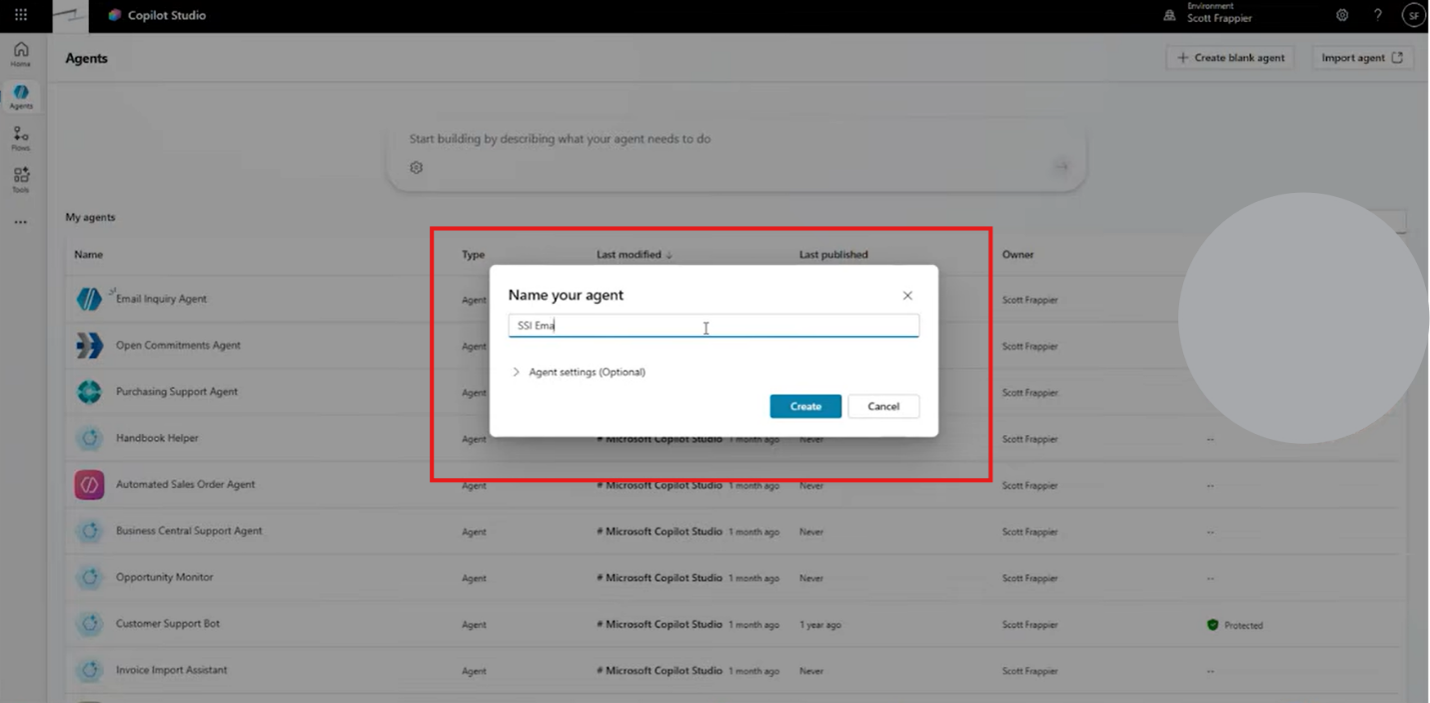
Once complete, you'll have a blank agent ready for configuration. After that, you’ll need to give it access to the information it needs to accomplish tasks. You’ve established the foundation, but you still need to build it up.
Step 3: Explore Your Agent's Building Blocks
After creating your agent, you'll see several areas that determine how it operates.
We explored some of these in Part 1, but here's a quick refresher:
- Settings: Control general agent behaviour and capabilities.
- Model: Select the underlying AI model used to generate responses.
- Instructions: Define the tasks your agent performs and the rules it follows.
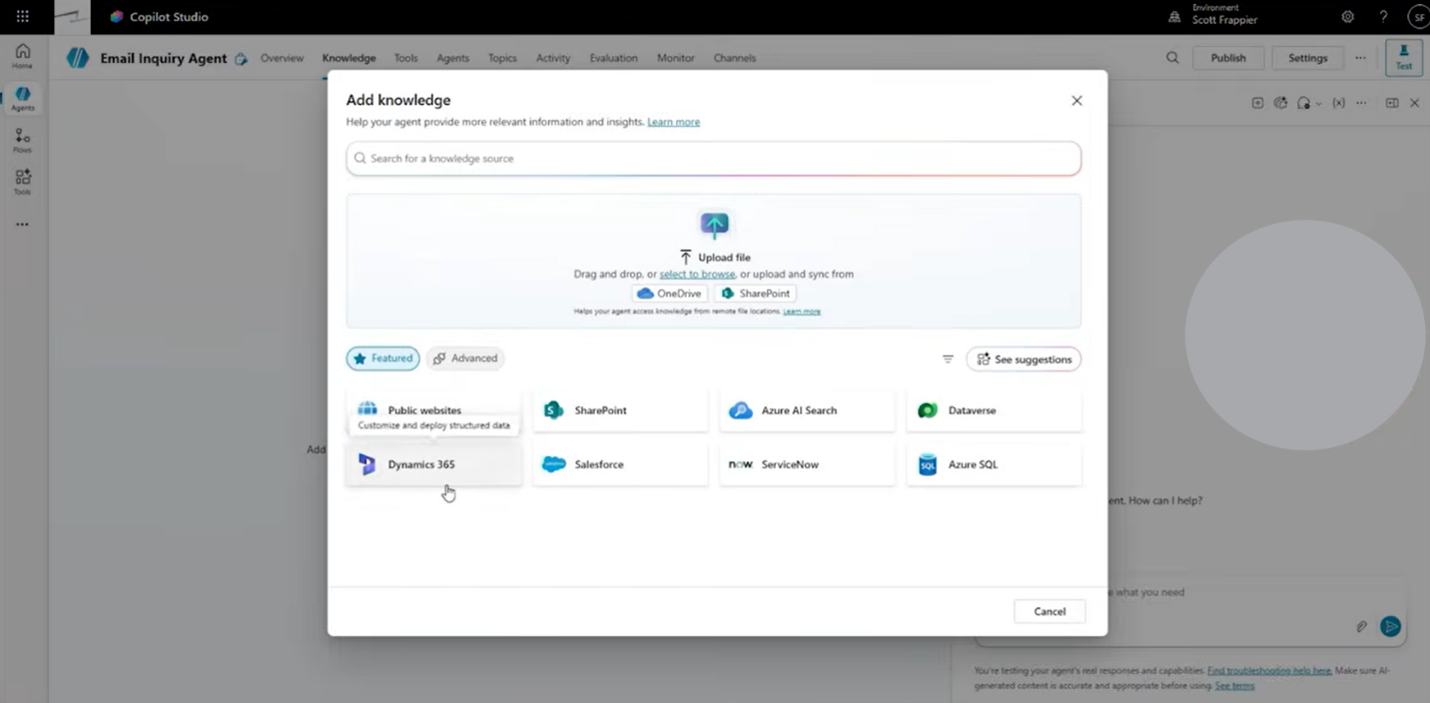
- Knowledge: Connect websites, SharePoint sites, and uploaded files.
- Tools: Extend functionality through external connections and integrations.
- Topics: Establish structured paths and guardrails for specific interactions.
- Activity: Review how your agent processes requests and interacts with users.
For example, the Knowledge section lets you add information sources your agent can reference when answering questions.
Meanwhile, Tools allows you to connect additional business functionality, including:
- Agent flows: Use Power Automate to retrieve information or support business processes.
- Prompts: Process information through specifically configured prompts and models.
- Model Context Protocol (MCP): Connect agents to supported business systems, including Dynamics 365 Business Central and Finance and Operations.
- Computer use: Allow supported agents to interact with desktop applications.
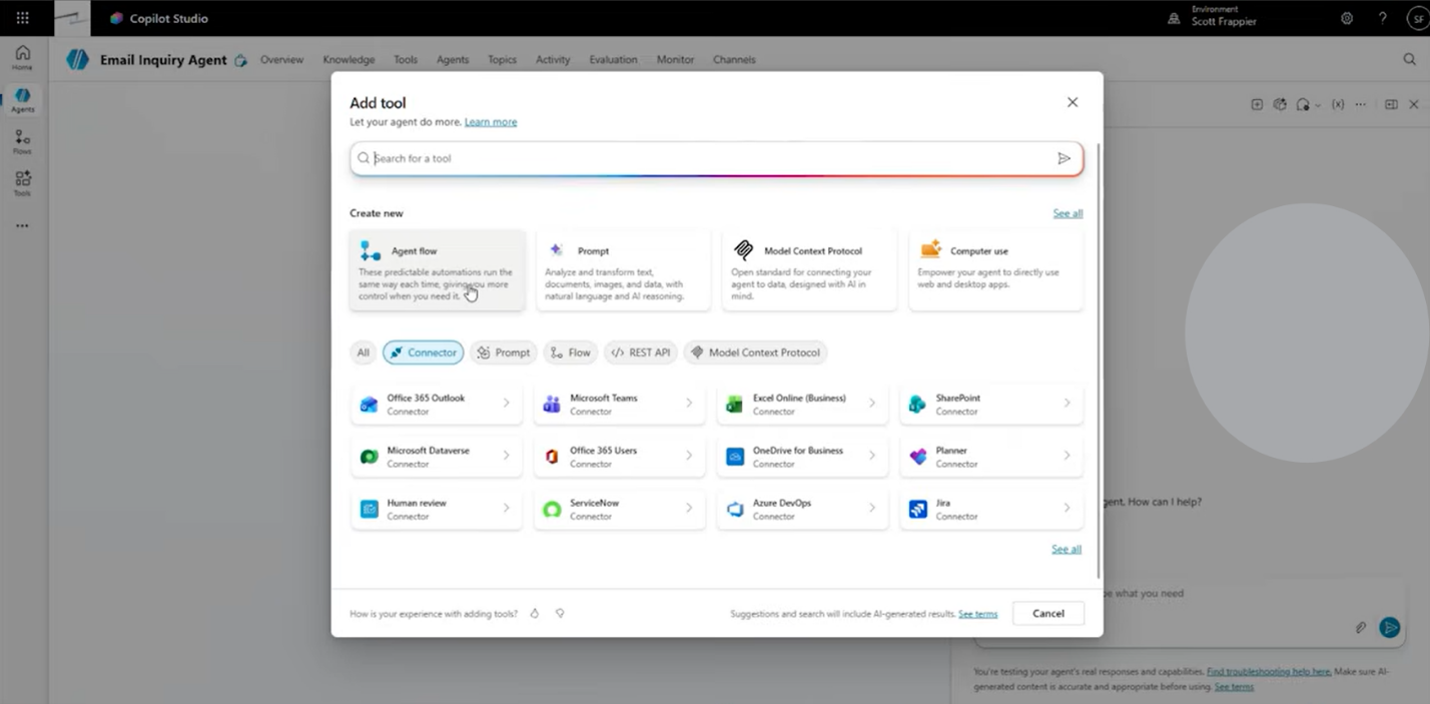
These capabilities let you move beyond basic question-and-answer functionality and build agents that support real business processes.
Step 4: Test Your Agent Before Connecting Business Data
Let's see what happens when you ask a newly created agent to retrieve information it hasn't been given access to.
In our example, we want to know how many emails we've received today.
- Open your newly created agent.
- Navigate to the testing interface.
- Enter the prompt: "How many emails have I received today?"
- Submit the question.
- Observe how Copilot Studio processes the request.
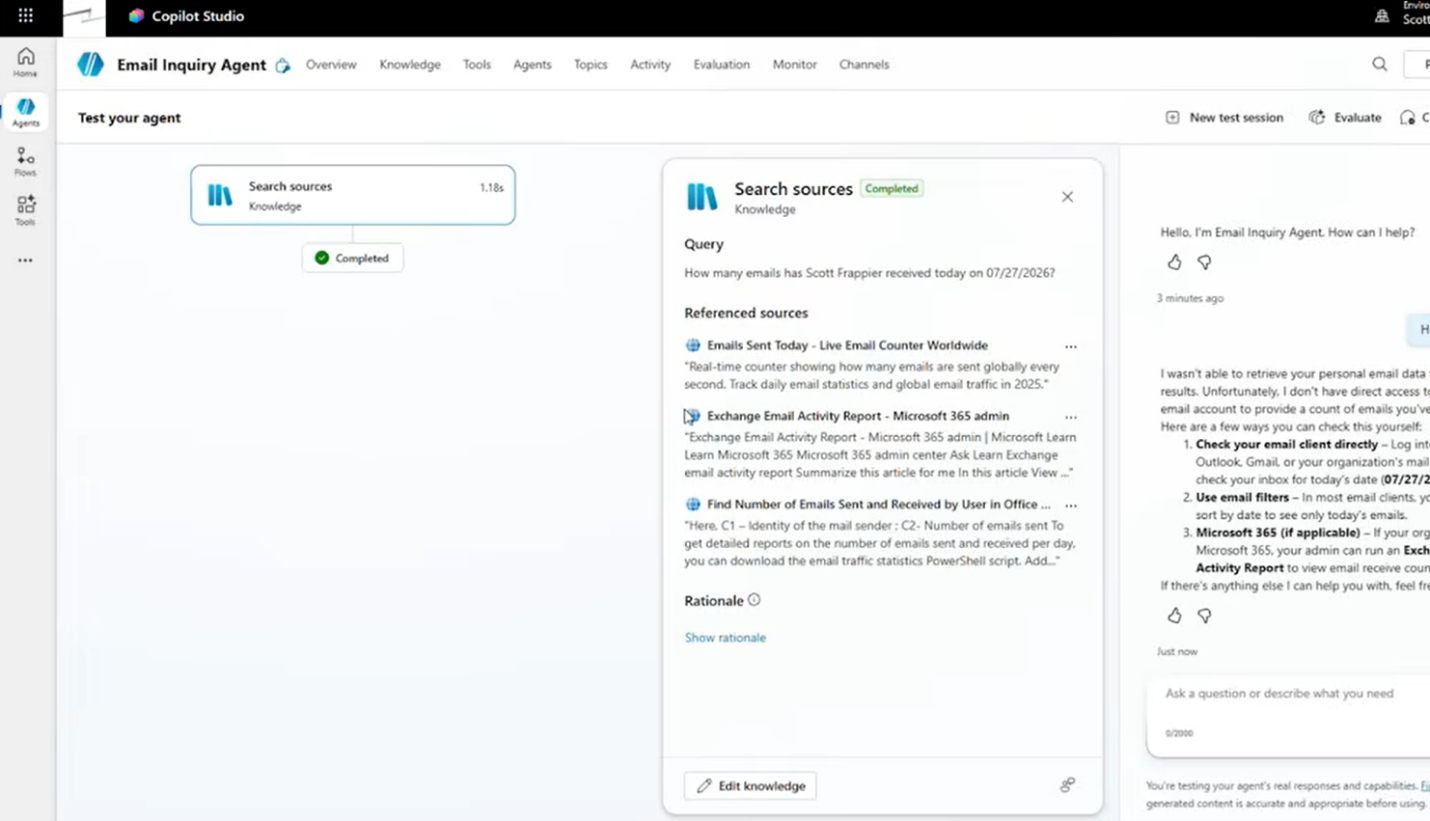
Because our blank agent isn't connected to organizational email information, it cannot accurately answer the question. In our example, the agent will attempt to search online instead of retrieving actual email data.
This highlights an important distinction: Creating an agent doesn't automatically connect it to your business information. You must establish the right connections before agents can perform tasks that require organizational data. Fortunately, Copilot Studio makes that easy.
Step 5: Connect Your Agent to Work IQ
Microsoft Work IQ allows supported agents to access organizational information through Microsoft 365, including emails, Teams conversations, and documents.
Let's enable this functionality for our email inquiry agent.
- Return to your agent's Overview tab.
- Locate the Work IQ section.
- Enable the Work IQ connection.
- Allow Copilot Studio to configure the connection using its underlying MCP technology.
- Return to the testing interface.
- Select the plus (+) option to start a new test session.
- Enter the same question: "How many emails have I received today?"
- Submit the prompt and review the results.
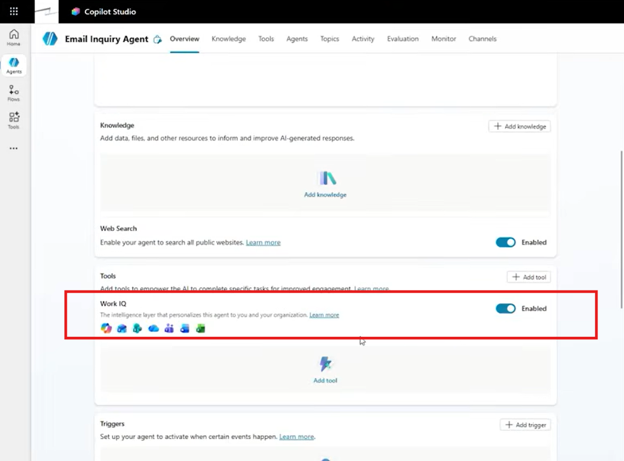
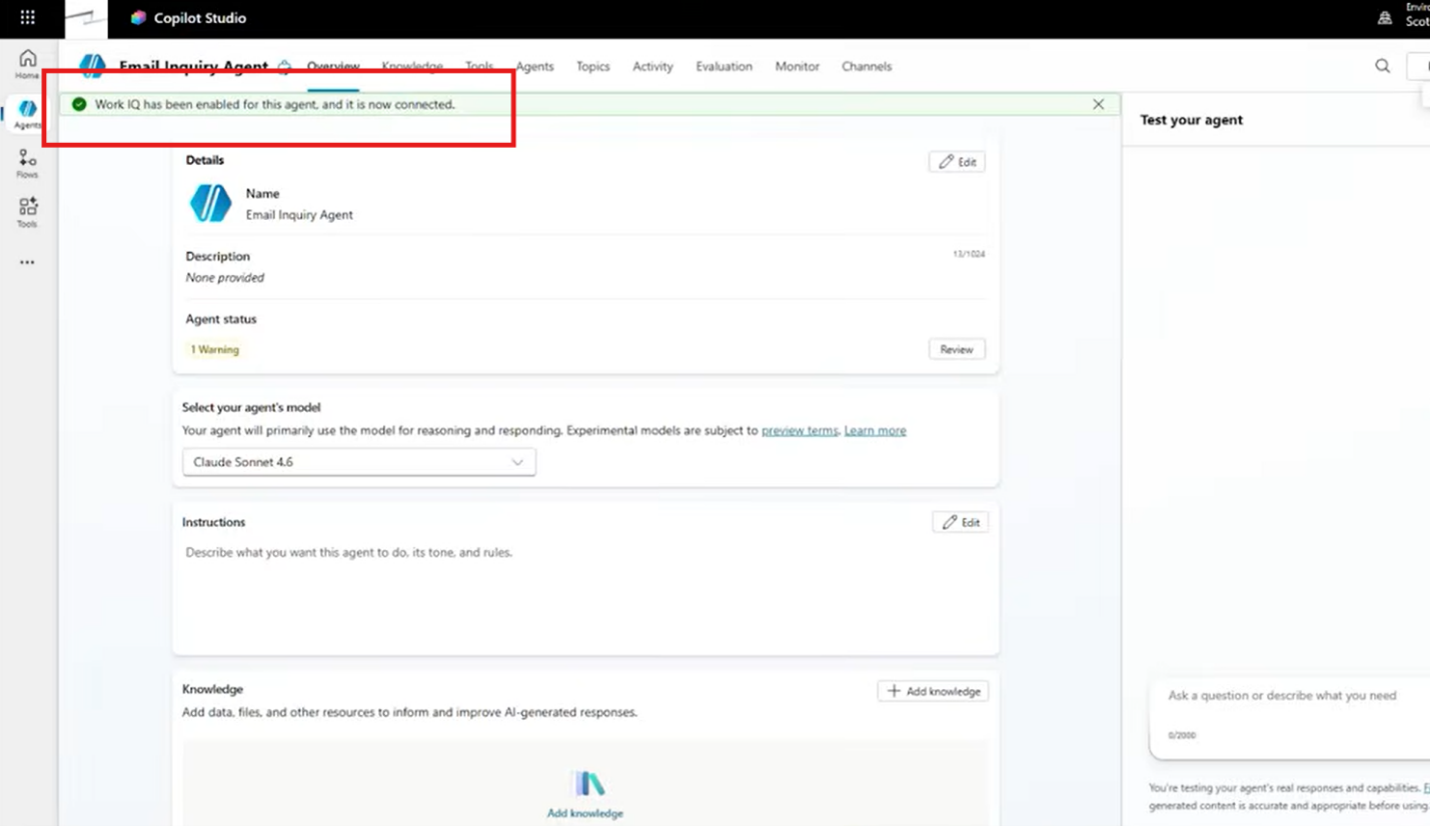
This time, your agent can request access to Work IQ and use Microsoft 365 Copilot Chat to retrieve relevant information. Once you have it in place and the appropriate permissions are granted, it should be able to access system data and return it through Copilot Studio.
Note: There may be some cases where you need to authorize the connection before the agent proceeds.
Now let's make that agent available to your employees!
How to Publish an Agent in Microsoft Copilot Studio
Creating and testing an agent is an important milestone, but your employees probably aren't spending their workdays inside Copilot Studio.
They're using applications like Microsoft Teams and Microsoft 365 Copilot. That's why publishing is so important. It allows you to make your agent available through the applications employees already use.
Step 1: Prepare Your Agent for Publication
Before publishing, make sure your agent is ready for users by reviewing knowledge sources, tools, instructions, and topics you’ve created to guide its behaviour. Most importantly, verify that it completes its intended tasks during testing.
For our email inquiry agent, that means confirming it can retrieve email information through Work IQ. Once you're satisfied with its performance, you're ready to configure its publishing channels.
Step 2: Configure Your Publishing Channels
Channels determine where users can access your agent.
Copilot Studio supports publishing to different Microsoft experiences, including Teams and Microsoft 365 Copilot. Depending on your configuration, other supported channels may also be available.
For this example, we'll focus on Microsoft 365 Copilot and Teams.
- Open your agent in Copilot Studio.
- Navigate to Channels.
- Review the available publishing destinations.
- Select Microsoft 365 and Teams – or whichever channels are relevant to your agents.
- Enable the option to make your agent available in Microsoft 365 Copilot.
- Add the selected channel to your agent.
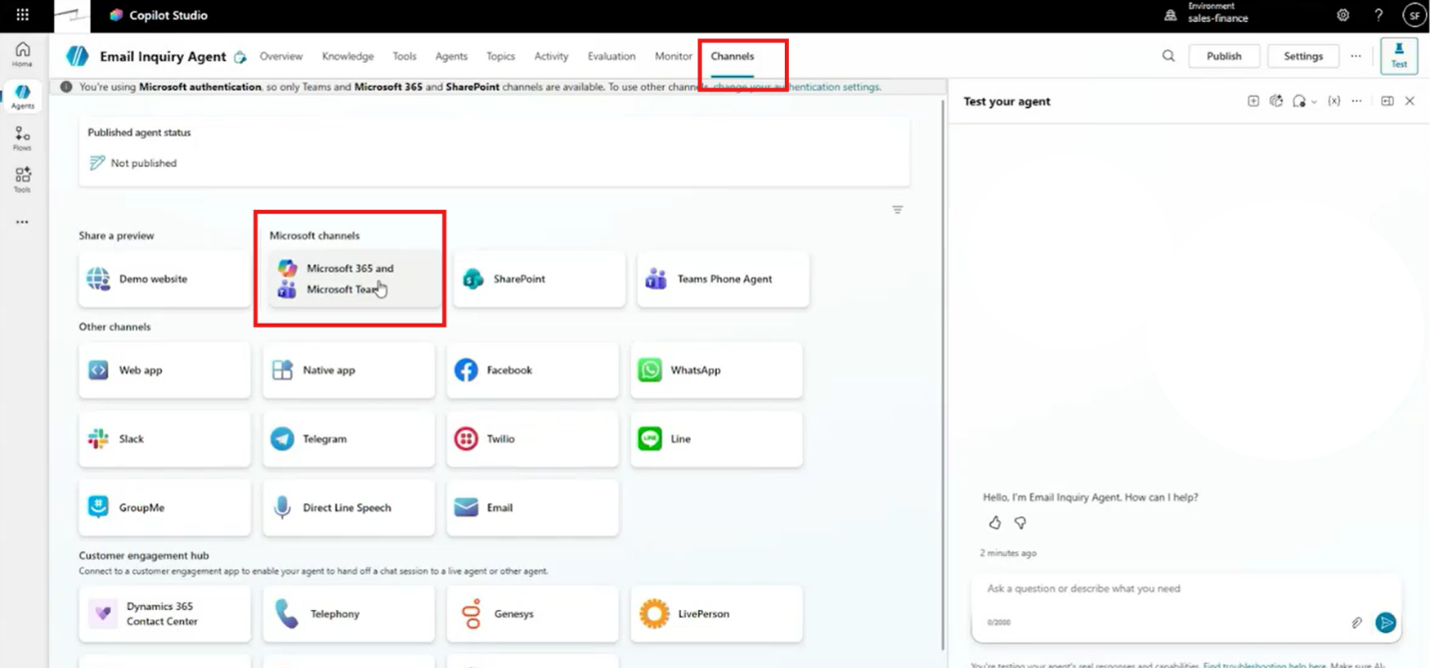
Your agent is now configured for publication, but that’s not the end of your considerations. One very important thing to think about is authentication. Because our email inquiry agent accesses information within our Microsoft tenant, we want users to be authenticated before interacting with it.
Other publishing scenarios may have different requirements, so make sure your security configuration aligns with how and where the agent will be used.
Step 3: Publish Your Agent
Once your channels are configured, you can publish your agent.
- Return to your agent's publishing options.
- Select Publish.
- Review the available publishing settings.
- If appropriate, choose the option to force the newest published version.
- Confirm publication and allow Copilot Studio to complete the process.
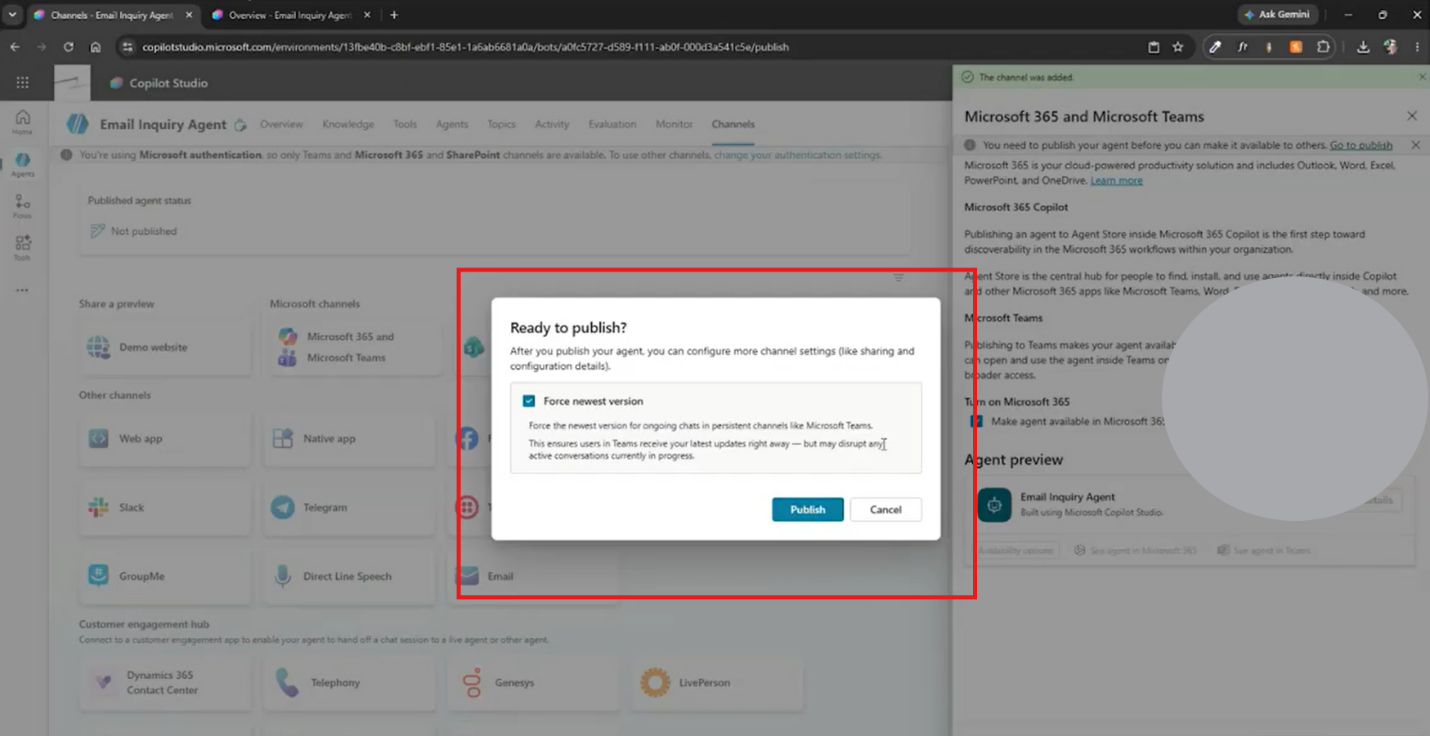
The option to force the newest version is useful when you want existing sessions to transition to the updated agent rather than continue using an older version.
As you refine your agent, you can republish it to update its connected channels. This means you don't have to recreate your agent every time you adjust.
Step 4: Access Your Published Agent in Microsoft 365 Copilot
Now let's see what the experience looks like for your employees.
- Return to Channels in Copilot Studio.
- Open the Microsoft 365 and Teams channel configuration.
- Locate the link associated with your published agent.
- Select the link to open Microsoft 365 Copilot.
- Find your published agent and select Add.
- Open the agent to begin interacting with it.
Your email inquiry agent should now be available within Microsoft 365 Copilot.
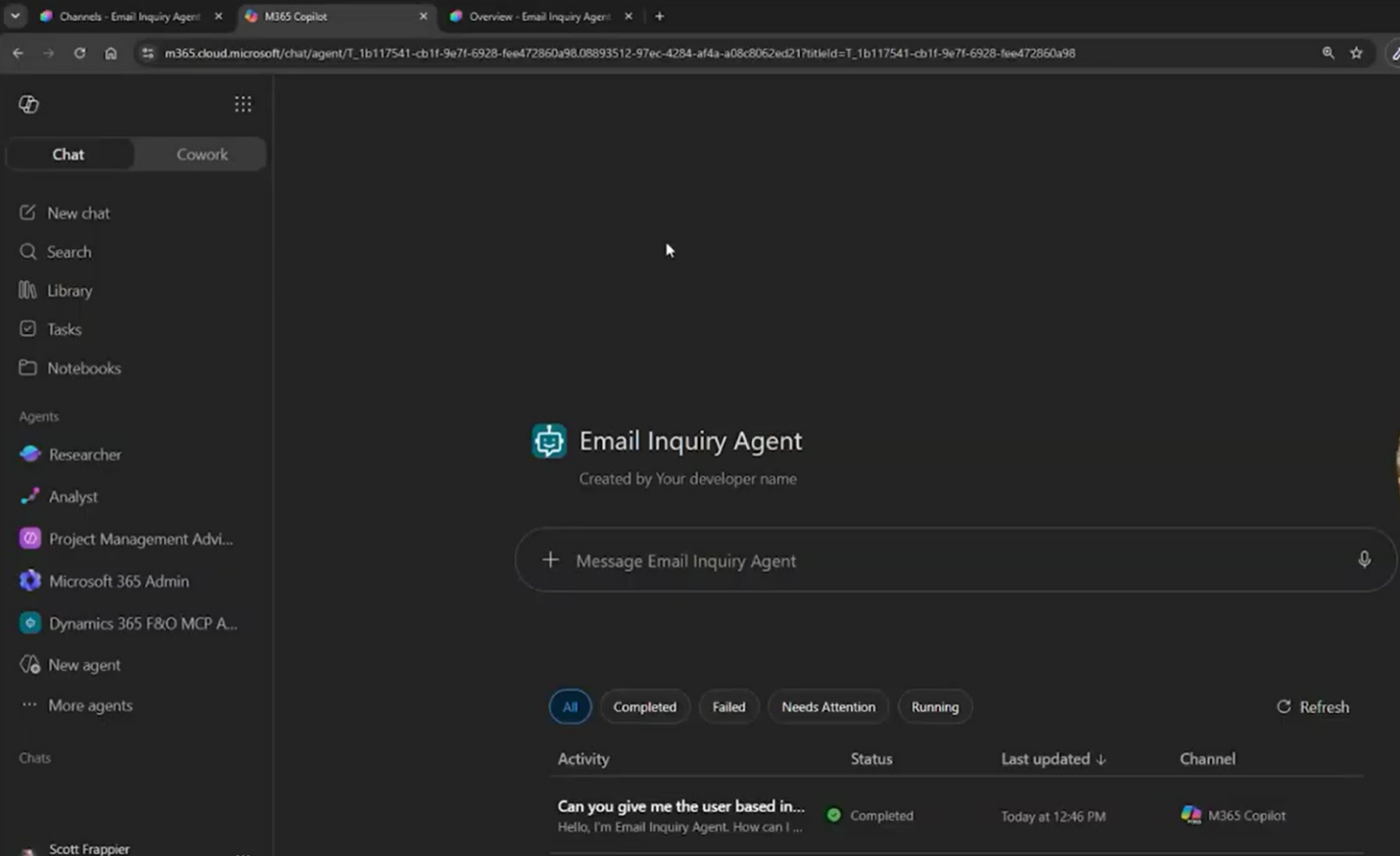
Depending on your organization's deployment preferences, you may also have options for distributing it to additional users or making it available within Teams.
This flexibility lets you bring AI functionality directly into the applications where employees are already working.
Step 5: Test Your Published Agent
Publishing doesn't mean testing is finished. You should confirm that the agent behaves as expected outside the development environment.
- Open your published agent in Microsoft 365 Copilot.
- Enter the prompt: "How many emails have I received today?"
- Review any authentication or permission requests.
- Authorize the required connections if prompted.
- Allow the agent to process the request.
- Compare the result with your earlier Copilot Studio test.
Behind the scenes, the agent uses the same configured capabilities to retrieve information. In our example, it accesses Work IQ, gathers email information, and presents the result through Microsoft 365 Copilot.
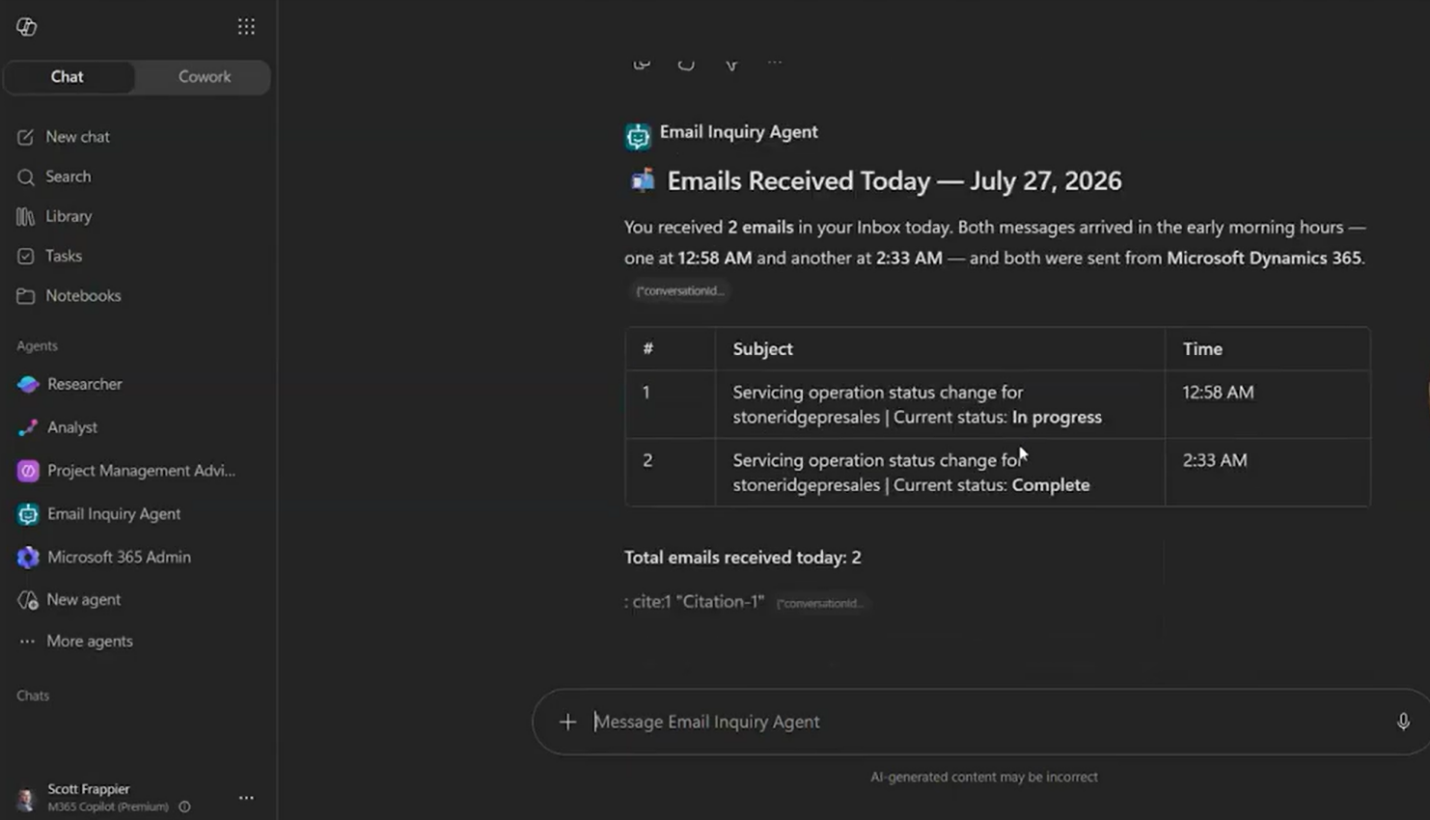
That's the advantage of publishing through channels: You can manage your agent in Copilot Studio while employees use it through familiar Microsoft applications.
How to Track Agent Usage and Activity in Copilot Studio
You've created your agent, connected it to business information, and published it for employees.
Now comes another important question:
How do you know what your agent is doing?
Even if an agent works perfectly during testing, real-world interactions can introduce unexpected challenges.
Users might submit unfamiliar questions, connections may require additional permissions, or an agent may struggle with a particular task.
Copilot Studio's Activity tab helps you investigate these situations and understand how your agent processes requests.
Step 1: Open Your Agent's Activity Tab
To start monitoring your agent:
- Sign in to Copilot Studio.
- Navigate to Agents.
- Select the agent you want to review.
- Open the Activity tab.
- Review the available sessions and interactions.
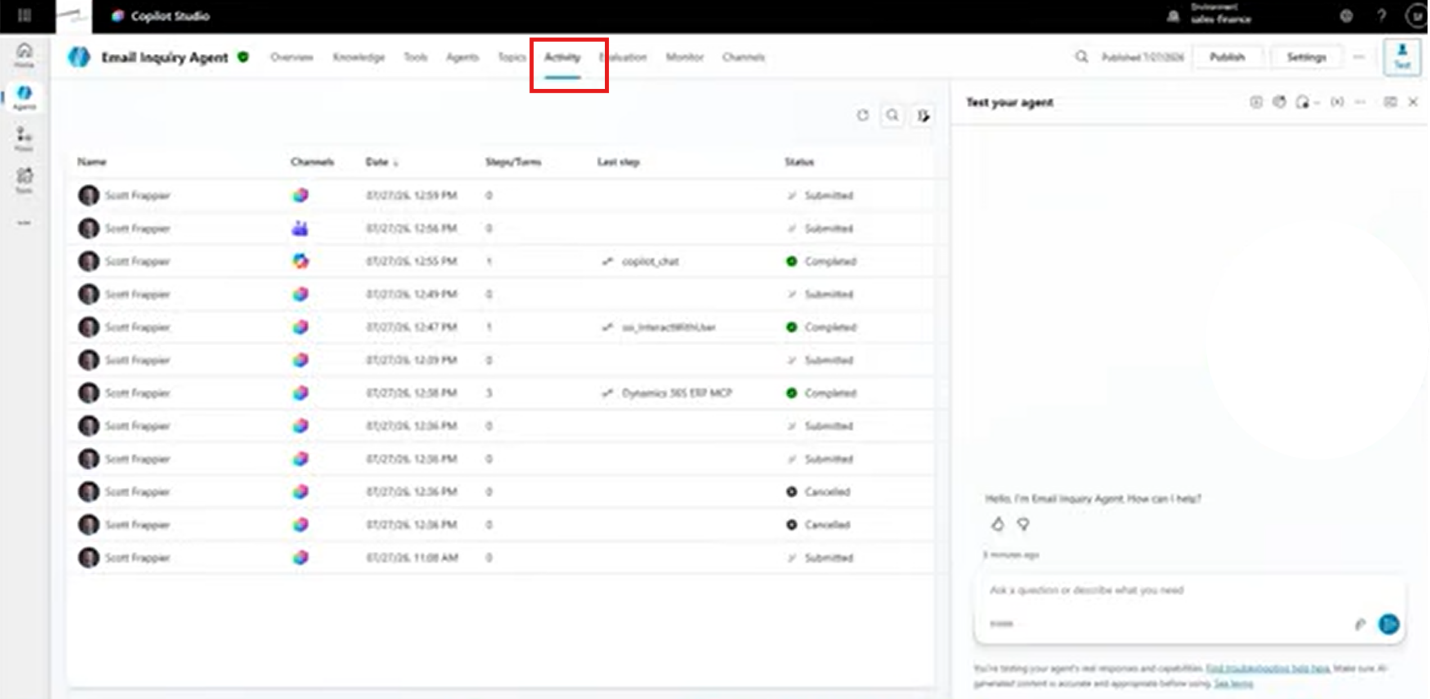
The Activity tab provides visibility into sessions associated with your agent, including the steps involved in processing requests.
For example, you may see interactions originating from:
- Test chats within Copilot Studio.
- Microsoft 365 Copilot.
- Microsoft Teams.
This is particularly valuable when you've published an agent across multiple channels.
Instead of only seeing what happens during development, you can investigate how your agent behaves when employees use it.
Step 2: Review Individual Sessions
The Activity tab allows you to investigate specific sessions.
For example, suppose someone asks your published email inquiry agent how many emails they've received today.
You can examine that interaction to understand how the agent processed the request.
- Locate the relevant session in the Activity tab.
- Identify the channel where the interaction occurred.
- Select the session to open its details.
- Review the steps recorded during the interaction.
- Examine the connections, actions, and outputs associated with the request.
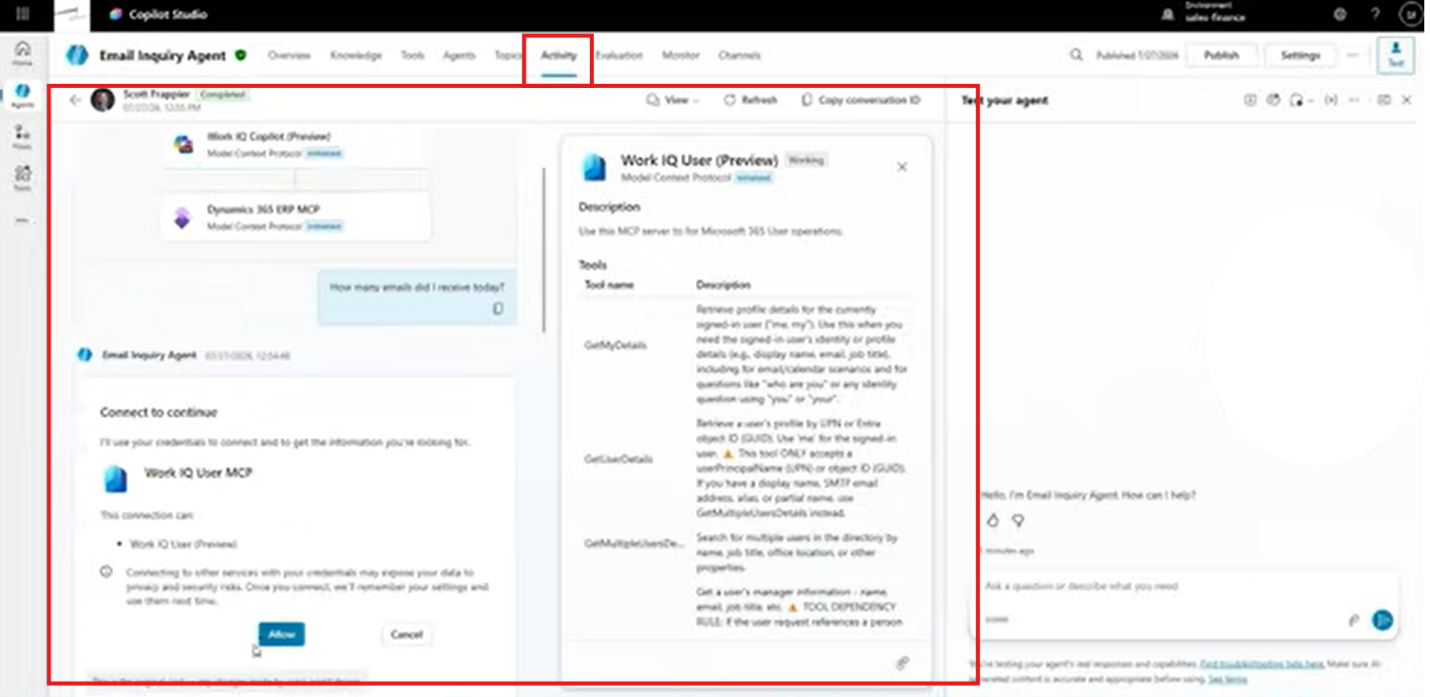
In our example, the session details show the agent interacting with Work IQ and other configured connections.
You can also see where authentication requests occurred and how the agent retrieved the information needed to answer the question.
This gives you a much clearer picture of what's happening behind the scenes.
Step 3: Investigate Agent Processing and Results
One of the Activity tab's most valuable features is its ability to show more than just the final response.
You can investigate the processing steps associated with a request, including which tools were used and what outputs were generated.
For example, an agent might need to complete several actions to retrieve information from Dynamics 365.
By reviewing the relevant session, you can understand how the agent approached the task.
This helps you answer questions such as:
- Which tools or connections did the agent use?
- Did it request the necessary permissions?
- What information was returned during processing?
- Which steps were completed before generating a response?
- Where might an unsuccessful interaction have encountered a problem?
Rather than guessing why an agent didn't produce the expected result, you can investigate its activity and identify potential issues.
Step 4: Use Activity Information to Improve Your Agent
Monitoring isn't just about reviewing what happened. It's about using that information to make your agent better.
For example, if certain requests consistently fail, you can investigate whether the problem relates to instructions, tools, permissions, or processing.
You can then make adjustments and test the updated configuration.
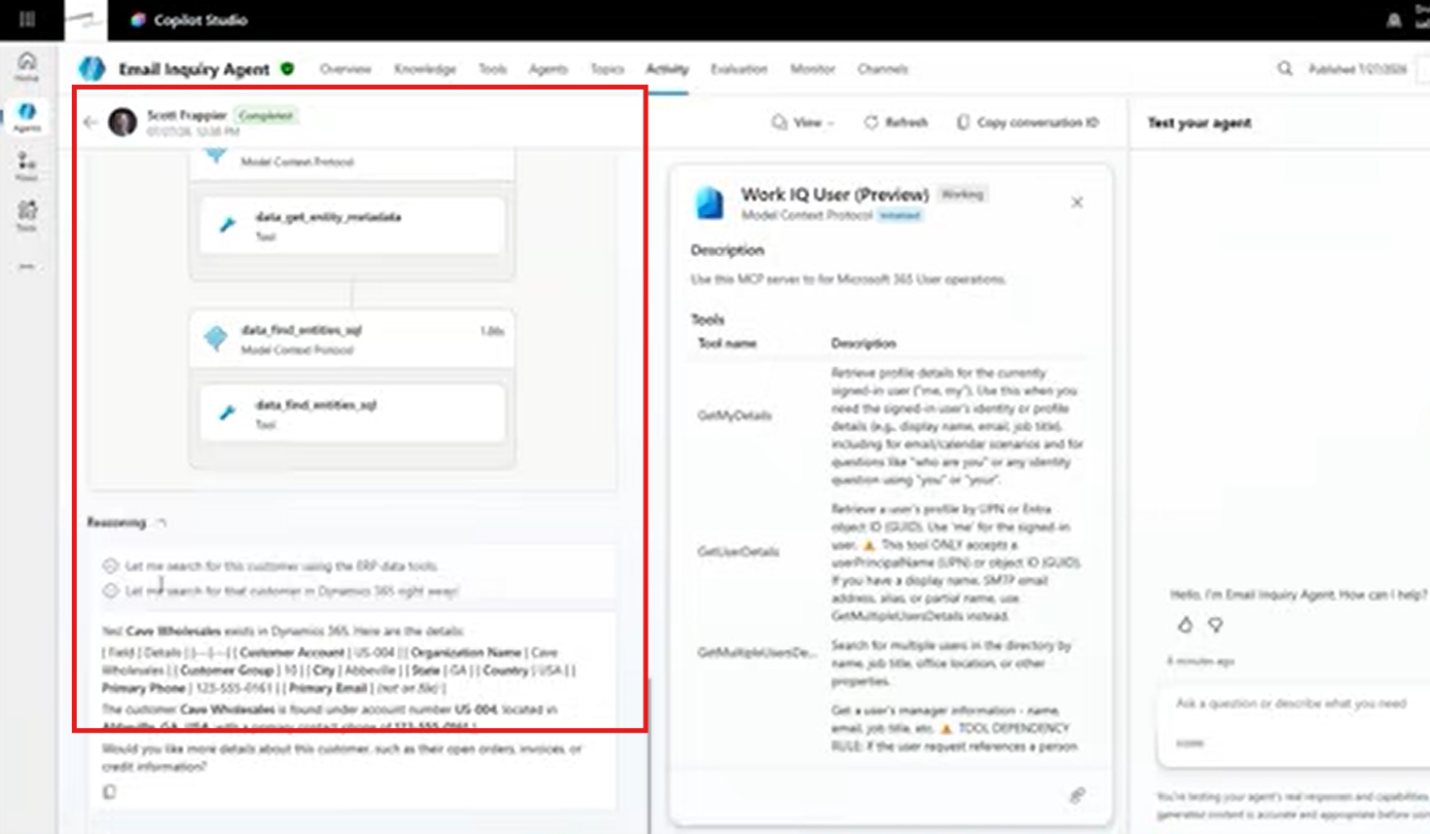
However, it's important to recognize that the Activity tab is primarily designed for people building and maintaining agents.
While it provides valuable debugging information, it isn't necessarily the best experience for end users who simply want to understand why something succeeded or failed.
This is particularly important for automated agents operating without direct user interaction. Those agents may need additional mechanisms to communicate results or explain failures.
For now, the key takeaway is that Copilot Studio provides the visibility you need to investigate agent interactions and continuously improve their performance.
From Creation to Continuous Improvement: Key Takeaways
Building an effective AI agent isn't a one-time activity.
It's an ongoing process involving the right capabilities, accessible deployment, and a clear understanding of how your agent performs.
As you work with Copilot Studio, remember these principles:
- Build in the right environment. Use a dedicated development environment before deploying agents more broadly.
- Start simple and expand capabilities. Create a blank agent, define its purpose, and connect the information and tools it needs.
- Test before and after publishing. Confirm your agent works inside Copilot Studio and through its published channels.
- Meet employees where they work. Make agents available through familiar applications like Microsoft 365 Copilot and Teams.
- Monitor activity and improve. Review interactions to identify opportunities to refine your agent's performance.
The more familiar you become with these processes, the easier it becomes to build agents that deliver meaningful value.
And we're not finished yet! Part 3 of our Copilot Studio series is on the horizon, where we'll continue exploring the platform's capabilities and how you can put them to work.
Turn Your AI Agent Ideas into Business Results with Stoneridge Software
Creating an AI agent is easy. Creating one that works for your business is where expertise makes the difference. Whether you're building your first agent, connecting Copilot Studio to Microsoft business applications, or preparing to deploy agents across your organization, Stoneridge Software is the partner you can count on.
Our team can help you through every stage of your AI journey, from planning and development to publishing, optimization, and ongoing support. We'll work with you to build agents that align with your processes, connect to the right systems, and deliver the functionality your employees need.
Ready to get the most out of Microsoft Copilot Studio? Contact Stoneridge Software today!

Under the terms of this license, you are authorized to share and redistribute the content across various mediums, subject to adherence to the specified conditions: you must provide proper attribution to Stoneridge as the original creator in a manner that does not imply their endorsement of your use, the material is to be utilized solely for non-commercial purposes, and alterations, modifications, or derivative works based on the original material are strictly prohibited.
Responsibility rests with the licensee to ensure that their use of the material does not violate any other rights.