














Dynamics 365 Business Central Workflows vs Power Automate: When to Use Each for Maximum Efficiency
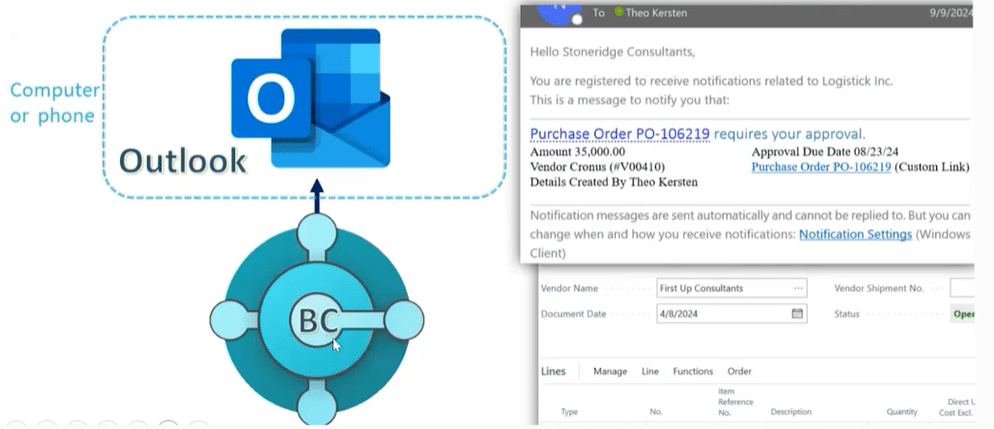
Every organization has routines and tasks that users perform every single day, whether it’s approvals that need sign-off, new customers being added to the system, invoices that need to be posted, or purchase orders that must be checked before shipping.
These processes are essential but can also take up a lot of time. Luckily, Dynamics 365 Business Central includes built-in workflows that automate and streamline these processes, eliminating tedious tasks like manual clicks and back-and-forth emails that are prone to delays or inconsistencies.
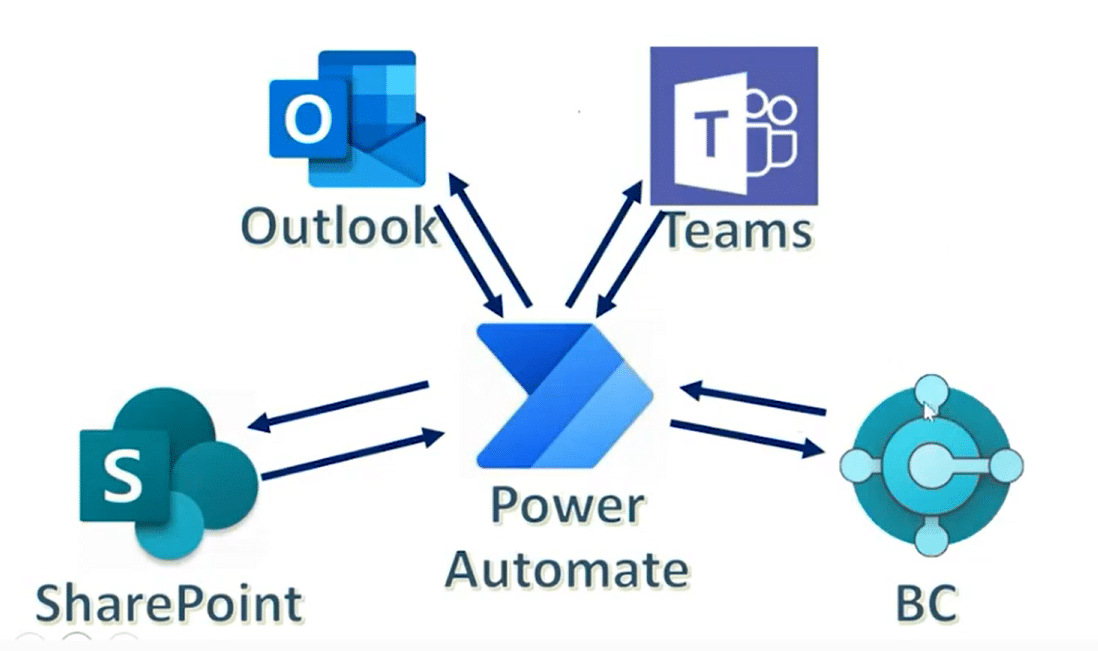
Similarly, you can use Power Automate to expand these capabilities by integrating with other tools such as Outlook, Teams, and SharePoint.
In this blog, we’ll break down:
- The types of workflows you can automate in Business Central
- When to use Business Central’s native workflow engine
- When Power Automate is the better choice
- Real-world examples that show how combining the two platforms can boost efficiency and accuracy
Understanding Workflows in Business Central
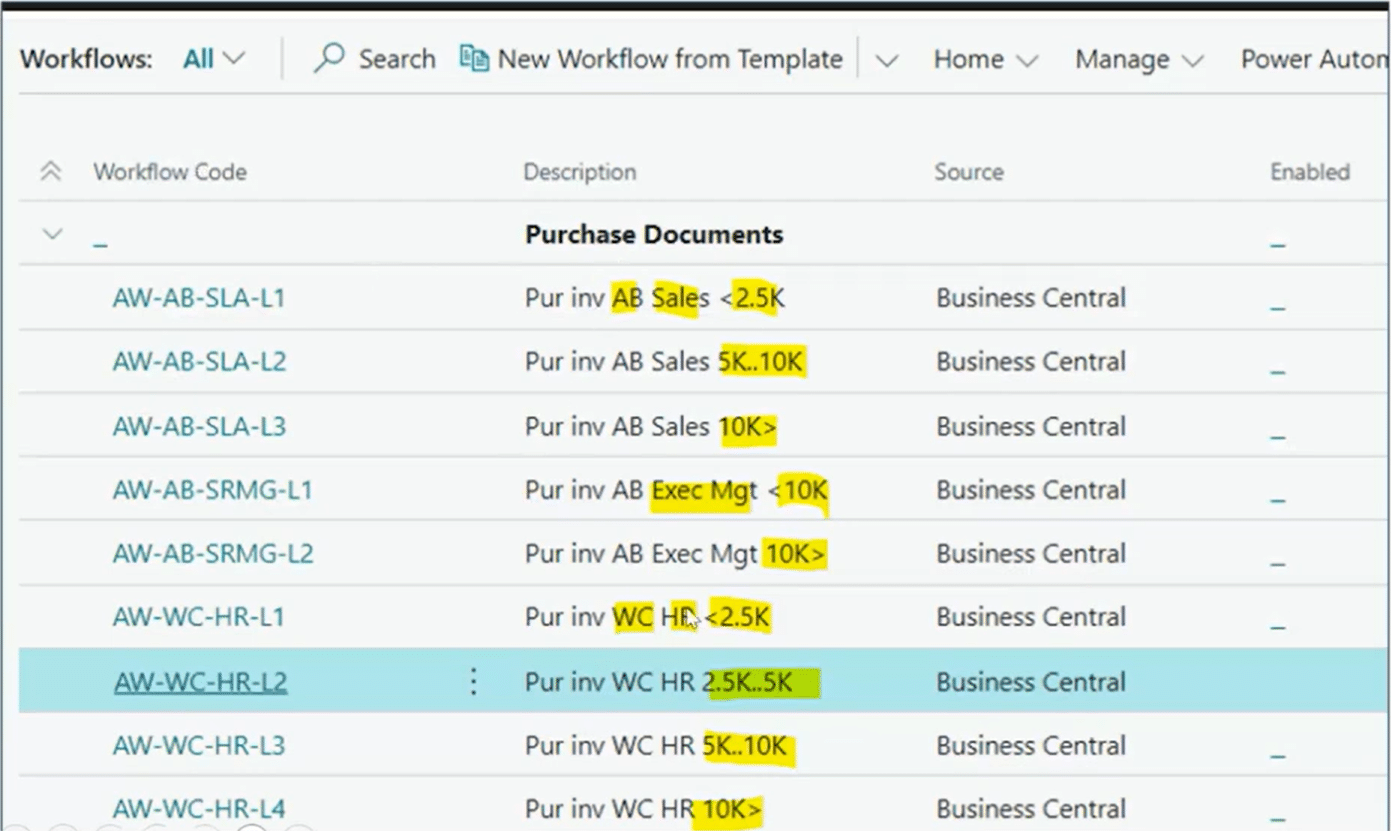
A workflow, at its core, is simply a repeatable sequence of activities that follow a defined pattern. In Business Central, workflows help enforce process consistency—making sure steps happen in the right order every time, and nothing important falls through the cracks.
While it’s not a definitive list, there are six common workflow categories that organizations frequently automate:
- Notification workflows: These notify team members about various changes to records within the system. (For example: A new sales order being released or a customer record being updated)
- Credit limit workflows: An automated workflow that ensures customers do not exceed assigned credit limits.
- New record workflows: When an action is taken, automated workflows can create new records without any human intervention.
- Automation workflows: Can be applied to various parts of your business.
- Validation workflows: Automates the population of various form fields.
- Approval workflows: Team members can send requests for approval to managers with one click of the button. Similarly, managers can quickly review, edit, and approve requests in an instant.
Each type has strengths, and each one can be built using Business Central workflows, Power Automate, or both, depending on your requirements.
Scenarios for Workflows Related to Business Central:
1. Approval Workflows
Approval workflows establish checks and balances when it comes to record creation or other related movements within your business. Accuracy is key when it comes to creating Purchase Orders and sending invoices to customers, and approval workflows ensure that managers are kept in the loop on what users are working on and how accurately the work is being completed.
These workflows can send automated emails to approvers when a record is created or altered with a link to the record. Managers can then go in and check the record to ensure everything is correct.
2. In-System Notifications
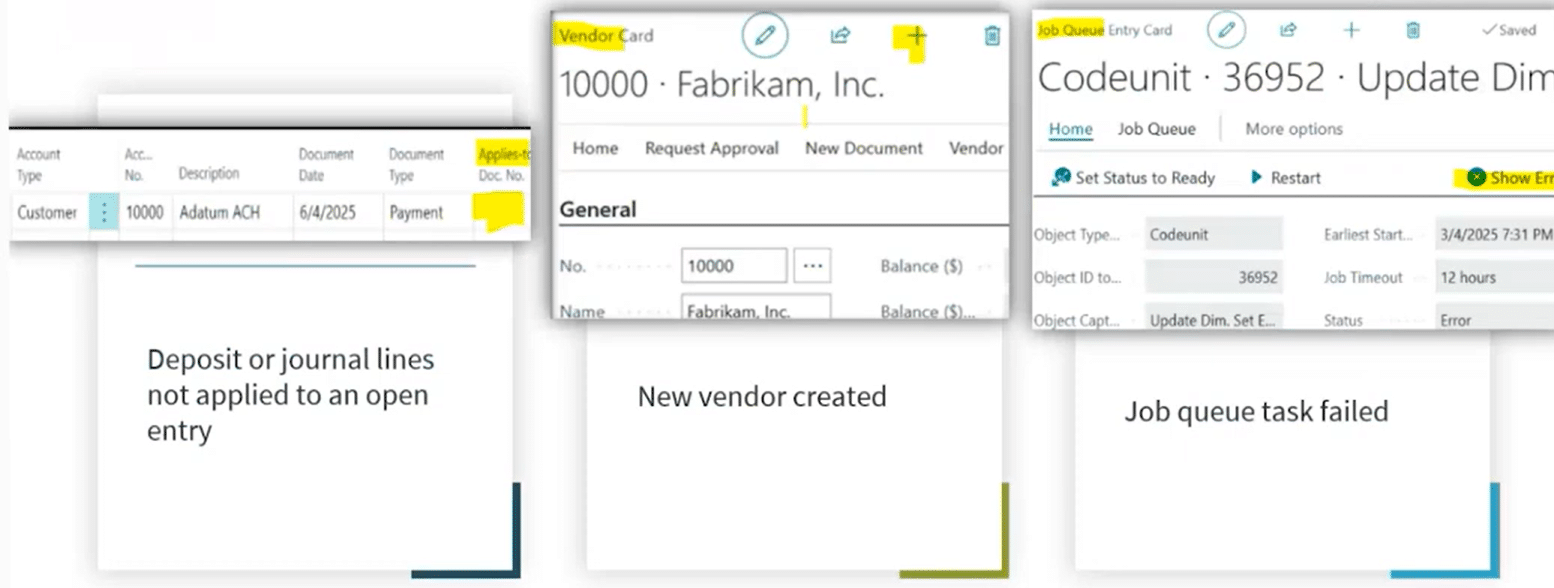
- Example 1: A user processes a customer payment without applying it to an open invoice. A Business Central workflow can immediately alert them, so they correct the issue before posting.
- Example 2: One of your team members creates a new vendor in Business Central. You can automate a workflow to let a manager know to expect a new vendor in the system and prepare for the work that comes with it.
3. Credit Limit Exceed Controls
Out of the box, Business Central warns users when they exceed a customer’s credit limit—but still lets them continue. A Power Automate workflow levels this up in several ways:
- It enforces an approval request, ensuring a manager can look at any potential credit extensions or exemptions before they are granted.
- The approval workflow can be custom routed based on order or customer properties.
- It allows the approver – or manager – to reach out to the customer before releasing the order.
- Once the manager approves the order, the system can automatically start the process of releasing the sales order. Conversely, if the manager rejects the order, the system will reset the order status to open and halt the sales order.
4. New Record Workflows
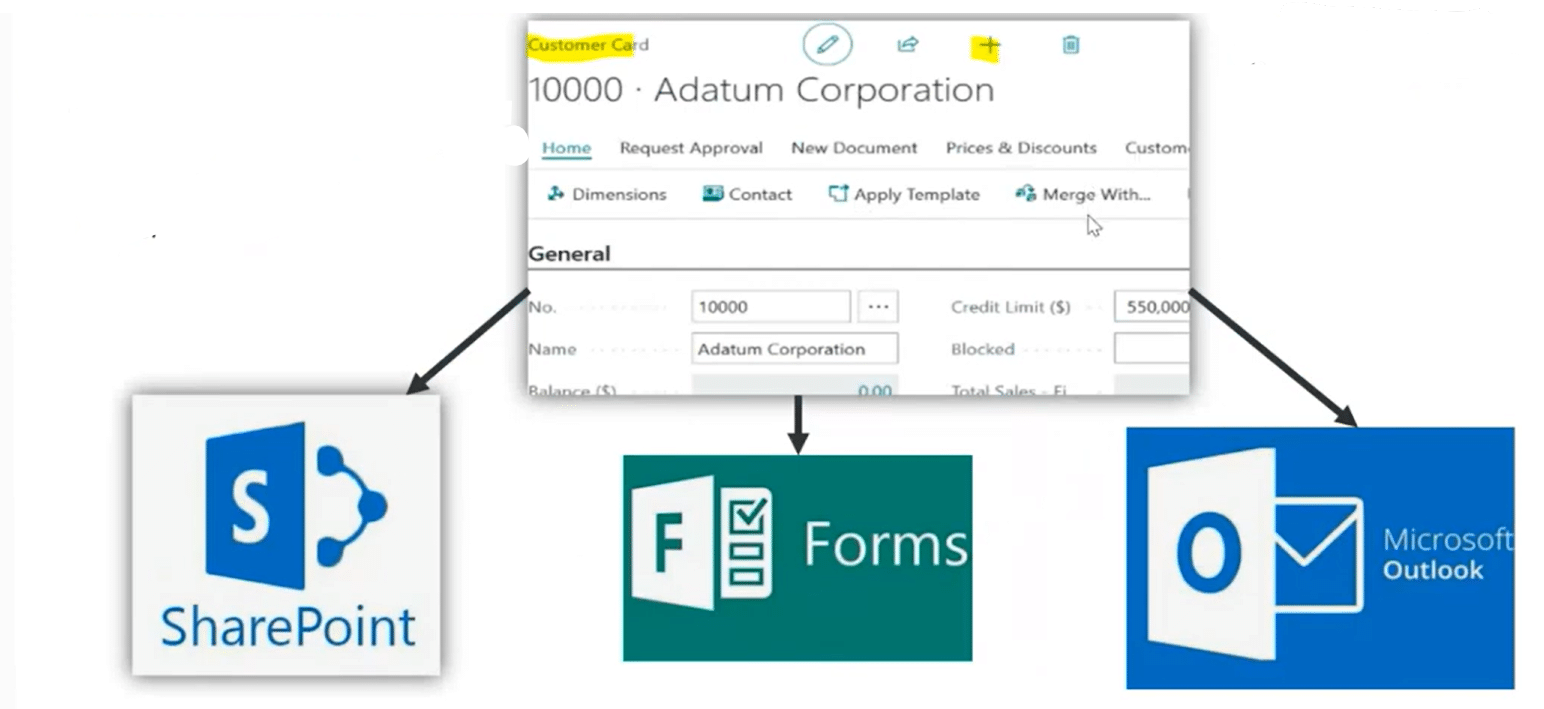
Example: If a user in your system creates a new item or customer record, there are several workflows you can set up:
- You can configure the system to create a new SharePoint folder specifically dedicated to that item or customer.
- You can create a new form that is automatically sent to the customer to gather more information or collect feedback.
- The system can send emails to various stakeholders, including sales staff assigned to that customer record or the customer themselves. If it’s a new item, the system can send an email to your warehouse team.
5. Automation Flows
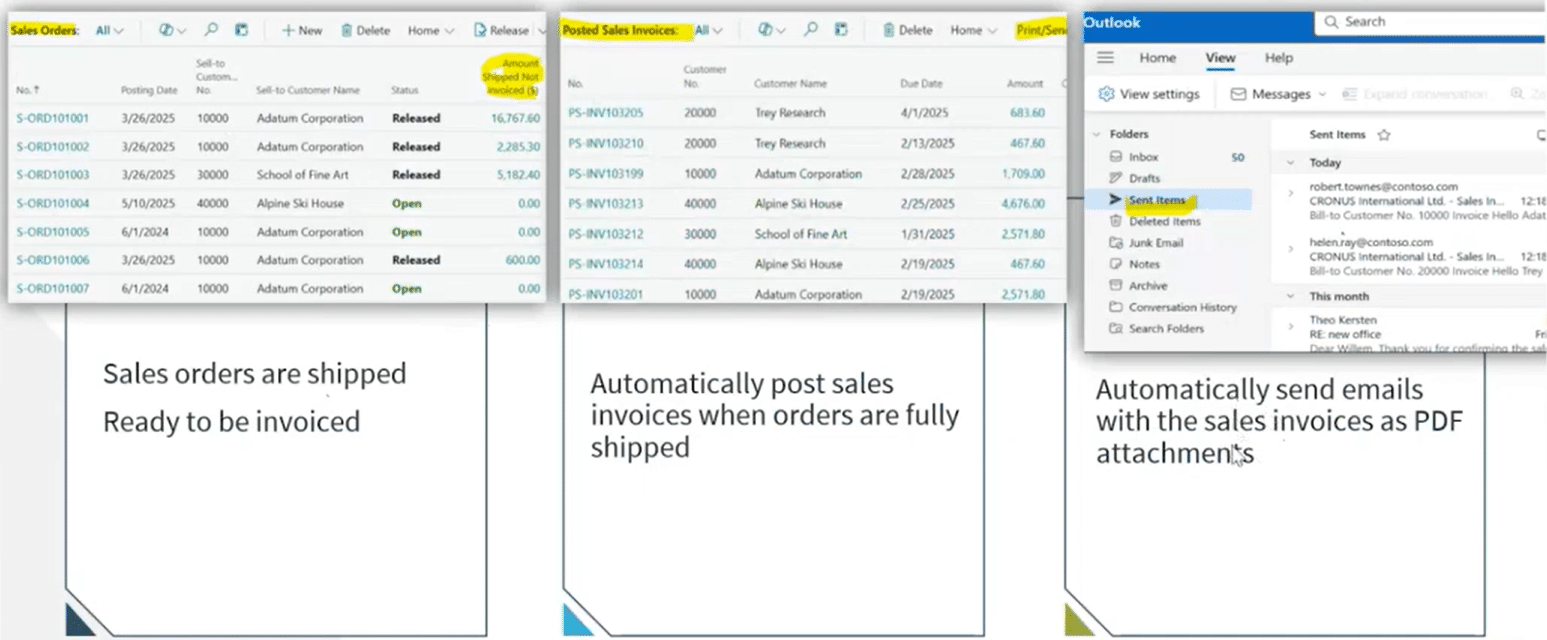
- Example 1: You have multiple sales orders that have been shipped and are ready to be invoiced. You can set up workflows that automatically post sales invoices when orders are fully shipped.
- Additionally, the system can then send emails with the invoices attached as PDFs to the customer.
- Example 2: Many businesses use Accounts Payable (AP) automation flows. These monitor email inboxes and will scan PDF attachments attached to emails using OCR to extract relevant data.
- Based on that data, the system will automatically create a new purchase invoice for you.
6. Validation Rules
If your purchasing, sales, or general ledger relies on mandatory dimensions or document numbers, Business Central workflows ensure missing fields are caught before the order moves along the process chain. Some examples include:
- Ensuring the “Department” field is entered on a Purchase order or invoice
- Putting in the External document number on a sales order to prevent shipping issues
- Making customer dimensions mandatory for a workflow to create a SharePoint folder.
Key Benefits of Using Business Central Workflows:
For workflows that start and end entirely inside Business Central, the built-in workflow engine is often the best tool—especially when users need immediate feedback during data entry.
The most important benefit of using workflows in Business Central is you can stack them on top of each other. While that can look unique based on how your business operates, this example should give you an idea of how these workflows can work in tandem:
- A user creates a new customer record in Business Central: A new record workflow can create a SharePoint folder to store this customer’s information.
- Next, the creation of that record and folder triggers an in-system notification workflow that lets managers and associated sales staff know that a new customer record has been created.
- When the user is done creating the record, it will trigger an Approval workflow that will go to a manager. That manager can then go in, review the record, check it for accuracy, and either approve or reject it based on Validation Rules or set criteria.
Additional benefits of using Business Central workflows include:
- Built-in audit history
- Easy substitution and delegation handling
- Templates allow quick setup
- Real-time feedback during data entry
If the workflow is entirely internal and the approval/notification participants are Business Central users, the native workflow engine is often the most efficient choice.
When Power Automate Becomes the Better Choice
Power Automate shines when:
- The workflow crosses multiple applications: Chances are, not every tool you use within your business falls under the Microsoft stack. Power Automate is more product-agnostic and can flow across multiple applications and workspaces.
- Approvers don’t have Business Central licenses: Not everyone involved with a workflow is going to have a Business Central license (For example: You might want to set up a customer as an approver). Using Power Automate lets you work around this issue, whereas with Business Central flows, everyone involved needs a BC license.
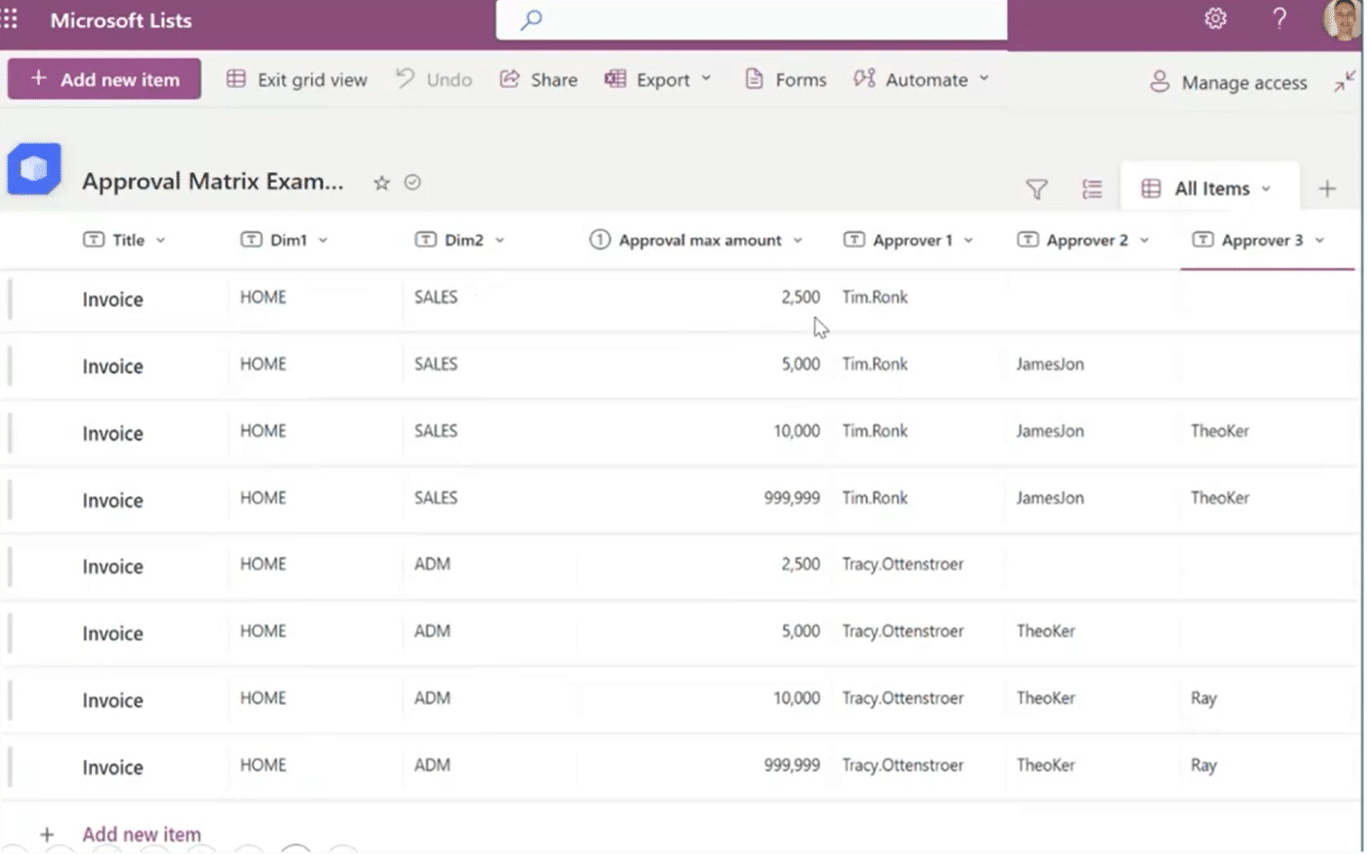
- You need more flexible logic than what Business Central workflow templates provide: While Business Central flows are very solid and effective, Power Automate takes it to the next level by allowing you to do approvals from Teams, Outlook, or on mobile. Routing becomes easier as you can manage the logic from a SharePoint matrix as opposed to having dozens of separate workflows.
Business Central Workflows vs. Power Automate: Quick Comparison
| Feature/Need | Business Central Workflow | Power Automate |
|---|---|---|
| All steps remain inside Business Central | Best fit | Possible, but unnecessary |
| Approvers don't have BC licenses | Not ideal | Perfect fit |
| Workflows involve Outlook, Teams, SharePoint, Forms, CRM | Not supported well | Designed for this |
| You need flexible routing logic | Limited | Highly configurable |
| Real-time validation during data entry | Strong | Email feedback comes later |
| Complex approval matrix | Possible, but hard to maintain | One flow can easily manage it |
Final Thoughts
Business Central’s native workflows are excellent for enforcing data integrity, applying controls, validating entries, and keeping financial processes consistent. But when your processes extend outside the ERP system—or when approvals and communication need to happen quickly and across teams—Power Automate delivers greater speed, flexibility, and accessibility.
By using both tools together, you create a streamlined system where:
- Data stays clean
- Approvals happen faster
- Communication improves
- Users spend less time clicking and more time adding value
This will help remove hurdles and pain points that slow your processes down and will allow your users to focus on other tasks that bring more value to your business.
Ready to Get Started with Automated Workflows in Business Central?
Talk to the Stoneridge experts today!
Whether you want to utilize Business Central’s out-of-the-box workflows to streamline day-to-day tasks or want to build an expansive automation strategy with Power Automate, we can help you.

Under the terms of this license, you are authorized to share and redistribute the content across various mediums, subject to adherence to the specified conditions: you must provide proper attribution to Stoneridge as the original creator in a manner that does not imply their endorsement of your use, the material is to be utilized solely for non-commercial purposes, and alterations, modifications, or derivative works based on the original material are strictly prohibited.
Responsibility rests with the licensee to ensure that their use of the material does not violate any other rights.