














How the AI-Powered Supplier Communications Agent Transforms Vendor Collaboration in Dynamics 365
Supply chain disruption has become the norm, not the exception. Between shifting delivery dates, unconfirmed purchase orders, and inboxes overflowing with vendor follow-ups, procurement teams are under constant pressure to do more in less time.
That’s where the Supplier Communications Agent in Dynamics 365 Finance and Supply Chain Management comes in. Microsoft’s agentic AI capabilities through Copilot can automate one of the most time-consuming areas of supply chain operations, supplier communications.
This agent gives your team its time back, improves data accuracy, and helps you keep your delivery commitments on track and on time. Watch the video or read on to learn how you can use this to your advantage!
Let’s take a closer look at what the Supplier Communications Agent is, how to enable it, and how to use it to automate routine tasks and optimize key processes.
What Is the Supplier Communications Agent?
At its core, the Supplier Communications Agent is an AI-powered Copilot agent embedded directly within Dynamics 365 Finance and Supply Chain Management. It does the simple but very valuable job of automating and streamlining communication with your vendors. This allows your purchasers to be more productive and focus on tasks that bring more value to your business.
The agent focuses on two critical areas:
- Outbound Communication: The supplier communications agent can automatically generate emails that remind vendors to confirm a purchase order or follow up on delayed deliveries.
- Inbound Communication The agent can also monitor incoming emails from vendors by enabling Copilot to read emails from some or all vendors. It can interpret updated delivery information and help purchasers update confirmed dates in Dynamics 365 more efficiently.
Instead of buyers manually tracking late POs, drafting emails, and updating dates across dozens (or hundreds) of suppliers, Copilot handles the heavy lifting. That means purchasers can focus on higher-value work like supplier strategy, exception handling, and risk mitigation—rather than inbox management.
In short, the agent streamlines your processes by eliminating the need for your purchasers to chase down vendors or spend hours drafting emails. It gives you more control and allows you to make better use of your time.
Supplier Communications Agent Prerequisites
Because this is a powerful and relatively new capability, there are a few setup requirements to get right before enabling the agent. The good news is that once these are in place, ongoing management is straightforward.
Platform and Feature Requirements
To use the Supplier Communications Agent, organizations must meet the following baseline requirements:
- You must be running Dynamics 365 Finance version 10.0.44 or later, with all available quality updates.
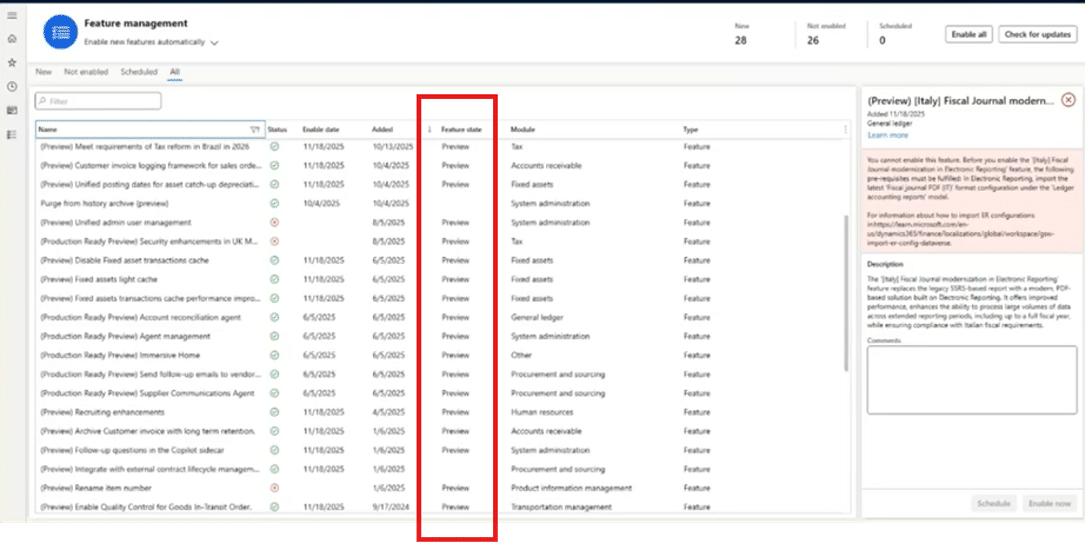
- The following features must be turned on in Feature Management. If the features aren’t shown in your system, select Check for Updates:
- Immersive Home (Preview)
- Agent management (Production-ready preview)
- Supplier Communications agent (Production-ready preview)
- Send follow-up emails to vendors with the Supplier Communications agent – automatically sending emails (Preview)
In Feature Management, these can be quickly located by filtering features that contain the name “preview.”
Copilot Requirements: Sending Emails Automatically
There is one optional portion of these prerequisites for sending emails. You can either have the Copilot-powered agent draft an email for you to review or you can just tell Copilot to send the email automatically. Whichever option you choose depends on your comfort level with Copilot sending emails on your behalf.
If you want to set up the second feature, you must be running the following packages in the Power Platform admin center:
- Copilot for Finance and Operations apps version 1.0.3048.2 or later
- Copilot for Microsoft Dynamics 365 Supply Chain Management, version 1.1.03071.1 or later
Set Up the Agent’s Identity
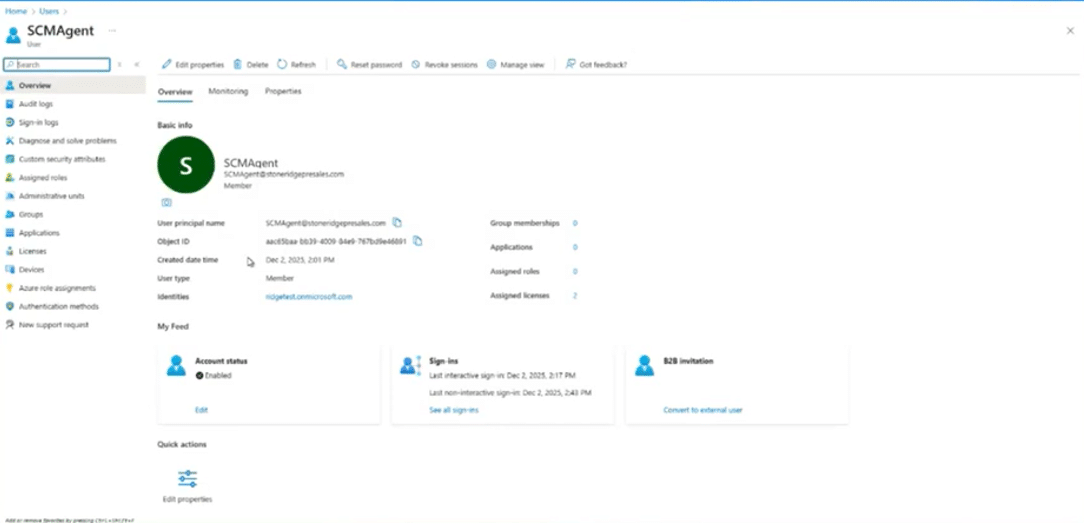
Before you go to use your agent, you need to give it its own digital identity. You can do this by creating a dedicated service account in Microsoft Entra ID, not a personal user account. This ensures continuity, security, and stability over time.
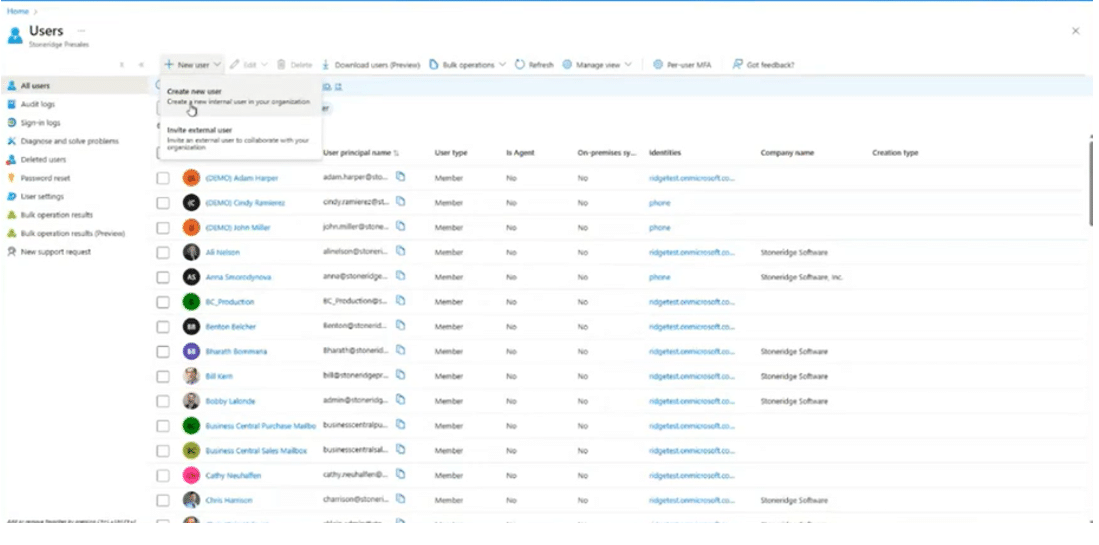
You can do this by:
- Creating a new Entra ID user as a service account
- Setting the password to never expire
- Disabling “change password on first login.”
- Ensuring the Usage Location field is populated
This step is critical—without it, Copilot Studio connections will fail.
Required Security Roles
The other key aspect in setting the agent’s identity up is assigning specific roles in Dataverse and Dynamics 365 Finance, including:
- Dataverse:
- Finance and Operations Basic User
- Supplier Communications Agent
- Environment maker
- Finance:
- Supplier Communications Agent (Preview)
- System user
This role configuration allows the agent to securely interact with purchasing data, email workflows, and Copilot services.
Create the Required Connections
With the service account in place, the next step happens in the Power Apps portal, where you will create two connections and link them directly to the agent identity. They include:
- Dataverse connection link
- Select the Dataverse connector with the green icon (the newer version)
- Use OAuth authentication connection type
- Authenticate using the agent’s service account profile
- Copilot Studio connection link
- Also authenticated with the agent identity
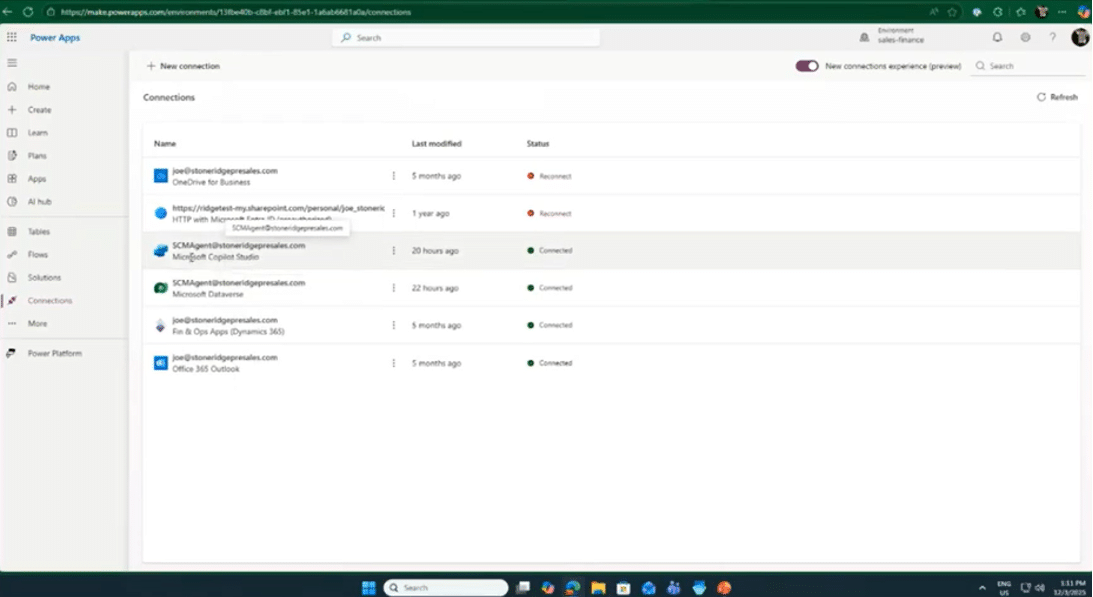
Once these connections exist, the final setup step occurs in Managed Solutions:
- Navigate to Copilot in Supply Chain Management
- Share the app with:
- Your user account
- The agent service account
- Open the app and activate all associated flows
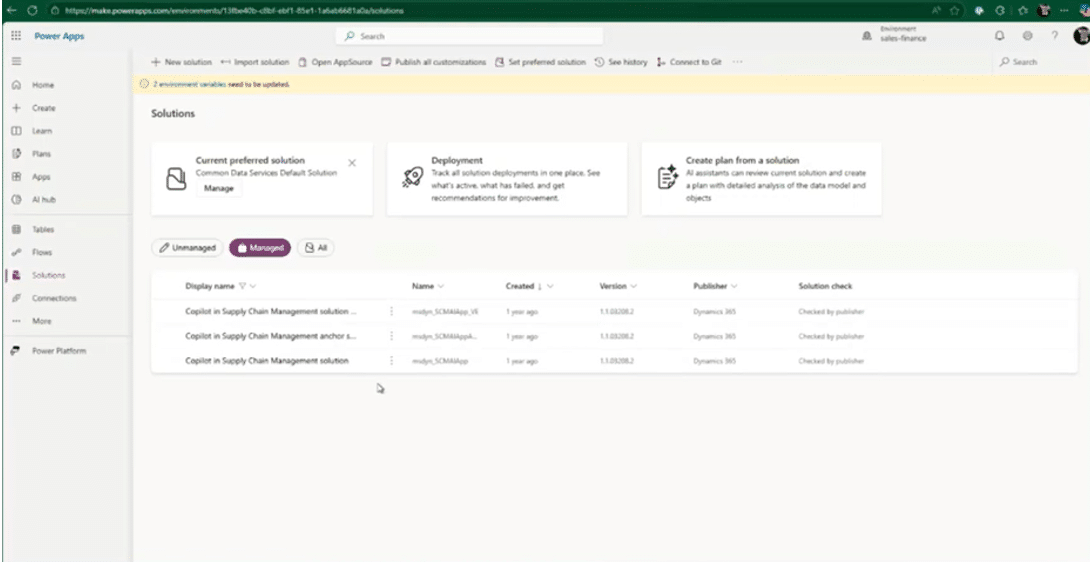
At this point, you have set a solid foundation for the agent and can now move on to configuring it inside of Dynamics 365.
Supplier Communications Agent Setup
Once prerequisites are established, you can configure the agent right in Dynamics 365 Finance and Supply Chain Management. Let’s follow the steps:
Step 1: Access the Agents Module
After enabling Agent Management, you can go back into Dynamics 365 Finance and see a new Agents module will appear on the left-hand navigation.
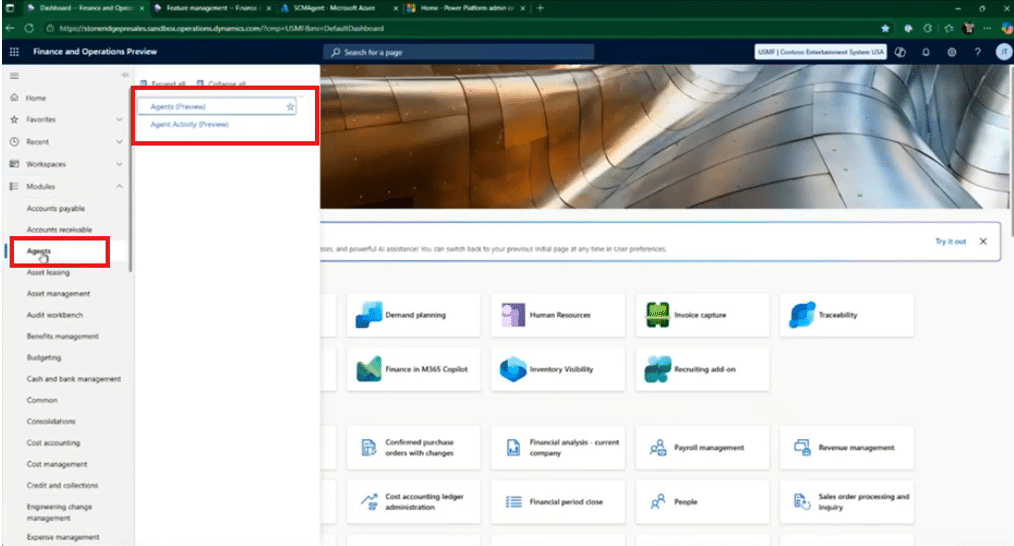
From here, you can:
- Manage any agents you have set up
- View active agents
- Monitor agent activity
- Add new agents available to you from the Agent Library
If no agents exist yet, the Library displays all available Copilot agents, including the Supplier Communications Agent.
Step 2: Choose What the Agent Should Do
When configuring the Supplier Communications Agent, users can select exactly how it should behave. Do you want it to draft emails for review or automatically send emails to suppliers and vendors?
On the flip side, this phase is where you can configure the agents to monitor incoming emails and communications to determine whether the agent should act on delayed purchaser orders, unconfirmed purchase orders, or both.
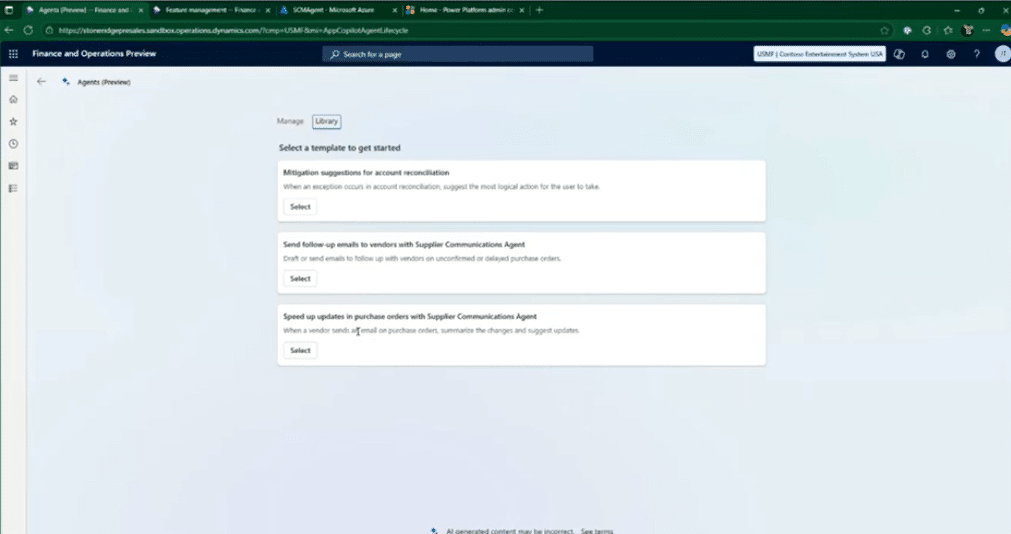
Flexibility is a recurring benefit with Copilot agents, as they adapt to your process, not the other way around.
Step 3: Configure How Your Agent Will Act
For this demonstration, we will choose only the “Send follow-up emails to vendors” option. When you click on “Select”, it takes you to the next page where you can choose how communications are grouped.
You can then use intuitive drop-down menus to determine what your agent will do and how often it will do it. For example, you can hit the drop-down for “Draft” or “Send” depending on what you want the agent to do.
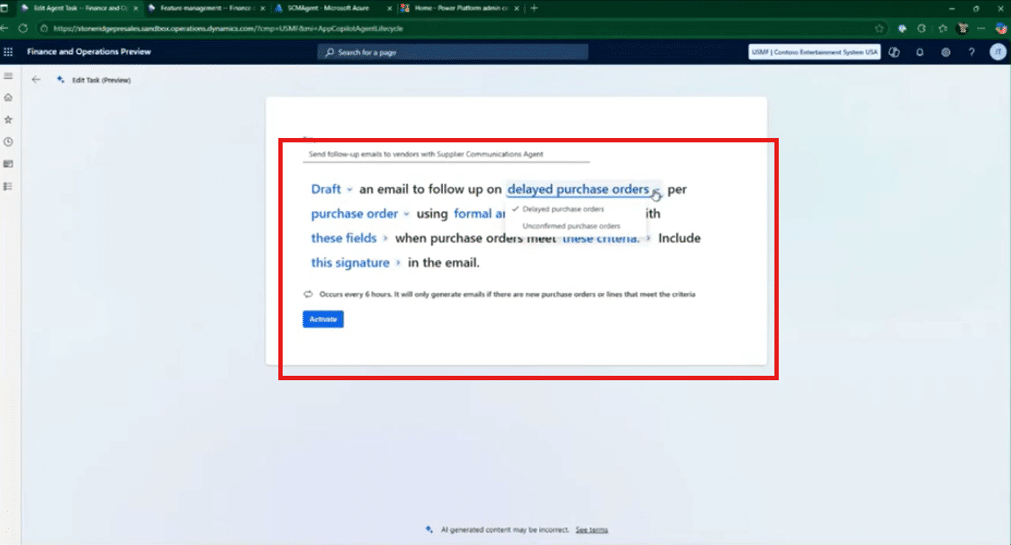
Other easy-to-use options here include:
- Grouping communications: You can configure whether you want the agent to monitor delayed or unconfirmed purchase orders, or group them per purchase order or vendor. This prevents inbox overload and creates a cleaner, more professional way for your agent to communicate with vendors.
- Set the style of language: With one drop-down menu, you can define how the agent will communicate. This is very useful in terms of:
- Tone: Casual for emails that aren’t as serious, and formal for more professional emails. Whichever option you choose might be more suited to your own communication style.
- Urgency: If a vendor is late by a day or two on a purchase order payment, you can configure the agent to send a non-urgent style of email. However, if a month passes and that bill is still outstanding, you can then switch the agent to draft or send an email with more urgency.
- Email Content: By selecting the “these fields” menu, you can dictate what is included in the email by selecting from a long list of fields that are included in your email content. This could include, but is not limited to:
- Purchase order number
- Confirmed receipt date
- Currency
- Line-level details
- Any other relevant fields
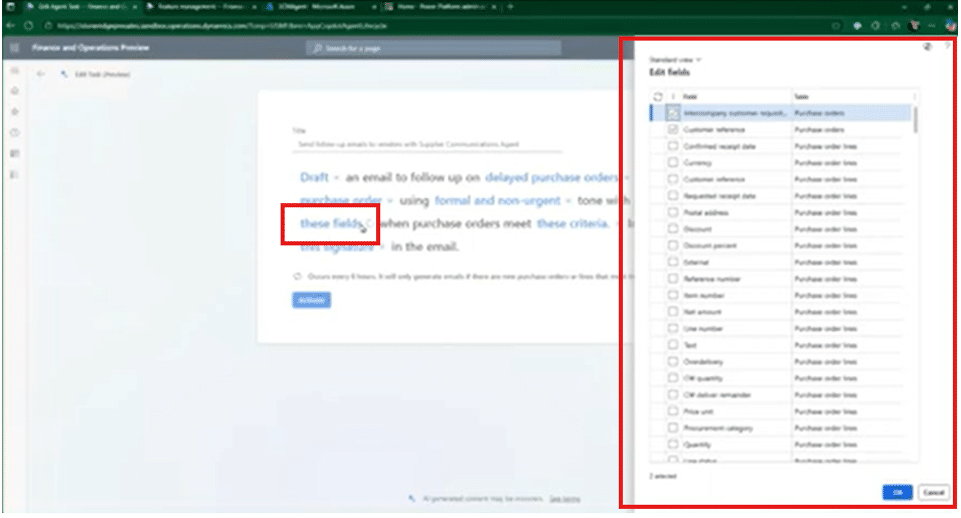
- Set Criteria Using Filter: By selecting the “these criteria” menu, you can go in and choose the exact criteria and conditions that will make the agent act on your organization’s behalf. You can specify:
- Date ranges (e.g. POs overdue by 60+ days)
- Specific vendors
- Item IDs
- Order values
- Any combination of purchase order header or line data
- Add a signature to the email: If you want attach a specific signature to an email, you can do that by clicking the “this signature” in the email. You can also include or exclude a disclaimer stating that the email was composed with AI assistance.
- Customize the timing of the agent: When you first create it, it will run every six hours. You can customize this to fit your business needs.
After all that, you simply click the Activate button, and your agent will be ready to work.
Multiple Agents
One of the most interesting things about this is you can have multiple Supplier Communications agents existing in the same environment.
Multiple agent configurations can coexist—for example:
- You can have a non-urgent reminder agent that sends out an email with a softer tone at 60 days overdue – Or you can have a more urgent follow-up agent that sends a sterner email at 90 days overdue.
- You can have agents for separate vendors. This is helpful in several ways, for example:
- If you have a vendor that you know always pays on time, you can configure an agent that talks to them with a softer and lighter tone and less urgency. At the same time, you can run an agent that sends emails with a more serious and professional tone and higher urgency for vendors and suppliers who might struggle with making payments on time.
- You have different users with different personalities within your environment that might have various communication styles.
Seeing It in Action
Once activated, the agent gets to work automatically. When you go to the immersive home page, you will see Agent activity and Work items.
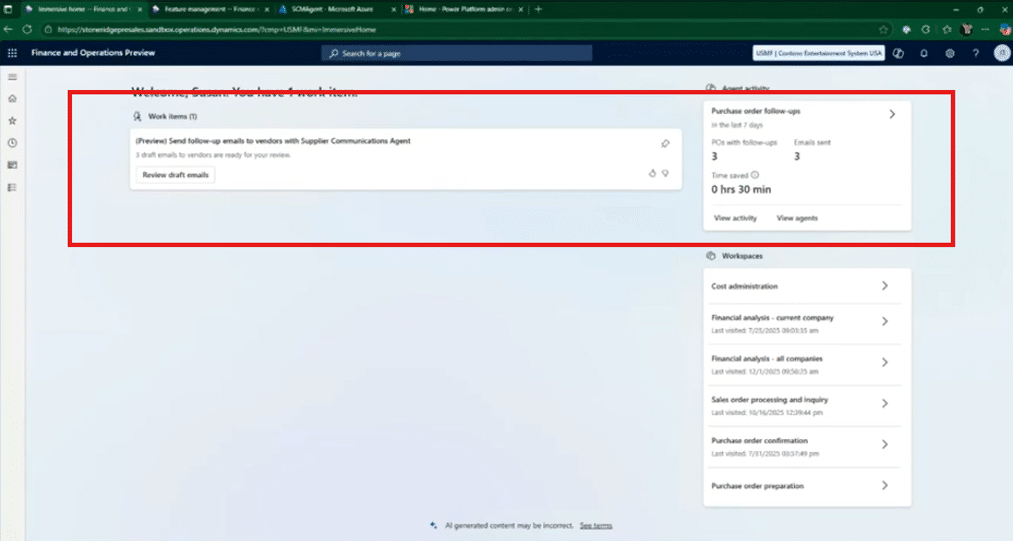
Let’s take a closer look at these different sections:
- Work items: This list basically gives you an automatically updated to-do list and could include things like:
- The number of POs that need to be followed up on
- Email drafts that are ready for your review that you can just click on and approve before sending.
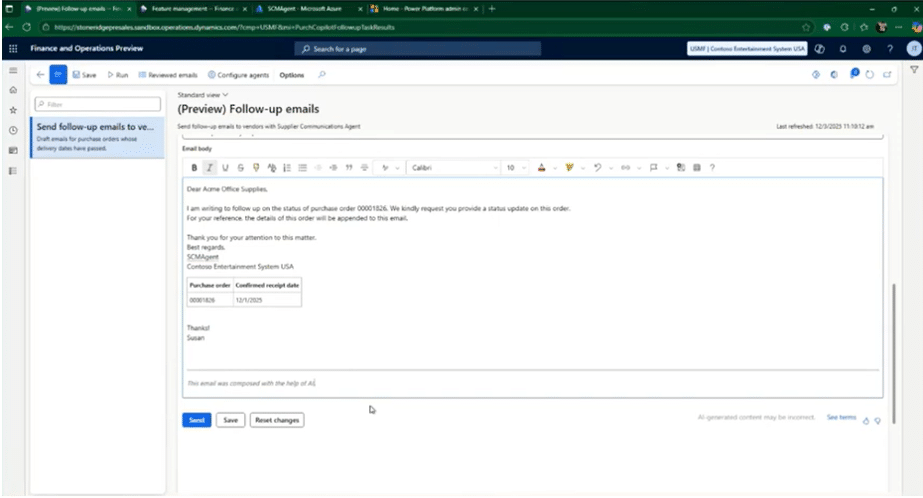
- Agent activity: In this section, you will see vital information that gives you insights into how your agent is performing, including:
- Purchase orders with follow-ups
- Emails sent
- Time saved
Agent activity essentially serves as a full audit trail of what your agent is doing. This gives you full visibility into run frequency, details on triggered actions, and confidence that automation remains controlled and accountable.
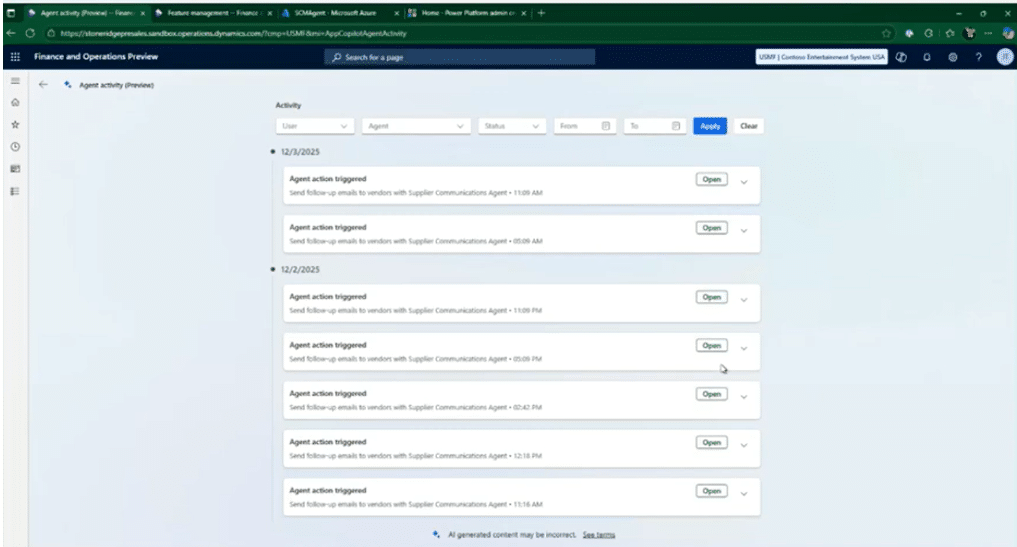
Whether emails are drafted or sent automatically, nothing happens behind the scenes without traceability.
Why This Matters for Finance and Supply Chain Teams
The Supplier Communications Agent will deliver value to you and your team fast and efficiently through:
- Reduced manual effort
- Improved supplier responsiveness
- More accurate delivery dates
- Better on-time performance
- Happier purchasers and planners
And the kicker is that because it’s embedded directly into Dynamics 365, it works within your existing data management, security models, and workflows with no add-ons required.
Turn Agentic AI into a Competitive Advantage with Stoneridge Software!
Talk to our team today to learn more! Copilot’s Supplier Communications Agent is a perfect example of how agentic AI moves beyond insight and into action. Unlocking its full potential, however, requires more than just enabling it.
When you work with a trusted partner like Stoneridge Software, you gain access to a team of experts with deep knowledge about Dynamics 365, Copilot, and how the combination of the two can drive your business forward.

Under the terms of this license, you are authorized to share and redistribute the content across various mediums, subject to adherence to the specified conditions: you must provide proper attribution to Stoneridge as the original creator in a manner that does not imply their endorsement of your use, the material is to be utilized solely for non-commercial purposes, and alterations, modifications, or derivative works based on the original material are strictly prohibited.
Responsibility rests with the licensee to ensure that their use of the material does not violate any other rights.