














Mastering General Ledger Budgeting in Dynamics 365 Business Central
While budgeting might not be the most exciting part of running a business, it’s essential to giving your organization financial clarity. With Dynamics 365 Business Central, you gain access to a smart system that will streamline this process.
An effective budget and budget forecast will help your organization make smarter decisions, plan strategically, and ensure long-term success.
In this blog, we’ll dive into the world of General Ledger (GL) budgeting in Business Central. Whether you're a seasoned controller or a spreadsheet warrior just getting started, this blog will walk you through the magic of GL budgeting—with a few laughs and a lot of practical insight.
What Is GL Budgeting in Business Central?
GL budgeting in Business Central lets you plan, track, and compare your expected revenues and expenses against actuals—all within the same ecosystem where your transactions live. No more juggling disconnected spreadsheets or chasing down multiple versions of the same document.
Business Central’s out-of-the-box GL budgeting functionality is intuitive, flexible, and easy to use. You can create multiple versions, apply dimensions, export to Excel, and even apply percentage increases or decreases across accounts.
Getting Started: Creating Your First Budget
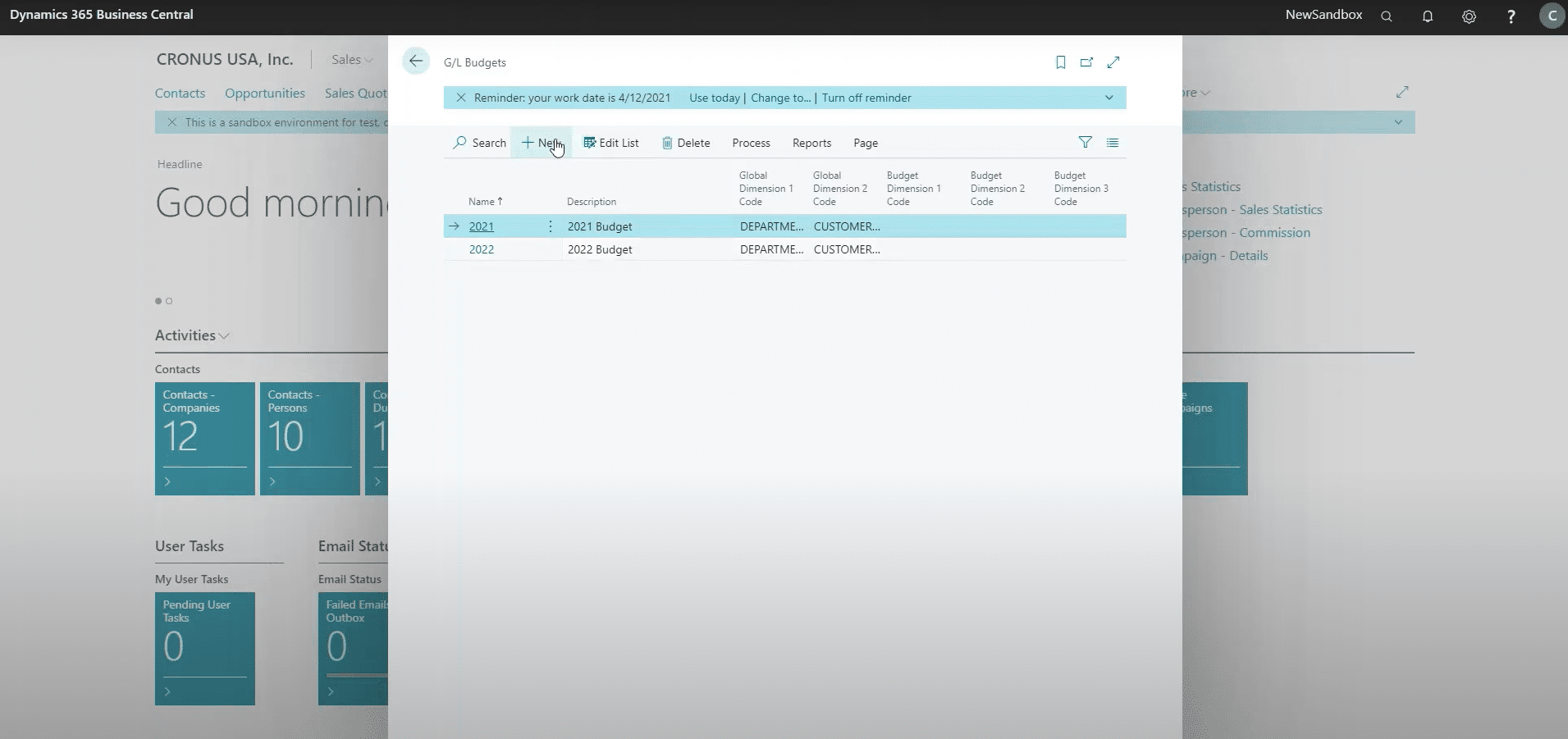
First things first—let’s create a new budget. In Business Central, you simply search for “GL Budgets” and hit “New.” Give your budget a name (we went with “2022 v2” in our walkthrough), and you're ready to go.

You’ll notice that Global Dimensions 1 and 2 are already set up based on your General Ledger configuration. These dimensions—like Department or Customer Group—are key to slicing and dicing your budget data later.
From here, you can jump into the budget matrix, which is basically a grid of GL accounts and time periods. It’s your playground for entering budgeted amounts manually or importing them from Excel.
Pro Tip: Debits and Credits Matter
When entering amounts manually, remember your accounting basics: income accounts are credits, and expense accounts are debits. It’s easy to forget when you’re in the zone, but getting this right ensures your budget aligns with your actuals later on.
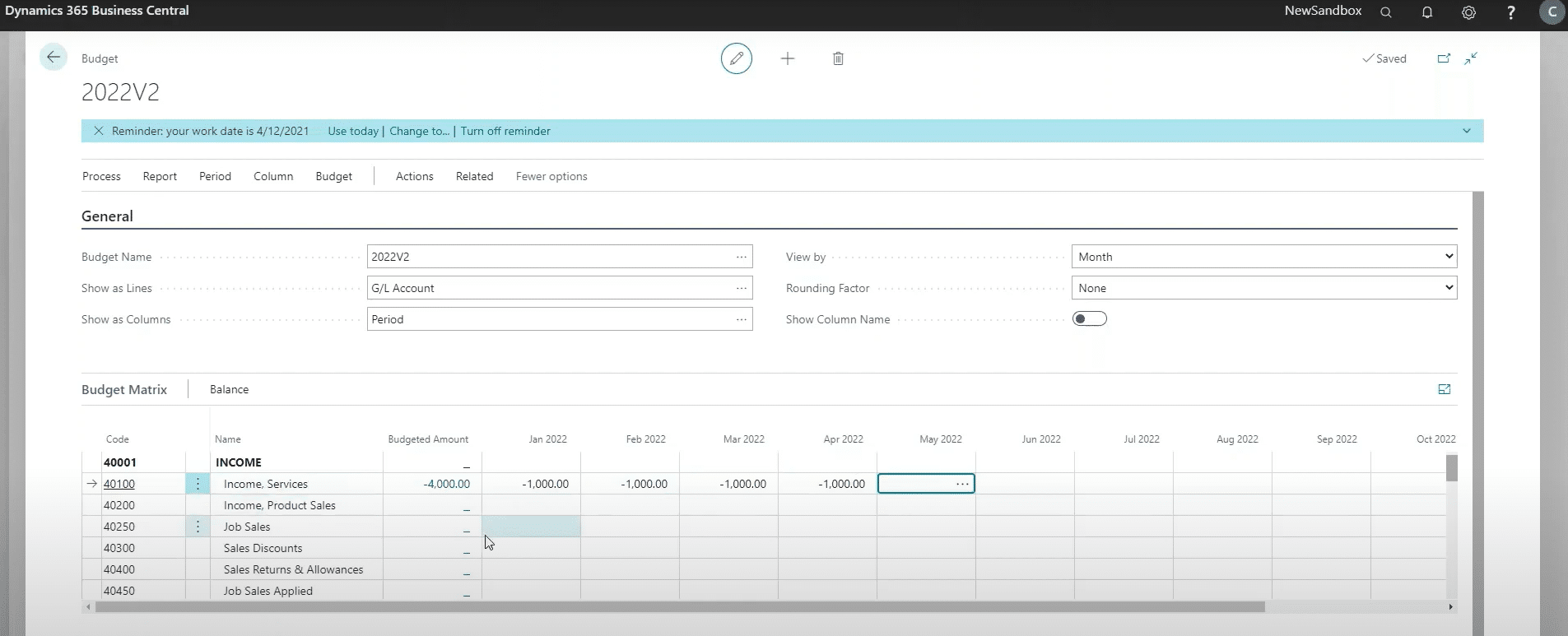
In the example contained in the video above, we entered $4,000 in income from January to April, $750 in labor costs, and $400 in rent. These entries give us a quick snapshot of net income, and we can drill down into each line to see details like department codes and descriptions.
Dimensions: The Secret Sauce of Budgeting
Dimensions in Business Central are like tags that add context to your data. Want to see how much rent each department is racking up? Filter by the “Department” dimension and enter values accordingly.
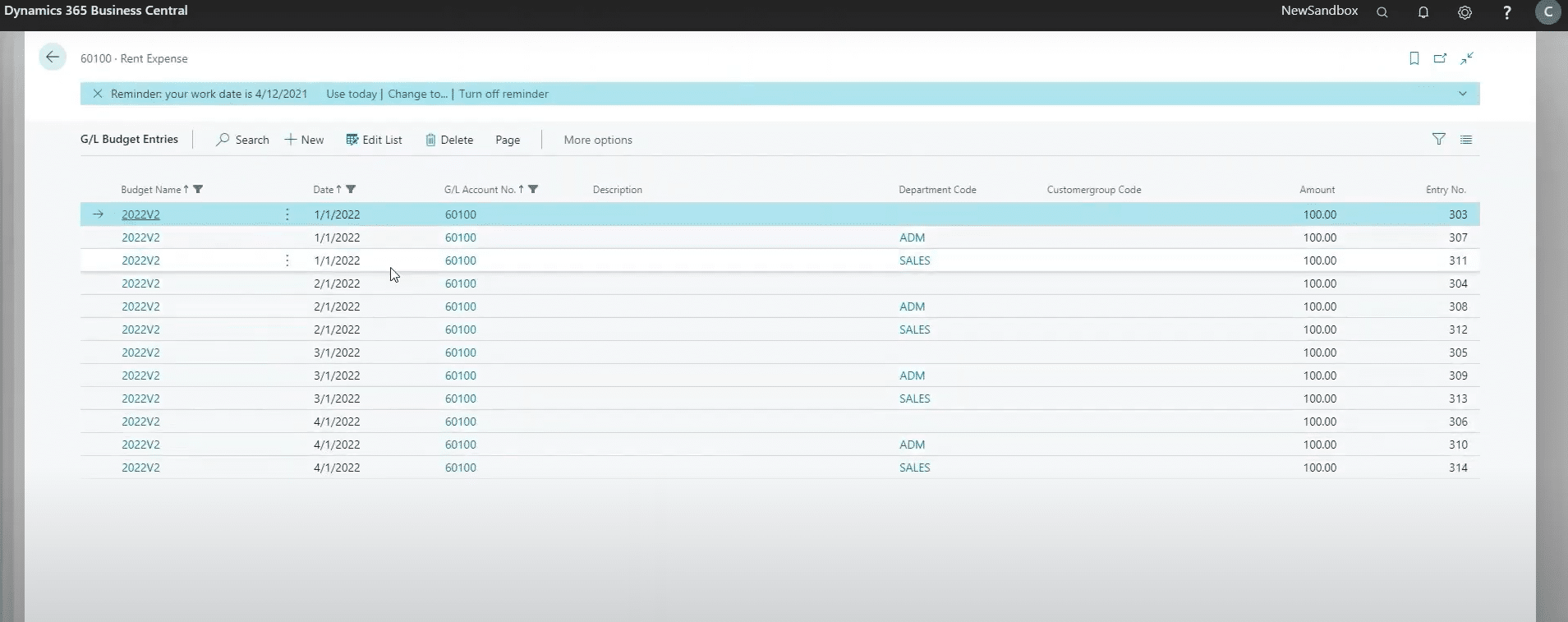
In our walkthrough, we added $100 in rent for Admin, $100 for Sales, and $100 with no department code. When we removed the filter, we saw the full $1,200 rent expense. This granularity is vital to analyzing performance across teams or locations.
Export to Excel: Because Old Habits Die Hard
Let’s face it—Excel is still the comfort food of finance professionals. Microsoft understands that and makes it easy for you to work back and forth through Business Central and Excel. In just a few clicks, you can export your budget from BC to Excel, make changes, and re-import the data into your system.
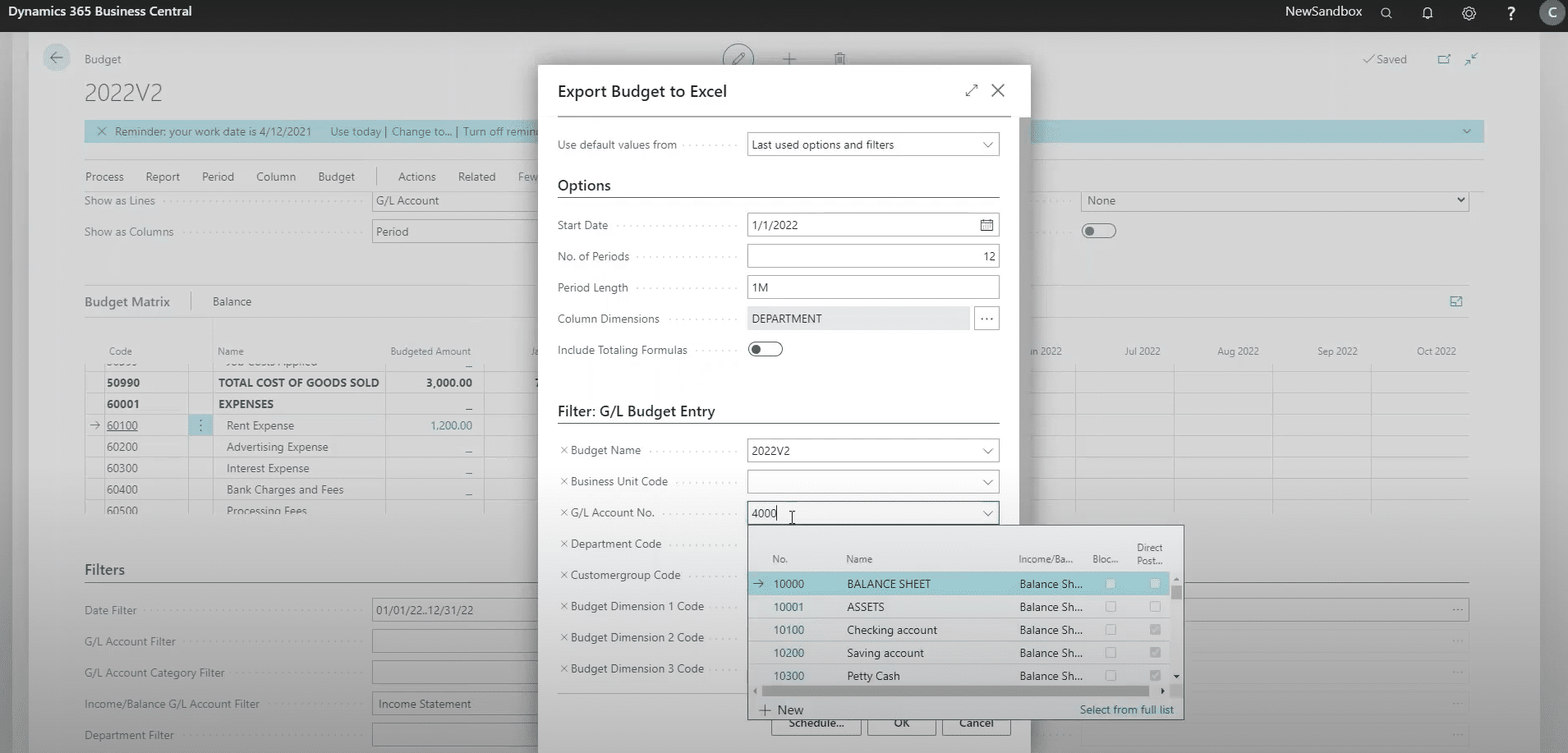
When exporting, you can choose your start date, number of periods, and whether to include dimensions. Once in Excel, you can add new accounts, adjust amounts, and even apply formulas. In our example, we added product sales, bumped up labor costs, and copied rent across all periods.
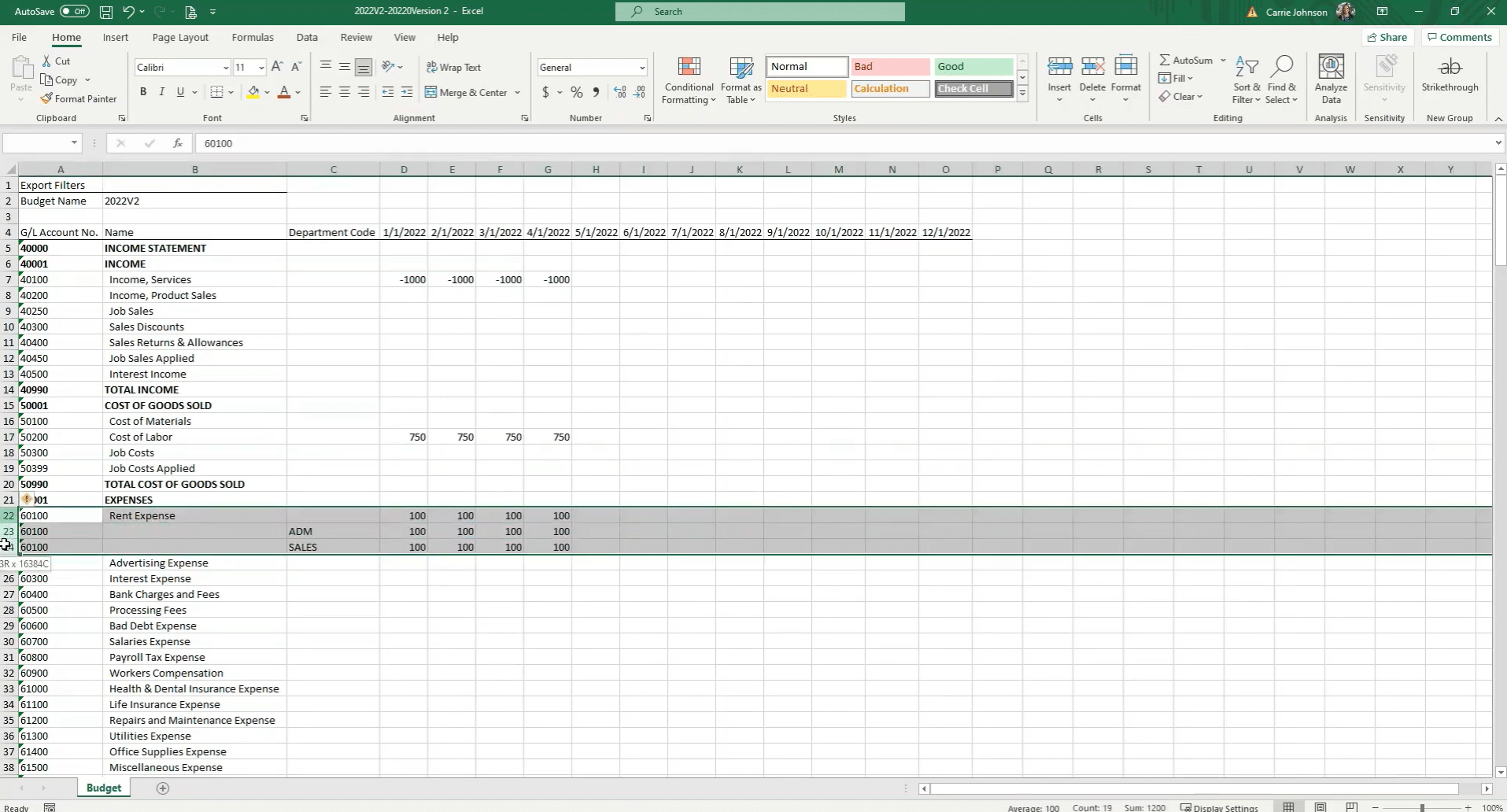
After saving the file, we imported it back into Business Central. The system asked whether we wanted to replace or add entries (we chose “add”), and just like that, 72 new entries were updated.
Adjustments and Versioning: Budgeting That Evolves
Business Central doesn’t just let you create budgets—it lets you evolve them. Need to tweak January’s rent from $400 to $300? No problem. The system adds an adjustment entry without deleting the original, so you maintain a clear audit trail.
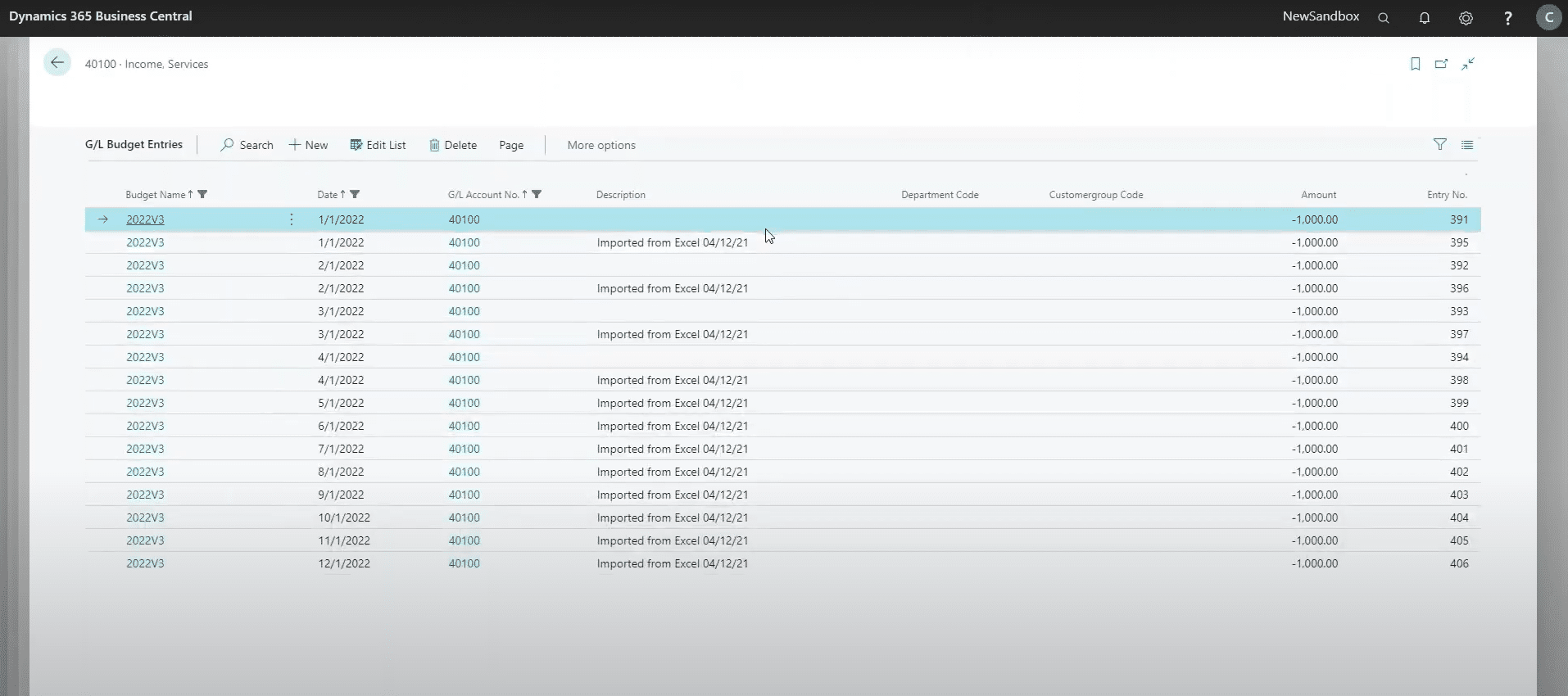
You can also copy existing budgets to create new versions. Want to increase your expense accounts by 2% for next year? Use the “Copy Budget” function, apply a factor of 1.02, and boom—your new budget is ready to roll.
Versioning is especially useful when you’re forecasting multiple scenarios or responding to market changes. It’s budgeting with agility.
Comparing Budgets to Actuals: The Moment of Truth
Once your budget is locked and loaded, it’s time to see how reality stacks up. Business Central lets you compare budgeted amounts to actuals in account schedules, trial balances, and GL reports.
Just make sure you select the correct budget version when running reports. In our example, we ran a trial balance for March 2021 and saw that rent expense hit $1,000—exactly 100% of the budgeted amount. That’s the kind of alignment that makes CFOs sleep better at night.
You can also drill into individual entries to see the GL transactions behind the numbers. It’s transparency at its finest.
Why This Matters: Strategic Budgeting for Smarter Decisions
GL budgeting in Business Central isn’t just about plugging in numbers—it’s about empowering smarter decisions. With real-time visibility, dimensional analysis, and seamless Excel integration, you can:
- Forecast more accurately
- Identify cost-saving opportunities
- Align departmental goals with financial targets
- Respond quickly to changing conditions
And because it’s all within Business Central, your budget lives alongside your actuals, journal entries, and financial reports. No more silos. No more guesswork.
Final Thoughts: Budgeting Doesn’t Have to Be Boring
With Business Central, budgeting is a whole lot easier and empowering for teams across your organization. Whether you’re building your first budget or refining your tenth version, the tools are there to support you every step of the way.
Budget Smarter with Stoneridge Software!
As a Microsoft Inner Circle partner, we’re here to help you unlock the full potential of Business Central. From implementation to training to ongoing support, we’ve got your back.
Talk to our team today to learn more.

Under the terms of this license, you are authorized to share and redistribute the content across various mediums, subject to adherence to the specified conditions: you must provide proper attribution to Stoneridge as the original creator in a manner that does not imply their endorsement of your use, the material is to be utilized solely for non-commercial purposes, and alterations, modifications, or derivative works based on the original material are strictly prohibited.
Responsibility rests with the licensee to ensure that their use of the material does not violate any other rights.