














Using MCP in Business Central with a Copilot Agent in Teams: A Day in the Life of a Customer Service Rep
When people talk about MCP (Model Context Protocol), they often jump straight into technical explanations. Let's explore how it looks with an example for a Customer Service Representative.
Picture this:
You start your workday, open Teams, and instead of jumping into Business Central, navigating pages, filtering lists, or searching for customer data, you simply ask your Copilot agent for what you need.
No hunting for menus.
No memorizing page names.
No worrying whether you’re in the right place.
Just natural language.
That’s the power of MCP — it gives the agent the understanding it needs to talk to Business Central for you.
Let’s walk through what that looks like.
Read the blog or watch the full demonstration of how MCP works with a Copilot agent in Teams. The example below shows a Customer Service Rep using natural language prompts to interact with Business Central without ever opening the ERP system.
A Day in the Life of a Customer Service Rep Using MCP in Business Central
Starting the Day: Checking Customers With Outstanding Balances
As a customer representative, your day might start with identifying customers who have balances due. In this demo scenario, the agent has already been published to Teams. The entire experience happens inside the chat. No Business Central access is needed unless you want to double-check something.
The first prompt is simple:
“Show me customers with balance due. Include credit limit and balance.”
MCP isn’t magic. It’s just using the API endpoints you’ve exposed. The agent can also search the web, sometimes it tries the wrong pathway — and that’s okay. You can guide it.
When the Agent Needs a direction adjustment: Forcing a Business Central Connection
If it doesn’t connect to Business Central, you reinforce the intent:
“Connect to Business Central. Show me customers with balance due.”
Now it knows to use MCP instead of a web search. The result appears: customers, their balance, and credit limit — everything you need.
As the agent shows the results, you can compare them to Business Central:
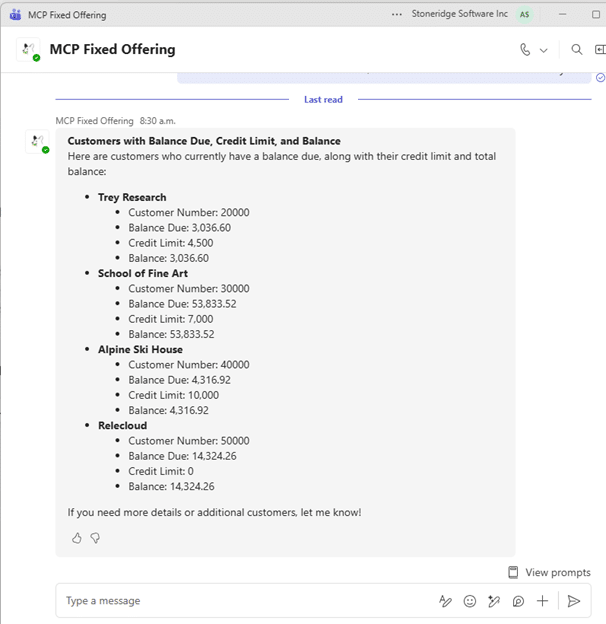
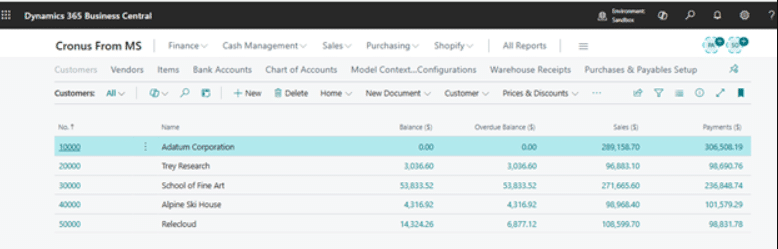
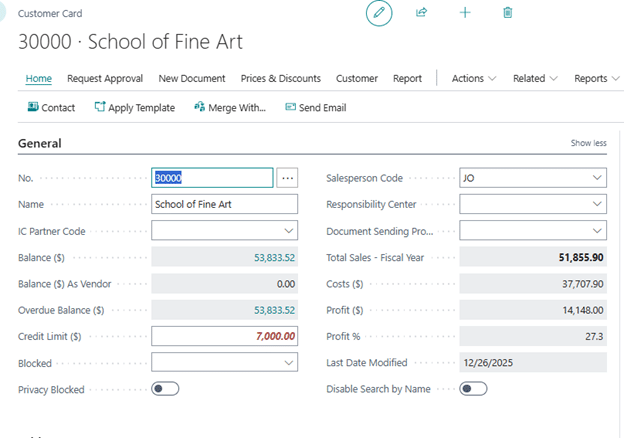
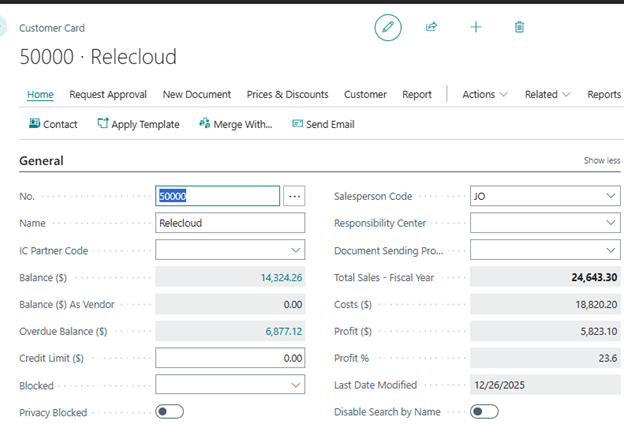
You’ll see that balances and credit limits match. The customers with zero balances don’t appear — exactly as expected.
Digging Deeper: What a Customer Didn’t Pay
One customer stands out: a high balance and a zero credit limit. Before contacting them, you want context:
“Connect to Business Central. Show me history for customer 50000. Include due date and remaining amount. Do not show remaining amount 0.”
Sometimes the agent tries to analyze chat history instead of querying Business Central. This is normal for simple agents with minimal instructions.
Avoiding Chat History Confusion
If this happens, you adjust the direction with the prompt:
“Do not use previous conversation history.”
This forces the agent to call Business Central directly. It then returns unpaid invoices, with remaining amounts and due dates. To verify accuracy, you flip back to Business Central and compare values… and everything lines up.
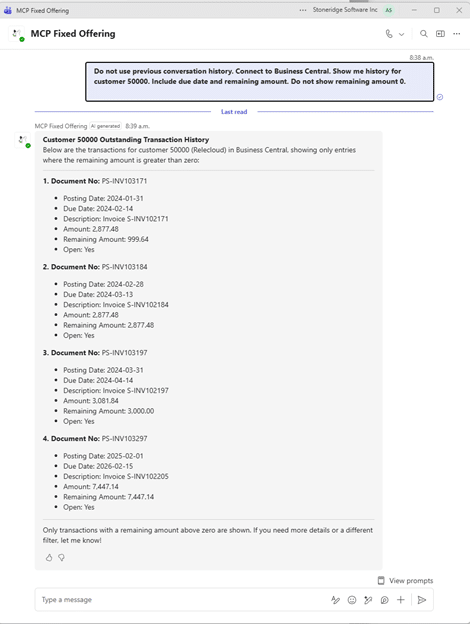

The agent correctly filters out paid invoices and returns only open entries. MCP handles that logic because it understands the underlying structure.
Handling Live Customer Questions Directly in Teams
Now imagine being on the call with the customer. They ask what a specific invoice number is for. Instead of navigating through Business Central. You form your thoughts and ask:
“Connect to Business Central. Show me sales invoice lines for PS-INV103184.”
The agent pulls:
- Item descriptions
- Quantities
- Line details
Everything at your fingertips, no clicking around.
Flip back to Business Central, open the invoice, and you’ll see the agent got it right:
Conference table? Check.
Guest chair? Check.
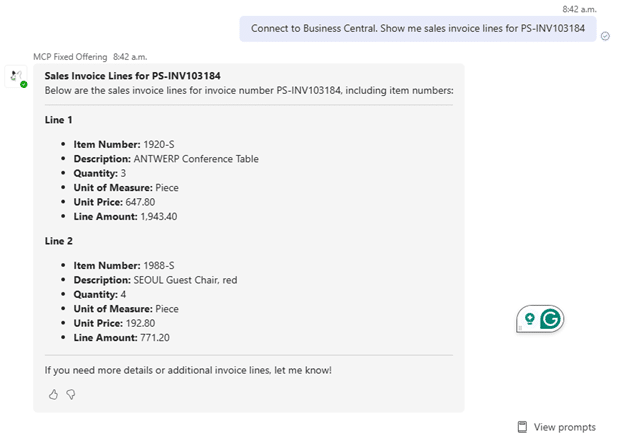
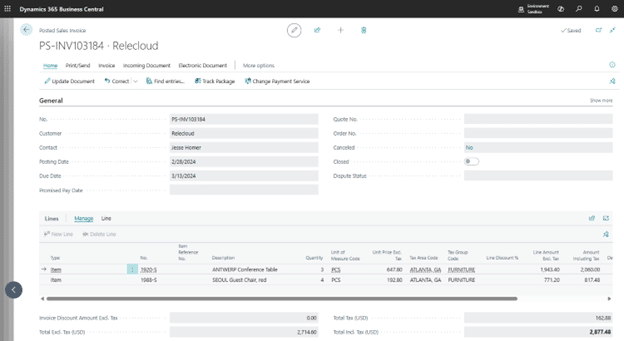
This is where MCP shines — it understands context and invokes the right API.
What makes MCP and the Copilot Agent Work Together?
After seeing the live use case, let’s briefly look at how the setup works.
In Business Central:
- Make sure you are on the version 27 or later
- Search Feature Management
- Enable MCP server access for all users
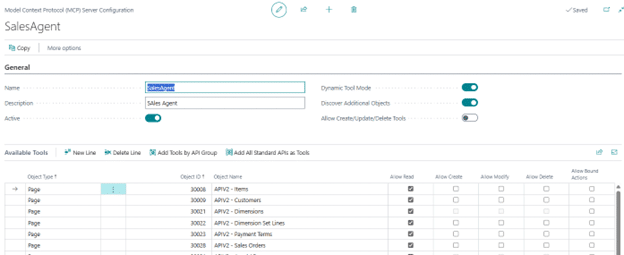
- Create a Model Context Protocol configuration
- Add the API pages you want
- (Optional) Turn on dynamic tool mode so the agent can decide which API to use
- Activate
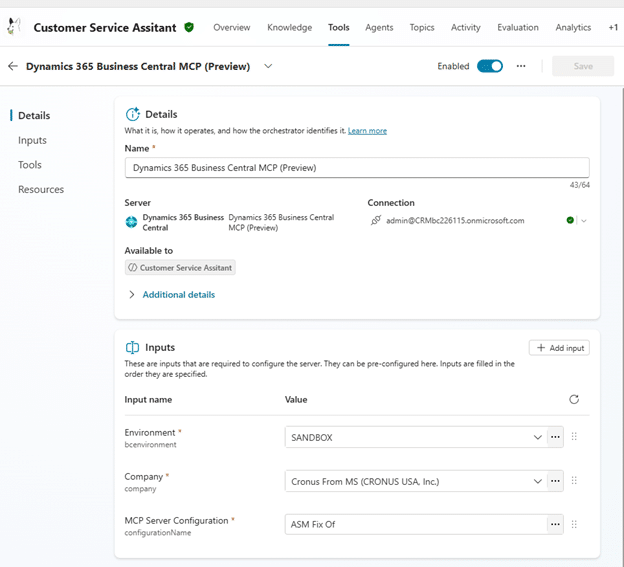
In Copilot Studio:
- Create a new agent
- Add the tool: Dynamics 365 Business Central MCP (Preview)
- Connect to your environment, select a company, and copy-paste configuration code from Business Central
- Publish
That’s it. Once the agent is published to Teams, it can handle conversational requests tied to Business Central data without the user needing to open BC directly.
More Real-World Scenarios with MCP: Return Orders, Quotes, and Open Documents
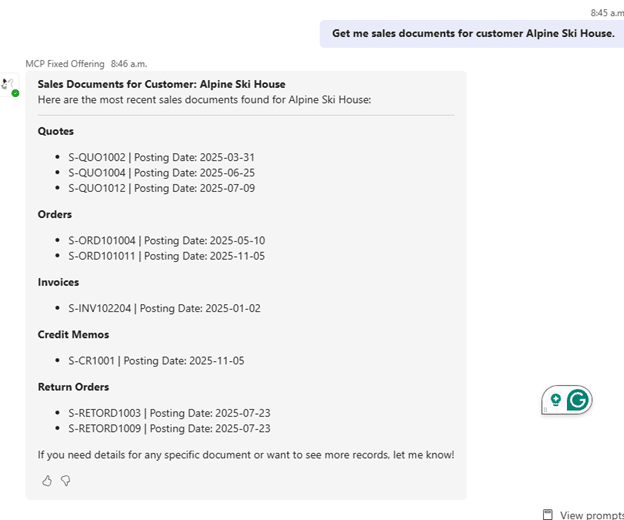
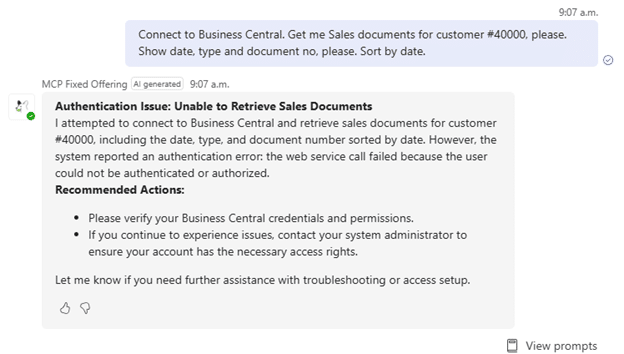
Later in the workflow, the customer wants to understand their open documents, not just sales orders, but quotes, return orders, credit memos, everything.
You ask:
“Get me sales documents for customer Alpine Ski House.”
The agent returns exactly that:
- Quotes
- Return orders
- Credit memos
No need to know the document type or location in Business Central.
Next, the customer asks:
“What’s on this return order?”
You simply copy the document number and ask:
“Show me the lines for this document.”
The agent identifies the document type and surfaces the details: item, quantity, description.
Checking Inventory and Purchase Orders — Without Leaving Teams
Another great use case is inventory checks. A customer asks whether you have a certain item in stock.
You try:
“Show me beans.”
But nothing comes up. Not a failure, just an opportunity to refine your prompt.
So you adjust:
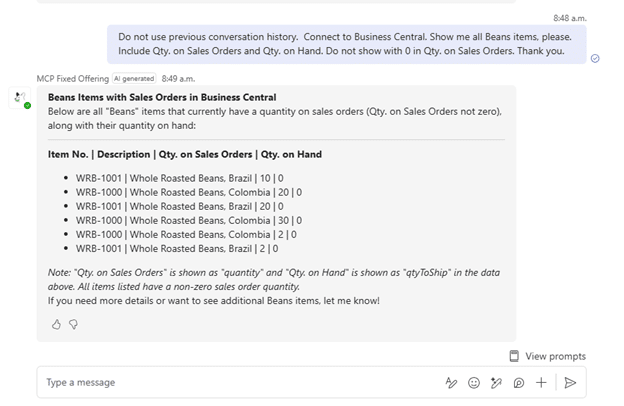
“Do not use previous conversation history. Connect to Business Central. Show me all Beans items, please. Include Qty. on Sales Orders and Qty. on Hand. Do not show with 0 in Qty. on Sales Orders. Thank you.”
Now it works. The agent returns:
- Quantity on hand
- Quantities on open sales orders
- Items oversold or undersupplied
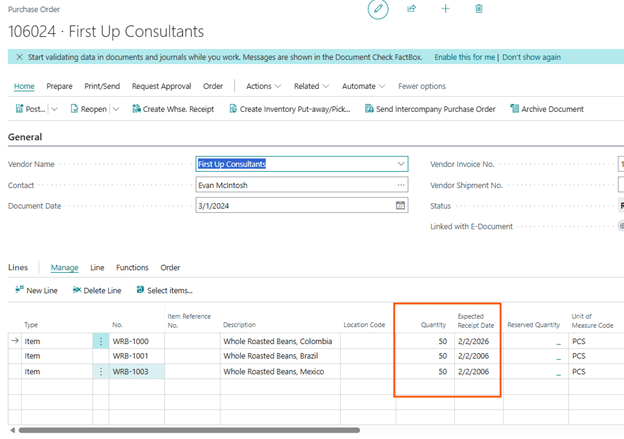
To check whether more stock is on the way, you ask:
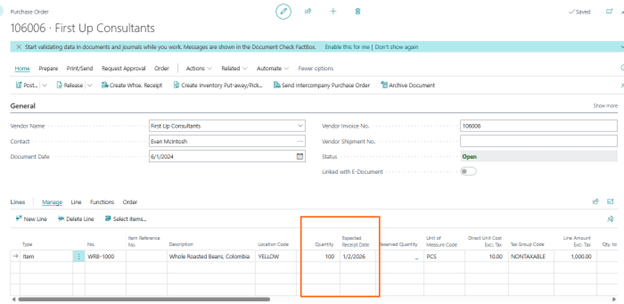
“Connect to Business Central. Are there any purchase orders for Item #WRB-1000? What is expected receipt date on those? Please include unit of measure.”
The agent fetches all related purchase orders along with expected receipt dates.

Flip to Business Central to verify, and again — MCP gets it right.
Why MCP Changes the Customer Service Experience
Here’s the full picture of what makes this powerful:
- The Customer Service Rep never opened Business Central
- MCP handled all the data connections
- The agent understood follow-up questions
- Prompts could be natural and imprecise
- Results matched Business Central exactly
- Security still respected user permissions
- The agent was flexible, forgiving, and incredibly fast
All of this from inside Microsoft Teams.
Ready to Try MCP in Your Customer Service Workflow?
This example shows that MCP isn’t about replacing Business Central, it’s about reducing friction for the people who need information quickly, accurately, and in a natural workflow.
Customer service representatives don’t need to remember page names or browse lists.
They should be free to focus on the customer, not the system.
MCP + Copilot + Teams makes that possible.
If you’d like help exploring MCP, building intelligent Copilot agents, or rolling this out to your customer service team, our experts can walk you through design, setup, and testing.
Just reach out to our team! We’re here to help.

Under the terms of this license, you are authorized to share and redistribute the content across various mediums, subject to adherence to the specified conditions: you must provide proper attribution to Stoneridge as the original creator in a manner that does not imply their endorsement of your use, the material is to be utilized solely for non-commercial purposes, and alterations, modifications, or derivative works based on the original material are strictly prohibited.
Responsibility rests with the licensee to ensure that their use of the material does not violate any other rights.