















Using Microsoft Purview to Limit Copilot Data Processing
What is Microsoft Purview?
Microsoft Purview is Microsoft’s unified platform for data security, governance, and compliance. Microsoft Purview provides visibility into where sensitive data lives, allows you to secure that data, enforce compliance with regulatory frameworks (if required), and assess and remediate risk. These capabilities make it a powerful tool for knowing, protecting, and governing your data. In this blog, I want to focus on how we can use a couple of features to limit Copilot data processing, thus securing your data from intentional or accidental leakage.
For more great articles around AI and Copilot, please visit this link.
What is the end goal?
Simply put I don’t want someone to be able to ask Copilot to process and reproduce information from the document (insert generic document name) ‘Test!’, I want to be able to block that with a couple clicks. By combining Microsoft Purview’s information protection feature - sensitivity labels and a Microsoft Purview data loss prevention policy we can make that a reality.
Sensitivity Labels
Microsoft Purview sensitivity labels are tags attached to digital content indicating its level of sensitivity that can include data classification, retention policies, and access controls. A larger overview can be found within Microsoft Learn. To configure sensitivity labels (applicable roles and licensing required):
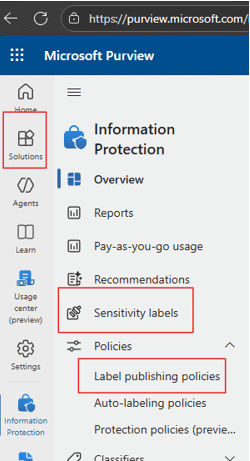
- Go to purview.microsoft.com and click on ‘Solutions’.
- Under ‘Information Protection’ go to ‘Sensitivity labels’.
- Deploy Microsoft default labels or create custom labels to better fit your organization.
- Under ‘Information Protection’ go to ‘Label publishing policies’.
- Create a custom policy to publish your labels.
Data Loss Prevention (DLP)
Microsoft Purview Data Loss Prevention is a cloud-native solution that helps organizations identify, monitor, and protect data from leakage based on content, context, and user actions. A larger overview can be found within Microsoft Learn. To configure a policy to prevent Copilot from processing data with a specific label:
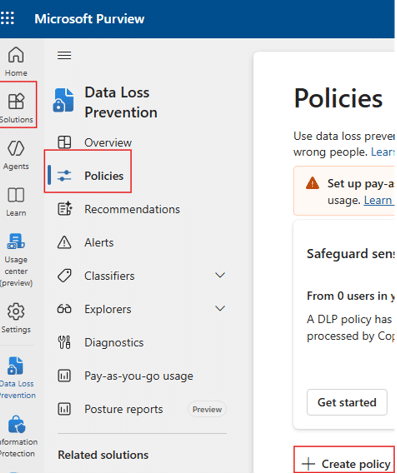
- Go to purview.microsoft.com and click ‘Solutions’.
- Under ‘Data Loss Prevention’ go to ‘Policies’.
- Then click ‘+ Create policy’.
- Select ‘Enterprise applications & devices’.
- Create a custom policy then select Next.
- Name your policy and give a detailed description.
- For this example policy the admin unit will be the full directory, select Next.
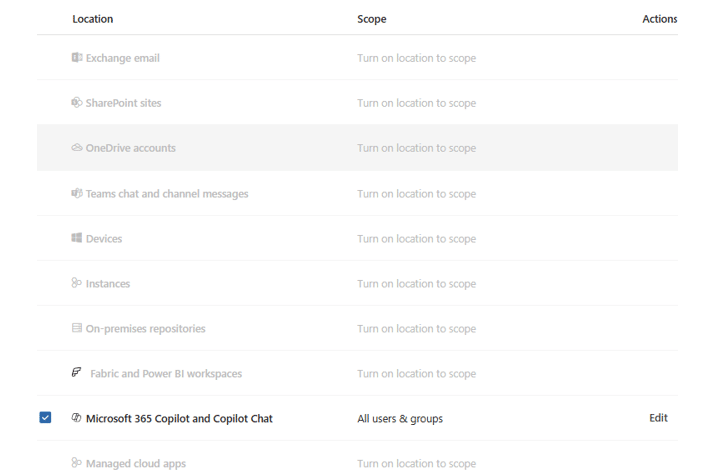
- Under Locations select ‘Microsoft 365 Copilot and Copilot Chat’.
- Under Policy settings select ‘Create or customize advanced DLP rules’. Create a rule with an appropriate name and description. Then add a condition that corresponds to the correct sensitivity label and add an action to ‘Restrict Copilot from processing content’.
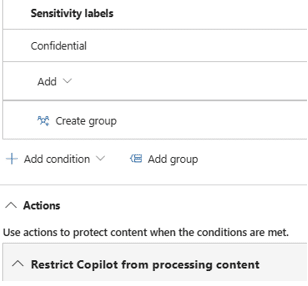
*Tailored customization is optional such additional actions, scope, and alert generation.
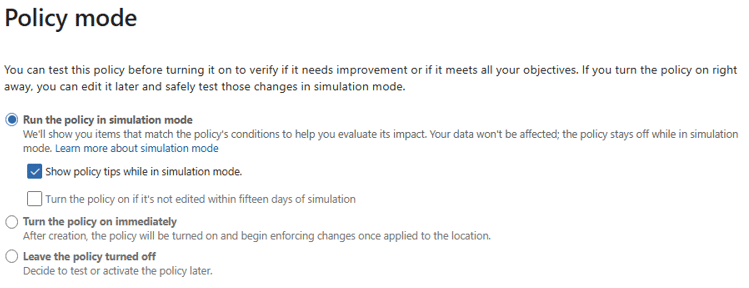
- Finally, your policy can be deployed in any of the following modes, but we suggest running in simulation mode with policy tips for any DLP to confirm accurate actions and expected outcomes.
What does this look like for my users?
When a user prompts copilot regarding a data source with the label the DLP is created to block processing of, they will get a message similar to this:

Highlights and Best Practices
- Create sensitivity labels that align with your business and publish to a pilot group to test before deploying to the entire company
- Make training documentation to enhance buy-in and successful usage
- Always deploy data loss prevention policies in simulation mode to confirm expected behavior before turning on
- Regularly review your policies for potential updates or changes to improve effectiveness
How can the Stoneridge Team Help?
Every tenant and user base are different. The Stoneridge team can help:
- Configure a custom strategy to enhance security across your organization
- Train users and admins on best practices on your zero-trust journey
- Assist with licensing assessment and procurement
Our team is happy to answer questions, talk through your goals, and guide you through the next steps, at your pace. Reach out to us to start the conversation.

Under the terms of this license, you are authorized to share and redistribute the content across various mediums, subject to adherence to the specified conditions: you must provide proper attribution to Stoneridge as the original creator in a manner that does not imply their endorsement of your use, the material is to be utilized solely for non-commercial purposes, and alterations, modifications, or derivative works based on the original material are strictly prohibited.
Responsibility rests with the licensee to ensure that their use of the material does not violate any other rights.