














Why You Should Be Using the License Usage Summary Report in D365 Finance and Supply Chain Management
When managing Dynamics 365 Finance and Supply Chain Management, one of the biggest challenges for IT admins and security teams is making sure user licenses are being properly assigned and utilized. Since licensing is tied directly to cost and compliance, visibility is key.
That’s where the License Usage Summary Report comes into play.
What is the License Usage Summary Report?
The License Usage Summary Report is a standard out-of-the-box report that provides a clear picture of how security roles, duties, and privileges translate into actual license consumption. Instead of just seeing which users have which roles, it shows you what type of license each user requires based on their access—for example, Finance, Supply Chain Management (SCM), Operations Activity, or Team Member.
This is critical for:
- Cost control: Preventing over-licensing by identifying users who have more privileges than they actually need.
- Compliance: Aligning license assignments with Microsoft’s licensing rules, reducing audit risks.
- Optimization: Supporting role clean-up and security design efforts by highlighting mismatches.
Where to Find It
You can access the report in D365 Finance and Supply Chain Management by navigating to: System Administration > Inquiries > License > License > License Usage Summary.
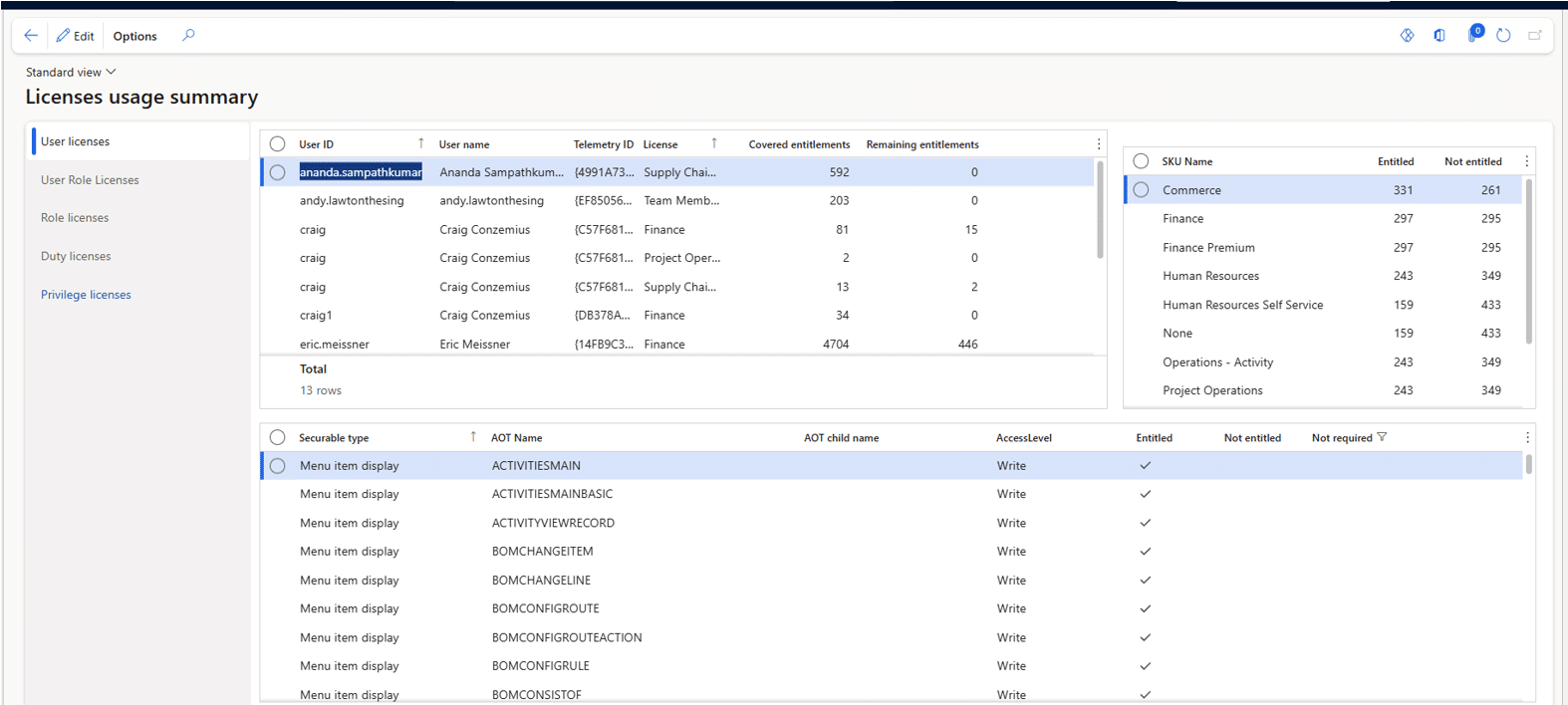
The report pulls together users, roles, and licensing data and displays it in a grid format. It can also be exported to Excel for deeper analysis.
Key Insights It Provides
Here’s what you’ll see inside the License Usage Summary Report:
- User Name / User ID
- Identifies the active user in the environment.
- License Type Required
- Displays the minimum license type the user needs, based on their highest-level access. For example, if a user has both Team Member and Finance privileges, the system will mark them as requiring a Finance license (since it’s higher).
- Roles Assigned
- Lists out which roles are assigned to the user, allowing you to see which roles are “driving” license consumption.
- Modules Accessed
- Provides context around which parts of the system the license requirement is linked to (Finance, Supply Chain, Commerce, etc.).
- Aggregate View
- The report shows a total count of how many users fall under each license type, giving admins a quick snapshot of overall consumption.
Why It Matters
Without this report, many organizations end up either under-estimating costs (and then facing unexpected true-ups during Microsoft audits) or over-provisioning licenses (paying for more expensive Finance/SCM licenses when Team Member would suffice).
A few common scenarios where the License Usage Summary Report adds value:
- A finance clerk only needs to post vendor invoices but is assigned the “Accounts Payable Manager” role, which requires a Finance license. By spotting this, you can reassign them to a lighter role, saving license costs.
- During a licensing audit, you need to prove alignment between roles assigned in D365 and the license purchases reflected in Microsoft Admin Center. The report gives you this mapping.
Best Practices for Using the Report
- Run it monthly to catch changes in user assignments before billing cycles or audits.
- Pair it with the Role to License Mapping documentation Microsoft publishes to understand why certain roles push a user into a higher license tier.
- Export to Excel and create pivot tables that break down usage by department, helping business leaders see where licenses are being consumed.
- Use it during security role redesigns to validate that streamlined roles are keeping users in the lowest possible license category.
There are also ways you can assess the report and clean up roles to trigger a lower license. For example, if you look up the Budget Manager role that triggers a higher license, such as Finance and want to trigger a lower license to “Team Member”. You will need to set the “Not Entitled” objects to either Read or remove the entry point completely from the Duty/Privilege.
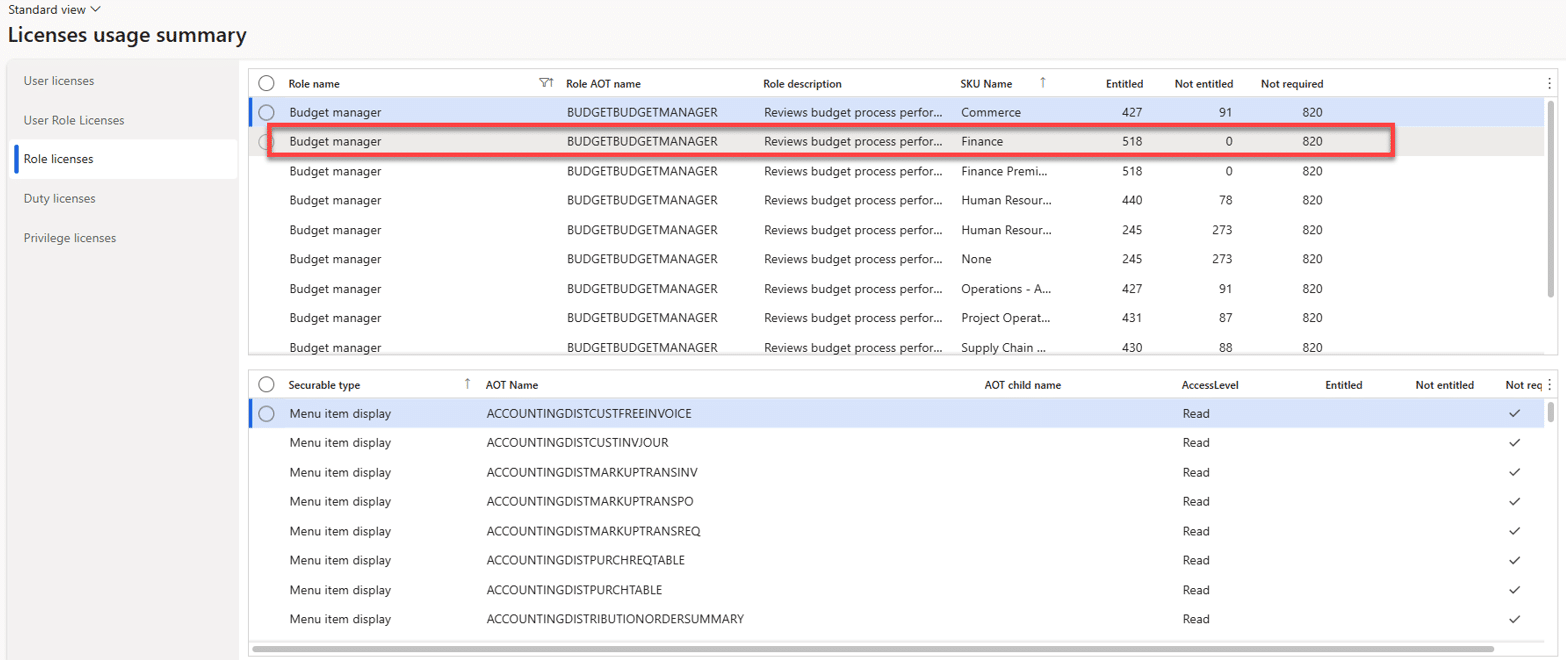
- Click the Role licenses tab
- Look up “Budget Manager" Role
- (You will see there are 518 entitled objects in total that trigger a Finance license)

- (You will see there are 518 entitled objects in total that trigger a Finance license)
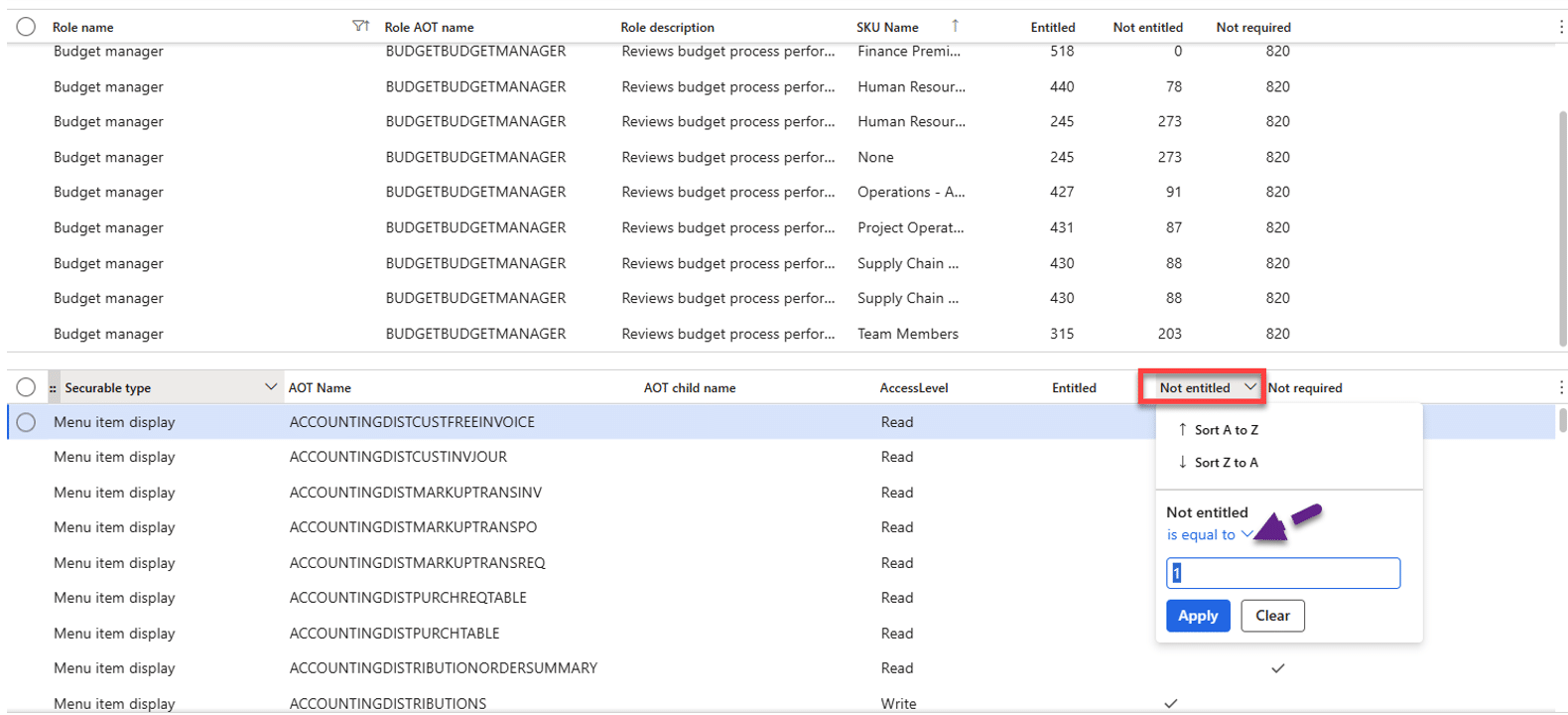
- Under the Team Member License you will see there are 203 objects that will need to be set to Read or remove it completely to trigger a team member license
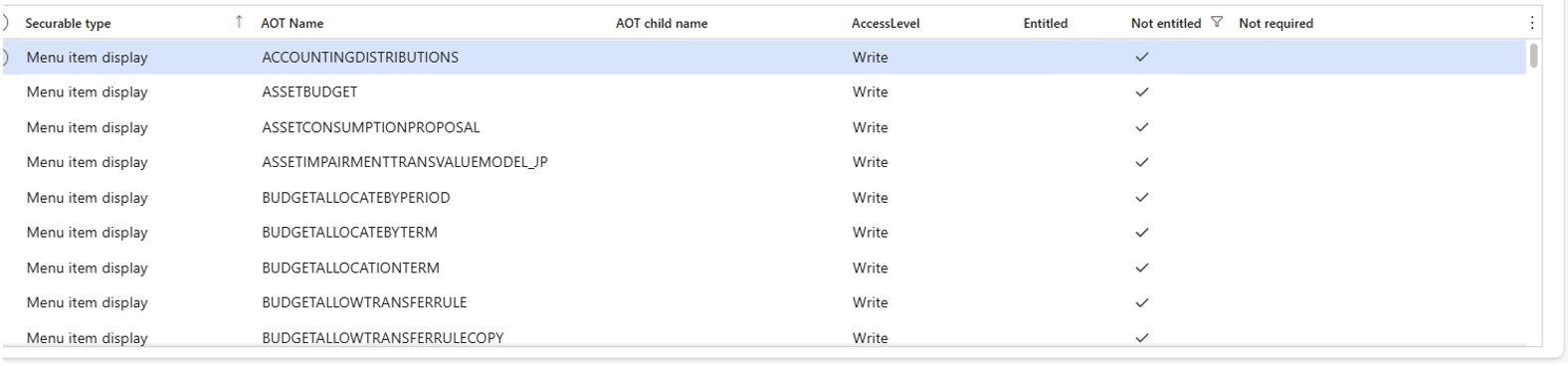
- In the bottom pane, in the Not entitled field filter and add a ‘1” in the field so the bottom pane displays all the non-entitled objects that need to be changed


- Once the objects are set to read or removed, the Role will then trigger a team member license instead of a higher license like “Finance Base”
The License Usage Summary Report in D365 Finance and Supply Chain Management isn’t just a technical admin tool—it’s a financial governance tool. regularly reviewing it, organizations can keep licensing costs under control, remain audit-ready, and design more efficient security roles.
If your company is serious about license optimization and compliance, this report should become a regular part of your system governance checklist.
Ready to Optimize Your Microsoft Solutions?
Talk to the Stoneridge Software team today! Our experts are ready to help you uncover ways to get the most out of your Microsoft technologies and streamline processes across your business.

Under the terms of this license, you are authorized to share and redistribute the content across various mediums, subject to adherence to the specified conditions: you must provide proper attribution to Stoneridge as the original creator in a manner that does not imply their endorsement of your use, the material is to be utilized solely for non-commercial purposes, and alterations, modifications, or derivative works based on the original material are strictly prohibited.
Responsibility rests with the licensee to ensure that their use of the material does not violate any other rights.