















Business Central with Power BI: Drive Smarter Decisions with Dynamic Financial Reporting
You already have a lot of financial data in Dynamics 365 Business Central, but a common challenge is knowing what to do with it.
Accessing data is one thing but turning it into clear and useful information is where you can harness that data to help you make smart decisions that drive your business forward. Instead of jumping between reports, spreadsheets, and different financial views, combining Business Central with Power BI can help you get the full picture.
With this combination, you can level up your Business Central financial reporting capabilities to create interactive financial reports that make it easier to analyze your finances, compare performance over time, drill into details, and quickly identify areas where you need to improve.
In this blog and video, we'll walk through an example of how a financial report can be built in Power BI using Business Central data. While the finished report will look eye-catching and sophisticated, you will learn that the underlying process is surprisingly simple.
Pre-Built Reports in Power BI: Business Central Finance Report Pack
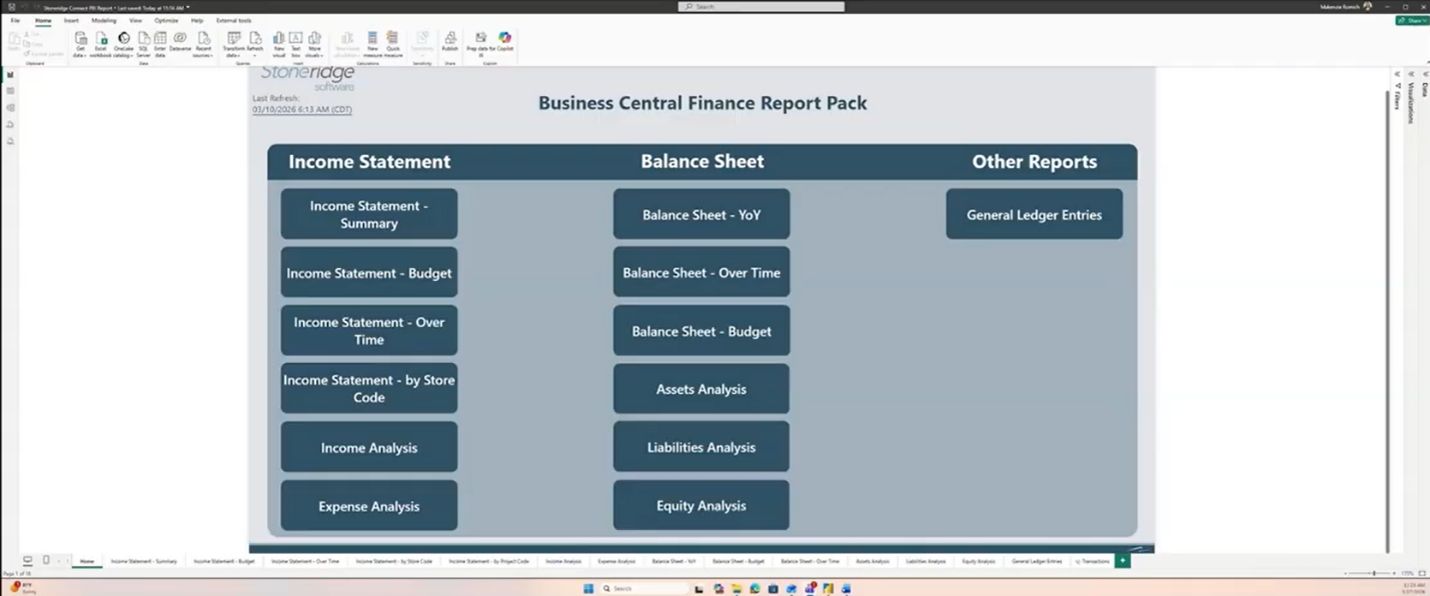
Before we walk through the steps of creating a financial report, let’s look at a pre-built report pack offered here at Stoneridge Software so you can get a sense of how Power BI brings in multiple views from your BC financial data into a single, interactive experience.
*The screenshots shown in this section are examples from the Stoneridge Software Finance Report Pack, they are not standard reports included with Business Central and are not part of the report we build later in this example.
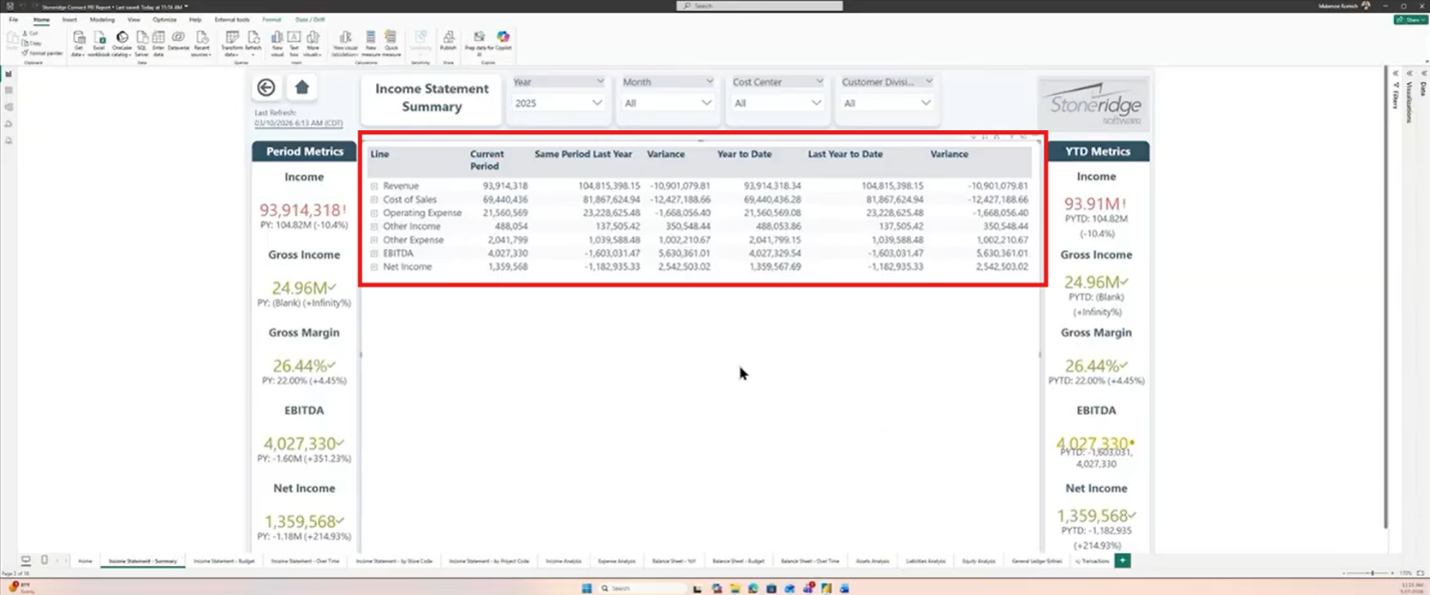
One particularly useful view is an income statement summary. At the centre of the report is a matrix visual that organizes your financial information into a hierarchy. You can start at a high level with categories such as revenue, cost of sales, and operating expenses, then drill down into subcategories and individual general ledger accounts.
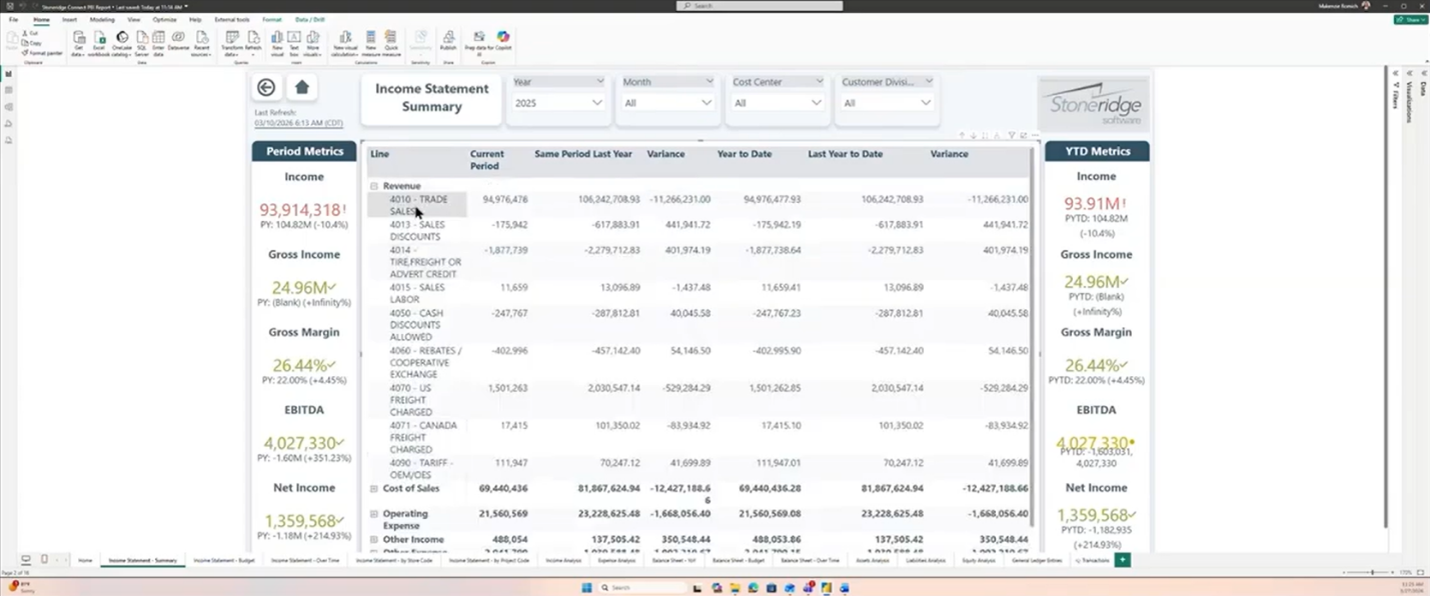
View the Income Statement summary → [ 02:55 – 03:47]
This gives you the best of both worlds: a high-level financial snapshot when you need to make a quick decision and the ability to dig into the underlying accounts when you need to understand what's driving the numbers.
You can also use filters to change the reporting period. For example, selecting a quarter can show your results for that specific period while year-to-date metrics continue to show performance from the beginning of the fiscal year through the selected month.
See how reporting period filters update financial results and year-to-date metrics → [ 03:49 - 04:40]
From there, Power BI can compare your current period with the same period last year, calculate the variance, and provide year-to-date comparisons. Conditional formatting can also make those comparisons easier to interpret briefly by highlighting areas that may need attention.
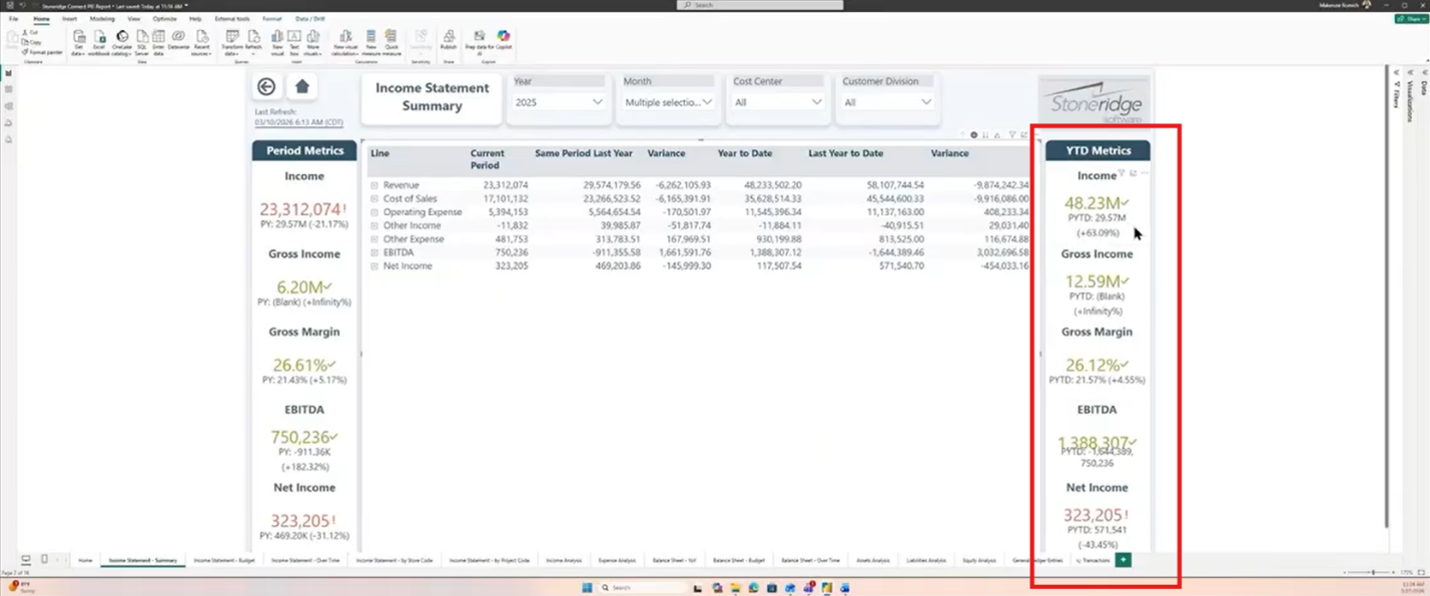
Watch Power BI compare current and prior periods with variance highlighting → [05:44 – 06:14 ]
The result is more than a static financial report. It's a tool for asking better questions of your data.
Business Central Financial Reporting in Action – Driven by Power BI!
Before getting started, it's important to note that the exact steps, table names, and data sources available to you may vary depending on your Business Central environment and configuration. The example below follows a specific demonstration environment and is intended to illustrate the overall process rather than provide a one-size-fits-all setup guide.
Let’s walk through how combining Business Central with Power BI can streamline your financial reporting processes and drive smart business decisions.
How to Connect Business Central to Power BI
To start building your financial report, you'll need to connect Power BI to your Business Central data.
The basic steps are:
- In Power BI, select Get Data and search for Business Central.
- Select the Business Central web version connector.
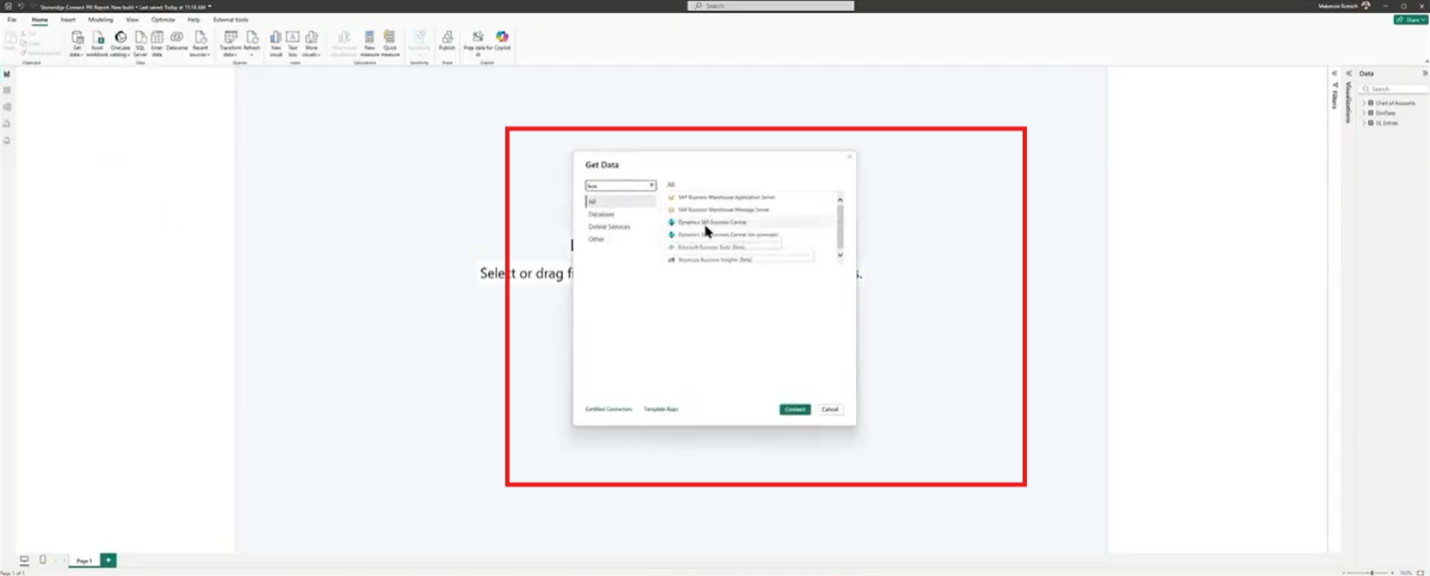
Follow the connection process from Power BI to Business Central data → [06:40 – 08:07]
- Select your appropriate environment, most likely your Production environment unless you are working with a developer.
- Business Central can house many companies, so under your environment selection, select your appropriate Company.
- Choose the appropriate data source route. Business Central provides several ways to access data, including Standard APIs, Advanced APIs, and Web Services.
- Note: In most scenarios, Microsoft's API-based connections are the preferred approach because they provide a more structured and reliable way to access Business Central data. The exact API option you use may depend on your reporting requirements and Business Central configuration.
- Select the tables you need for your report. For this demo, we’ll use: Chart of
- Chart of Accounts
- GL Entries
- Date Table
Keep in mind that your environment may look a little different. Table names, APIs, and available datasets can vary based on how Business Central has been configured. As long as you have access to your account structure, transaction data, and date information, you can follow the same overall approach shown here.
- Load the selected tables into Power BI.
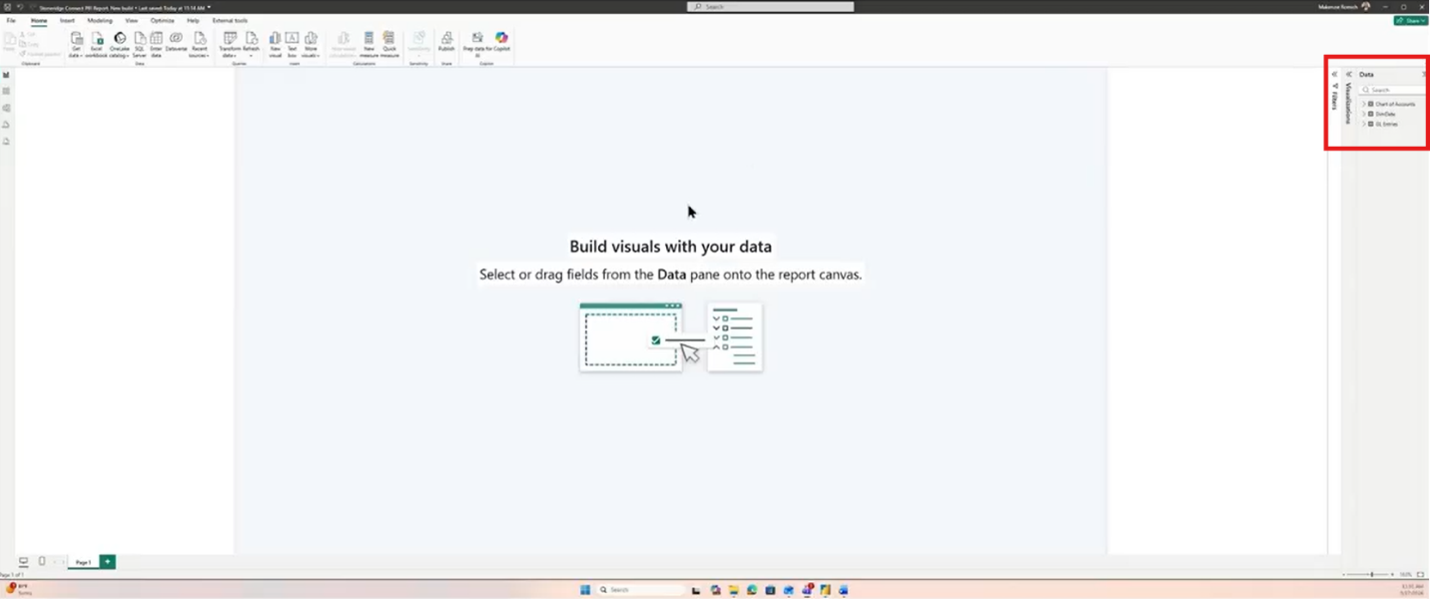
See how Business Central tables are selected and loaded into Power BI → [08:10 -08:33]
- Open the Modeling view and create relationships between your tables. The exact field names may vary, but the objective is to connect your account structure and calendar data to your transaction data so Power BI can accurately aggregate and analyze financial activity.
For this example:
-
- The Chart of Accounts table is connected to the GL Entries table using the GL Account Number field.
- The Date Table is connected to the GL Entries table using the Posting Date field.
- After creating the relationships, confirm that the relationships are one-to-many, creating the basic data model for your financial report. Establishing these relationships is a critical step because they determine how filters, calculations, and time-based comparisons work throughout the report.
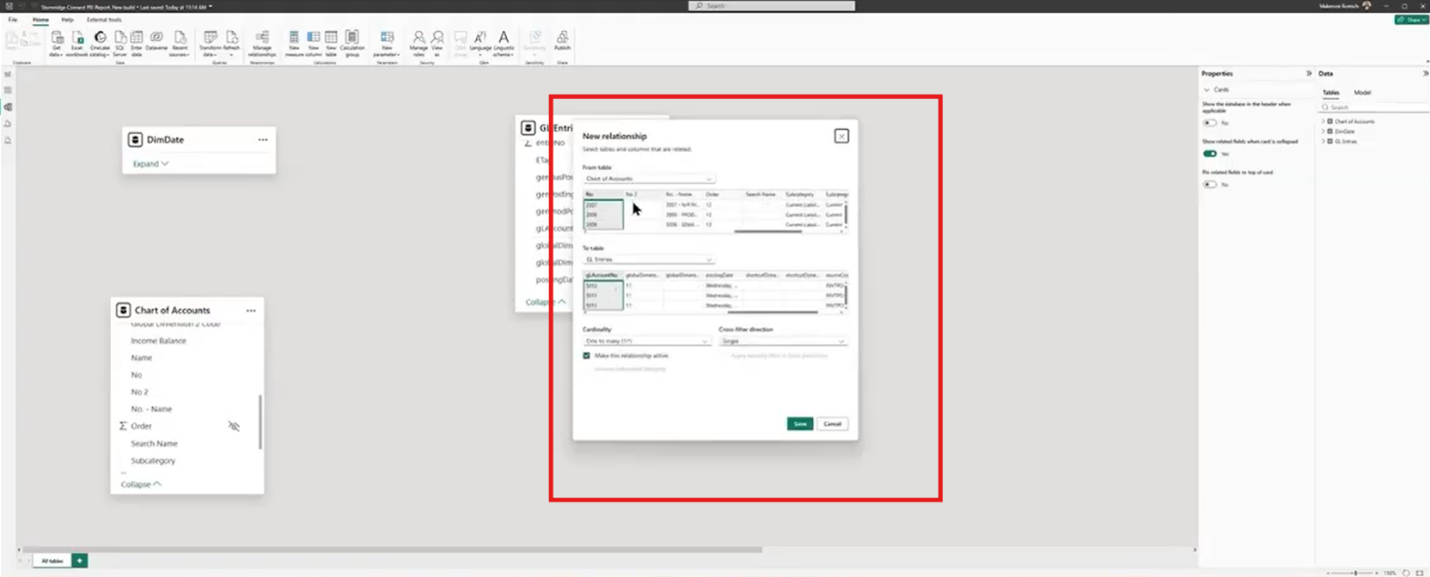
Watch the data model come together with table relationships → [08:52 – 10:05]
At this stage, your report may not look particularly impressive yet, and that's okay. The goal is simply to establish a clean data model. Think of this as the groundwork for everything that follows. Once your data is connected and your tables can communicate with one another, you can start turning that data into meaningful visuals.
Creating an Income Statement Matrix Visual
With your data connected, you can start building the income statement itself.
To create the matrix:
- Add a Matrix visual to your Power BI report.
- From the Chart of Accounts table, add:
- Category
- Subcategory
- GL Account Number
- Arrange those fields into a hierarchy, with category at the top, followed by subcategory and GL account number.
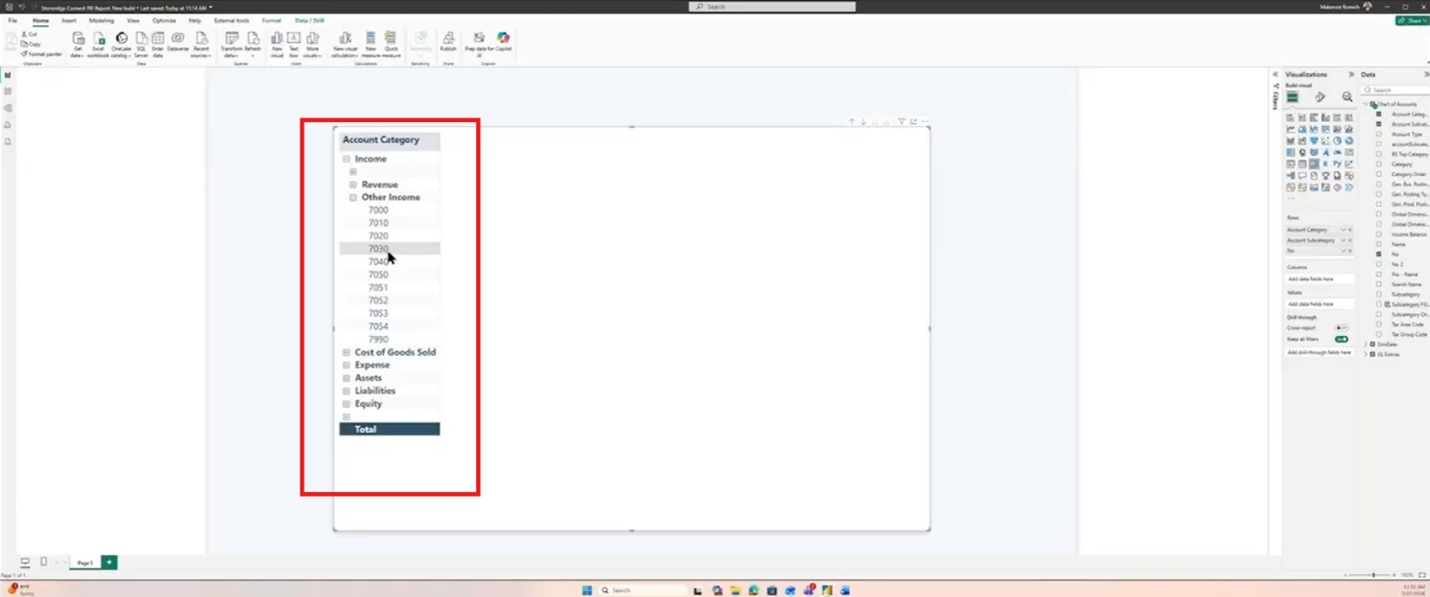
See the income statement hierarchy built inside a Power BI matrix visual → [10:13 – 11:10]
- Add the Income Balance field to the Filters pane.
- Filter the Income Balance field to Income Statement so that assets, liabilities, and equity are removed from the visual.
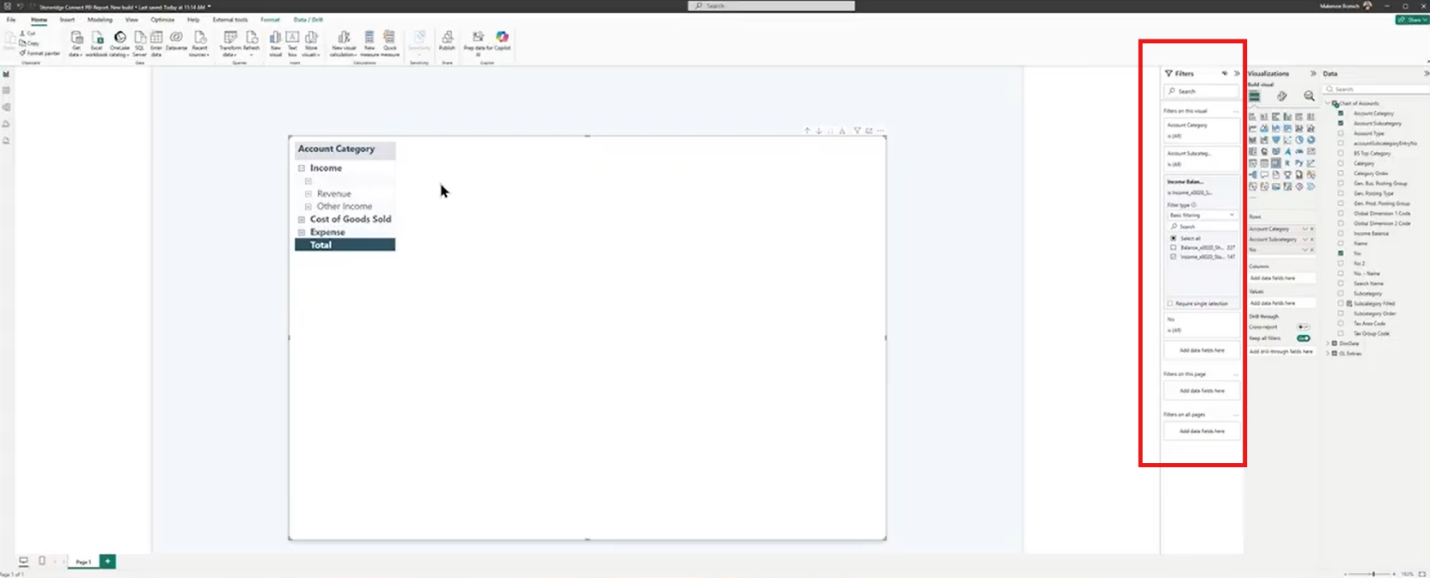
Watch income statement filters remove non-financial reporting accounts → [11:10 – 12:00]
- Add the Amount field from GL Entries to display the financial values associated with each account.
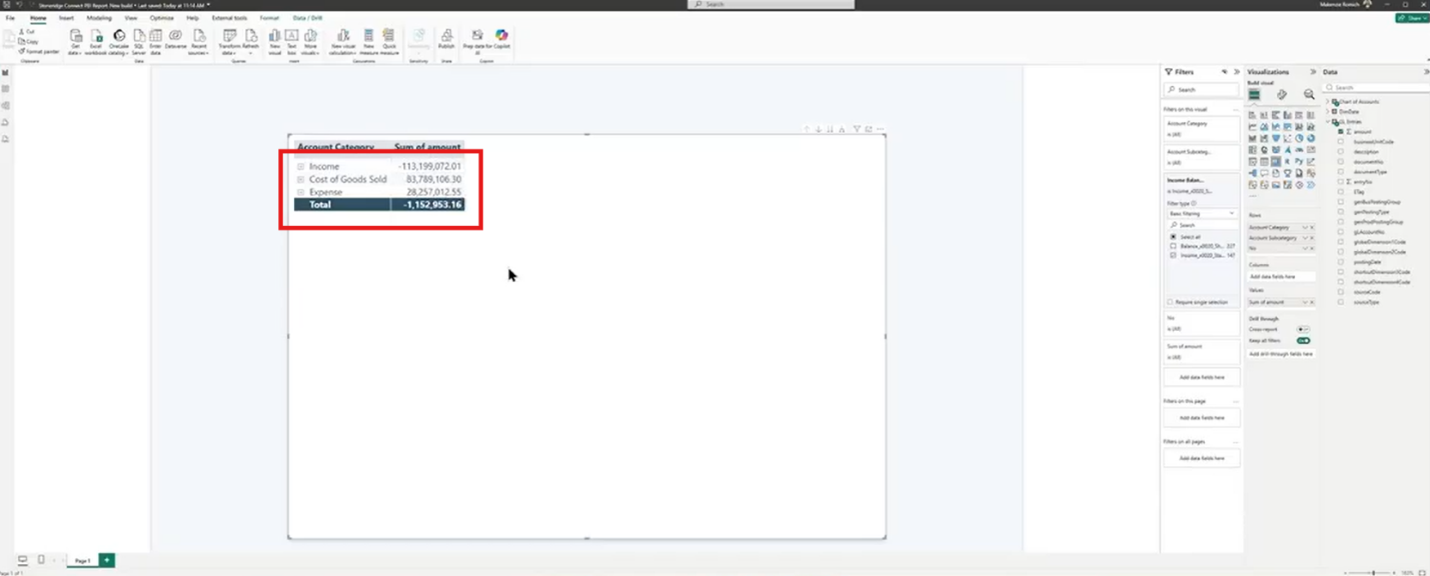
See financial amounts added to the income statement visual → [12:19 – 12:38 ]
This gives you a drillable income statement that can move from high-level categories down to individual GL accounts.
Creating Measures: Adjusted Amounts and Prior Period Comparisons
When you bring Business Central financial data into Power BI, you may find that the signs on certain amounts aren't displayed the way you expect. For example, income may appear as a negative value while costs and expenses appear as positive values. While Business Central understands how those values work in its financial calculations, your Power BI visualization may require some adjustments to present them in a better format.
You can do this by creating a simple measure that makes the financial information easier to interpret and compare:
First, create an adjusted amount measure:
- Right-click the GL Entries table and select New Measure.
- Create an Adjusted Amount measure that sums the GL Entry Amount.
- Multiply the result by -1 to reverse the signs where necessary.
- Replace the original Amount field in your matrix with the new Adjusted Amount measure.
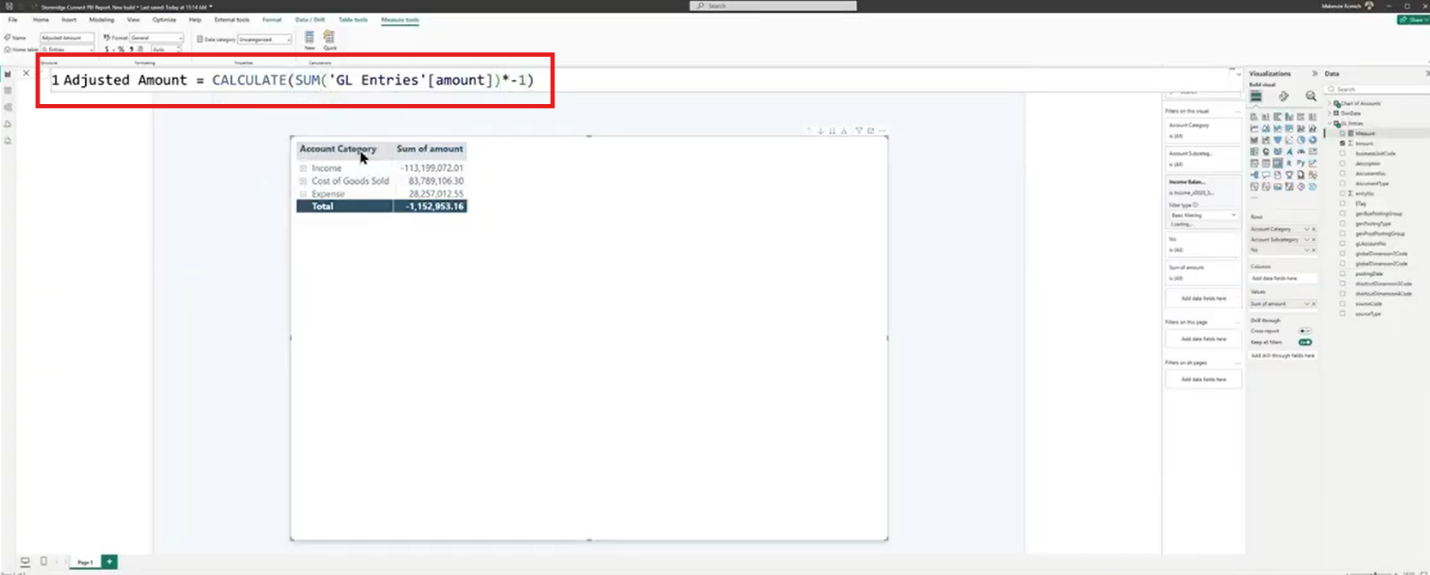
Follow the creation of an Adjusted Amount measure for cleaner financial reporting → [12:49 -14:09]
Then, create a same-period-last-year measure:
- Create another New Measure called Same Period Last Year.
- Use the Adjusted Amount measure as the calculation.
- Apply the same-period-last-year time intelligence calculation.
- Connect the calculation to the appropriate field in your Date Table.
- Add the new measure to the matrix alongside the current-period amount.
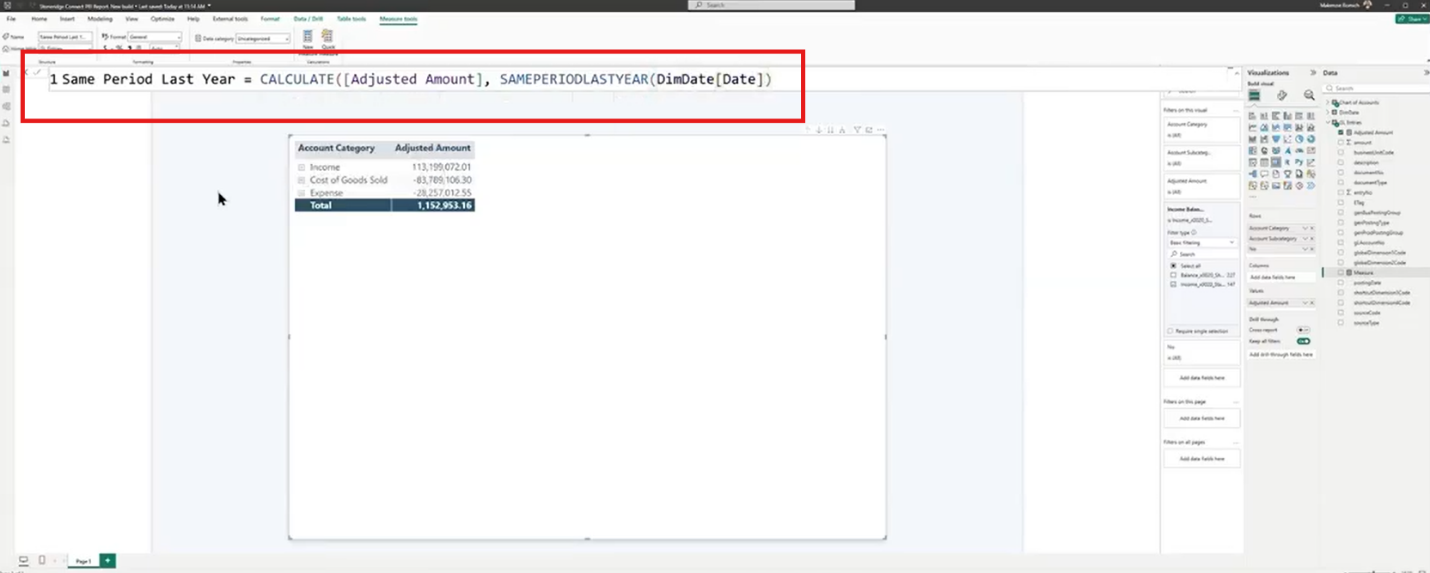
Watch a same-period-last-year comparison measure being built in Power BI → [14:15 – 15:30]
Finally, create a variance measure:
- Create a new measure called Variance.
- Subtract Same Period Last Year from Adjusted Amount.
- Add the Variance measure to your matrix.
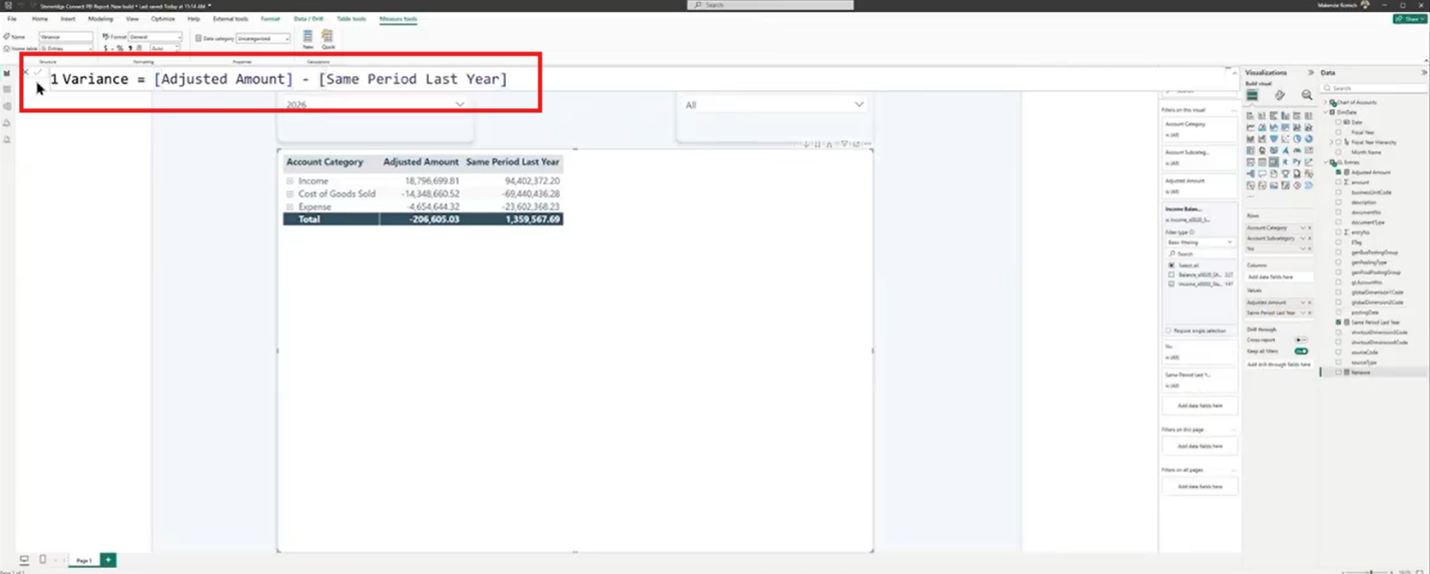
See how variance calculations are added to compare financial performance → [17:50 – 18:25]
The formulas themselves don't need to be intimidating. If you're comfortable creating straightforward formulas in Excel, you'll recognize the basic concepts behind these measures.
Adding Filters and Visuals
Once you have the core financial information in place, filters can make the report significantly more useful by adding sliders and reporting-period filters:
- Add a Slicer visual to the report.
- Add Fiscal Year from the Date Table to the slicer.
- Change the slicer style to a dropdown to keep the report clean.
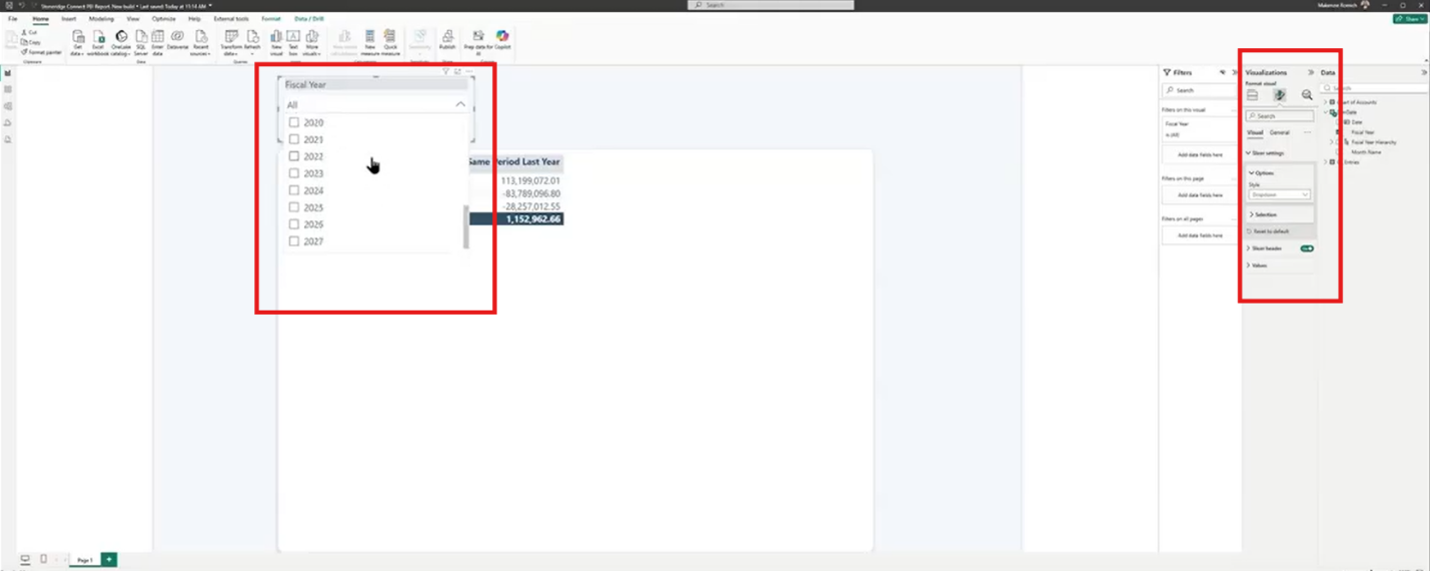
Watch fiscal year filtering being added to the report → [15:30 – 16:46]
- Add a second slicer for Month Name by selecting the Fiscal Year slicer and simply copy-pasting it.
- Select a fiscal year and month to compare the current period with the corresponding period from the prior year.
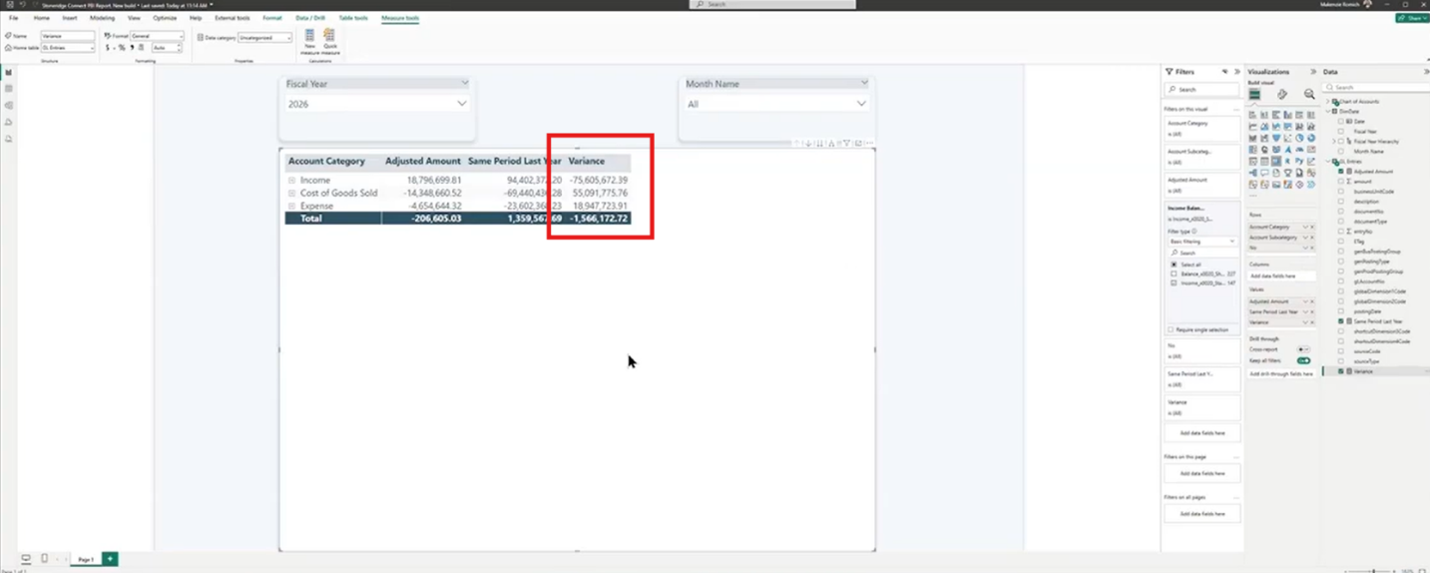
See month filters make period-over-period analysis easier → [16:46 – 17:50]
You can also spend some time formatting the report so that it's easy for others to understand:
- Add a clear title to your income statement.
- Adjust the title size and formatting.
- Use consistent formatting for headers and other key elements.
- Arrange your visuals so the most important information is easy to find.
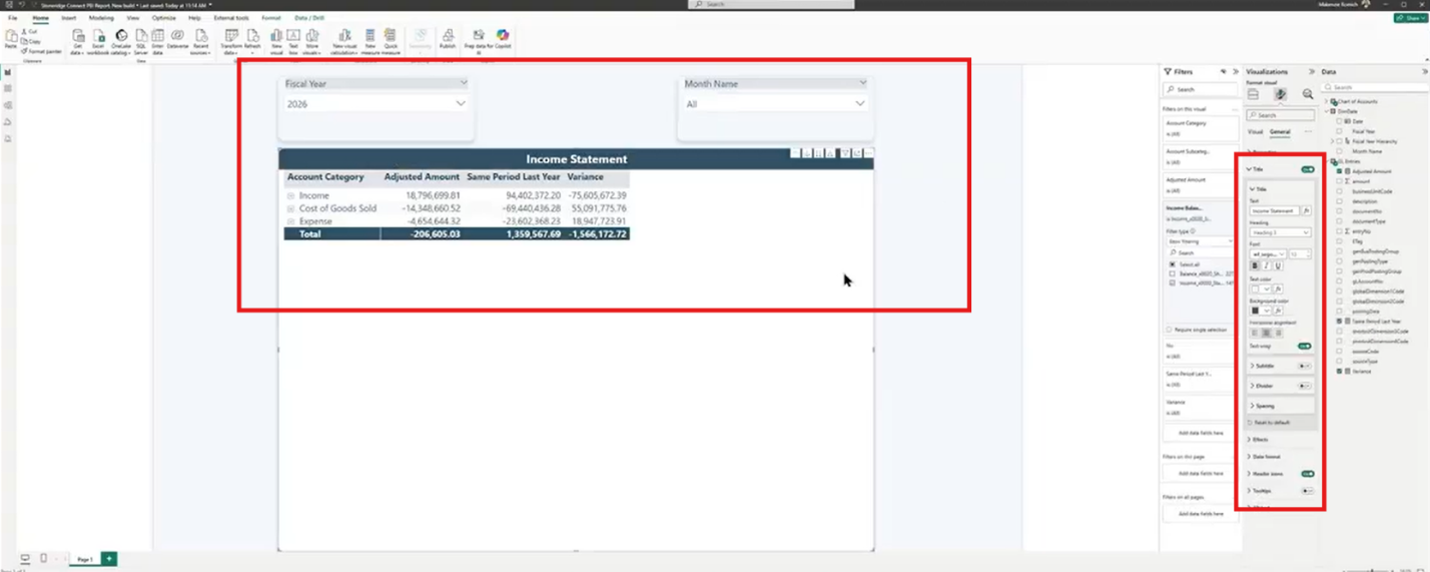
See the report transformed with formatting and usability improvements → [18:53 – 19:45]
This ensures the report is easy to follow and makes sure that all users who are going to use the report know what it is and can identify it quickly.
Creating KPI Cards
Your income statement gives you the detail. KPI cards give you the quick answer.
To create a current-period KPI:
- Add a KPI visual to the report and size it the way you want it.
- Use Adjusted Amount as the value.
- Use Fiscal Year as the trend axis.
- Use Same Period Last Year as the target.
- Add Category from the Chart of Accounts to the visual-level filters.
- Filter the category to Income.
- Rename and format the KPI so its purpose is immediately clear.
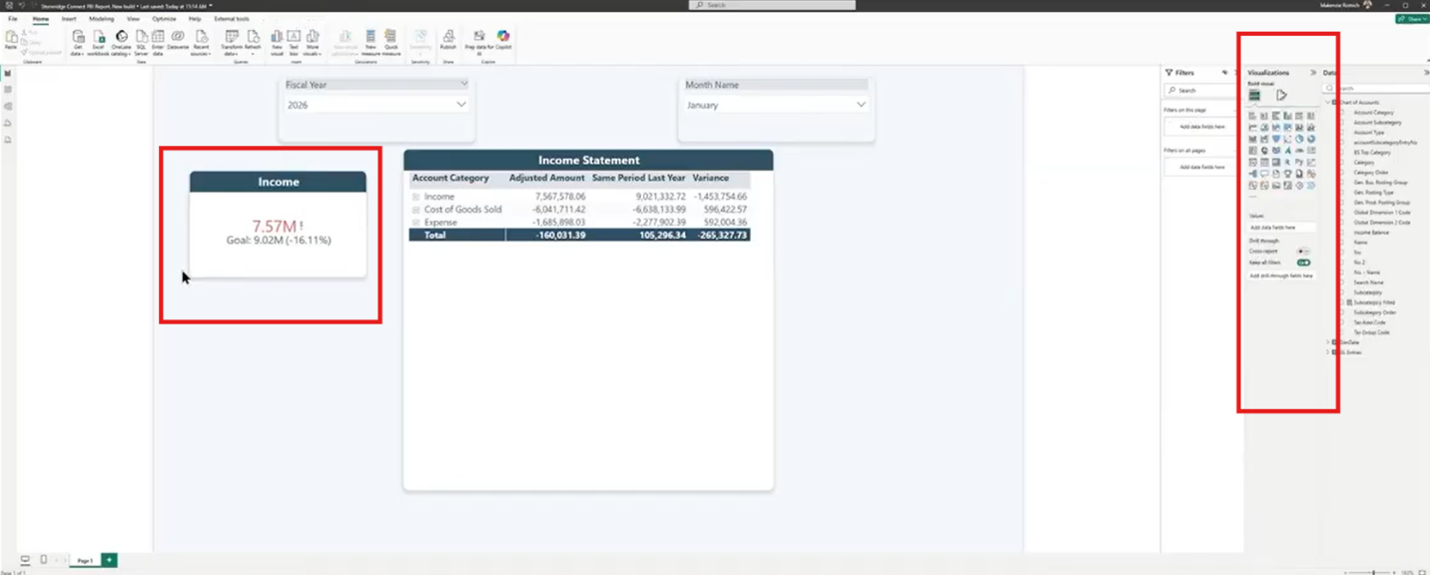
Follow the creation of a KPI card for current-period performance → [20:08 – 23:15]
To create a year-to-date KPI:
- Copy and paste the first KPI to preserve its formatting.
- Create a Year-to-Date Amount measure based on Adjusted Amount.
- Configure the measure to use the maximum date within the selected fiscal year.
Create a corresponding Same Period Last Year Year-to-Date measure.
- Add the year-to-date measure to the KPI value.
- Add the prior-year year-to-date measure as the target.
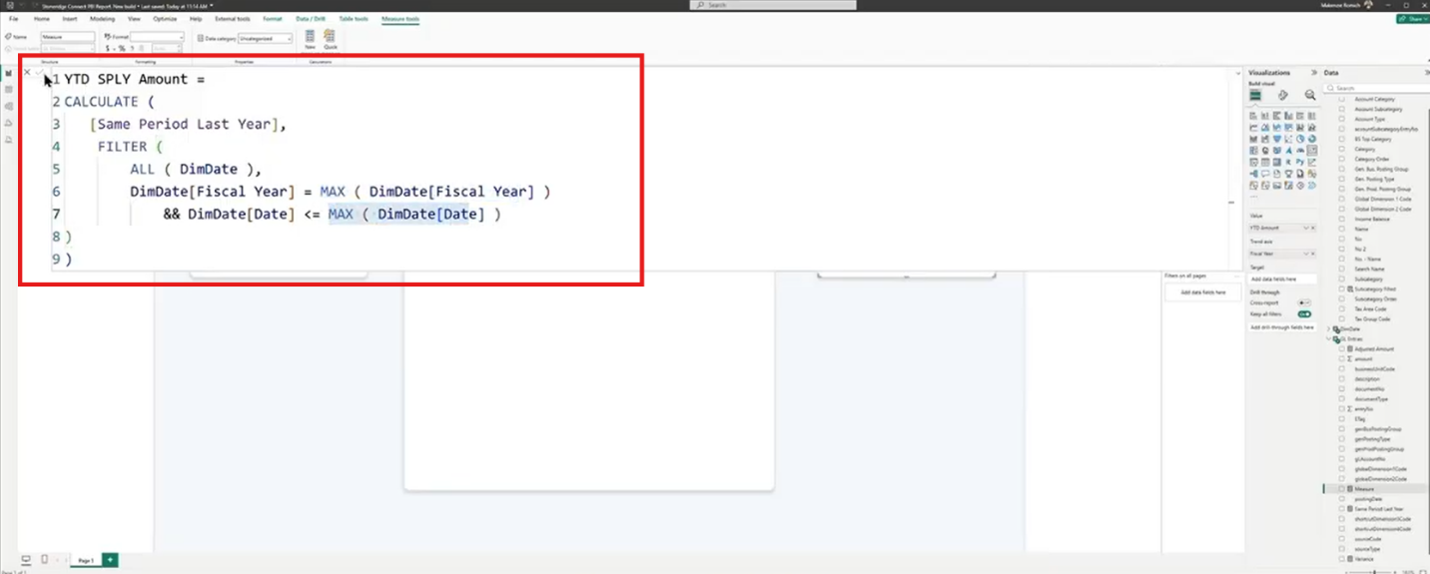
See Year-to-Date and prior-year values added to the KPI → [25:05 – 25:54 ]
- Test the KPI by changing the month filter and confirming that the year-to-date value continues to reflect the full period through the selected month.
- Rename the KPI to clearly identify it as Year to Date.
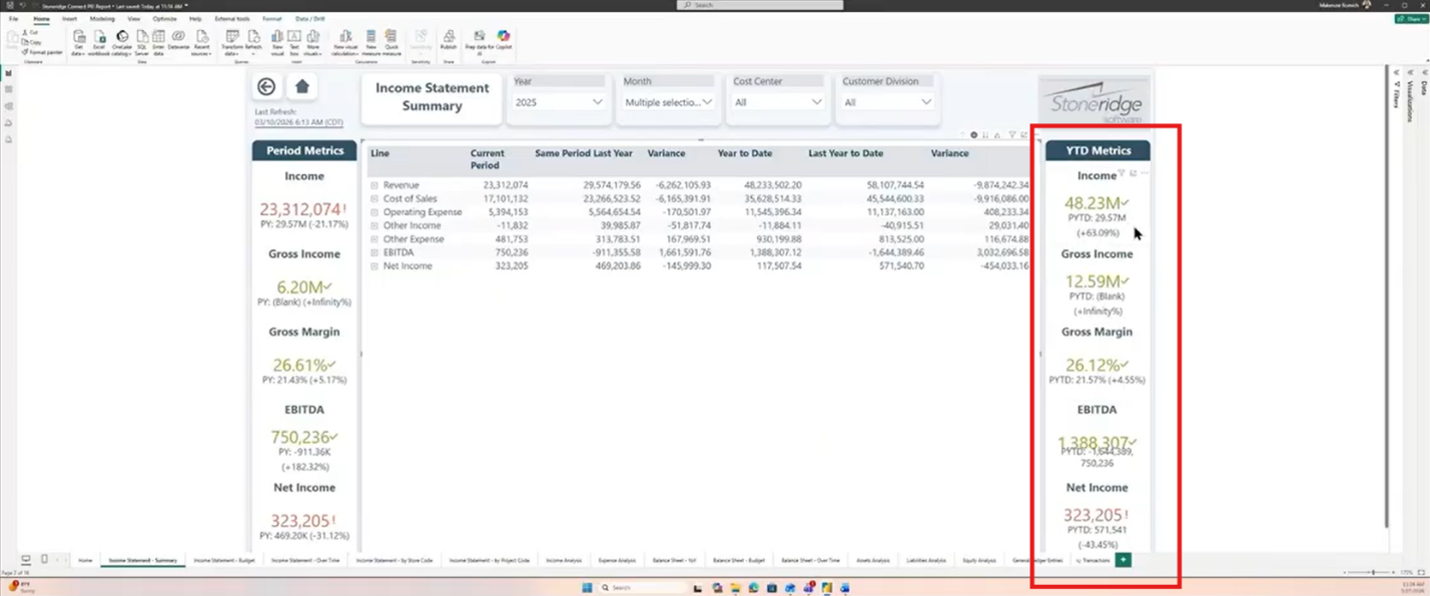
Watch the Year-to-Date KPI respond to reporting period changes → [25:54 – 26:48]
The distinction between these is important. A monthly KPI tells you what's happening right now. A year-to-date KPI tells you how you're doing overall. Put them together, and you can quickly understand both the immediate picture and the bigger trend.
Key Takeaways and Final Thoughts
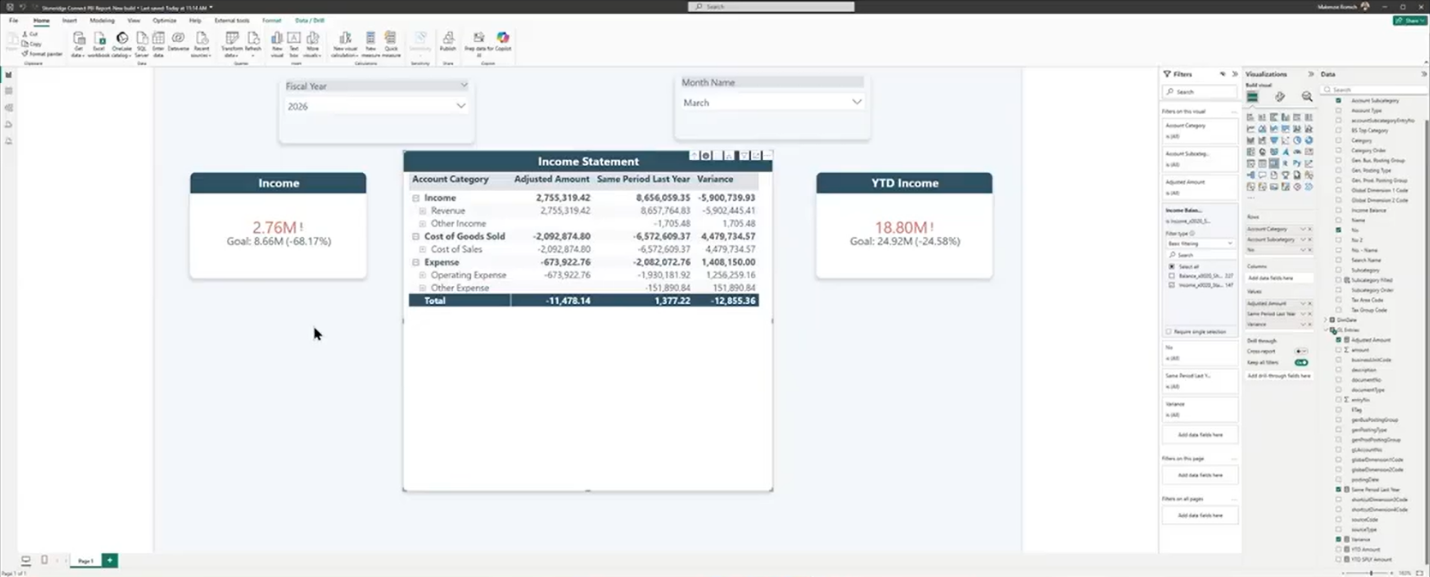
See the completed Business Central financial report → [ 26:49 – 27:45]
At this point, you've built a streamlined financial report that brings your Business Central data into a much more interactive format.
You have an income statement organized by category, subcategory, and GL account. You have adjusted financial amounts, current-period and prior-period comparisons, variance calculations, fiscal year and month filters, and KPI cards that provide quick answers about your performance.
More importantly, you've created a report that can help you move from simply reviewing financial data to using it to guide decisions.
That distinction matters. A static report can tell you what happened. An interactive Power BI report can help you explore why it happened, compare it with previous periods, and identify where you may need to focus your attention.
And you don't need to be a developer to get started. Power BI supports both advanced development and users who simply want to explore their organization's data and create useful insights without building everything from scratch.
The real opportunity is to build reporting around the questions you need to answer. How are we performing this month? How does that compare with last year? Where are our biggest variances? How are we tracking year-to-date? What areas deserve a closer look?
When your Business Central data and Power BI reporting work together, those answers become much easier to find.
Get the Most Out of Business Central and Power BI with Stoneridge Software!
Your Business Central environment already contains the financial information you need to make informed decisions. The next step is making that information easier to see, understand, and act on. Power BI helps you turn your Business Central data into interactive financial reporting that gives you greater visibility without forcing you to dig through multiple reports or spreadsheets.
If you're looking to streamline financial reporting in Business Central and make faster, more effective decisions, Stoneridge Software can help. As a leading Microsoft partner, our team can help you implement, optimize, and support your Business Central and Power BI solutions so your reporting works for the way your business operates.
Contact Stoneridge Software to explore what's possible with your Business Central data.


Under the terms of this license, you are authorized to share and redistribute the content across various mediums, subject to adherence to the specified conditions: you must provide proper attribution to Stoneridge as the original creator in a manner that does not imply their endorsement of your use, the material is to be utilized solely for non-commercial purposes, and alterations, modifications, or derivative works based on the original material are strictly prohibited.
Responsibility rests with the licensee to ensure that their use of the material does not violate any other rights.