















Copilot Solution Documenter Tool: Faster, Smarter Documentation for Dynamics 365 and Power Apps
Documentation can often be a fickle thing for businesses.
On the one hand, it is one of those necessary but time-consuming tasks that always seems to fall to the wayside when it becomes difficult to maintain or outdated the moment a solution changes.
On the other hand, maintaining proper documentation is critical for governance, support, onboarding, upgrades, and long-term scalability.
Luckily, there is a Microsoft tool for that!
Introducing the AI (Copilot) Documentation Tool
The new AI (Copilot) Documentation tool is part of a toolbox suite called Power CAT tools and analyzes, organizes, and summarizes the contents of a solution in Dynamics 365 Customer Engagement (CE) and Power Apps.
This emerging tool uses AI to analyze solutions, summarize components, and automatically generate a document that can be downloaded and shared. This allows you to quickly and easily share what is contained within a solution that you plan to deploy or have recently deployed on a higher environment. It also drastically reduces the manual effort required for traditional documentation of Dynamics 365 and Power Platform environments.
In this blog, we will explore what the Copilot Solution Documenter Tool is, how to install and use it, and the limitations organizations should understand before adopting it.
What Does the Copilot Documentation Tool Do?
Rather than manually documenting tables, automations, relationships, forms, and flows, the AI-powered tool scans the solution package and creates a downloadable Word document containing key information and summaries.
The tool is designed to:
- Analyze Power Platform and Dynamics 365 solutions
- Organize solution components into readable documentation
- Summarize functionality and business logic
- Document cloud flows and automations
- Identify dependencies and prerequisites
- Generate entity relationship diagrams
- Accelerate technical and functional handoff processes
This is incredibly valuable for organizations operating Dynamics 365 systems, as they are constantly undergoing changes like enhancements, customizations, integrations, and automations. Over time, documentation gaps can become one of your biggest operational risks, but the Copilot Documenter Tool addresses that head-on by providing a faster starting point for solution documentation.
It’s not about replacing consultants, architects, or administrators. Instead, it acts as a productivity tool that gets the users creating documents 70% of the way there, which represents a significant reduction in manual effort. Additionally, support teams, implementation consultants, and internal IT departments will also see huge time-saving benefits.
How to Install the Copilot Documenter Tool
Installing the Copilot Solution Documenter Tool is relatively straightforward for organizations already familiar with AppSource deployments in Power Platform.
The installation process begins in the Power Platform Admin Center.
From there:
- Navigate to Environments
- Select the desired environment
- Open the environment summary page

- Under Resources, select Dynamics 365 apps

- Choose Open AppSource
- Search for Power CAT
- Select the Power CAT tools package
- Click Get It Now to begin installation
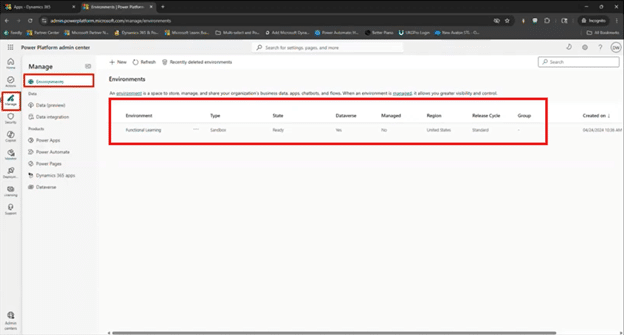
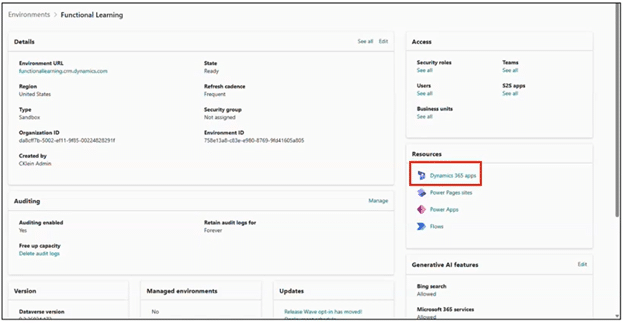
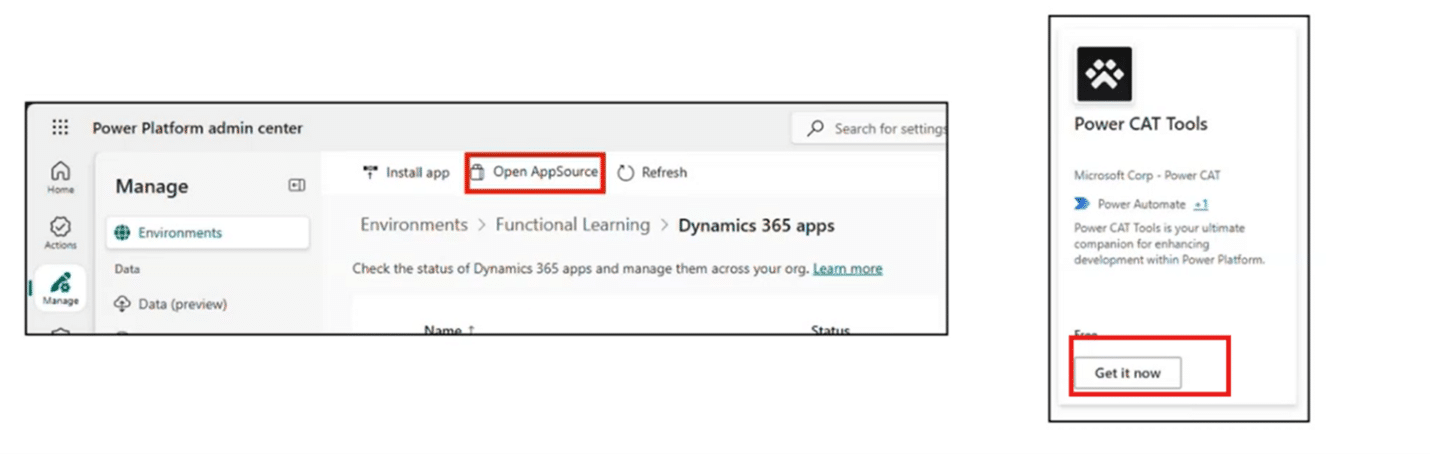
Once installed, the Power CAT tools application becomes available within the selected environment’s app selector.
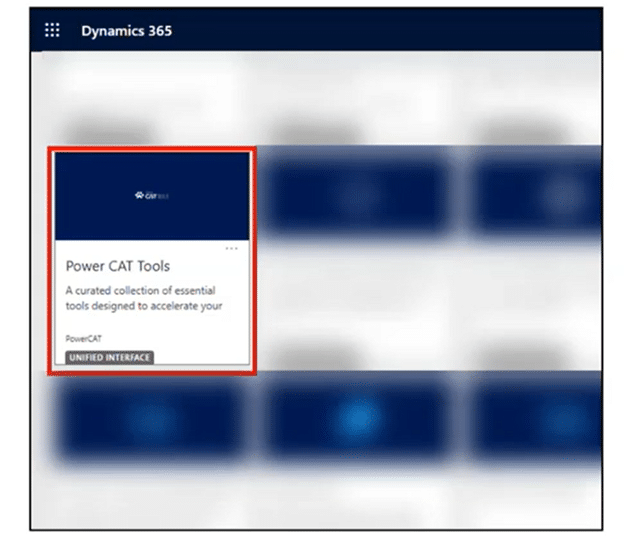
One important advantage of the tool is deployment flexibility. Organizations with multiple environments do not necessarily need to install the tool everywhere. Because the tool can analyze exported solution files, teams can install it in a single environment and upload solutions from other environments for documentation analysis.
For enterprises managing large multi-environment Dynamics 365 ecosystems, this can simplify administration considerably.

How to Use the Copilot Documenter Tool
Once the Power CAT tools suite is installed, using the AI documentation capability is intuitive. Inside the Power CAT application, users simply navigate to the AI Documentation section and create a new analysis.
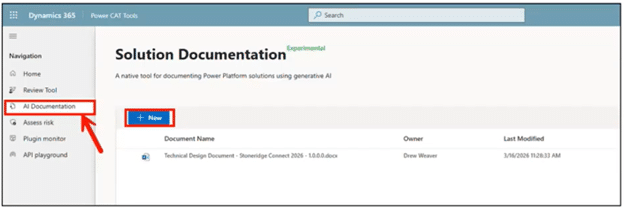
Once you do that, you will see an overlay screen with two options:
- Analyze, review, and summarize an existing solution directly from the current environment
- Upload an exported solution file from another environment
The second option is especially useful for organizations managing multiple subsidiaries, development environments, or isolated deployment structures.
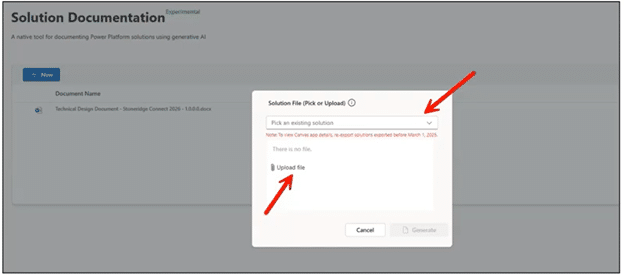
After selecting the solution, the AI engine begins analyzing the solution metadata and components. The tool then generates a downloadable Word document containing several types of information, including:
Solution Overview
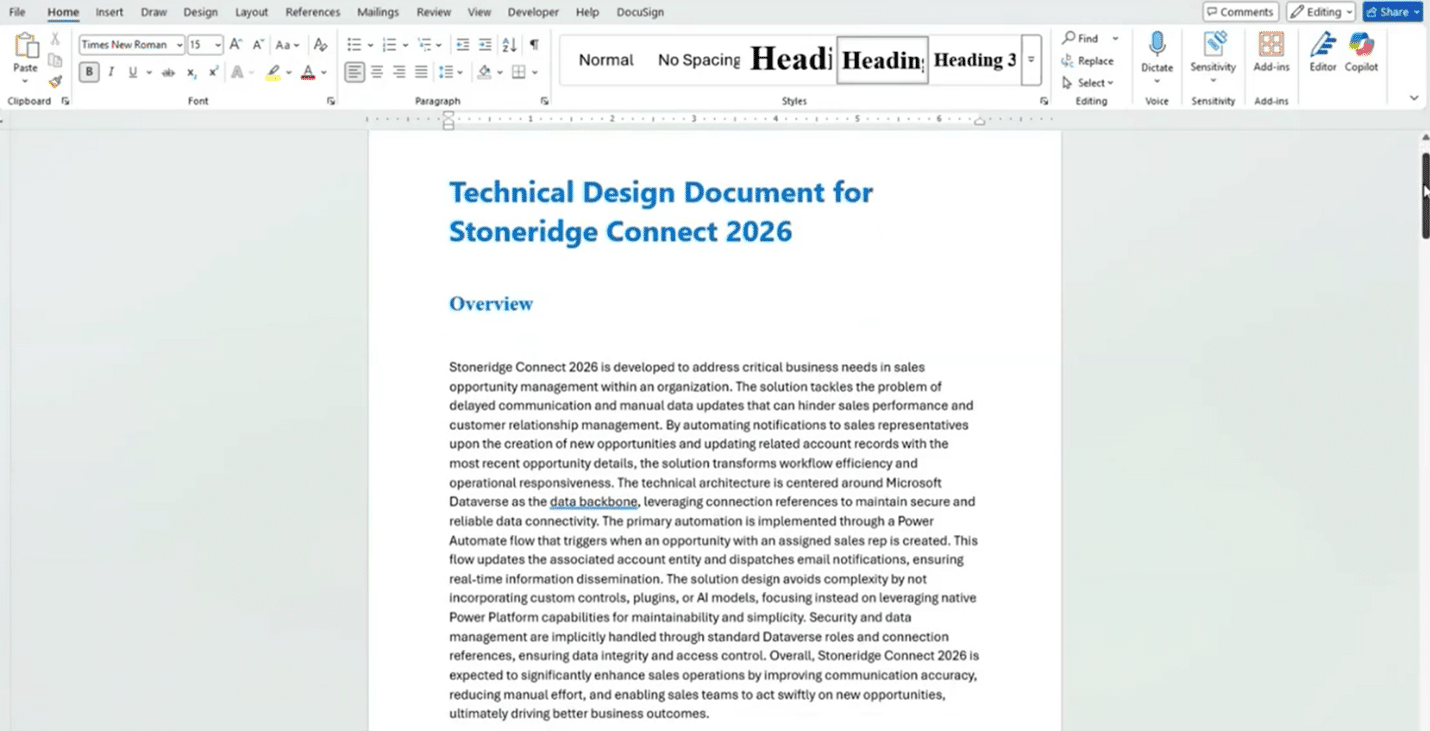
The AI summarizes the purpose and intent of the solution by evaluating included components and functionality. This may include, but is not limited to:
- Security considerations
- Data management functionality
- Data integrity and control
- Notifications and automations
- Business process capabilities
- Overall solution objectives
While some of the generated narratives can feel generalized, it still provides a strong starting point for documentation efforts. Plus, you can always read through it and trim the parts that might not be as impactful.
Solution Details
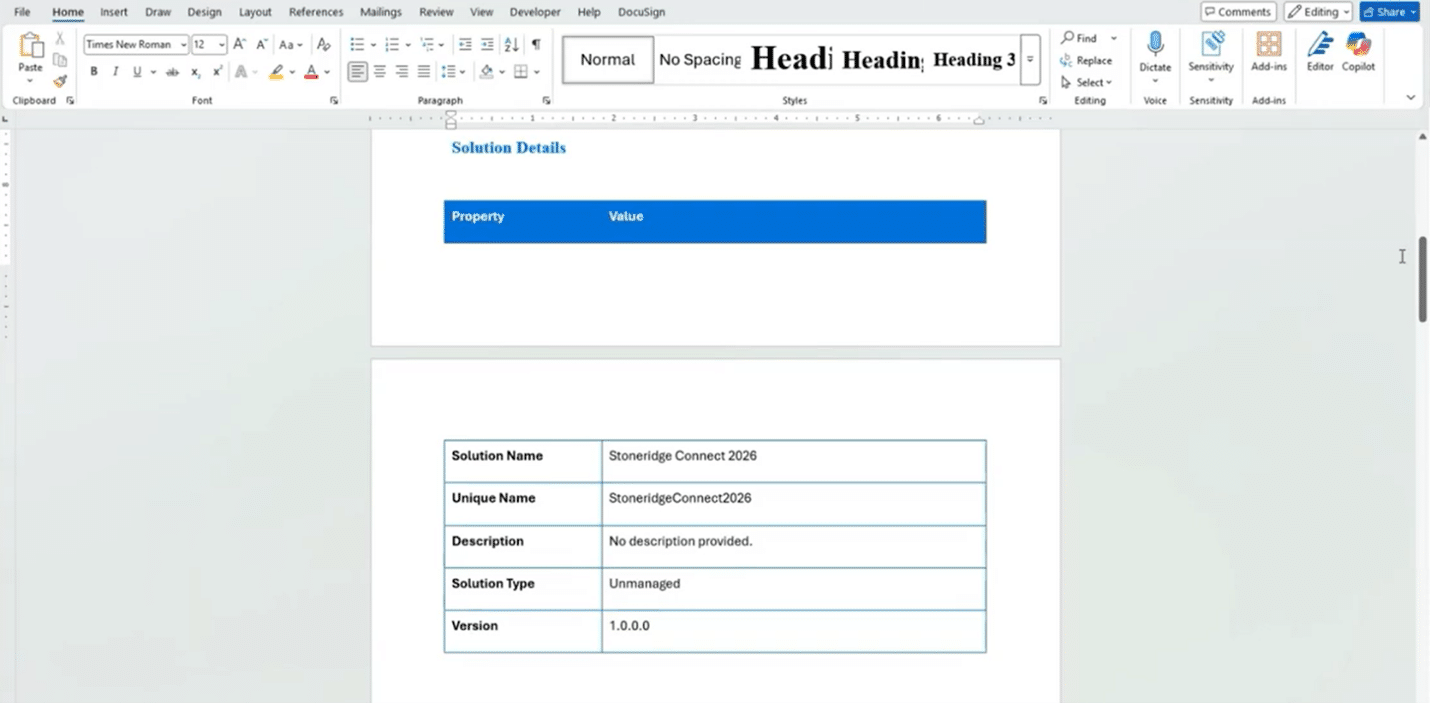
Prerequisites and Dependencies
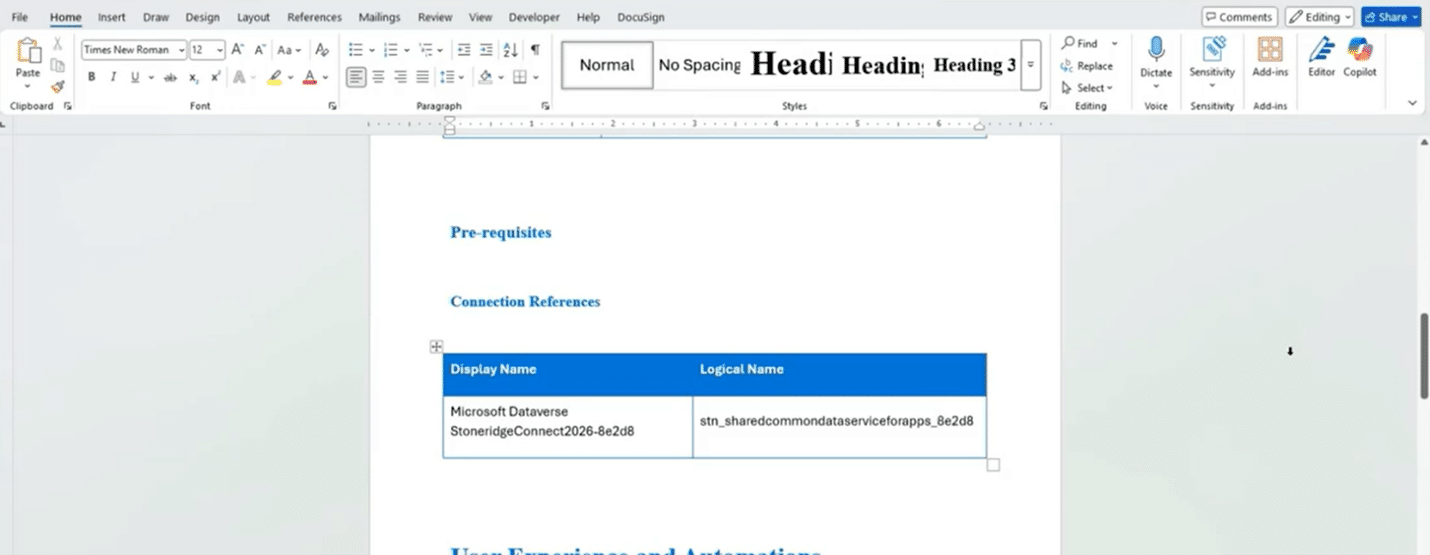
The tool identifies dependencies and requirements that exist within the environment where this solution flows.
- Connection references
- Required components
- Environment prerequisites
This becomes extremely useful during deployments and migration planning.
User Experience and Automations
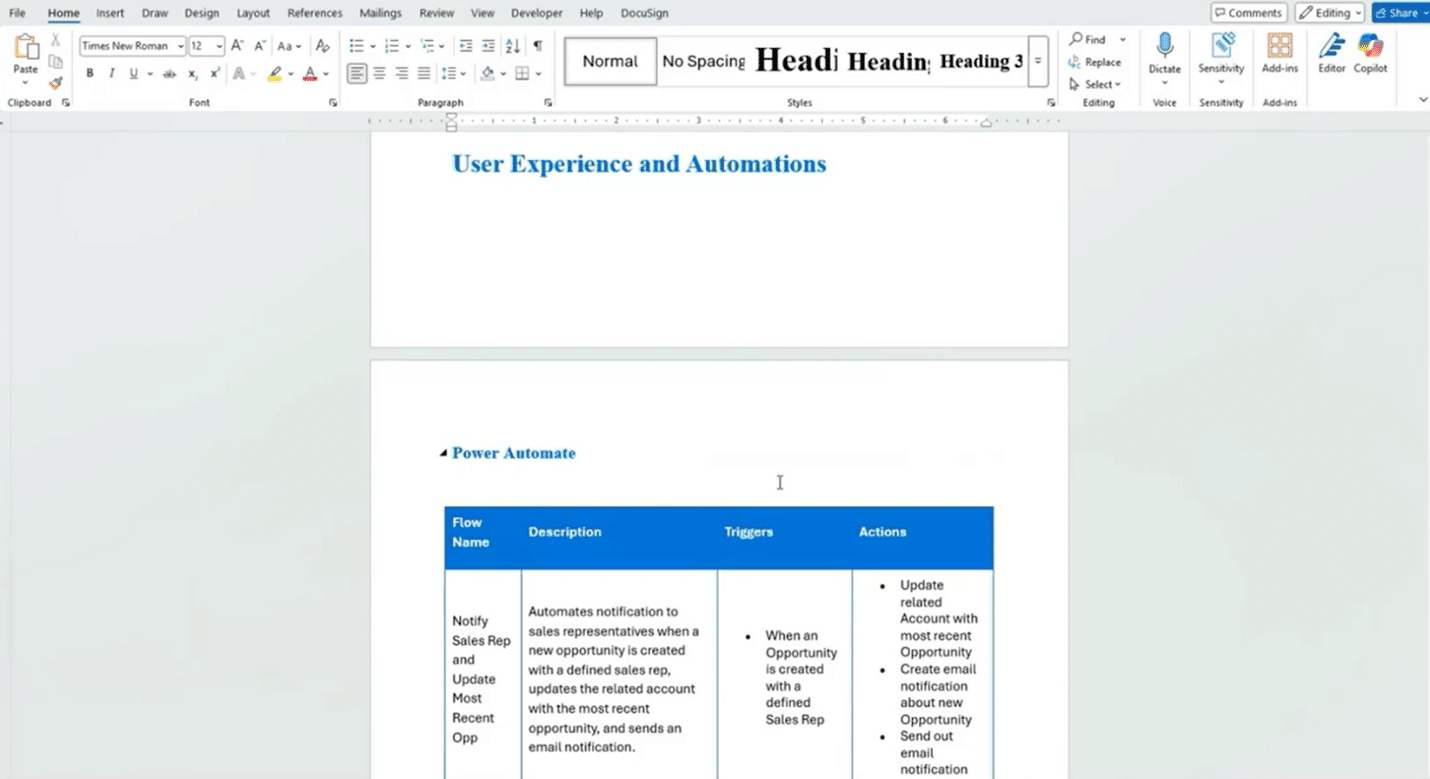
One of the strongest current capabilities of the tool is its ability to document Power Automate cloud flows.
The generated documentation can outline:
- Flow names
- Trigger conditions
- Actions performed
- Flow purpose and descriptions
For many organizations, documenting cloud flows manually is one of the most tedious parts of solution management. Automating even part of that process creates immediate operational value.
Data Structures and Relationships
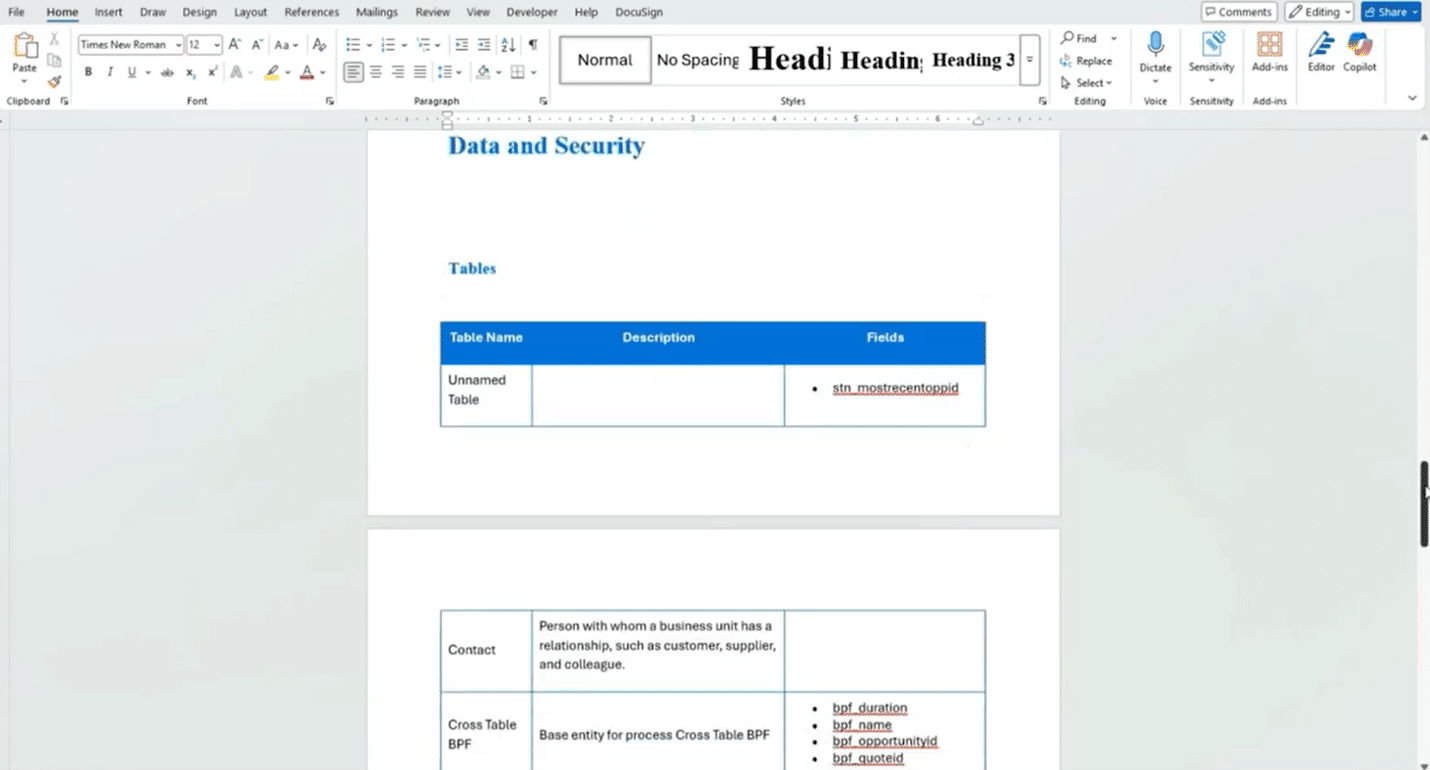
The tool can also generate:
- Table summaries
- Entity relationship diagrams
- Column references
- Data relationship mappings
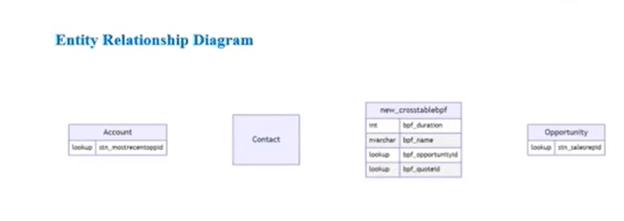
These visualizations can help technical and functional teams better understand how solution components interact.
For onboarding new administrators or consultants, this can significantly reduce ramp-up time.
Copilot Documenter Tool Limitations
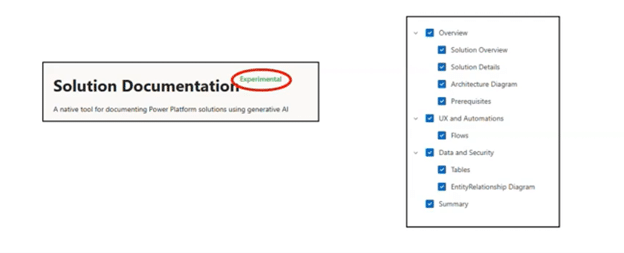
As promising as the Copilot Solution Documenter Tool is, organizations should understand that it is still in an experimental or preview-stage maturity level. Essentially, there are some important limitations to consider.
Not All Components Are Fully Supported
Currently, the tool performs best with:
- Tables
- Forms
- Views
- Cloud flows
- Basic solution components
However, support is still limited for:
- Traditional workflows
- Actions
- Plug-ins
- JavaScript web resources
- Advanced custom code
- Complex integrations
For heavily customized Dynamics 365 environments, AI-generated documentation may still require significant manual augmentation.
Some Output Can Be Incomplete
In certain cases, table names or component references may appear incomplete or mislabeled within the generated documentation.
While relationship diagrams and metadata often help clarify these gaps, organizations should still expect some manual review and cleanup.
AI Summaries Can Feel Generic
Some narrative sections, such as solution overviews and summaries, may contain generalized language that requires refinement for stakeholder-ready documentation. It’s good to have the mindset that the tool is a documentation accelerator rather than a finished document replacement. You will likely still need to review and edit the document.
Preview Features Continue to Evolve
Perhaps the most important point is that the tool is still evolving rapidly. We like to joke that Copilot is the worst it’s ever going to be. And while that may seem like a negative, it means that it’s always going to improve.
That makes this an excellent time for organizations to begin experimenting with the tool and identifying where it can already create value.
Get the Most Out of Copilot
Microsoft continues investing heavily in Copilot and AI capabilities across the Dynamics 365 ecosystem, and organizations that start building AI-enabled operational practices now will be better positioned for the future.
If your organization is exploring how to leverage Copilot and AI-driven tooling like the Power CAT Solution Documenter Tool, talk to the Stoneridge experts today to build the right strategy and unlock the full potential of Copilot and Dynamics 365.

Under the terms of this license, you are authorized to share and redistribute the content across various mediums, subject to adherence to the specified conditions: you must provide proper attribution to Stoneridge as the original creator in a manner that does not imply their endorsement of your use, the material is to be utilized solely for non-commercial purposes, and alterations, modifications, or derivative works based on the original material are strictly prohibited.
Responsibility rests with the licensee to ensure that their use of the material does not violate any other rights.