















How to Personalize Forms in Dynamics 365 for Finance and Operations
The ability to personalize your system by user and role is a powerful feature. This blog will illustrate how to personalize forms in Dynamics 365 for Finance and Operations. These instructions are shown within the Check Register list page and in this example, we will be adding the Recipient name (vendor name) to the Overview tab.
Steps to personalize forms in D365 for Finance and Operations:
- Once you are in the form, right-click anywhere in the form and select Personalize > Personalize this form.
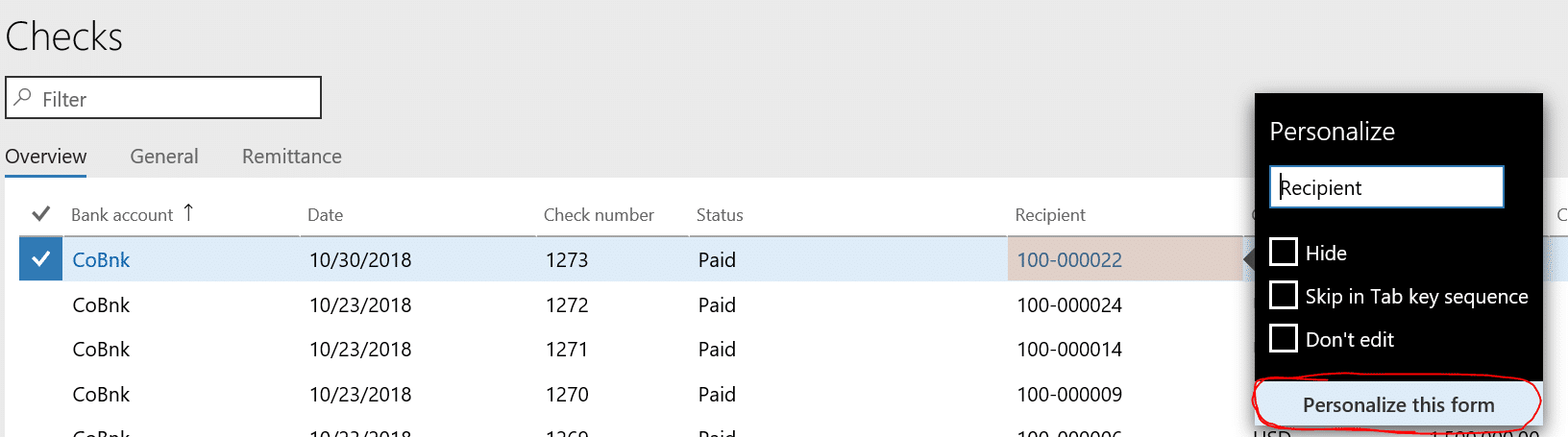
- A form showing personalizations will then appear.

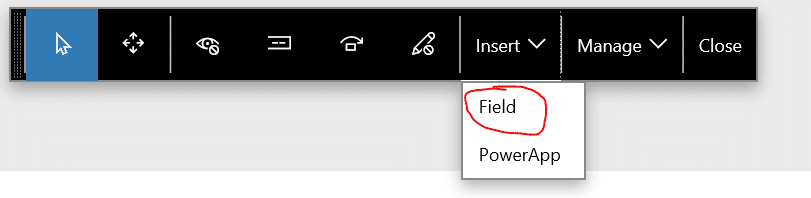
- There are 9 options to choose from (in order from left to right)
- Select an element and change its properties
- Select an element (field, column) and drag it to a new location
- Hide fields or make visible
- Select fields to show in a collapse header
- Select fields to be skipped when tabbing
- Select the fields to lock to prevent changes
- Insert new fields
- Manage contents on the screen
- Close the form
- In this example, we will add the Recipient name next to the Recipient number. Choose the Insert > Field option and then select the column where this new field is to be added. In this case, I select Recipient.
- In the Insert fields form, location Recipient name and then click next to it.
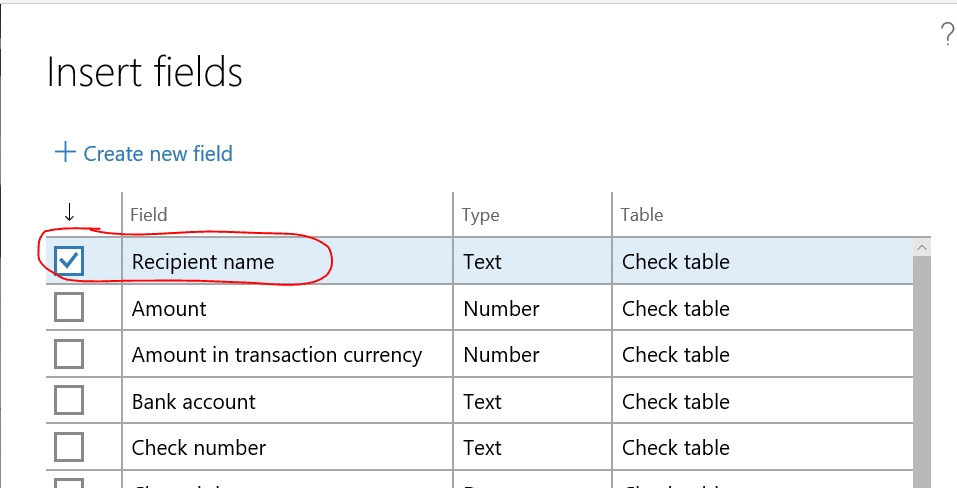
- Clock Insert
- The field will now be at the end of the list page so you will want to drag it to where it belongs. To do this, select the icon below and then a field containing the value within the column. The easiest way to move this is to click Tab to move which will be indicated by an orange bar between the current columns. Once you get it to the correct location, select Enter or Space to save the change.

- If you need to remove all personalization’s at any point, you can personalize the form and select Manage > Clear.

Under the terms of this license, you are authorized to share and redistribute the content across various mediums, subject to adherence to the specified conditions: you must provide proper attribution to Stoneridge as the original creator in a manner that does not imply their endorsement of your use, the material is to be utilized solely for non-commercial purposes, and alterations, modifications, or derivative works based on the original material are strictly prohibited.
Responsibility rests with the licensee to ensure that their use of the material does not violate any other rights.