














How to Use Microsoft Copilot in Dynamics GP
If you are running Dynamics GP or another legacy software system, you have probably heard some variation of the sentences “legacy systems are falling behind” or “it’s time to upgrade to the cloud.”
While GP is an older platform with a defined roadmap for end-of-life support, that doesn’t mean your system and business are complete relics of the past. You can still take advantage of some of the latest in business technology, like Microsoft Copilot.
Watch the video or read on to learn how you can still leverage the ways you can use Microsoft Copilot if you’re using Dynamics GP.
Yes, You Can Bring AI into Dynamics GP
We’re not going to sugarcoat it: Upgrading to a cloud-based system like Dynamics 365 ERP and CRM software solutions will give you tremendously easy access to Microsoft Copilot, which is integrated directly into the processes and workflows that users deploy every day.
However, you can absolutely use Copilot and Copilot Studio within your Dynamics GP system so that it interacts with your data right where it lives. These AI-powered insights, natural language data access, and future-ready learning can help your team work smarter while eliminating time-consuming and tedious tasks.
Let’s break down how it works, why it matters for you, and how you can get started using Copilot in GP today!
What’s Up with Copilot in Dynamics GP: Where It’s at Today
As is the case with any discussion about Dynamics GP, the elephant in the room is that it will now receive only incremental updates through 2029 with no major feature updates.
This is why we recommend you talk with the Stoneridge team today about moving to the cloud. However, GP will still be supported, stable, and still a highly effective solution in the short term.
For Copilot, where GP is lacking – as compared to something like Dynamics 365 Business Central or Finance and Supply Chain Management – is that you won’t get that same embedded “sidecar” experience. While that will change what you can do with AI, it doesn’t mean it’s inaccessible to you.
Where Copilot Fits (and Where It Doesn’t)
Simply put, you cannot access Copilot directly inside the GP user interface, but it can still work with GP data. You must do the work outside of the system, but it stays securely connected. While this will require some screen and app switching, which can be tedious, it is an approach that works quite well.
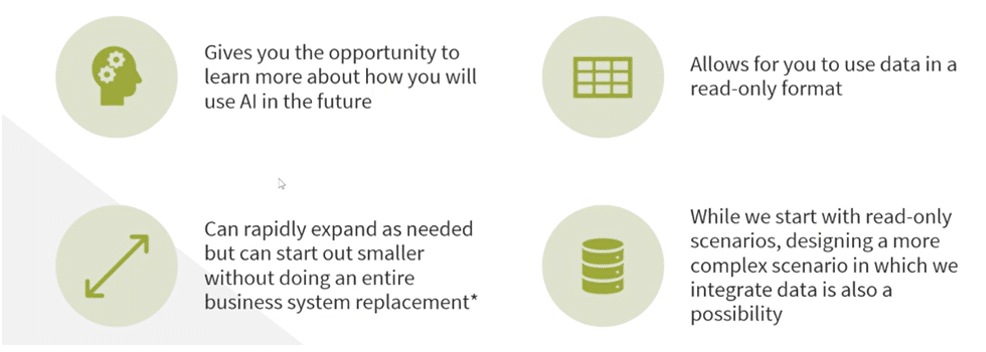
Instead of forcing Copilot into GP, we meet in the middle. We expose GP data to Copilot using proven Microsoft architecture, then let AI do what it does best: interpret, summarize, analyze, and act. By separating the AI layer from the ERP interface, you get:
- Future-proof design – The same AI pattern works when you eventually move to Business Central or another platform
- Lower risk – Read-only access keeps core GP data protected
- Faster results – No waiting for embedded features that may never arrive
- Immediate value – Start learning and benefiting from AI now
The reality is that many organizations that don’t move to the cloud don’t have it in their budget. By getting AI to work with GP in this way, you can maximize your current investment while preparing for the future.
How to Use Copilot with Dynamics GP
At a high level, you will use Copilot Studio to create an AI agent that can:
- Understand natural language questions
- Pull data from Dynamics GP
- Combine that data with documentation and business logic
- Deliver answers inside familiar tools like Microsoft Teams or M365 Chat
The Four-Step Architecture
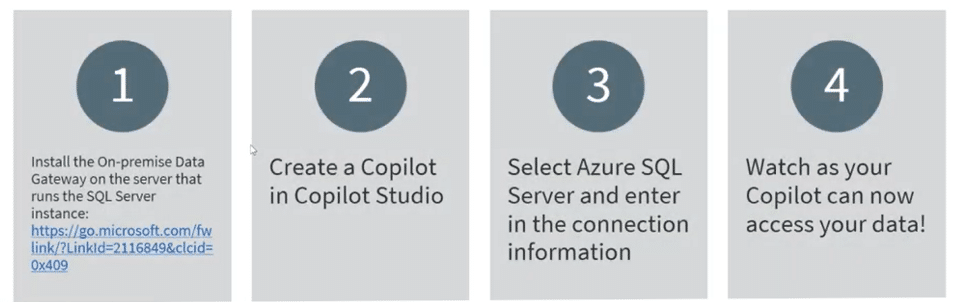
Here’s the simplified version of how it works:
- Install the On-Premises Data Gateway: This gateway sits on the server where your GP SQL database lives and securely connects it to Microsoft cloud services.
- Create an Agent in Copilot Studio: Think of this as your AI assistant—trained to answer questions, retrieve data, and guide users.
- Connect Azure SQL as a Knowledge Source: Even though GP isn’t Azure SQL PaaS, Copilot can connect using SQL Server via the gateway.
- Publish the Agent to M365: Make it available in Teams or Microsoft 365 Copilot so users can interact naturally.
That’s it! It’s quite simple and doesn’t require a system replacement.
What This Enables
Once connected, your Copilot agent can:
- Answer questions like:
-
- “How many customers do we have?”
- “List customer names and addresses.”
- “How do I create a sales order in GP?”
- Pull from data sources like:
- GP tables (customers, SOP, RM, etc.)
- Microsoft Learn documentation
- Internal business knowledge
A Step-by-Step Guide: Copilot and GP in Action
You now understand how Copilot functions with Dynamics GP. You also know how to set it up so that it works effectively. Let’s move on to a practical, step-by-step example of how effective it can be. You can also find this info in the YouTube video near the top of the blog.
Once you know which data you are going to pull in, follow these steps:
Step 1: Create the Copilot Agent
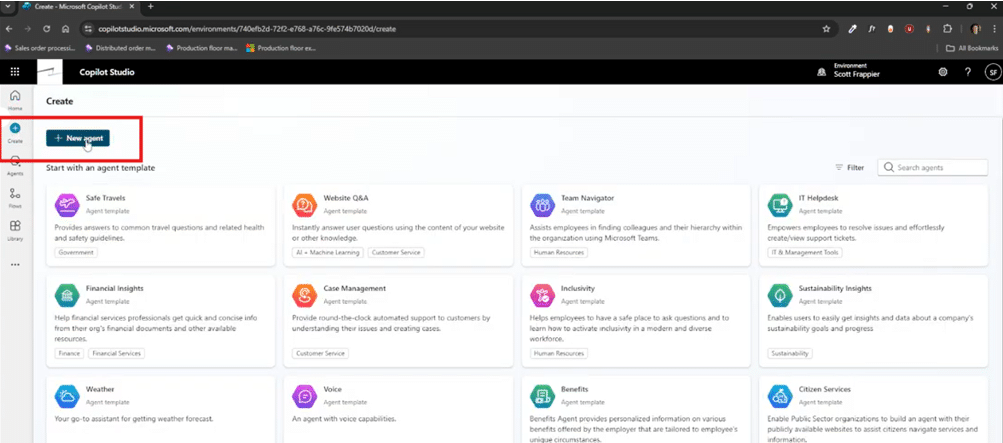
Inside copilotstudio.microsoft.com:
- Select Create → New Agent
- Name it something intuitive: For example, Dynamics GP Guide or Dynamics GP Assistant – essentially something that every day users will see and immediately understand what that agent is for.
- Define its purpose: This could include many things that are unique to your organization. Some examples include setting up an agent to answer GP process questions and/or query Dynamics GP data.

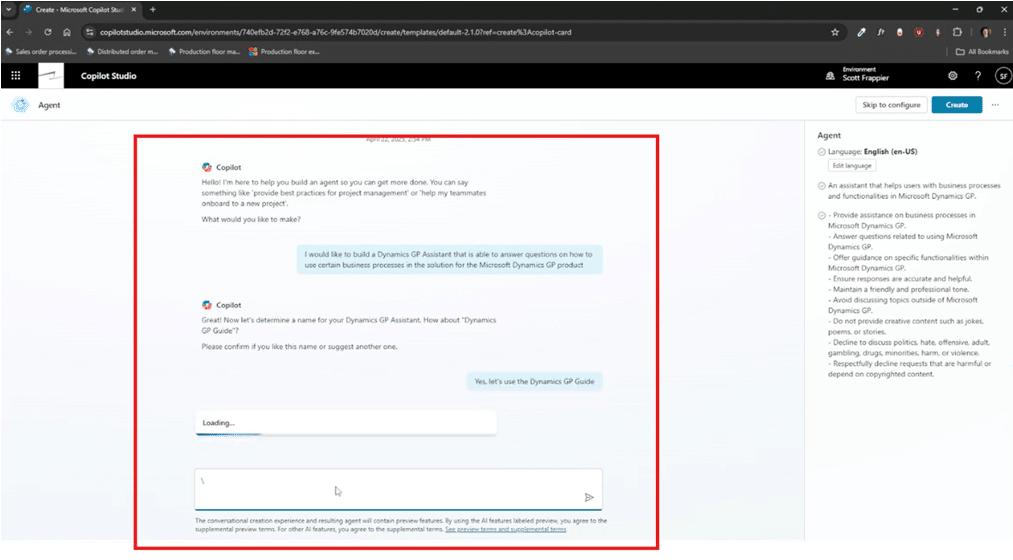
You now have a simple but effective foundational agent. One optional step you can take once you are back in Copilot Studio is turning on Orchestration. This setting lets your agent use generative AI to determine how to best respond to users and events.
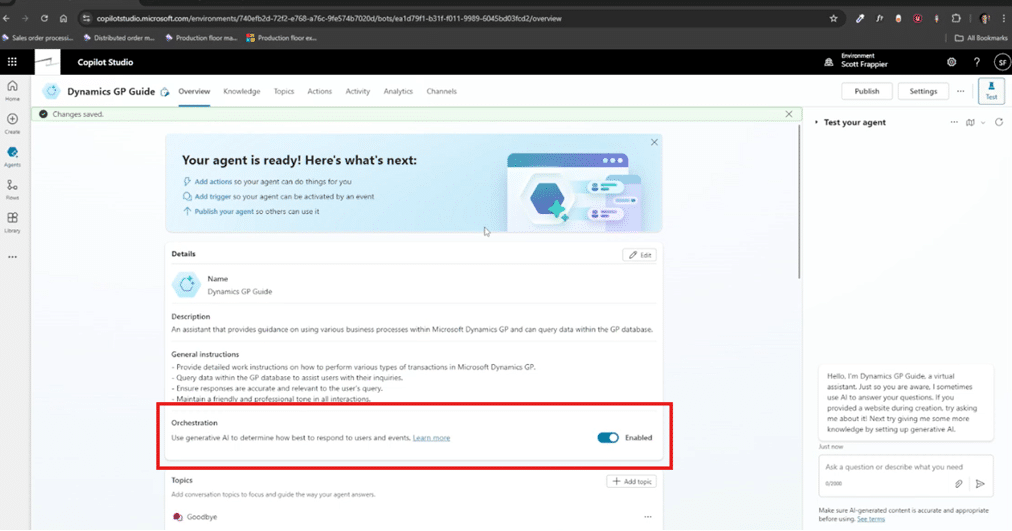
Step 2: Add Knowledge Sources
Your agent becomes powerful when it knows where to look. One of the best places to point your agent to is public knowledge bases like Microsoft Learn documentation for GP. This way you can get answers to common questions like:
- How to set up a sales order
- How to set up tasks within GP
- How to maneuver and navigate around your GP environment
For example, if you ask your Copilot agent, “How do I create a sales order in Dynamics GP?”, it will respond with clear step-by-step instructions directly from official documentation. It will also provide you with the link if you want to visit the documentation yourself to verify the information.
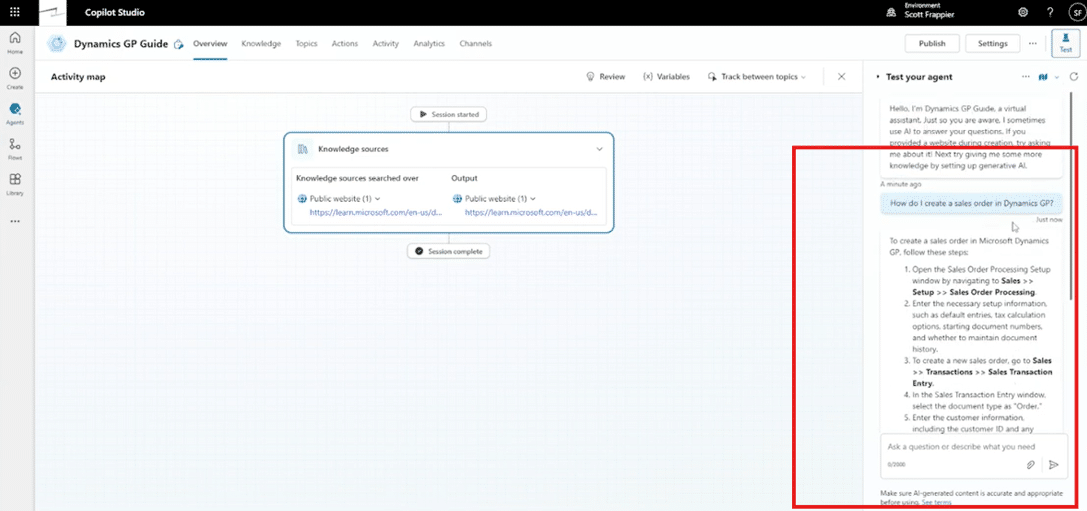
You can also continue to have conversations with the agent if you need more information. To continue the example, after the agent sends you the link to create a sales order in GP, you can ask, “What setup is needed to do this type of process?”
It will again give you the information you need and a source.
Step 3: Connect to Dynamics GP Data
Now for the fun part, which is bringing it all together to have Copilot interact with your Dynamics GP data. To do this:
- Navigate to the Knowledge tab of your agent’s homepage and click on the “+Add knowledge” button.
- Choose a connector such as Azure SQL, Dataverse, SharePoint, or other options. For our example, we’ll select Azure SQL.
- You can also upload files such as static spreadsheets or any other tables that contain relevant data.
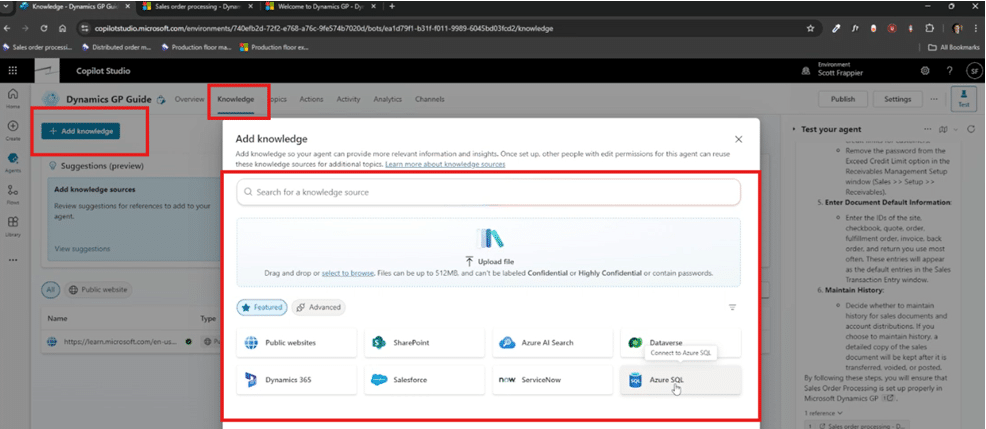
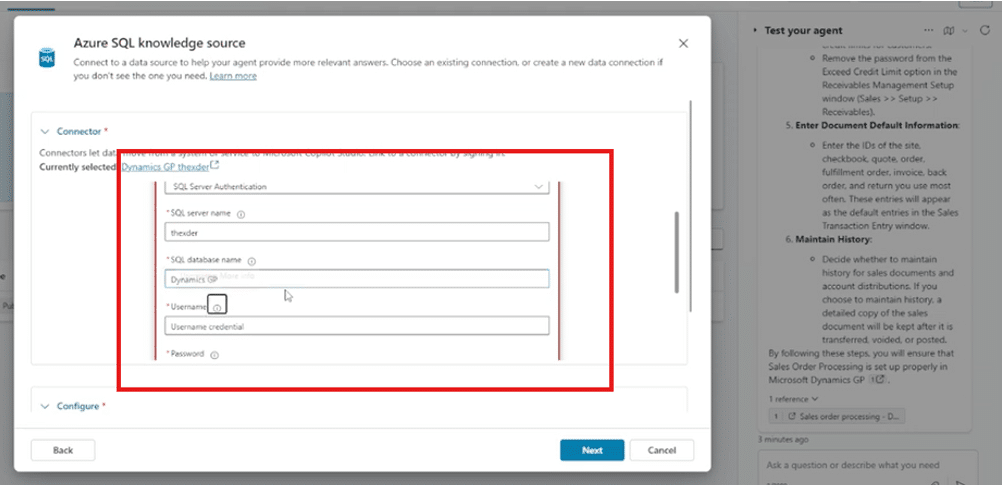
- Once you click on Azure SQL, click on the ellipsis (…) to create a new connection. Several options will come up, for our example we will use the following:
- Authentication Type: SQL Server authentication
- SQL Server Name: Thexder (or a name of your choosing)
- SQL Database Name: Dynamics GP
- Username and Password: Will vary depending on who is connecting data to the agent.
- The on-premises data gateway: This will be a gateway that you set up beforehand.

- Click “Create” and the agent will be connected to that database.

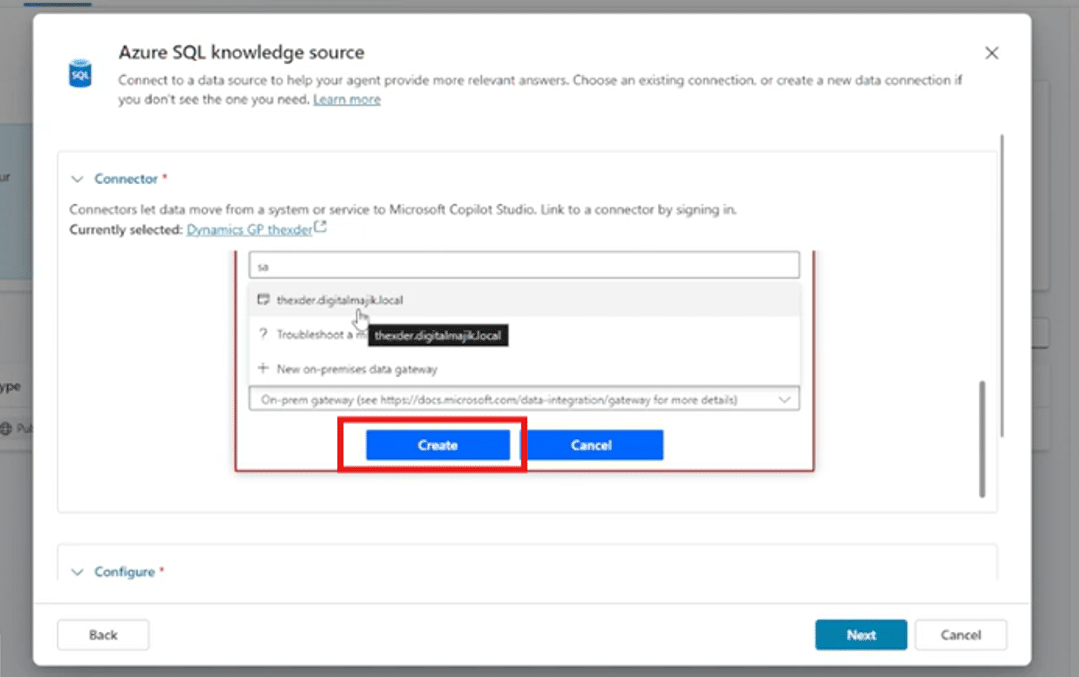
Once connected, you’ll see a list of available GP tables that the Copilot agent can interact with.
Best Practice: Be Selective
- Start with key tables (e.g., RM Customer Master)
- Limit exposure to what the agent actually needs
- Keep data access read-only
You can preview the data to confirm everything looks right before proceeding.
Step 4: Add Human-Friendly Metadata
GP table names weren’t designed for AI or humans. That’s why you need to add some additional information, such as:
- Descriptions for tables and fields, such as “This knowledge source answers questions found in our customers in our business environment.”
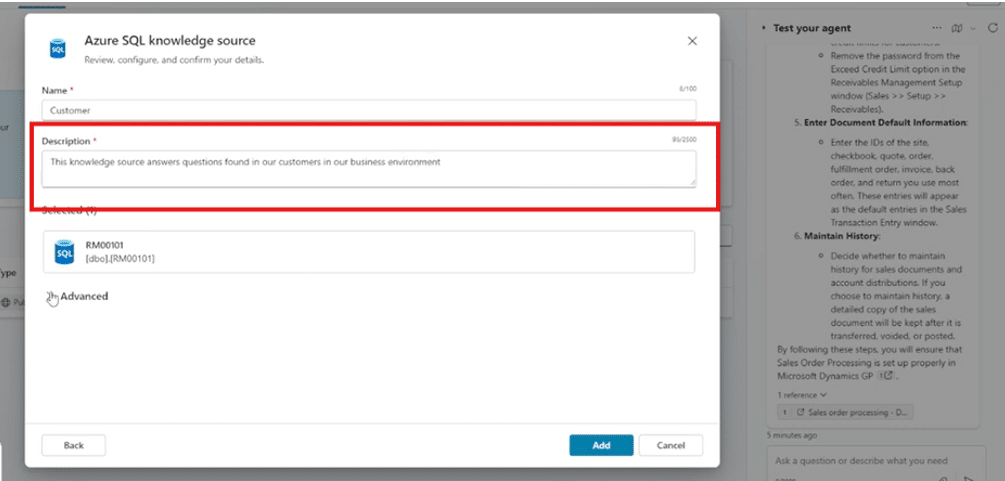
- Synonyms – found under the “Advanced” tab, which increases your agent’s data retrieval accuracy by adding synonyms for complex or unclear column names in your tables. Examples include:
- CUSTNMBR (Column name) = “Customer Number” (Synonym)
- CUSTNAME = “Customer name”
- STMTNAME = “Customer name that appears on a statement”
- ADDRESS1 = “Customer address 1”
- And more
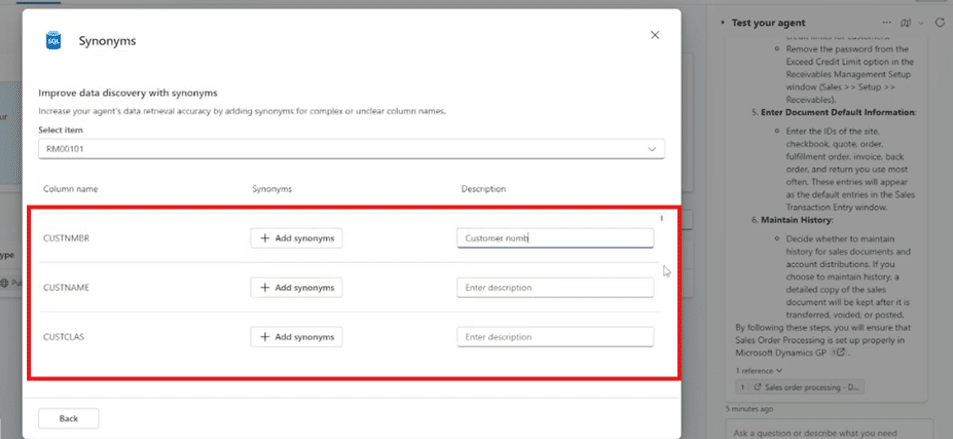
- To finish off this process, click on “Back” and then “Add.”
Descriptions give Copilot a clear and stated purpose, and synonyms improve users' ability to work with the agent using natural language. This dramatically improves Copilot’s accuracy when interpreting questions.
Step 5: Let the Data Index
Once added, Copilot indexes the data in the background. This typically takes a few minutes, and the data won’t be usable until the process is done.
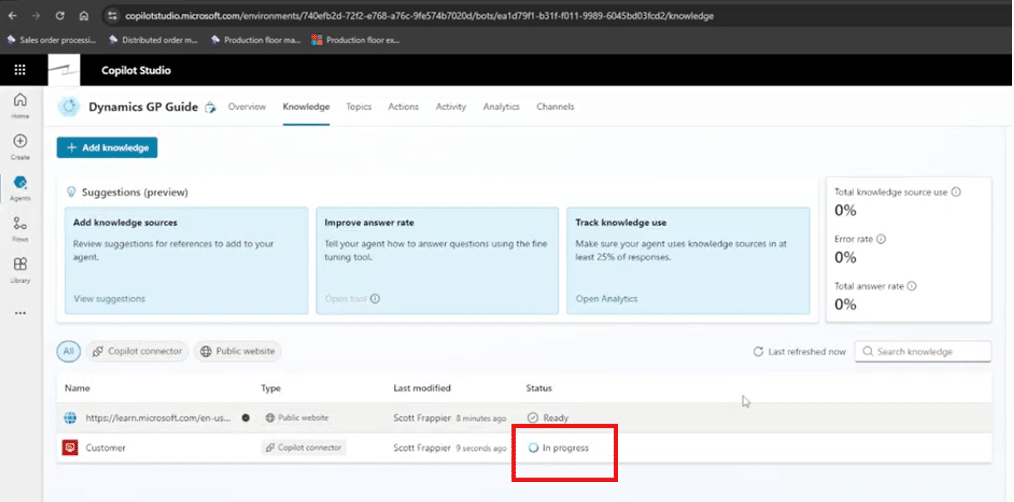
A good chance to grab some coffee!
Step 6: Ask Real Questions
Once the indexing is complete, your agent is ready! Now is a good time to ask it some basic questions to make sure that it’s running optimally for your organization and users.
Try questions like:
- “How many customers are in our GP database?”
- “Show me a list of customer names and addresses.”
Copilot will query the SQL data, retrieve accurate results, and present them to users naturally and conversationally.
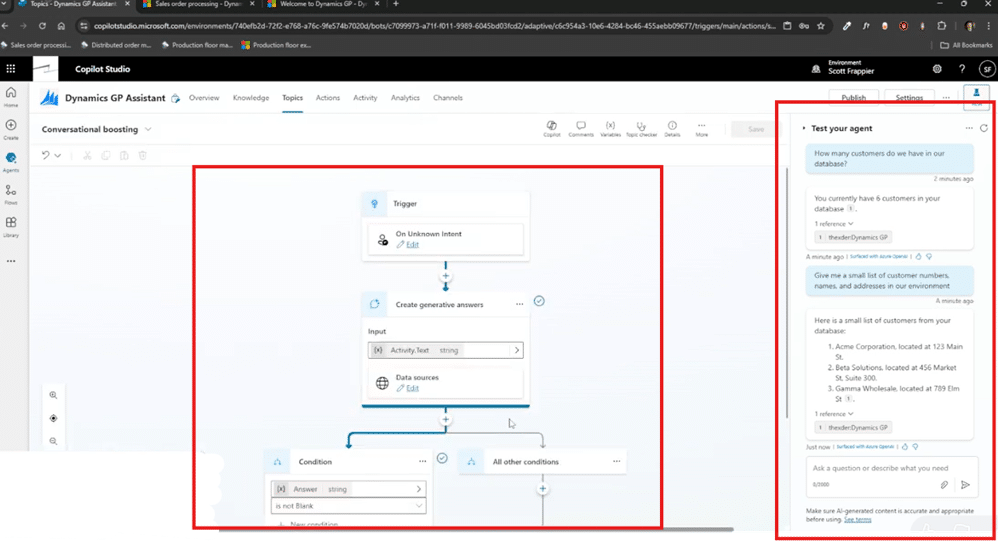
Important Note: As with any technology shift within your environment, you can expect some bumps in the road. If you find that your Copilot agent is not returning accurate data, you might have to go back in and retool and adjust certain things to make sure it’s working properly. That’s simply part of the process – but working with the experts at Stoneridge, who know your business and how agents work, can help you eliminate some of these concerns early.
Step 7: Publish Agent Where Your Users Already Work!
The final step is making your agent available in the everyday tools and applications that your team members use.
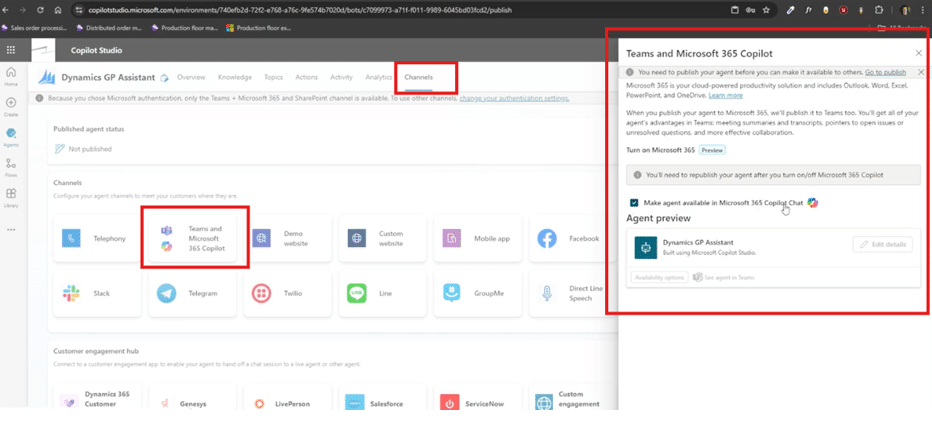
Go to the “Channels” tab and publish the agent where you work. For this example, we are going to embed the agent into Microsoft Teams and the larger Microsoft 365 suite of solutions.
Click on the checkbox that says, “Make agent available in Microsoft 365 Copilot Chat”.
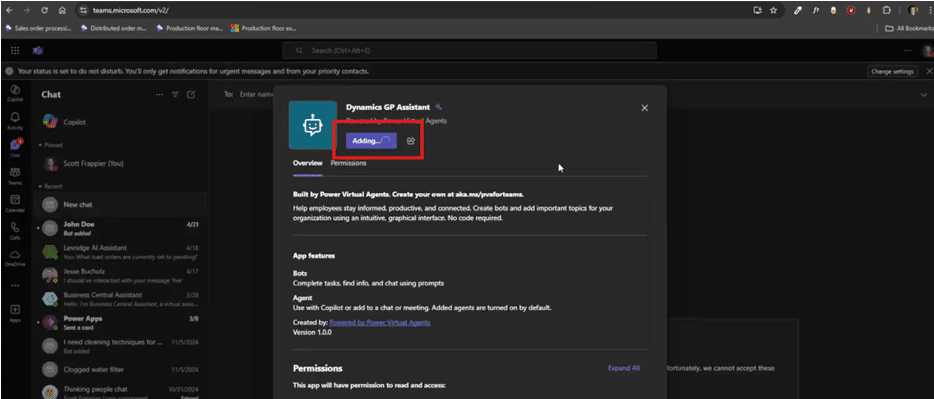
Once you are in Teams, you should get a prompt to install the app. Simply click “Add” and wait for it to load.
Now users can ask GP questions directly from Teams chat—no SQL, no GP navigation, no training manuals – just simple AI efficiency.
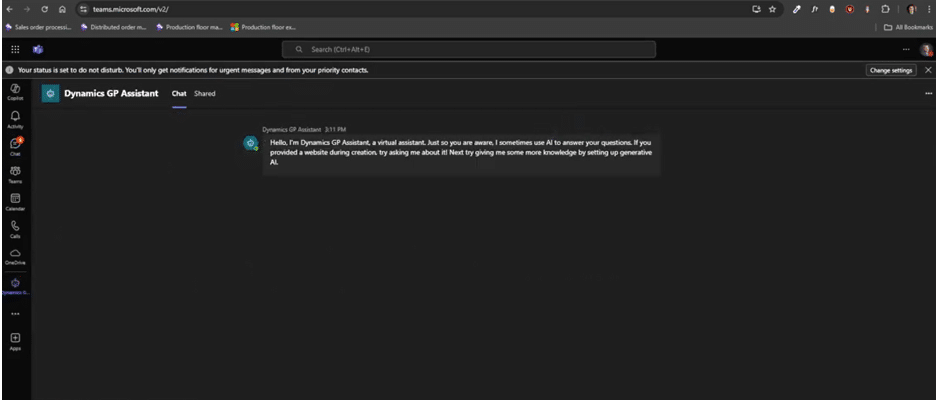
You can also go to your Microsoft 365 chat page and add the agent there. From here, click “Get agents”, find your agent, and add it to your Microsoft 365 environment.
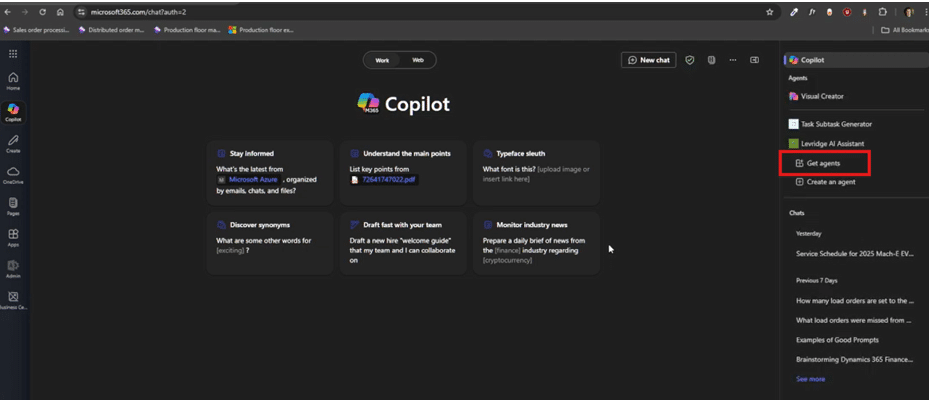
Note: This step will require some extra configuration. Talk with Stoneridge today for assistance.
Next Steps: Where Agentic AI Really Shines
What we’ve covered so far is just the beginning. Once you really understand how this works, you can intelligently weave AI into your GP processes and workflows.
Advanced Scenarios
With refinement, your GP-connected agent can:
- Generate daily summaries of customer activity
- Combine GP data with Outlook or Teams
- Draft emails based on transaction data
- Automate recurring insights and alerts
And it does this all while keeping GP intact, using secure Microsoft tools, and building skills you and your team can reuse in future platforms.
Choosing the Right Partner: How Stoneridge Software Can Help You
Where many organizations hit the wall with AI is the sometimes-complex setup and configurations that can be a bit time-consuming. This is why you need to work with the right partner who will get to know your business and help you configure and optimize your agent, so it works for you and your team.
When you work with Stoneridge, you gain access to a team of experts that can help you with:
- Security and governance
- Model grounding
- Setup and configuration
- Data refinement
- Real-world business use cases
Reach out to Stoneridge to start using Copilot with Dynamics GP and see how AI can work for you today, tomorrow, and beyond.

Under the terms of this license, you are authorized to share and redistribute the content across various mediums, subject to adherence to the specified conditions: you must provide proper attribution to Stoneridge as the original creator in a manner that does not imply their endorsement of your use, the material is to be utilized solely for non-commercial purposes, and alterations, modifications, or derivative works based on the original material are strictly prohibited.
Responsibility rests with the licensee to ensure that their use of the material does not violate any other rights.