














New Feature Management Made Easy in Dynamics 365 Finance & Supply Chain Management
With every new release of Dynamics 365 Finance and Supply Chain Management (F&SCM), Microsoft introduces a steady stream of enhancements ranging from usability improvements to powerful new automation and AI-driven capabilities.
However, simply knowing that new features exist doesn’t really do much for you unless you know how to manage and enable them within your environment.
In this blog, we will break down how the Feature Management workspace functions, explain the different feature states, and show you how to enable these enhancements to manage new functionality in your environment confidently.
What Is the Feature Management Workspace?
The Feature Management workspace is the central hub where Microsoft delivers new and updated functionality for Dynamics 365 solutions. Every new feature—whether it’s a preview, an optional enhancement, or a mandatory change—flows through this workspace before fully integrating into your system.
Microsoft uses this phased approach to give customers time to:
- Understand what’s changing
- Test new capabilities safely
- Control when (and how) features are introduced to users
Rather than forcing immediate change, Feature Management allows organizations to adopt enhancements on their own timeline—within reason.
Understanding Feature States
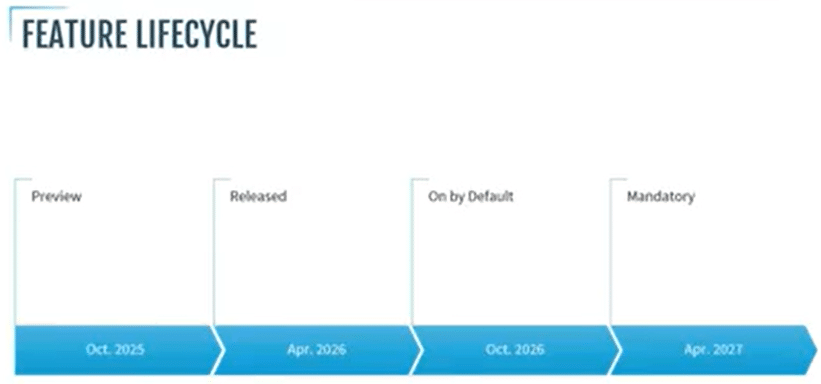
Not all features are created equal. When reviewing the Feature Management workspace, you’ll notice that each feature is assigned a state that determines how and when it can be enabled. This allows you to maintain a high degree of control over which features are functional within your workspace and assigned to the proper people, ensuring that you use new features and functionalities in an effective and relevant way.
Preview Features
Preview features are early versions of functionality released by Microsoft product teams that typically aren’t quite ready to go live. These features are:
- Not enabled by default
- Completely optional
- Often labelled with warnings
- May include:
- Standard preview
- Production-ready preview (closer to going live, but still a bit unstable_
These features are ideal for sandbox testing and early feedback, but we recommend you approach these features with extreme caution before using them in your system for production.
Released Features
Released features are production-ready enhancements that Microsoft recommends adopting—but does not require immediate adoption. They are not turned on by default, and enabling them is completely optional. Despite this, they are fully supported by Microsoft, remain enabled if you previously turned them on during preview, and are optional for at least six months before moving on to the next stage.
This phase gives organizations time to test compatibility with existing processes, extensions, and integrations.
On by Default Features
After spending at least six months in the Released state, features move to On by Default. This feature state can be a bit tricky, so it’s important to understand what it means.
These features have transitioned from Released after a minimum six-month period. You will likely learn about them in the “What’s New” articles that coincide with either the Wave 1 or Wave 2 release. Here is some additional information on the “Default” feature status
- Automatically enabled during updates
- Still can be disabled – However, your team must plan how to do this if it’s not ready for your environment.
- Remain in this state for another six months
This is your final window to evaluate and adjust before the feature becomes mandatory.
Mandatory Features
Mandatory features are permanently enabled and cannot be turned off unless you contact Microsoft directly. Here is what else you need to know:
- Typically reach this state after 18 months (or two major releases)
- In rare cases, critical features may skip earlier stages or be introduced as mandatory earlier
- Often include stability, security, or compliance updates
By the time a feature becomes mandatory, Microsoft expects your team to be fully prepared. That is where reaching out to a partner like Stoneridge Software becomes vital. Our team can help you stay current on all new features and train your team on how to use them so you are ready once they reach that mandatory stage.
Why Feature Management Matters
Failing to monitor Feature Management can lead to surprises—especially when a feature quietly transitions to “On by Default” or “Mandatory.” By that time, your team will already be behind on how to use it, which can take valuable time away from their value-added tasks as they play catch-up.
It’s vital to actively review and enable new features to:
- Avoid disruption during updates
- Prepare users with training and communication
- Test changes in sandbox environments
- Stay ahead of mandatory system changes
Feature Management isn’t just administrative—it’s strategic. You and your entire team should be up to date on what’s new, learn how to use new features to enhance processes, and know when to expect these features to become “Mandatory.”
Why Feature Management Matters
Failing to monitor Feature Management can lead to surprises—especially when a feature quietly transitions to “On by Default” or “Mandatory.” By that time, your team will already be behind on how to use it, which can take valuable time away from their value-added tasks as they play catch-up.
It’s vital to actively review and enable new features to:
- Avoid disruption during updates
- Prepare users with training and communication
- Test changes in sandbox environments
- Stay ahead of mandatory system changes
Feature Management isn’t just administrative—it’s strategic. You and your entire team should be up to date on what’s new, learn how to use new features to enhance processes, and know when to expect these features to become “Mandatory.”
How Feature Management Works in D365 Finance and Supply Chain Management
Around the 12-minute mark of the video, the presenter walks through a live demonstration of the Feature Management workspace. Below are the steps outlined during that demo.
Step 1: Navigate to the Feature Management Workspace
From the main D365 F&SCM menu:
- Go to Workspaces
- Scroll down and select Feature management

In many environments, this workspace is also pinned directly to the homepage for quick access.
Step 2: Review Feature Categories
Once inside the workspace, features are grouped into several views:
- New: Recently added features (often within the last 30 days)
- Not enabled: Available features that are currently turned off
- Scheduled: Features set to be enabled on a future date
- All: A full list of features, regardless of state
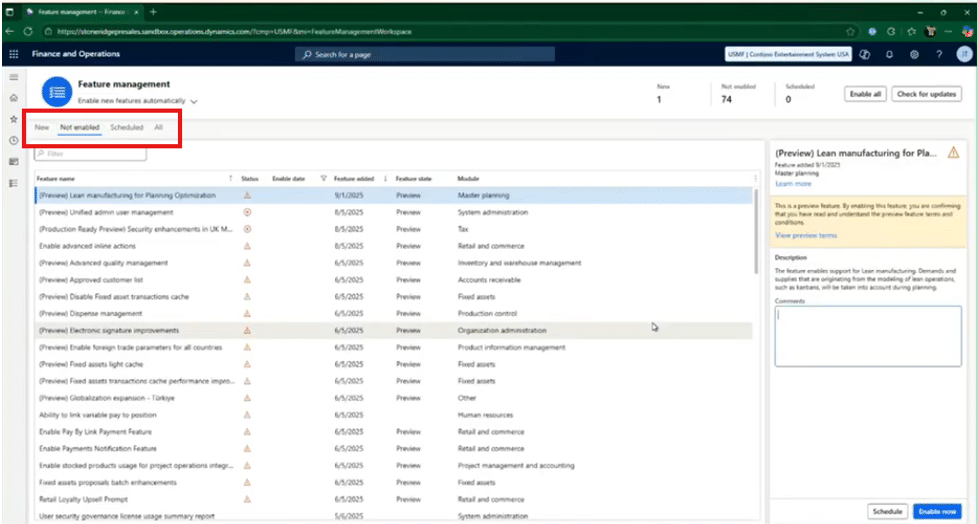
These filters help you quickly focus on what’s relevant to your environment.
Step 3: Identify Feature States
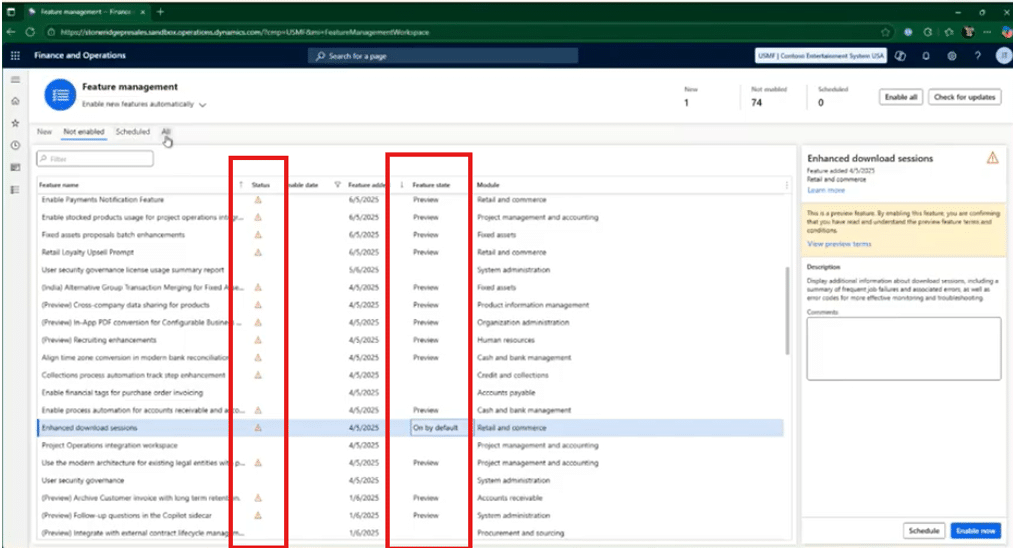
While we addressed these states above, let’s give you a visual view of feature states and how they function within the steps to enabling enhancements in Dynamics 365 F&SCM. In the list of features, you will see a column with your states:
- Preview or production-ready preview: These are features you can test and train your team on.
- Released (no explicit label): For these features, the Feature state field will be blank.
- On by default: These features are automatically turned on. They can be confusing, however, as many “on by default” features are still in preview. The system will notify you on the right-hand side of the screen if this is the case.
- Mandatory: These features will be automatically enabled when they are released.
You’ll also see status icons indicating:
- Enabled (green checkmark)
- Warnings (typically for preview features)
- Errors (usually unmet prerequisites)
Step 4: Review Feature Details
Selecting a feature shows:
- A clear description of what the enhancement does
- Any warnings or preview disclaimers
- Dependencies or prerequisites required for enablement
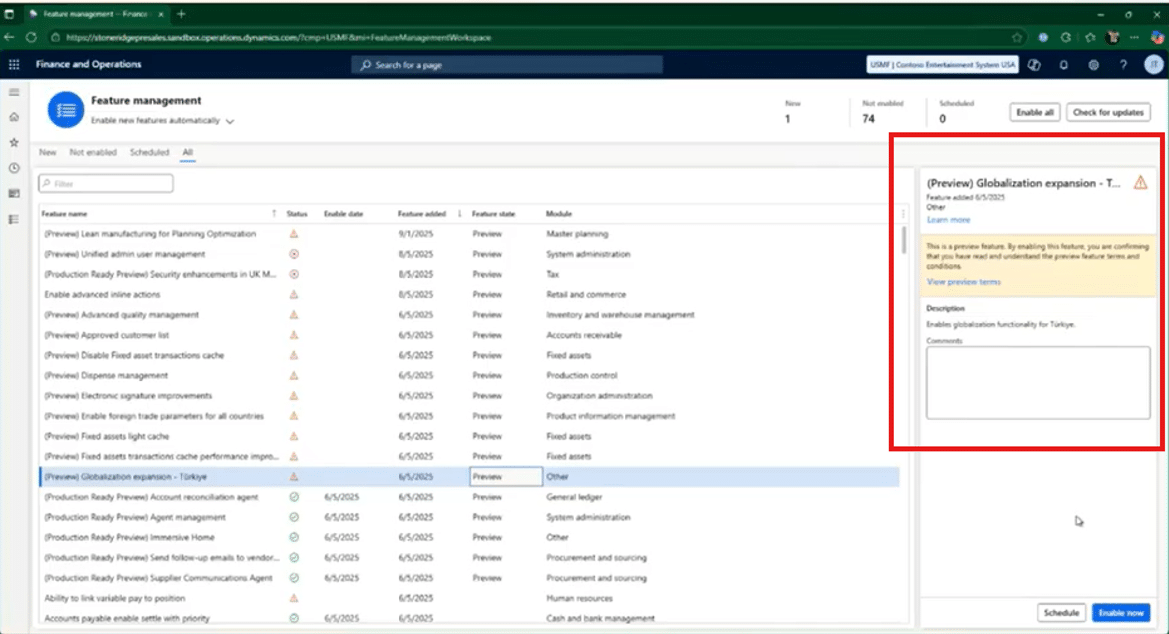
This eliminates the need to cross-reference release notes or “What’s New” documentation.
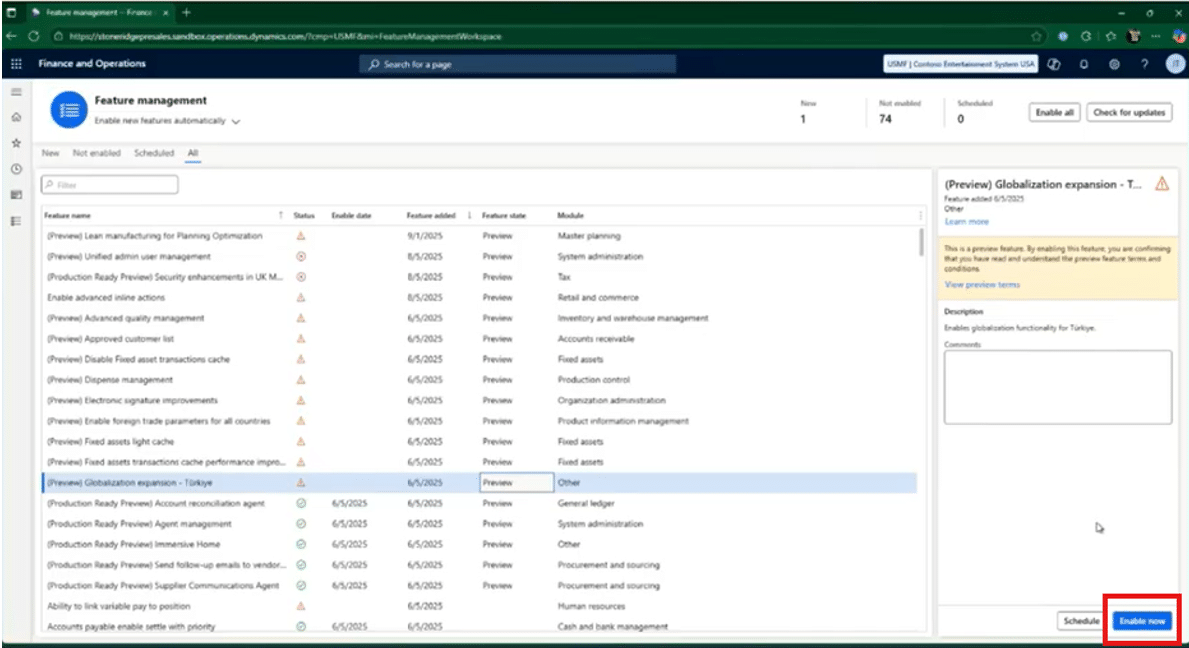
Step 5: Enable or Schedule a Feature
When enabling a feature, you have two options:
- Enable now – Turns the feature on immediately for all users. Important Note: Before selecting this option, make sure that it has been tested within your environment and that your team knows how to use it.

- Schedule – Choose a future date for automatic enablement. This is useful in production environments, allowing your team to plan testing, training, or communication ahead of time.


Step 6: Handle Errors and Prerequisites
If a feature shows an error status, it typically means:
- A prerequisite feature is not enabled
- Security or configuration requirements are missing
For example, certain agents cannot be enabled until foundational features like Agent Management or Immersive Home are turned on first.
Step 7: Disable Features (When Allowed)
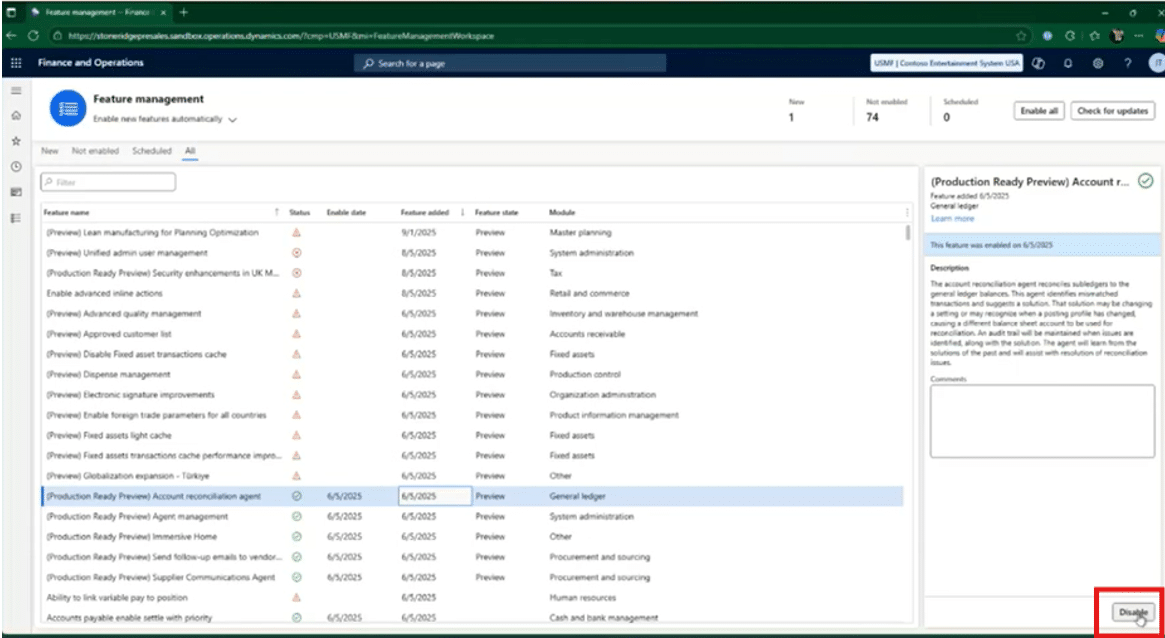
If a feature is not yet mandatory, you can disable it if issues arise. This provides flexibility if a feature causes unexpected disruptions or conflicts.
Step 8: Use Comments for Governance
Each feature includes a comments section where administrators can document:
- Who enabled the feature
- When it was enabled
- Why it was turned on or off
- Anything else unique to your business
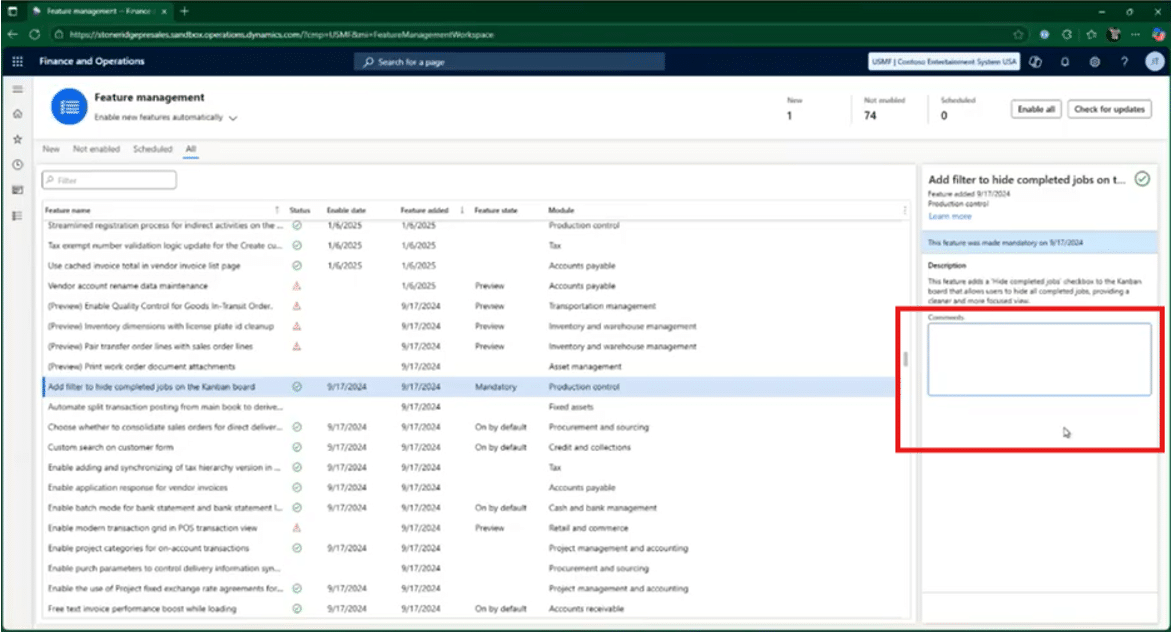
This is particularly helpful for auditability and coordination across larger teams and gives you an electronic trail if you need to find any information on the feature or its enablement later on.
Bonus Step: Beware the “Enable all” button
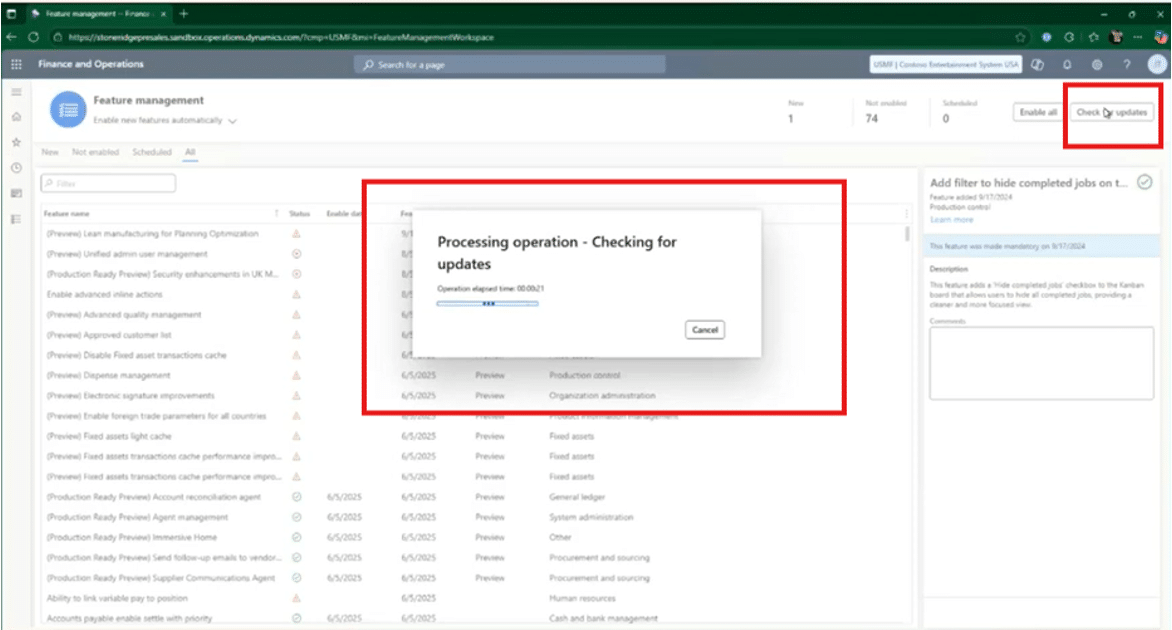
There is a button in the upper-right corner of the Feature management workspace that allows you to enable all features if you like to live on the edge.
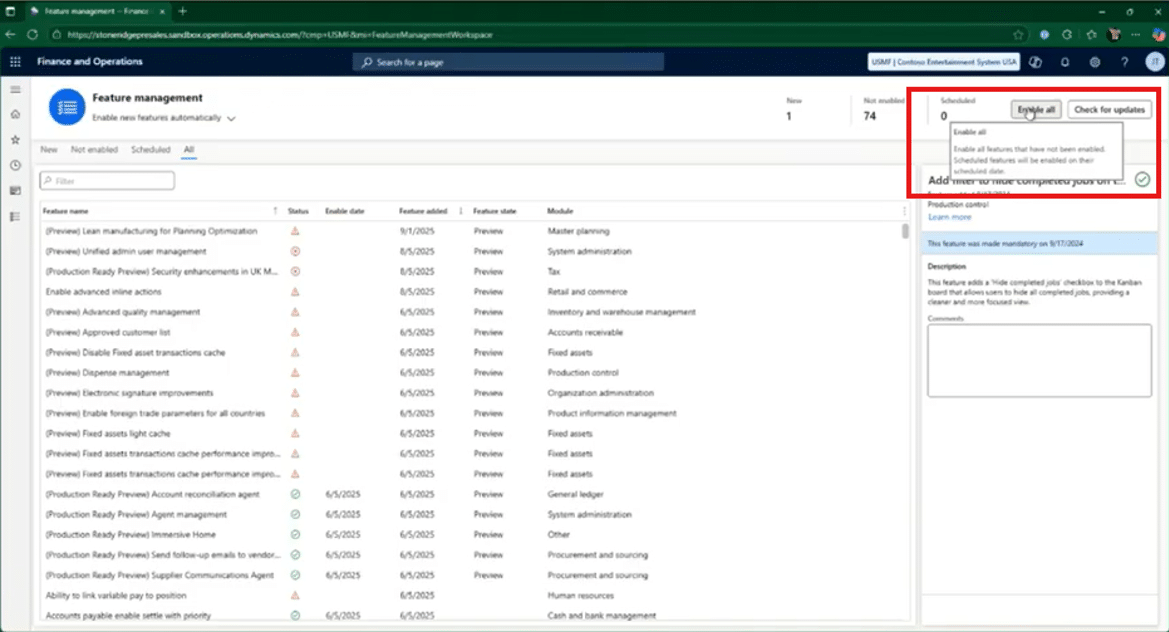
While there may be some unique circumstances where you would want to do this, we recommend you steer clear, as it may enable an optional feature that your team is not familiar with.
You can also click on the “Check updates” button to see if there are any additional Microsoft features available to you that you can add to your list.
Best Practices for Managing Feature Enhancements
The ability for you and your team to manage features gives you control over what new tools are used within your environment, depending on their state. While it is fairly intuitive, if you want to get the most value out of Feature Management, you should:
- Review the workspace regularly—especially before updates
- Test preview and released features in sandbox environments
- Schedule feature enablement instead of enabling immediately
- Track “On by Default” features to avoid last-minute surprises
- Document decisions using feature comments
Talk to Stoneridge Software to Take Control of System Enhancements!
Stoneridge Software experts can help you pinpoint the features that provide the most value to your business, safely test and implement enhancements, prepare for mandatory updates, and optimize your system through regular updates.
Reach out today to learn more.

Under the terms of this license, you are authorized to share and redistribute the content across various mediums, subject to adherence to the specified conditions: you must provide proper attribution to Stoneridge as the original creator in a manner that does not imply their endorsement of your use, the material is to be utilized solely for non-commercial purposes, and alterations, modifications, or derivative works based on the original material are strictly prohibited.
Responsibility rests with the licensee to ensure that their use of the material does not violate any other rights.