














X++ Union Query Views! Visual Studio Designer vs QueryBuildDataSource
Step-by-Step: Creating a Union Query in the Visual Studio Designer
Here's a step by step how to create a X++ union query/view in Visual Studio Designer!
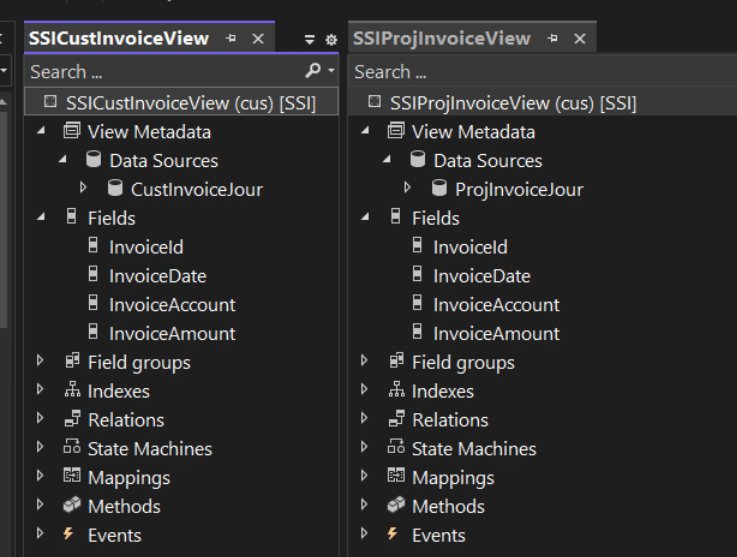
Step 1) Create the Views
Create the views to normalize the datasources into a common format.
If the EDTs are not closely related, or you have build issues, Use Computed Fields to assist in the process.
Step 2) Create a New Query Union
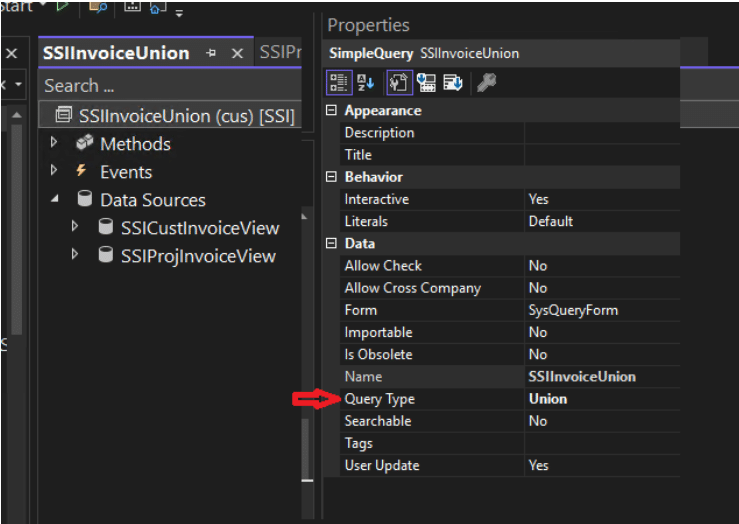
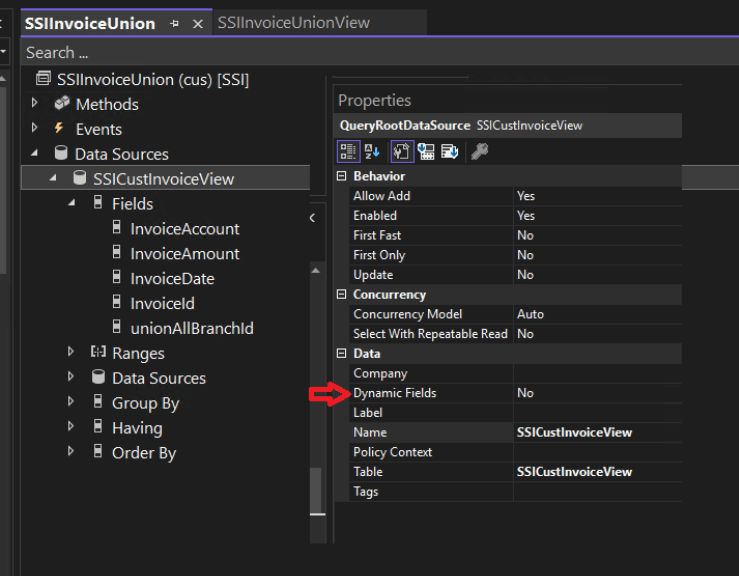
Step 3) Add the Datasources
Add the datasources and flip the Dynamic Fields to Yes, then No so that it auto populates for you.
Step 4) Pull All Fields from the First Data Source
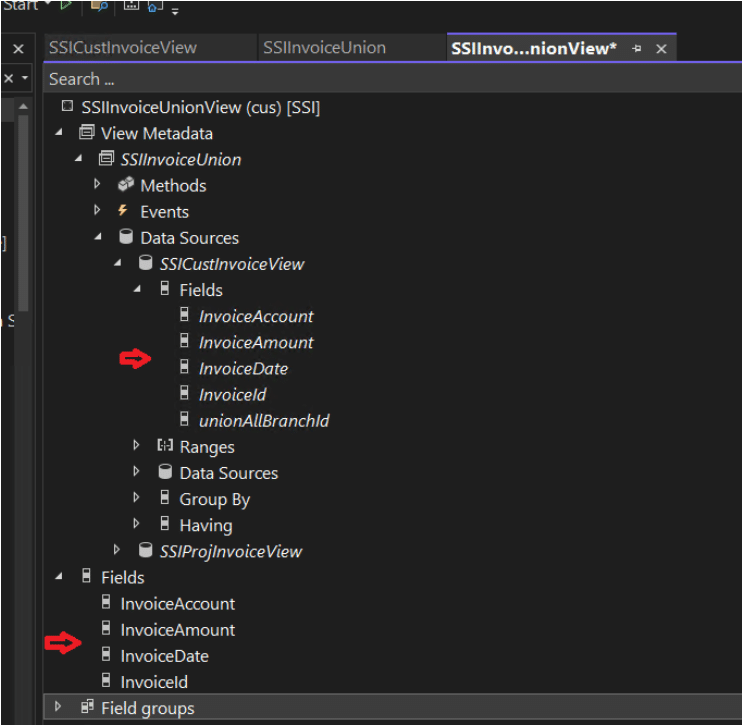
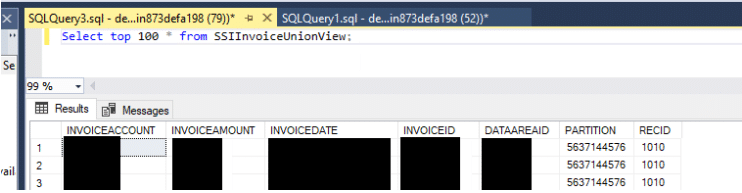
Step 5) Crosscheck the View
Why specifically 1010?
Creating a Union Query Using QBDS
QBDS version! The following example illustrates a code-based approach to create the same union query.
You will need to do Step 1 from above first. This approach replaces steps 2-4.
class SSIQBDSUnionExample
{
    public static void main(Args _args)
    {
        SSIQBDSUnionExample::testOutput();
    }

    private static void testOutput()
    {
        Query                   q = new Query();
        QueryBuildDataSource    qbdsCust;
        QueryBuildDataSource    qbdsProj;
        QueryRun                qr;
        SSICustInvoiceView      row;

        q.queryType(QueryType::Union);

        qbdsCust = q.addDataSource(tableNum(SSICustInvoiceView), identifierStr(SSICustInvoiceView));
        qbdsCust.fields().dynamic(false);
        qbdsCust.firstOnly(true);
        qbdsCust.addSelectionField(fieldNum(SSICustInvoiceView, InvoiceAccount));
        qbdsCust.addSelectionField(fieldNum(SSICustInvoiceView, InvoiceAmount));
        qbdsCust.addSelectionField(fieldNum(SSICustInvoiceView, InvoiceDate));
        qbdsCust.addSelectionField(fieldNum(SSICustInvoiceView, InvoiceId));
        qbdsCust.addSelectionField(fieldNum(SSICustInvoiceView, unionAllBranchId));

        qbdsProj = q.addDataSource(tableNum(SSIProjInvoiceView), identifierStr(SSIProjInvoiceView), UnionType::Union);
        qbdsProj.fields().dynamic(false);
        qbdsProj.firstOnly(true);
        qbdsProj.addSelectionField(fieldNum(SSIProjInvoiceView, InvoiceAccount));
        qbdsProj.addSelectionField(fieldNum(SSIProjInvoiceView, InvoiceAmount));
        qbdsProj.addSelectionField(fieldNum(SSIProjInvoiceView, InvoiceDate));
        qbdsProj.addSelectionField(fieldNum(SSIProjInvoiceView, InvoiceId));
        qbdsProj.addSelectionField(fieldNum(SSIProjInvoiceView, unionAllBranchId));

        qr = new QueryRun(q);

        if (qr.next())
        {
            row = qr.get(tableNum(SSICustInvoiceView));
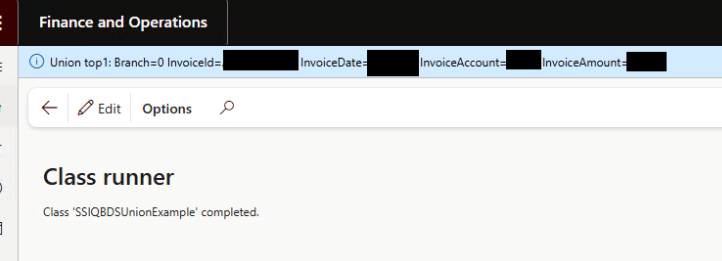
            info(strFmt("Union top1: Branch=%1 InvoiceId=%2 InvoiceDate=%3 InvoiceAccount=%4 InvoiceAmount=%5",
                        row.unionAllBranchId,
                        row.InvoiceId,
                        row.InvoiceDate,
                        row.InvoiceAccount,
                        row.InvoiceAmount));
        }
        else
        {
            info("Union top1: no records returned.");
        }
    }

}

Under the terms of this license, you are authorized to share and redistribute the content across various mediums, subject to adherence to the specified conditions: you must provide proper attribution to Stoneridge as the original creator in a manner that does not imply their endorsement of your use, the material is to be utilized solely for non-commercial purposes, and alterations, modifications, or derivative works based on the original material are strictly prohibited.
Responsibility rests with the licensee to ensure that their use of the material does not violate any other rights.