















Streamline Inventory Management with Lot and Quality Controls in Business Central and YAVEON 365
Combining the power of Dynamics 365 Business Central and YAVEON 365 provides you with a highly intelligent set of tools that can help you manage lots, inspections, and quality decisions with confidence.
In this blog, we’ll walk through a real-world demonstration that shows how lot and quality controls work together in Business Central and YAVEON 365 to support better batch manufacturing outcomes.
Why Lot and Quality Controls Matter in Batch Manufacturing
Batch manufacturers need clear visibility into every aspect of production data. They need to know:
- Which lots are available for use
- The quality status of each lot
- Where inventory is located and whether it is approved, quarantined, or blocked
- How inspection results directly impact production and shipping decisions
Having quick and thorough access to this knowledge will help your production team stay on track, which will have positive ripple effects throughout the business. When customers get their products on time and in good condition, it takes pressure off your customer service team. When customers are happy, they share your organization with others who want similar products, boosting sales and revenue. When customers are taken care of, they stay and will even potentially buy more products from you in the future.
To learn more about Business Central and YAVEON 365 continue reading or watch the video:
Business Central and YAVEON 365 In Action: From Receipt to Release
Let’s walk through a demonstration on the full lifecycle of a lot. In our example, we’re going to put ourselves in the place of a company that manufactures coffee beans and break down how you can use lot and quality controls from receipt at the warehouse to the final quality decisions.
Step 1: Reviewing Inventory by Lot
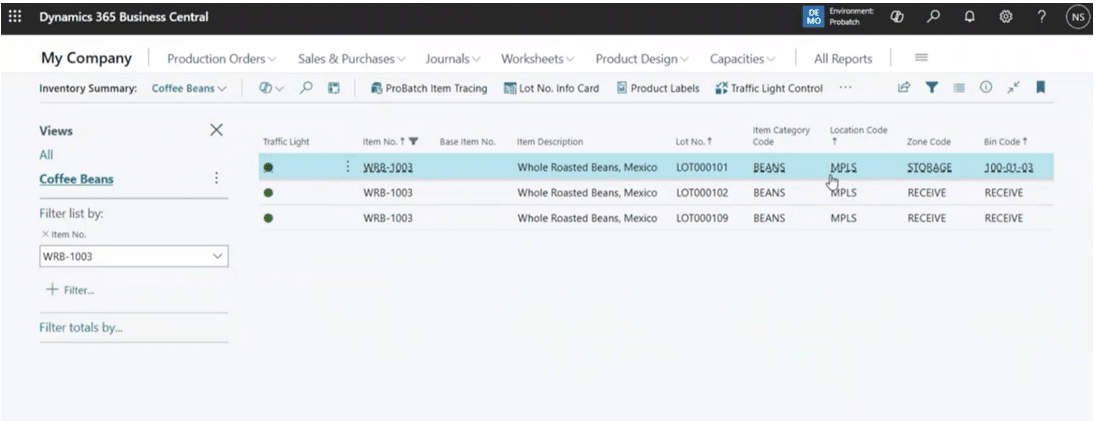
Let’s start in the Inventory Summary view, which provides immediate visibility into inventory at the lot level. Instead of seeing only item quantities, inventory is broken down by individual lots, showing:
- Location and bin
- Quantity on hand
- Item descriptions
- Dates of entry and expiration
- Lot status (Released, Quarantine, or Blocked)
- Receipt date and expiration date
It comes with a visual traffic-light indicator that makes lot status easy to understand at a glance:
- Green – Released and available for use
- Yellow – Quarantined
- Red – Blocked
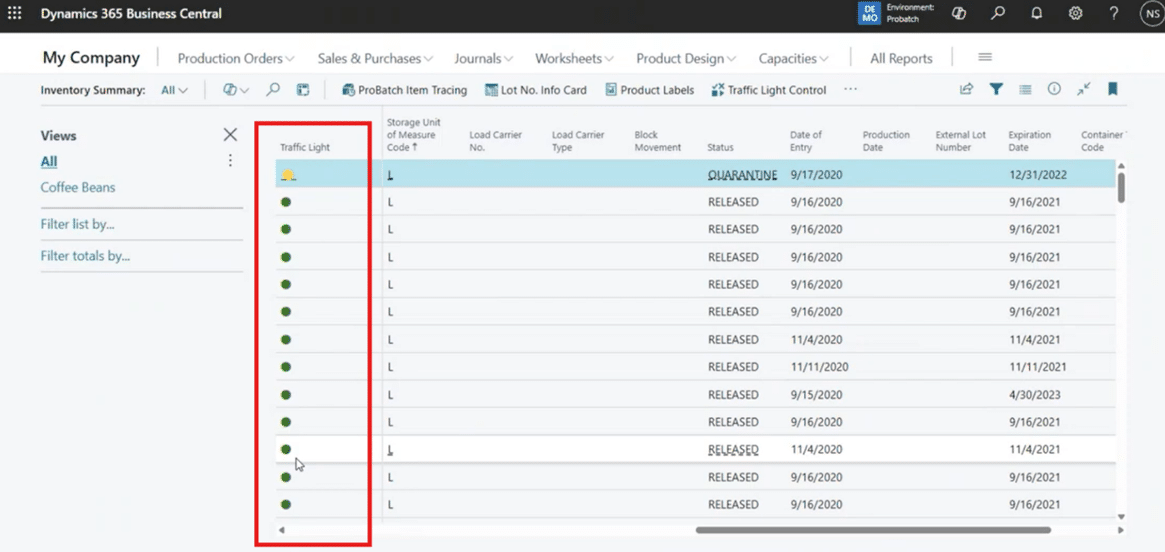
This visual approach helps production planners and warehouse staff avoid using inventory that has not yet passed inspection. By simply glancing at this view, your users know what the situation is and what they need to do to keep the process moving forward. Business Central and YAVEON 365 make it easy.
Step 2: Receiving Inventory and Assigning Lot Information
Next, let’s switch to the role of a warehouse employee who is receiving a new inventory shipment of coffee beans. Business Central and YAVEON 365 equip them with smart features that can help them effectively complete steps in the receiving process, including:
- Opening the warehouse receipt
- Assigning lot tracking information
- Allowing the system to generate a lot number
- Entering vendor lot details and expiration dates
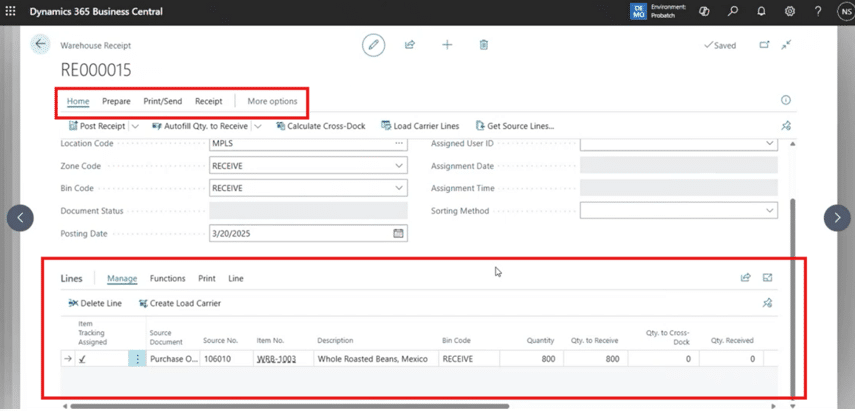
Business Central clearly indicates when lot tracking information is missing and confirms once all required data has been entered. This ensures that no inventory enters the system without proper traceability. Users can do this from a central, united interface with YAVEON 365 embedded directly into Business Central.
Step 3: Performing Receiving Inspections
Before the inventory can be fully received, however, you can perform a visual inspection at the warehouse level, which is often mandatory for compliance. Using YAVEON inspection groups, the warehouse employee can record inspection results without accessing sensitive quality documents directly. inspection results without accessing sensitive quality documents directly.
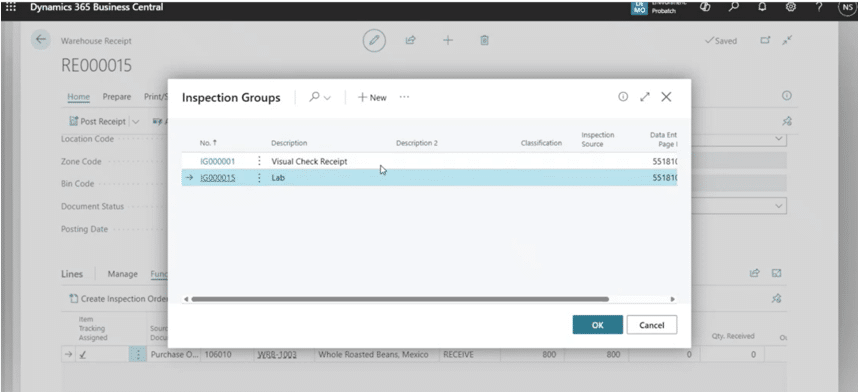
Examples of receiving inspection checks include:
- Verifying packaging integrity
- Confirming that a Certificate of Analysis (COA) is attached
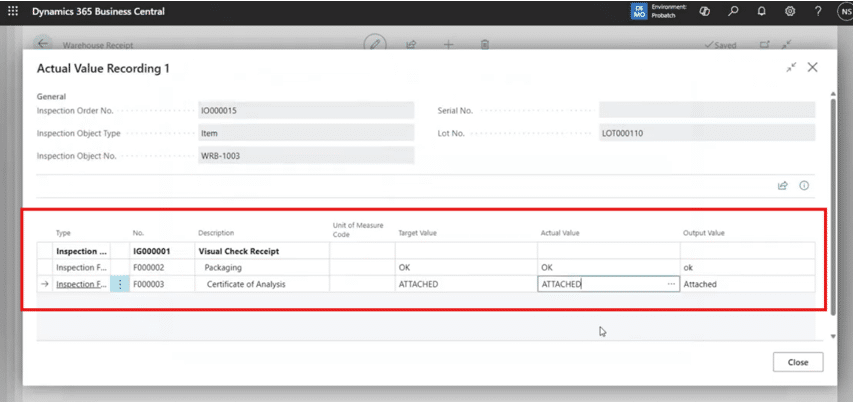
Once you record these inspection values, you can post the receipt, which will trigger the inventory to officially enter the system. At this point, the newly received lot appears in inventory with a Quarantine status, signaling that additional inspections are required before it can be used in production.
Step 4: Lab Inspections and Quality Results
The process then moves to the lab, where a sample of the lot undergoes further inspection. The lab technician can open the inspection order associated with the lot to see:
- Inspection data recorded during receiving
- Additional inspection features that require lab input
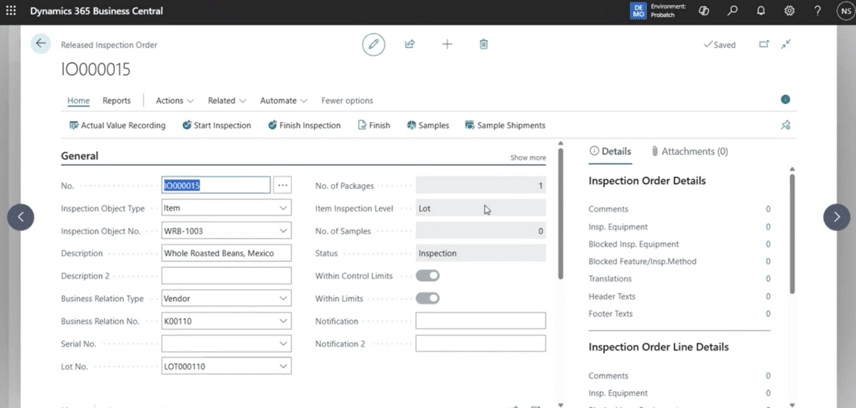
YAVEON 365 supports a wide range of inspection methods, including:
- Pass/fail checks
- Numeric values with upper and lower tolerance limits
- Calculated results
- Text-based observations
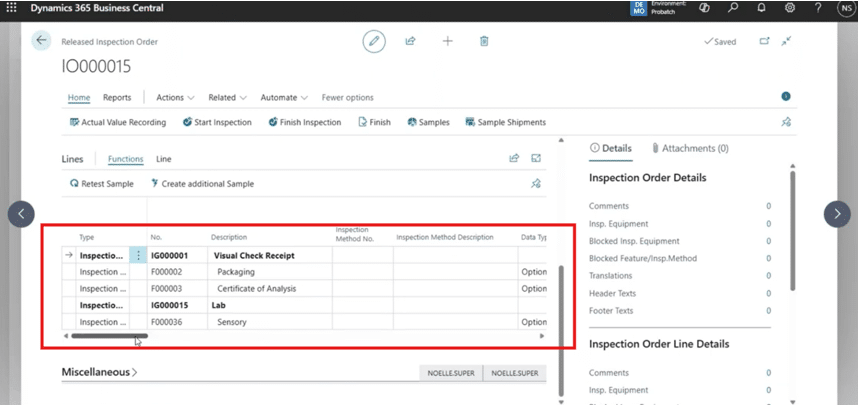
In our example, the lab tech performs a sensory inspection and notices that the Within Limits toggle was not triggered. They can mark the inspection as failed, which automatically changes the lot status.
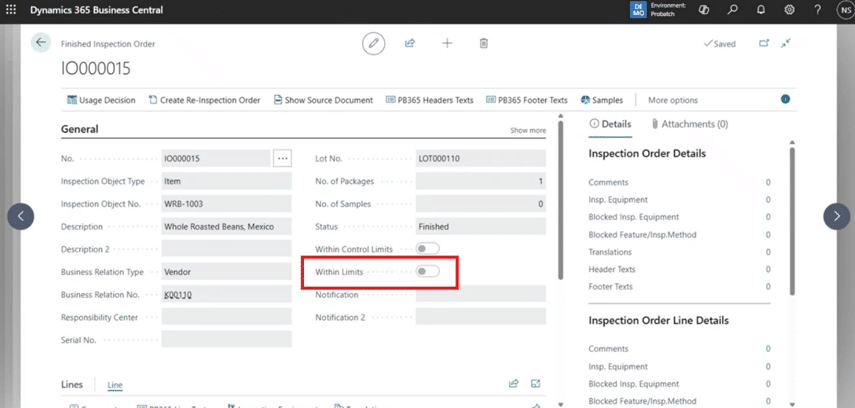
Step 5: Automatic Lot Status Updates
If an inventory lot fails an inspection, you can refresh the inventory summary to see that lot’s status has changed from Quarantined (yellow) to Blocked (red). This system behavior is driven by configuration rules that automatically update the lot status based on inspection results.
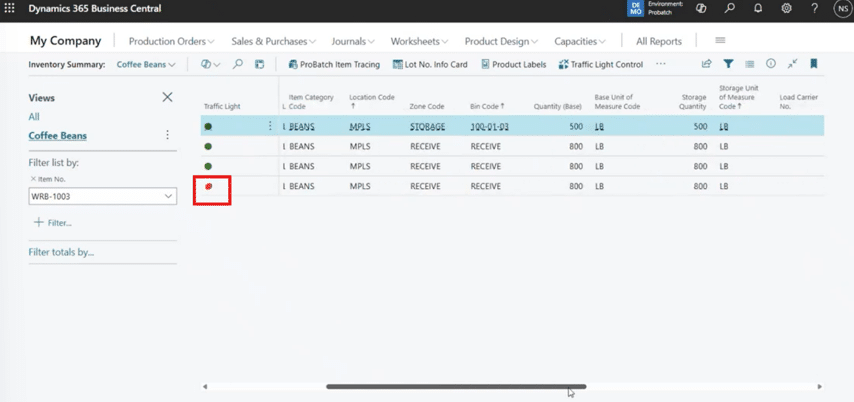
Most batch manufacturers have highly regulated environments, and you can customize the configuration of these rules based on how your company operates and what your organizational needs are. For example, you can also configure the process to require a manual review in the event of a Blocked lot.
The result is tighter control over which lots can be:
- Picked for production
- Used in manufacturing orders
- Shipped to customers
Having Business Central and YAVEON 365 gives you full access to how your process flows. While having a lot of automation features is nice, you might want to configure it in a way that does require some manual intervention. Ultimately, it depends on how your business operates and what works best for your team.
Step 6: Managing Deviations with Electronic Signatures
Another neat feature addressed something we see with clients somewhat regularly. A lot fails inspection but is still considered usable under unique and approved deviations. To use this, quality inspection team members can:
- Initiate a lot number information modification
- Select a reason code (approved deviation)
- Attempt to change the lot status to Released
Because of system rules, this change requires an electronic signature, usually from an approver or manager.
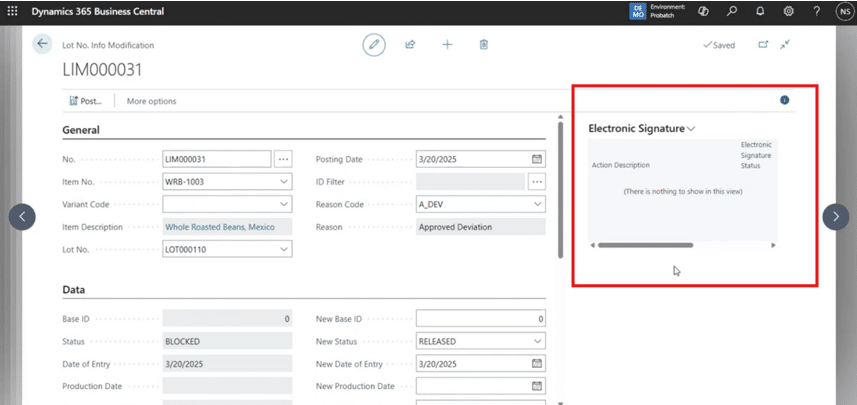
The workflow includes:
- Submitting an electronic signature request
- Automatically notifying the approver via email
- Allowing the approver to review details and approve or reject the request
- Capturing credentials and documentation for audit purposes
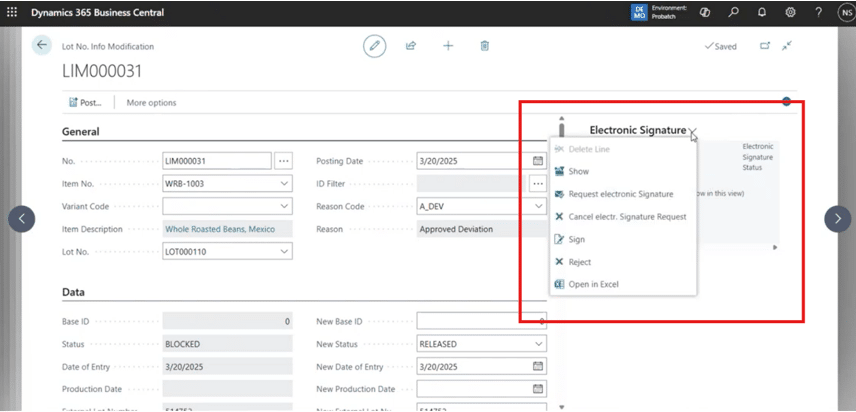
Once approved and posted, the lot status updates to Released, making it available for production and fulfillment. This is another key element in giving you full control over your inventory processes.
Why Business Central and YAVEON 365?
Simply put, Business Central is an effective and smart ERP solution for small to mid-sized businesses, but lacks extended manufacturing capabilities that are included in larger, enterprise solutions like Dynamics 365 Finance and Supply Chain Management.
If your business needs those larger features but isn’t considered an enterprise-sized business, combining Business Central with YAVEON 365 fills in those gaps. When powered with YAVEON, Business Central punches above its weight, offering you end-to-end process manufacturing capabilities that go beyond the standard functionality to provide you with:
- Strong lot traceability
- Integrated quality inspections
- Automated or controlled lot status changes
- Audit-ready electronic approvals
- Clear visibility for warehouse, lab, and production teams
- Risk reduction
- Stronger compliance
- Assurance that only approved materials will be used in your batch manufacturing processes
Ready to Optimize Your Lot and Quality Processes?
Implementing and configuring lot and quality controls correctly is critical to getting real value from Business Central and YAVEON 365. The experts at Stoneridge Software specialize in helping manufacturers design, implement, and optimize these solutions to fit their unique regulatory and operational needs.
Reach out to the Stoneridge Software team today to learn how you can strengthen quality control, improve batch manufacturing outcomes, and get more from your ERP investment.

Under the terms of this license, you are authorized to share and redistribute the content across various mediums, subject to adherence to the specified conditions: you must provide proper attribution to Stoneridge as the original creator in a manner that does not imply their endorsement of your use, the material is to be utilized solely for non-commercial purposes, and alterations, modifications, or derivative works based on the original material are strictly prohibited.
Responsibility rests with the licensee to ensure that their use of the material does not violate any other rights.