















Apache Spark 3.4 End of Support: How to Prepare for the 3.5 Upgrade
For clients using Dynamics 365 Finance and Operations connected to Azure Synapse Link for Dataverse, you will soon have to upgrade to Apache Spark 3.5.
End of support for Azure Synapse Runtime for Apache Spark 3.4 has been announced. In accordance with the Synapse runtime for Apache Spark lifecycle policy, Azure Synapse runtime for Apache Spark 3.4 will be retired and disabled as of March 31, 2026.
After the EOS date, the retired runtimes are unavailable for new Spark pools and existing workflows may not execute. Metadata will temporarily remain in the Synapse workspace. Microsoft is recommending an in-place upgrade to Spark 3.5.
Prerequisites:
- You must have an existing Synapse Link for Dataverse delta lake profile running with a Synapse Spark version 3.4.
- You must create a new Synapse Spark pool with Spark version 3.5, using the same or higher nodes hardware configuration within the same Synapse workspace. For information about how to create a Spark Pool, go to Create new Apache Spark pool. This Spark pool should be created independent of the current 3.5 pool.
Steps to Follow to Create a New Apache Spark Pool Using Synapse Studio
Step 1: Open the Azure Portal
- Go to https://portal.azure.com
- Sign in with your Azure account
Step 2: Open Your Synapse Workspace
- In the Azure Portal search bar, type Synapse
- Select Azure Synapse Analytics
- Click your Synapse workspace name
Step 3: Launch Synapse Studio
- From the workspace Overview page, click Open Synapse Studio (or Workspace web URL)
- Synapse Studio opens in a new browser tab
Step 4: Go to the Manage Hub
- In Synapse Studio, select the Manage icon (toolbox icon) in the left navigation
- Click Apache Spark pools
Step 5: Create a New Spark Pool
- Click + New
- The Create Apache Spark pool wizard opens
Step 6: Configure the settings to match the old Spark pool.
How to Switch to the New Spark Pool
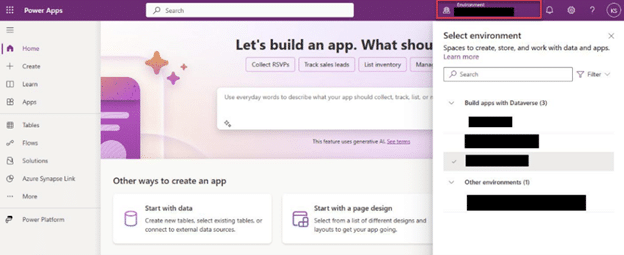
- Go back to the Power Apps maker portal.
- Select your Environment from the Environment menu connected to Finance and Operations and Synapse (it should be the same environment as in the first section.)
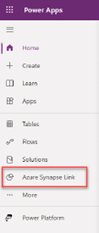
3. Go to the Azure Synapse Link.
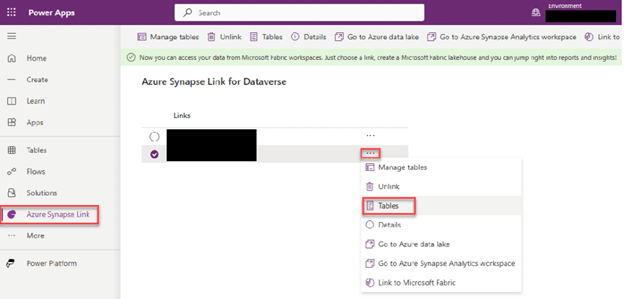
4. Find the Link you want to use and click on the three dots (…) to the right of the name. From the drop-down menu, select “Tables”.
5. When that opens again, you’ll wait and get the same informational bar in yellow as before. That will tell you your current version of Spark Pool is being retired and needs to be upgraded by a certain date.
- In the top menu, click “Upgrade to Apache Spark X.X with Delta Lake X.X."

6. Select the drop-down menu and select the Spark Pool you created in the second section. You should see the Spark Pool name in the drop-down. After selecting it, click “Update.” Jobs running will us the old Spark Pool but all new jobs will use the 3.5 version of the Spark Pool.
7. After it updates to the new Spark Pool version, you’ll no longer see the Yellow Message or the Upgrade Spark Pool option in the top menu.
Need Help? Get in Touch with Our Team
With Apache Spark 3.4 approaching end of support, it’s important to ensure your Dynamics 365 Finance and Operations environment is upgraded and running on a supported version. If you need help implementing this change or want guidance on optimizing your Synapse Link setup, contact our team today.

Under the terms of this license, you are authorized to share and redistribute the content across various mediums, subject to adherence to the specified conditions: you must provide proper attribution to Stoneridge as the original creator in a manner that does not imply their endorsement of your use, the material is to be utilized solely for non-commercial purposes, and alterations, modifications, or derivative works based on the original material are strictly prohibited.
Responsibility rests with the licensee to ensure that their use of the material does not violate any other rights.