















A Look at Advanced Quality Management Updates in Dynamics 365 Finance & Supply Chain Management: Workspaces, Orders, and CAPA
Microsoft continues to expand quality management capabilities in Dynamics 365 Finance & Supply Chain Management (D365 F&SCM), and the latest Advanced Quality Management updates include several practical enhancements that quality teams will notice right away. Many of these updates are "quick wins" that improve day-to-day quality processes. Released in version 10.0.44 and enabled by default starting in version 10.0.47, Advanced Quality Management introduces new tools and enhancements.
In this blog and video, we cover:
- Quality Order Processing and Inquiry workspaces
- Quick Result Entry enhancements
- Test group management improvements
- Corrective and Preventive Action (CAPA) management
Quality Order Processing and Inquiry Workspaces
One of the first additions users will notice is the new Quality Order Processing and Inquiry Workspace. It is a nice touch for lab techs and QA techs because it gives them a central place to manage their workload instead of navigating between multiple forms throughout the day.

Like other D365 workspaces, it brings key links, filtered views, and active quality orders into one location. For quality teams juggling multiple tests and priorities, having everything in one place makes it easier to stay organized and focus on the work that needs attention.
From within the workspace, users can also access Quality Associations, where Microsoft has introduced several enhancements to help automate quality processes.

One notable update to the quality associations tab is the addition of two new reference types:
- Sales Returns
- Transfer Orders
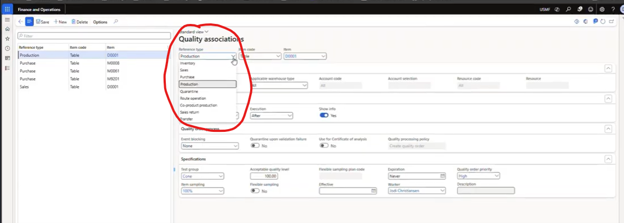
These new reference types allow you to automatically create quality orders during the sales return and transfer order processes. This gives quality teams additional control points and more flexibility.
Microsoft has also added the ability to assign priorities and specific workers through quality associations. When a quality order is generated automatically, those assignments can flow directly to the quality order, helping ensure work is routed to the appropriate team member from the start. Users can still update these assignments manually after the quality order is created if needed.
Quick Result Entry Form
The new Quick Result Entry Form experience in the open quality order may be one of the most practical updates.
Historically, entering quality results could be a cumbersome process with plenty of clicks along the way. Users often had to open individual result lines, enter a value, return to the quality order, and repeat the process for every test.

Rather than moving in and out of individual result lines, users can now enter the results for an entire quality order from a single screen. As values are entered, Dynamics 365 immediately validates them against specification ranges and provides real-time feedback.

Additional Enhancements
Beyond consolidating data entry into a single screen, the Quick Result Entry form also introduces several other improvements.
Free-Text Notes
You can now add free-text notes directly alongside test results, making it easier to document observations during testing. This was a common complaint from customers and often required customizations in the past.

Split Function
The form also includes a split function that provides greater flexibility when recording samples. For example, if a test sample quantity needs to be divided into multiple result entries, users can split the test into separate result lines and record individual measurements for each sample. If needed, those splits can also be reset, clearing the entered results and allowing users to start over.

For quality teams that spend significant time entering test data, this enhancement reduces clicks, simplifies navigation, and makes the overall testing process more efficient.
Test Group Management
Many organizations maintain extensive test groups containing dozens of individual quality tests. Building and maintaining these groups can become time-consuming, especially when introducing new products that share similar testing requirements.
To address this, Microsoft added a "Copy Test Group" feature. This enhancement a really nice addition for organizations that maintain large test groups and frequently introduce similar products.
Rather than recreating every test from scratch, you can duplicate an existing test group and make adjustments where necessary.
Instead of rebuilding dozens of test lines from scratch, users can start with an existing test group and make only the necessary adjustments. For organizations with similar products and testing requirements, this can be a significant time saver.
The update also introduces Test Plan Notes, allowing you to document instructions directly at the test level.
Once entered, the information flows directly to quality orders, making it available when tests are performed.

Customer-Specific Quality Requirements
Another enhancement is a new framework for managing customer-specific requirements.
You can now associate unique specifications, tolerances, and labeling requirements with customer-specific batch attributes. Those values can then flow directly into generated Certificates of Analysis (COAs).
For manufacturers serving customers with varying quality expectations, this helps address a historical gap in the system. By allowing customer-specific requirements to flow directly into Certificates of Analysis, organizations gain more flexibility while reducing manual documentation effort.
CAPA Management in D365
While several updates focus on efficiency and usability, one of the most significant additions is Microsoft's new Corrective and Preventive Action (CAPA) Management framework.
CAPA is how an organization learns from problems and prevents them from happening again. At its core, CAPA focuses on two questions:
- Corrective Action: How do we fix the issue that occurred?
- Preventive Action: What changes can we make to prevent it from happening again?
In regulated industries such as food and beverage manufacturing, CAPA is often a critical component of compliance programs.
Dynamics 365 CAPA Management is designed to align with current Good Manufacturing Practices (cGMP) and supports quality frameworks such as Six Sigma and ISO 9000. The process follows a lifecycle, defined by the FDA, that guides organizations through investigation, corrective action, verification, and closure.

Configuring CAPA Processes in Dynamics 365
Unlike the other features CAPA requires some initial setup within D365 Supply Chain Management.
During setup, you can define the stages of the CAPA lifecycle, the actions required at each stage, who responsible for completing them.
To configure a CAPA process, navigate to:
Inventory Management > Setup > CAPA Management > CAPA Processes

From the CAPA Processes page, open the Details view to see the levels that make up the CAPA process. Within each level, you can view the tasks and actions that must be completed before the case can advance to the next level.

Within each level, you can configure the worker group and assign the users responsible for completing the required activities.

When a CAPA case is created, Dynamics 365 uses the selected process to automatically determine the required activities, assignments, and progression through the investigation.
Managing CAPA Activities and Case Progression
To begin working through the case, change the status of the case from Opened to In Process.

Next, navigate to the General tab and select Activities > View Activities to review the tasks associated with the current stage.
When an assigned user opens an activity, they will find a description defining instructions and requirements needed to complete that step of the CAPA process.

Assigned users can document their findings, investigation details, and actions taken before selecting Save and Set as Complete. Dynamics 365 records who completed the activity and when it was completed, creating an auditable trail throughout the investigation process.
This process is repeated until all activities have been completed.
Documenting Resolution and Closing the Case
After all CAPA activities have been completed, users can document the final resolution and close the case.
Navigate to the Resolution FastTab within the CAPA case.

From here you will be able to:
- Select the appropriate Resolution
- Enter the Root Cause Code.
- Choose the CAPA Resolution Type.
- Add any final notes summarizing the investigation and corrective actions.
- Change the case status to Closed.
Once closed, the CAPA case provides a complete record of the issue, investigation, corrective actions, and final outcome for compliance and audit purposes.
Monitoring CAPA Cases
Users can monitor CAPA activity from the CAPA Management workspace by navigating to:
Workspaces > CAPA Management

The workspace provides visibility into open CAPA cases, activities assigned to specific users, and tracking metrics, making it easier to track progress and manage investigations across an organization.
Get Started with the Quick Wins in D365 Advanced Quality Management
The latest updates to Advanced Quality Management in Dynamics 365 introduce a mix of practical usability improvements and new quality management capabilities, helping your organization strengthen quality processes while reducing manual effort.
Many of these features are the kind of quick wins you will notice immediately in day-to-day work. At the same time, capabilities like CAPA management provide a foundation for more mature quality and compliance programs.
If you're already using quality management in Dynamics 365, now is a good time to explore what's included in Advanced Quality Management and evaluate how these new features can support your processes. Have questions about implementation, configuration, or best practices? Reach out to Stoneridge to continue the conversation.
This blog is co-authored by Eric Lillehaugen

Under the terms of this license, you are authorized to share and redistribute the content across various mediums, subject to adherence to the specified conditions: you must provide proper attribution to Stoneridge as the original creator in a manner that does not imply their endorsement of your use, the material is to be utilized solely for non-commercial purposes, and alterations, modifications, or derivative works based on the original material are strictly prohibited.
Responsibility rests with the licensee to ensure that their use of the material does not violate any other rights.