













How to Use the Stoneridge Client Support Portal

By Jennifer Vallario | May 12, 2022

Stoneridge Software's support portal is an intuitive and useful function that makes it easy for you to access resources to answer important questions or connect you with a Stoneridge expert who can help you find a solution.

Stoneridge Client Support Portal: Ease of Use for Peace of Mind

If you are a Stoneridge client, registering for and using the portal is easy if you follow these steps:

  • We will send you an invitation to access the portal to your email address. If you need a new invitation, reach out to your Client Partner, Account Manager, or our support alias
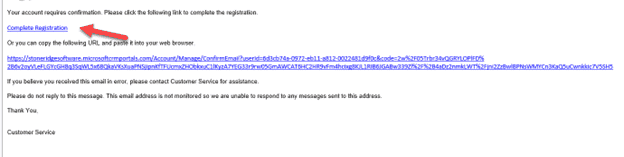
  • Once you receive the email, click on the link shown in the picture below
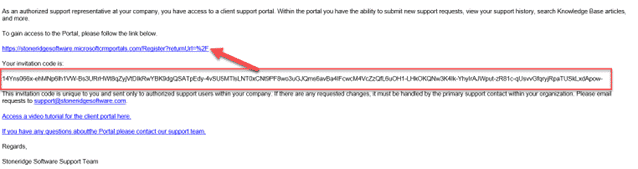
ClientPortalInvite

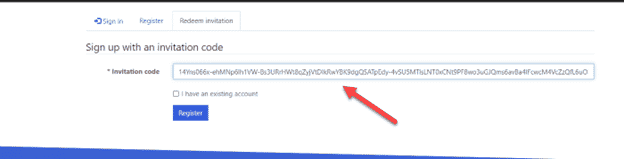
  • You will be redirected to our portal, and your unique Invitation Code will pre-populate, like in the screengrab below
  • Click "Register"

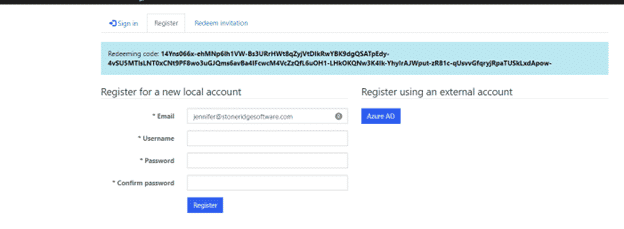
ClientPortalInvite InvitationCode

  • To complete your User Profile, add your professional contact information

ClientPortalInvite YourInformation

  • Choose your preferred contact methods

ClientPortalInvite ContactMethods

Once you are finished, select "Update" at the bottom of the page, and you are now set to take advantage of the portal's offerings.

What is Included in the Stoneridge Support Portal?

There are a lot of unique features in the portal you can use to help you on your support journey. The portal can also connect you with a Stoneridge expert or it can give you the resources to answer your questions by reading knowledge-base articles.
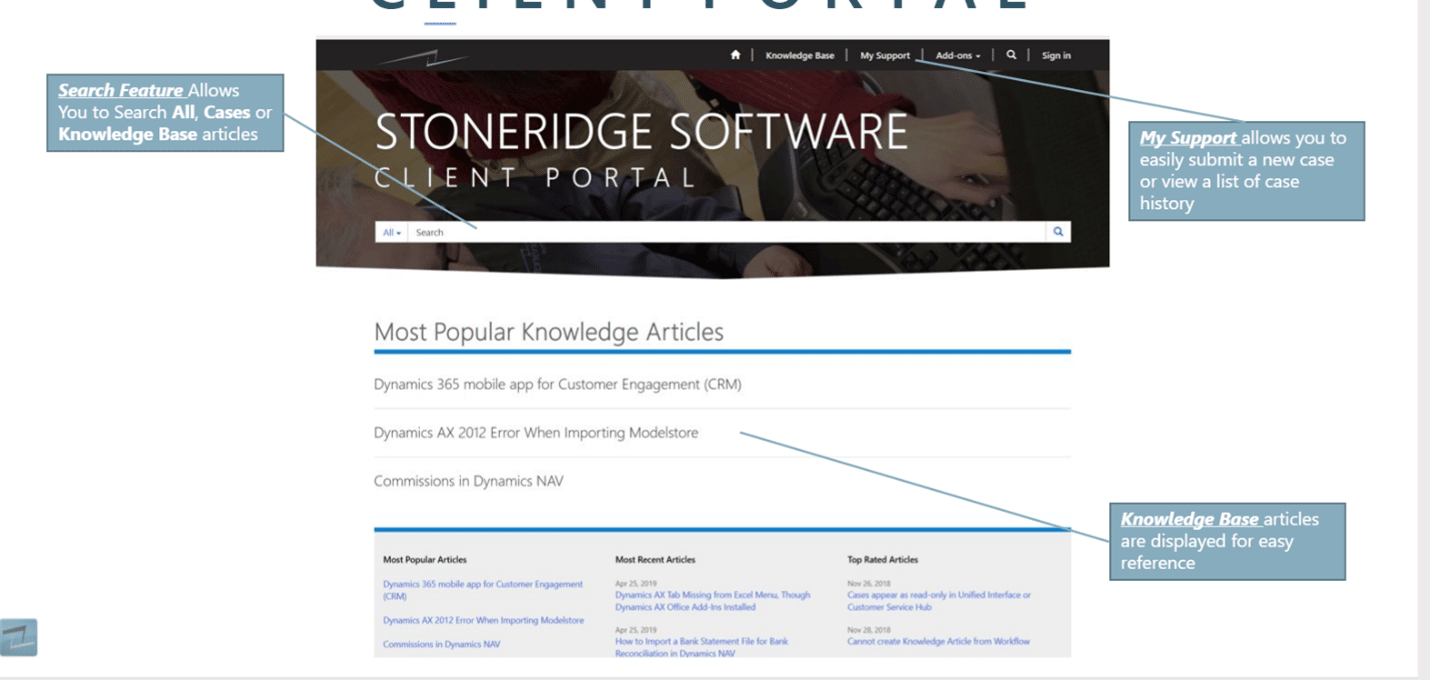
There are several key parts here:

Stoneridge Client Support Portal Home

1. Case Information and Additional Support Tools

On the left-hand side of the Support Portal home screen, you will see three options under the My Support menu.

  • Open Cases allows you to see what cases have been opened, their status, and information about them.
  • Resolved Cases lets you see cases from the past.
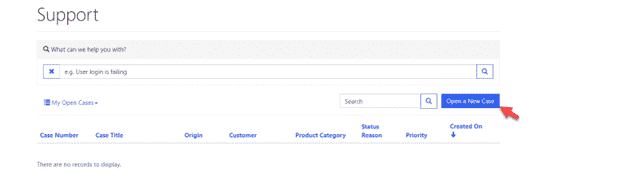
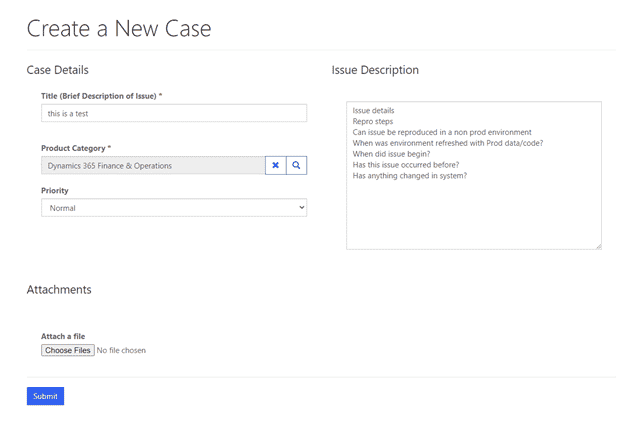
  • Create a Case is where you will go to submit a new support ticket.

2. Tools and Knowledge

In the top bar, in addition to the Home tab, you will find some additional tools such as:

  • My Services, where you will be able to complete a number of tasks, including:
    • Viewing, editing, and purchasing subscriptions
    • View and create payment profiles
    • View and pay single or multiple invoices
  • Contact us, which lets you talk to the Stoneridge team directly.
  • Support, where you can access information on your support plan.

3. AI Insights

Stoneridge Client Support Portal AI Summary

In this section, you can see an AI overview of where your support cases are at. This is a huge addition to the support portal as it gives you a quick and easy overview without you having to dig around to find out the status of a support case. These highlights will save you time and allow you to focus on other important tasks.

You can also go in and download your case lists into a spreadsheet for analysis.

Download cases

Stoneridge Support Portal: How to Submit a Case

Now that you have registered, submitting a support case is easy! Just follow these steps:

  1. Login to the support portal by going to https://portal.stoneridgesoftware.com/
  2. Click "Create a Case" from the menu or the Support dropdown.
    Create a case in the Stoneridge client portal
    • Describe your issue in the "Description" field
    • In the "Product Category" field, enter the version you are currently on
    • Fill out the "Priority of the case"
    • Enter the "Issue Description"
      Stoneridge Support Ticket Case Details
    • Add any attachments you might have
      Stoneridge Support Ticket Attach Files
    • Click "Submit"
    • Your case is now submitted to our support queue and assigned to one of our support consultants
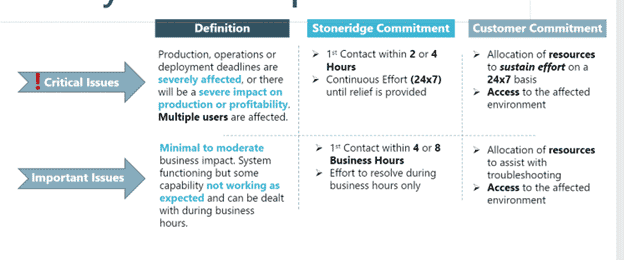
    • Depending on the "Priority" you set for your case, you will see one of the following commitments from us:
      • Critical - Vey high or high priority
      • Important - Normal or low priority

      SUPPORT PORTAL 9

      How to View, Edit, and Cancel Open Cases

      Periodically, you might want to check in on or update the status of one of your open support cases. Luckily, doing that in the Stoneridge Support Portal is very easy!

      Viewing Open Cases

      • Under the "My Support" menu, click on "Open Cases."
        Open cases
      • You will see a list view with filters for Case Number, Title, Status, Priority, Owner, and Created On.
        List view of cases with filters Stoneridge Support
      • To view an open case, click on the Case Number or select the grey dropdown menu on the case record and select "View Details"
        View details of specific case
      • Smart Tip: You can use the Timeline feature at the bottom of the page to add comments for the Stoneridge Support Team, upload more files, or view past communication and case-related emails.
        Case Detail and Timeline Feature

      Edit and Open Case

      • If you are viewing a case and want to edit it, just find the "Edit Case" button.
        How to edit a case in the Stoneridge portal
      • From here, you can select update the Product Category or Priority.
        • You can also select Add Contact Notifications to select other portal users from your organization to get updates on the case.
          Edit Product Category or Priority of Case
      • Click "Submit" once you are done with your updates.

      It's as easy as that! Stay tuned for the second part of this blog series, where we will give you tips on how to submit a great support ticket!

      Cancelling a Case

      • From the case you are viewing, click the "Cancel Case" button that is next to the "Edit Case" button.
        Cancel case
      • On the next screen, select a reason for the cancellation and then click "Confirm Cancellation." (Note: You may be billed for time already spent on the case.)
        Cancel reason and confirmation

      View Resolved Cases

      The last thing you can do is view cases that the Stoneridge support team has already resolved.

      • Navigate back to the "My Support" menu and click "Resolved Cases"
        Resolved cases
      • From the list of cases marked either "Problem Solved" or "Canceled", you can click on the case you want to view.
      • Once you click into the case, you will see fields for "Cause" and "Resolution."
        • These will be filled out by your Case Owner, who will also explain what happened and how it was resolved.
          Case resolution

      It's as easy as that! Read more about how you can submit an effective support ticket on our blog!

      Questions? Talk to the Stoneridge Experts!

      Reach out to our team of experts if you have questions about this or any other topics regarding your business solutions or want to get started with a Stoneridge support plan today.

      Jennifer Vallario
      Our Verified Expert
      Jennifer Vallario

      Jennifer Vallario is a Senior Consultant. She previously worked with Armanino, where she supported all modules of AX as a Senior Dynamics AX Support Consultant and Security Administrator.

      Read More from Jennifer Vallario

      Related Posts


      Under the terms of this license, you are authorized to share and redistribute the content across various mediums, subject to adherence to the specified conditions: you must provide proper attribution to Stoneridge as the original creator in a manner that does not imply their endorsement of your use, the material is to be utilized solely for non-commercial purposes, and alterations, modifications, or derivative works based on the original material are strictly prohibited.

      Responsibility rests with the licensee to ensure that their use of the material does not violate any other rights.

      Start the Conversation

      It’s our mission to help clients win. We’d love to talk to you about the right business solutions to help you achieve your goals.

      Subscribe To Our Blog

      Sign up to get periodic updates on the latest posts.

      Thank you for subscribing!