















Tips and Tricks to Optimize Dynamics 365 Master Planning
Master Planning can be one of the most powerful tools in Dynamics 365 Finance and Supply Chain Management (FSCM), but only when the data and settings behind it are working together. When something looks wrong, the issue often isn't the planning engine itself. It may be a lead time, coverage setting, calendar, or item-level override that is quietly influencing the results.
In this blog, you'll learn practical tips for optimizing and streamlining Master Planning, from improving data accuracy to understanding coverage groups, codes, and time fences. We'll also walk through several key areas in Dynamics 365 FSCM that you can use to troubleshoot and fine-tune your planning processes.
Whether you're trying to improve planning performance, understand unexpected planned orders, or simply get more value from the capabilities you already have, these tips can help you create a more reliable foundation for your supply chain operations.
What Is Dynamics 365 Master Planning?
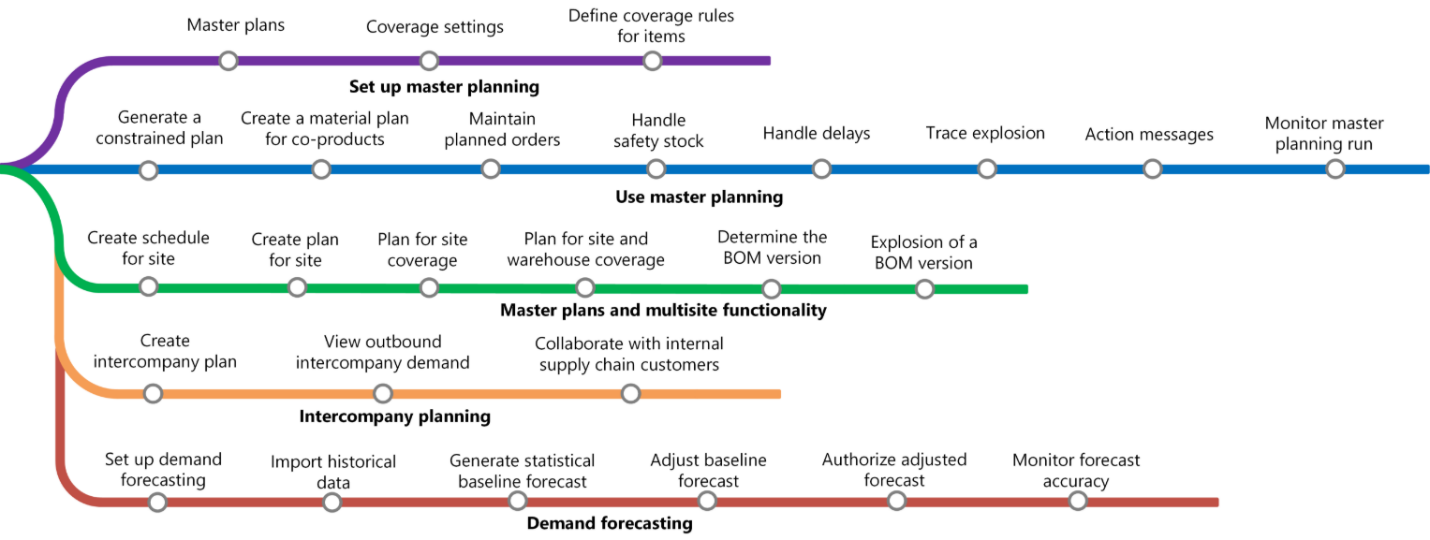
Before diving into optimization, it's helpful to step back and look at what Master Planning does.
At its core, Master Planning helps you determine and balance your future requirements for materials and capacity so you can meet your business goals. It evaluates what you currently have available, what you'll need to fulfill future demand, and what actions need to happen to close the gap.
That can include determining whether you need to:
- Produce an item
- Purchase raw materials or finished goods
- Transfer inventory between locations
- Reserve or maintain safety stock
- Plan the capacity required to support production
Master Planning ultimately uses this information to calculate requirements and generate planned orders. Those planned orders can become the foundation for purchase orders, production orders, and other replenishment activities. In simple terms, Master Planning helps automate the process of matching your future supply with your expected demand.
That simplicity is also what makes proper configuration so important. If the demand information, lead times, or planning parameters are inaccurate, the system can only plan based on the information it has been given.
Data Accuracy and Lead Times
One of the biggest factors in successful Master Planning is data accuracy. Accurate sales and production data are essential, but your master data is just as important.
Consider a few common scenarios:
- A sales order is entered for 100 pieces, but the customer actually only needs 50.
- A customer moves their requested delivery date from July to September, but the date isn't updated in the system.
- A supplier changes their lead time, but your purchasing data still reflects the old timeline.
- Your production routes don't reflect how long it actually takes to manufacture an item.
Master Planning cannot account for changes that haven't been captured in Dynamics 365. If your demand or supply information is outdated, the system may generate planned orders that technically follow the rules you've configured but don't reflect what your business needs.
Keep Lead Times Current
Lead times deserve particular attention because they directly affect when the system believes replenishment needs to happen.
You should regularly validate:
- Supplier lead times for purchased materials
- Production lead times for manufactured items
- Routes and production processes
- Changes caused by supply chain constraints
- The time required to fulfill current and future demand
If an item takes 10 days to arrive but the system is working with an outdated or missing lead time, you could receive a planned order too late to meet the requirement.
Don't Forget Your Calendars
Calendars can also have a major impact on planning results.
Dynamics 365 allows you to configure calendars well into the future, but those calendars still need to be maintained. If dates aren't open or working days aren't configured correctly, you may start seeing unexpected production or planned order dates.
For example, you might update a 24/7 calendar but forget to update the production calendar. From the planning perspective, that disconnect can explain why an expected result doesn't occur. Before assuming there is a larger Master Planning problem, it's worth checking whether your calendars are current and configured correctly.
Take Advantage of New Technology – AI Agents
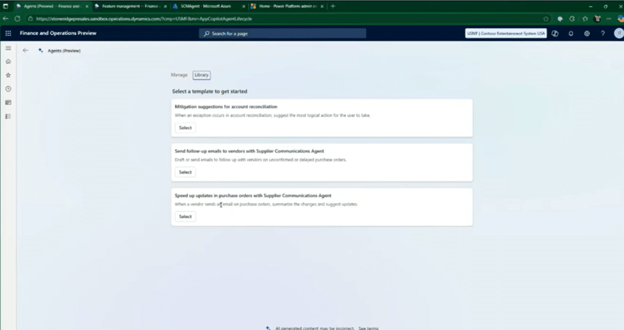
There are also newer capabilities – such as AI-powered Copilot agents – that can help reduce manual effort around planning data. The Supplier Communications Agent and additional enhancements are designed to help incorporate updated lead-time information and cascade downstream impacts through Master Planning.
If you're still using the original built-in Master Planning engine rather than Planning Optimization, this is also an opportunity to evaluate your current approach. We recommend considering Planning Optimization for organizations looking to take advantage of newer functionality and improve planning performance.
The larger lesson is simple: technology can help automate parts of the process, but it works best when your underlying data is accurate.
Coverage Groups, Codes, and Time Fence
Coverage settings are another area where planning issues can originate.
Coverage groups help direct many of the key parameters used by Master Planning. You can configure planning settings at different levels, including individual items and groups of items. That flexibility is useful, but it also creates the possibility of overrides.
Understand Setting Inheritance and Overrides
If one item is behaving differently from every other item in its coverage group, don't stop at the coverage group configuration.
Item-level settings can override settings inherited from the coverage group. Similarly, settings applied elsewhere in the planning hierarchy can affect what ultimately happens during a planning run.
When troubleshooting, ask:
- Is the coverage group configured correctly?
- Does the individual item have an override?
- Is the master plan itself overriding an item or coverage group setting?
Understanding where a value is coming from can save you a significant amount of troubleshooting time.
Choose the Right Coverage Code
Coverage codes determine how replenishment requirements are handled.
The transcript highlights several important options:
- Manual: The system will not suggest planned purchase, transfer, or production orders for the item.
- Requirement: A new planned purchase, transfer, or production order is created for each requirement.
- Period: Requirements within a specified period can be combined into a single order.
- Min/Max: Planning replenishes inventory based on defined minimum and maximum levels.
A simple configuration mistake – such as accidentally setting an item to Manual – can make it appear as though Master Planning isn't working when the system is actually following the configured rules.
Pay Attention to the Coverage Time Fence
The coverage time fence determines how many days into the future Master Planning considers supply and demand. Anything beyond that time fence is excluded from the planning run. This means your coverage time fence needs to align with your actual planning horizon and lead times.
For example, if your coverage time fence is 100 days but you have an item with a lead time that extends beyond that horizon, you may not see the expected planning requirement.
Some organizations may use a relatively short horizon, while others may look 365 or even 720 days into the future. The right number depends on your business, but the key is to ensure that your time fence supports how you purchase, produce, and plan inventory.
Accuracy and Validation
When you're troubleshooting Master Planning, start by validating the basics before making broad changes. You can create and use different master plans to simulate scenarios, but a simplified test is often the best place to begin:
- Start with a single item.
- Create one demand source.
- Run Master Planning and observe the results.
- Validate the item's lead times and configuration.
- Add complexity gradually.
- Test each change before making another one.
This approach helps you avoid compounding errors and makes it easier to identify which setting is affecting the outcome. Start slow, add complexity in increments, and focus on data accuracy.

Demo: Dynamics 365 Master Planning Features in Action
The following walkthrough outlines the process demonstrated in the presentation and highlights several areas to review when optimizing Master Planning.
Master Planning Parameters
Start by navigating to Master Planning > Setup > Master Planning Parameters.
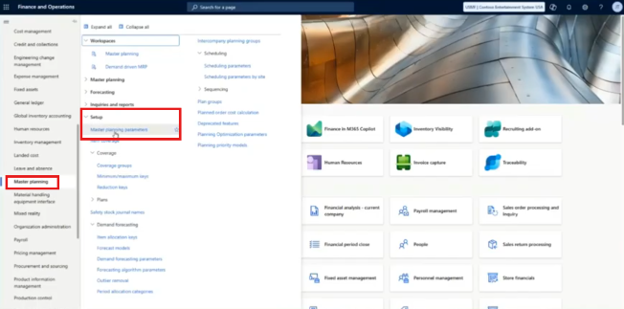
This area contains the primary parameters and defaults used by your planning process. Review the following settings carefully:
- Review the default master plan: Confirm that the appropriate master plan is configured for your planning process.
- Check the general coverage group.: This setting can apply to items that don't have a specific coverage group assigned, so you want to ensure it reflects the appropriate default behavior.
- Validate the Today's Date calendar: Make sure you're using the correct calendar and that the required days are available. An outdated or incorrect calendar can produce unexpected results.
- Review the Standard Update tab: The presentation notes that this area includes settings related primarily to firming principles.
- Review the Planned Orders tab: Here, you can review settings related to vendors and planned order types.
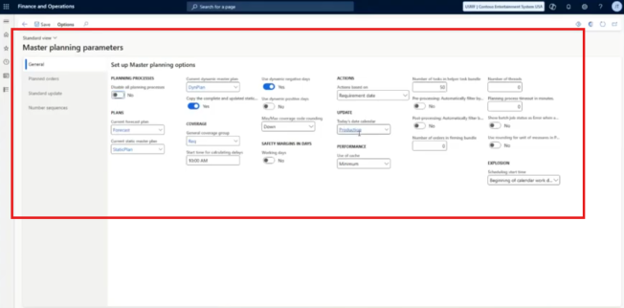
You should also review settings on the master plan itself. A master plan can contain specific configuration that affects what information is included and which time fences are used.
One important consideration is whether the master plan is overriding item-level or coverage-group settings. If you've changed an item's configuration and aren't seeing the expected result, check the master plan to make sure a higher-level setting isn't taking precedence.
Item Coverage Settings
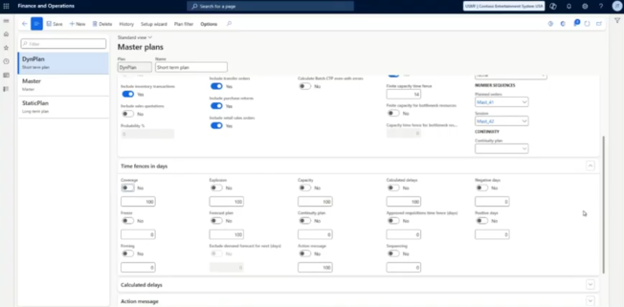
Next, navigate to the Item Coverage form under the Setup area.
This form provides a broader view of the items in your system and their associated planning configuration. Use it to:
- Review the coverage group assigned to each item.
- Examine relevant storage dimension and item group information.
- Filter for specific items.
- Identify items using a particular coverage group.
- Look for items that may have different settings than expected.
From there, review the actual Coverage Groups.
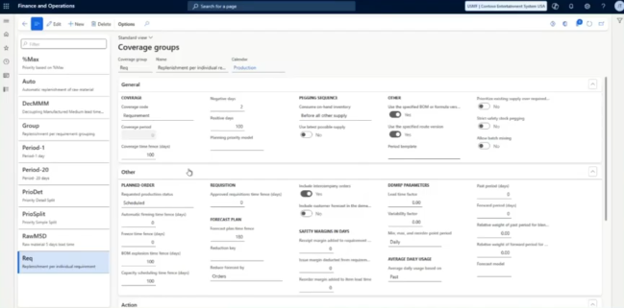
There are several settings that deserve particular attention:
- Coverage Time Fence: Confirm how far into the future the system is evaluating demand and supply.
- Forecast Time Fence: Review how far beyond the immediate coverage horizon your forecast planning needs to extend.
- BOM Explosion Time Fence: Consider how this setting may affect planning for components and dependent demand.
- Capacity Scheduling Time Fence: Review whether the planning horizon supports your capacity requirements.
- Safety Margins: Determine whether additional safety margins are needed for receipts, issues, or orders when supply chain conditions create additional uncertainty.
There are many settings available, which is why a measured approach is important.
Make one change, run Master Planning, and observe the results. Then make the next change if necessary. Avoid changing multiple variables simultaneously, as that can make troubleshooting significantly more difficult.
Purchase Order Settings
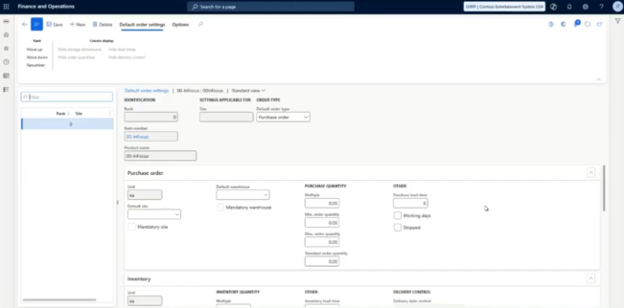
Next, navigate to Product Information Management and open a released product.
Under the product's Plan tab, review the Default Order Settings. These settings can inherit information from the coverage group but can also be configured with item-specific details.
Follow these steps:
- Review the Purchase Lead Time: Confirm that the lead time accurately reflects how long it takes to receive the item. If an item takes 10 days to arrive, your planning process needs to account for those 10 days.
- Check whether Working Days are configured: Without working days configured appropriately, the system may incorporate weekends, holidays, or other non-working days in ways that don't match your operational calendar.
- Review the Minimum Order Quantity: If Master Planning suggests ordering five units when the immediate requirement is only one, the minimum order quantity may be driving that result.
- Review Order Multiples: If an item must be purchased in multiples of two, three, or another quantity, planned supply may be adjusted accordingly.
- Review the Default Order Type by Site: You can configure different replenishment behavior depending on the site. For example, one site might produce an item while another site receives it through a transfer or purchase order.
These settings are important because they influence both the quantity and timing of planned supply.
Item-Level Coverage Overrides
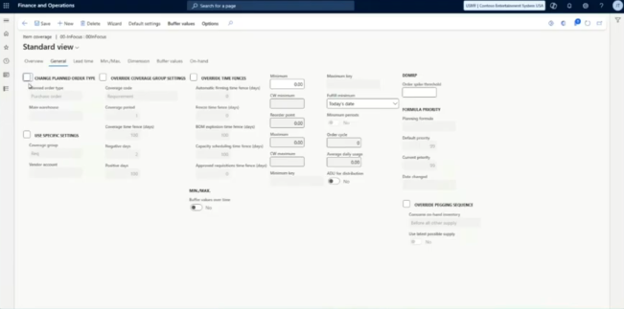
Continue reviewing the item's Item Coverage settings to identify overrides from the default coverage group.
For example, an item might inherit a requirement-based coverage code from its coverage group, but you may choose to override it and use period coverage instead.
You can also configure an item with a different coverage time fence. If one item has an unusually long lead time, you may need to extend its planning horizon even if the default coverage group uses a shorter time fence.
Examples include:
- Changing coverage from Requirement to Period – or vice versa.
- Defining a planning period, such as 14 days
- Extending an individual item's coverage time fence to 365 days
- Configuring a transfer order and specifying the supplying warehouse
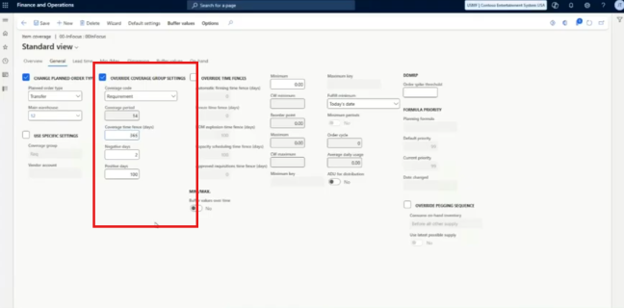
This flexibility is valuable, but it also reinforces an important troubleshooting principle: when something is behaving unexpectedly, check for item-level overrides.
Net Requirements
Finally, use Net Requirements to get a clearer view of what is happening with a particular item after running Master Planning.
Net Requirements provides an overview of the supply and demand associated with the item and can help you understand why the system is suggesting a particular action.
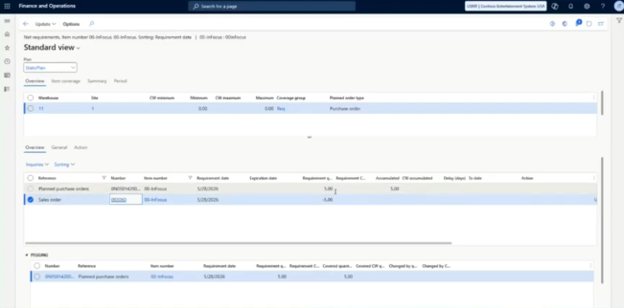
For example, you can:
- Review an item's current demand.
- Examine the planned supply generated by Master Planning.
- Update an item's lead time.
- Rerun Master Planning.
- Compare how the planned requirement date changes.
Let’s quickly analyze how the coverage time fence affects visibility. A sales order far in the future may not appear in Net Requirements if it falls outside the configured coverage horizon. In the example, a sales order in 2027 was excluded because the coverage time fence was only 100 days.
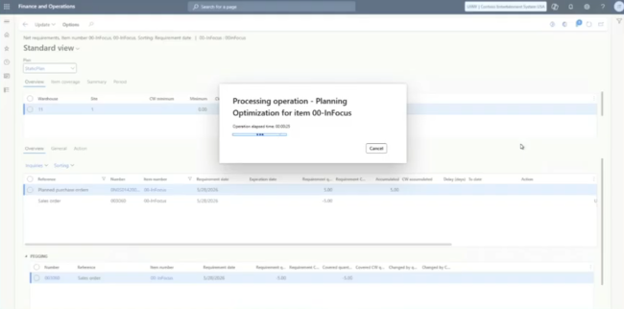
For troubleshooting, Net Requirements can be one of the most useful places to start. It gives you a more direct view into the planning results and allows you to see the relationship between demand, supply, lead times, and your planning configuration.
Optimize Dynamics 365 Master Planning with Stoneridge Software!
Master Planning works best when your data, lead times, calendars, coverage settings, and item-level configuration are all aligned with how your business actually operates.
If you're looking to optimize your Dynamics 365 Finance and Supply Chain Management environment or need help understanding why your planning results aren't matching expectations, Stoneridge Software can help. As a premier Microsoft Inner Circle partner, our team can work with you to evaluate your workflows, fine-tune your configuration, and help you get more value from the technology you're already using so your planning processes can better support your employees and your business.
Reach out to our experts today to learn more!

Under the terms of this license, you are authorized to share and redistribute the content across various mediums, subject to adherence to the specified conditions: you must provide proper attribution to Stoneridge as the original creator in a manner that does not imply their endorsement of your use, the material is to be utilized solely for non-commercial purposes, and alterations, modifications, or derivative works based on the original material are strictly prohibited.
Responsibility rests with the licensee to ensure that their use of the material does not violate any other rights.