















Tips and Tricks to Help You Get the Most Out of Microsoft Teams in 2025
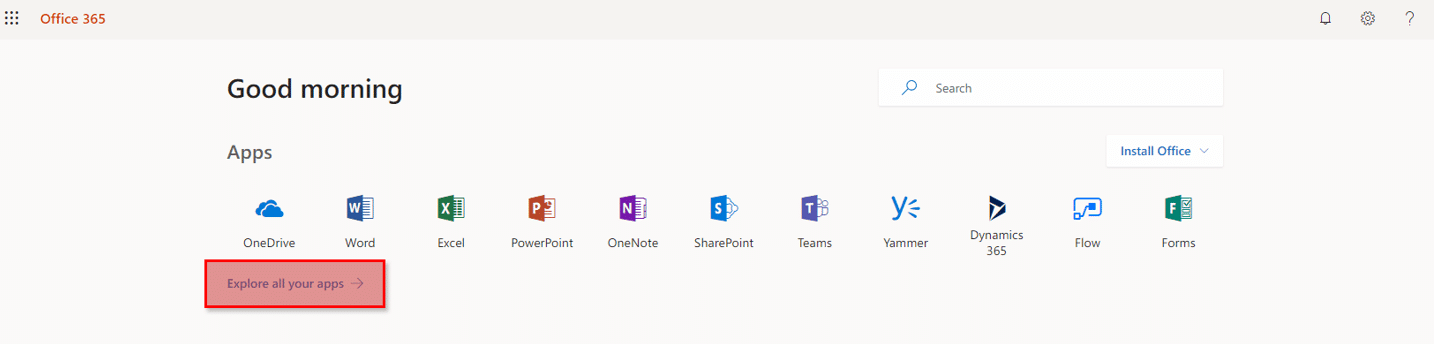
Microsoft Teams is Microsoft 365's central platform for team collaboration, bringing together people, content, and tools. You can find the “Teams” app listed under Apps when you log in to Microsoft 365.
If you don't see the Teams app, you can click on the "Explore all your apps" link below the list.
Although your organization might already be using Teams, there are many tips and uncovered tools you can use to streamline efficiency and boost your Teams experience. If you are new to Teams, you can use these features in the mobile, desktop, or web access Teams apps to get started.
Meeting Types in Microsoft Teams
There are several different types of meetings you can schedule with your team based on your organizational needs. Some of them include:
Ad Hoc One-on-One Meetings
These meetings allow you to:
- Set up a group chat and call all participants at once: For example, if you want to meet with your entire marketing team to align on strategy, you can simply add them to a group and call them. You can also call individual people the same way in your chat with them.
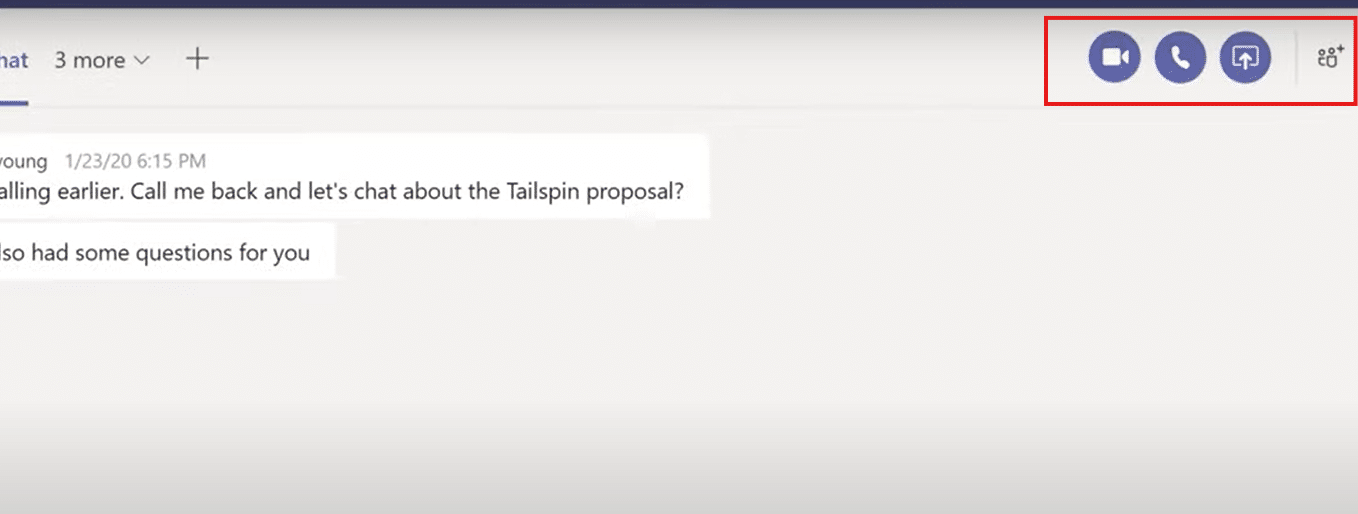
- Start meeting easily: With a single click of a button, you can start a call from the chat window or from a channel. All you have to do is click on the video icon in the upper right-hand corner.
New Events
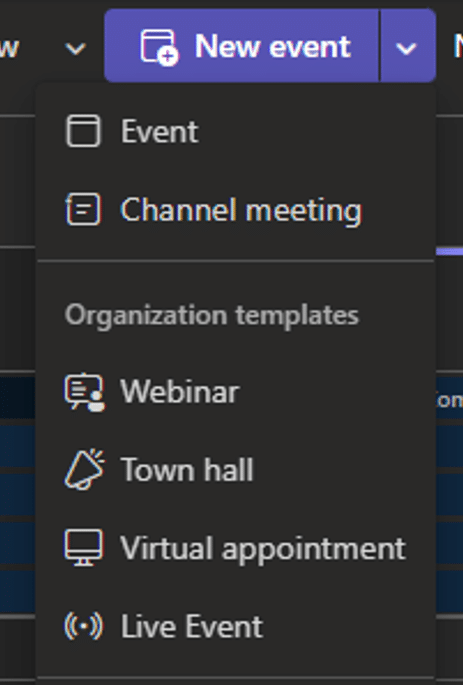
You can also host a variety of events in Teams, including webinars, town halls, virtual appointments, and live events. Here is some additional information:
- Webinars support up to 1,000 attendees and have a structured registration process.
- Town Halls are for limited presenters to a large group of attendees from 10,000 to 50,000.
- Live Events are similar to town halls, but you have a four hour limit for the duration of the event. There is also no chat feature for attendees, unlike a town hall, but there is a Q&A function.
- Virtual Appointments allow you to use the booking page, email confirmations, and SMS text notifications (if you have a Teams Premium license).
Copilot in Microsoft Teams
Using Copilot and AI across most the Microsoft stack is easy, and Teams is no exception. Here are some ways you can utilize Copilot in Teams to boost efficiency:
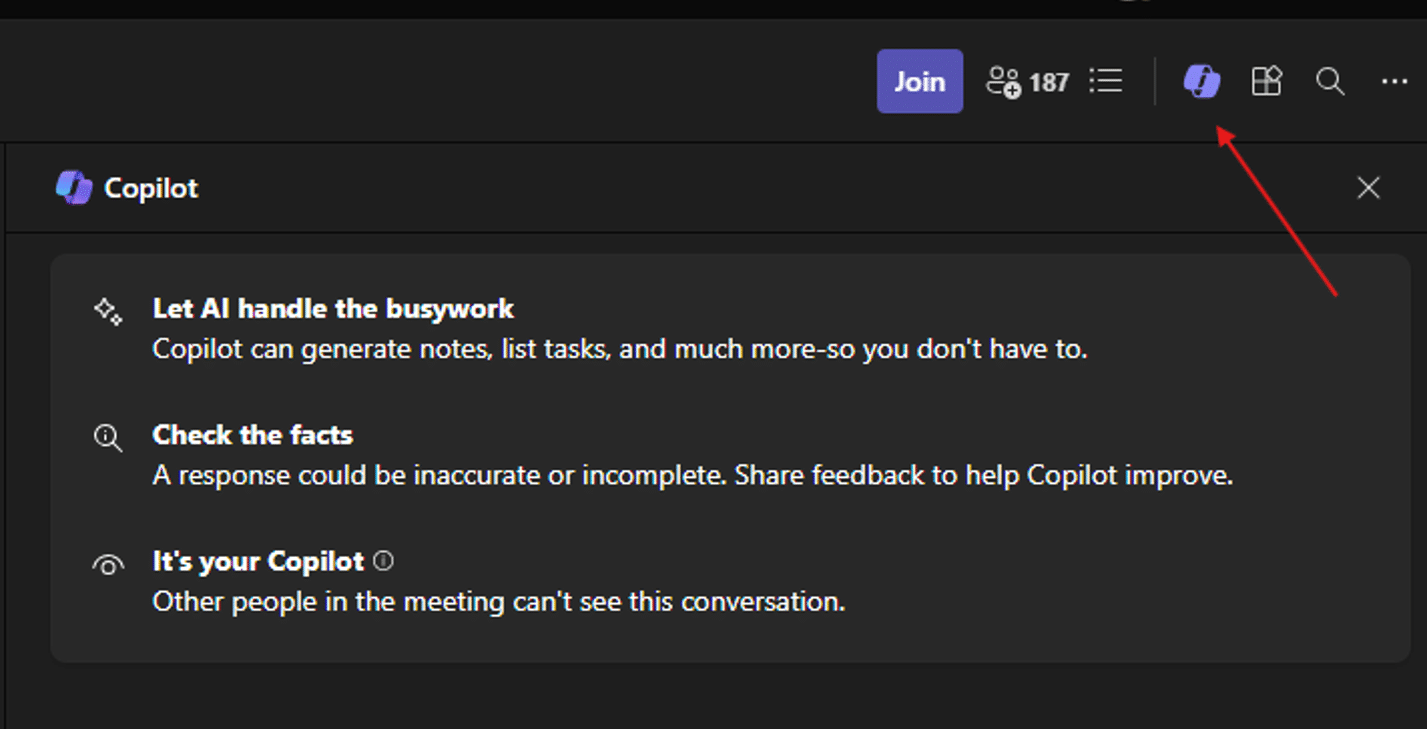
- You can ask Copilot to generate notes, list tasks, and automate other time-consuming functions. Try asking it some questions to determine what it can and can't do for your convenience.
- Copilot can check for facts and share feedback for improvement with you.
- When you chat with Copilot in Teams it remains private. This means if you are in a meeting and need to ask Copilot questions, nobody else can see the conversation.
- You can look up old conversations and find information related to different topics. Copilot will also summarize the information for you. This saves you from having to scroll through old messages.
- Copilot will look through meeting transcripts (make sure you record the meeting) to find important information or provide you with meeting summaries.
Availability Features: Beyond Setting Your Status
While it's relatively common knowledge that you can set your status on Teams to Available, Away, Do Not Disturb, and more, did you know you can do more with this functionality?
For example, if you need to call someone but you see that they are in a meeting and set to "Do Not Disturb", you can simply right-click on their name in Teams and select "Notify when available." It will tell you when they are back online so you can connect with them.

See Only Unread Chats
There is a filter at the top of your Teams chat window (above your list of chats) where you can filter messages so that Unread one appear at the top. This is a sometimes-overlooked feature that comes in very handy when you are missing a messages or want to work through a backlog of messages.
You can also organize your list based on Unmuted or Meeting chats.

New Keyboard Shortcuts Feature
If you go to Settings -> General, and scroll down to keyboard shortcuts, you can add your own third-party app or customize the default shortcuts that exist within Teams.

Keyword Search for Emojis Feature and Quick Commands
If you put a bracket in front of a word, you can quickly search for the emoji you want to use.
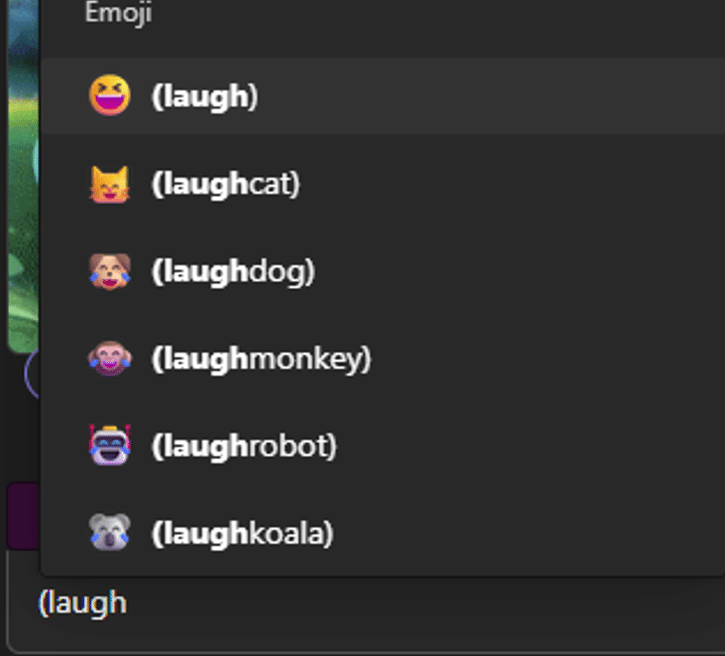
You can also use a forward slash in the search bar and utilize various quick commands to save time.

Want to Learn More About Optimizing Teams? Talk to the Stoneridge Team!
From keyboard shortcuts to automating processes with Copilot, our experts can help you save time and increase efficiency.
Reach out today to get started!

Under the terms of this license, you are authorized to share and redistribute the content across various mediums, subject to adherence to the specified conditions: you must provide proper attribution to Stoneridge as the original creator in a manner that does not imply their endorsement of your use, the material is to be utilized solely for non-commercial purposes, and alterations, modifications, or derivative works based on the original material are strictly prohibited.
Responsibility rests with the licensee to ensure that their use of the material does not violate any other rights.