









Copilot Studio Explained – Part 4: Connecting Across the Microsoft Stack
What if your AI agent could do more than answer questions? What if it could connect directly to your business systems, retrieve customer information, and help your employees accomplish tasks without jumping between applications?
That's where the real potential of Microsoft Copilot Studio begins to take shape.
With tools such as connectors, Power Automate flows, and Model Context Protocol (MCP) servers, you can extend your AI agents beyond basic conversations and give them the ability to interact with the applications your business depends on.
Welcome to Part 4, the final installment of our Copilot Studio blog series! So far, we've explored the platform's settings, created and published an agent, tracked its activity, and connected knowledge sources to improve its responses.
Now, we're taking things a step further. We'll explain the different types of tools available in Copilot Studio, how MCP servers work, and how you can connect an agent directly to Microsoft Dynamics 365 Finance and Operations.

What Are Tools in Microsoft Copilot Studio?
AI agents are like employees. They understand instructions, but that doesn’t mean they can automatically piece together everything needed to complete a task without the right information and access to the right systems.
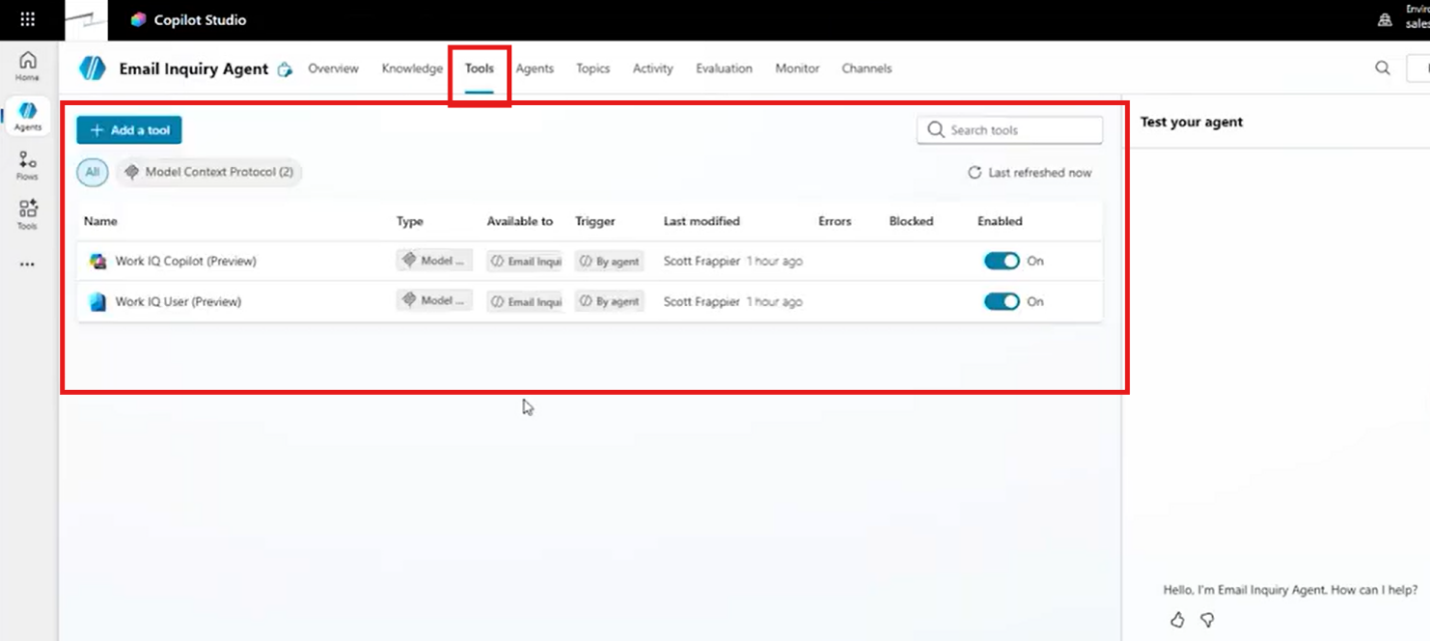
Tools extend your agent's capabilities by allowing it to interact with connected applications, retrieve information, and perform supported actions.
For example, you might want your agent to:
- Retrieve customer details from Dynamics 365.
- Access information from Microsoft Outlook or Teams.
- Execute a workflow using Power Automate.
- Process information through a configured AI prompt.
- Interact with an ERP system using an MCP server.
These capabilities can turn an agent from a simple question-and-answer tool into something that supports actual business processes.
How Tools Work with Your Agent
Throughout this series, we've been building an email inquiry agent with Microsoft Work IQ enabled. When we enabled Work IQ through the agent's Overview tab, Copilot Studio automatically added tools associated with that capability.
These tools allow our agent to interact with supported Microsoft 365 information. You can then take that a step further. For example, you can add another tool so the agent can retrieve customer information from Dynamics 365 Finance and Operations.
Understanding Connectors, Prompts, Flows, and MCP Servers
Before we start connecting business systems, let's explore the different types of tools available in Copilot Studio.
Each serves a slightly different purpose.
Connectors: Access Information from Business Applications
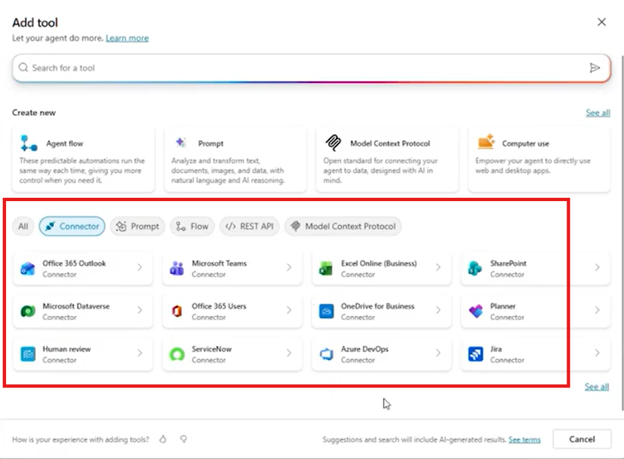
Connectors allow your agent to interact with supported applications and services. For example, Copilot Studio provides options for connecting to Microsoft Teams and Office 365 Outlook. This empowers your agent to find the information from applications that employees already use.
Connectors – depending on available capabilities – can support additional interactions and provide a way to extend your agent beyond the information available through its basic configuration.
Prompts: Process Information with AI
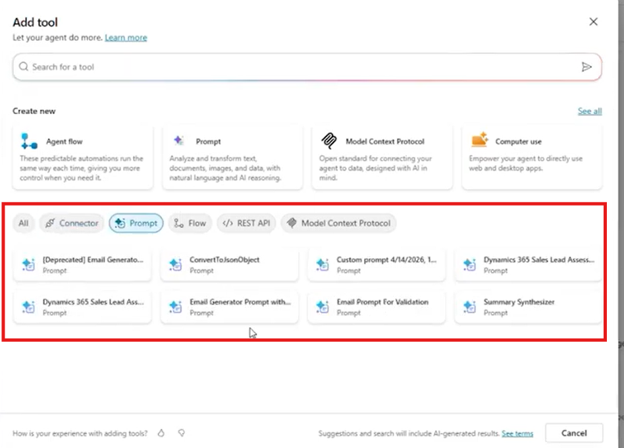
Prompts provide another way to extend your agent's functionality. In Power Platform, you can configure prompts that process information using AI models. For example, you might want an agent to pass information to a specific prompt for additional processing.
This provides additional flexibility when you need AI functionality tailored to a particular task.
Power Automate Flows: Support Defined Processes
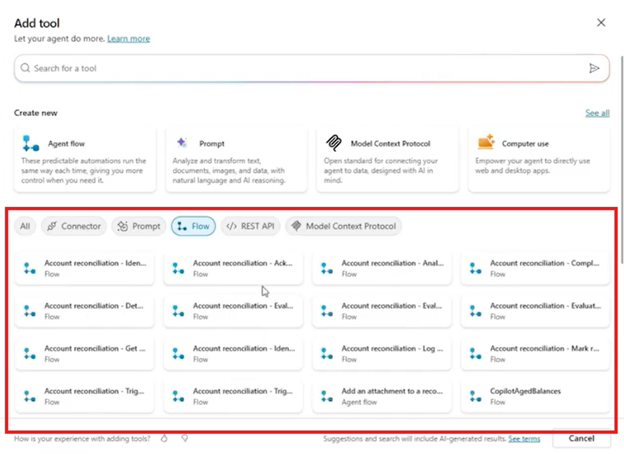
Power Automate flows allow you to establish workflows that retrieve information or perform actions. For example, your agent might need to interact with a business application through a defined series of steps.
Rather than handling every action through general instructions, you can use a flow to support that process.
Flows can be particularly useful when you already know the sequence of actions required to complete a task.
Your agent can call the flow when needed and use the information or results it returns.
MCP Servers: Connect AI Agents to Business Systems
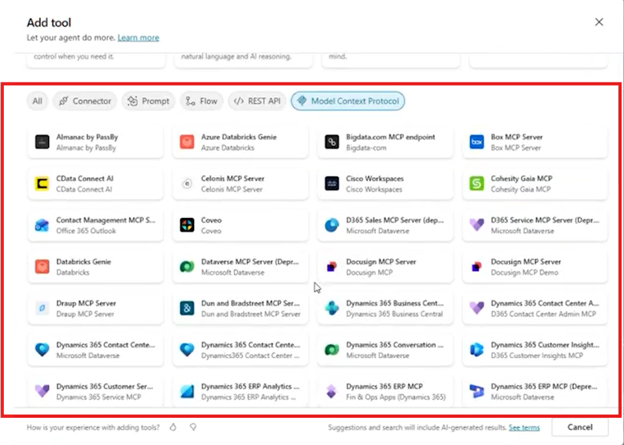
Model Context Protocol, or MCP, provides another approach to connecting agents with external systems.
MCP servers expose available tools and capabilities that an agent can use to interact with a connected application, meaning you don’t necessarily need to define every interaction through a separate Power Automate flow. Instead, the MCP server describes the functionality through the connection, letting the agent then use those capabilities to support relevant requests.
For example, an MCP server connected to Dynamics 365 might expose functionality for retrieving records, invoking APIs, opening forms, or performing supported data operations.
The key difference is that MCP provides a way for your agent to understand and use capabilities exposed by a connected system, rather than requiring you to manually define every possible interaction.
Why MCP Matters for Microsoft Dynamics 365
For organizations using Dynamics 365, MCP creates interesting opportunities to connect AI agents directly to business information.
Imagine an employee asking: Do we have a customer named Cave Wholesales in Dynamics 365?
Traditionally, answering that question might involve opening Dynamics 365, navigating to the appropriate customer records, and searching for the information.
But with an appropriately configured MCP connection, an agent can retrieve that information through a conversational request.
This can make business information easier to access while reducing the need to navigate between applications for straightforward inquiries.
How to Connect Copilot Studio to Dynamics 365 Using MCP
Let's continue using our email inquiry agent from earlier in the series. We've already enabled Work IQ, which gives the agent access to supported Microsoft 365 information.
Now, we're going to connect it to Dynamics 365 Finance and Operations so it can retrieve customer information.
Step 1: Open Your Agent's Tools Section
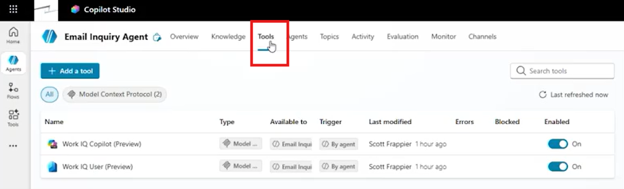
First, navigate to your existing agent in Copilot Studio.
- Sign in to Microsoft Copilot Studio.
- Navigate to Agents.
- Open the email inquiry agent.
- Select the Tools section.
- Review the tools already connected to your agent.
Because we've enabled Work IQ, we can see the tools associated with that connection. Now we're going to add a new connection.
Step 2: Create or Add a Tool
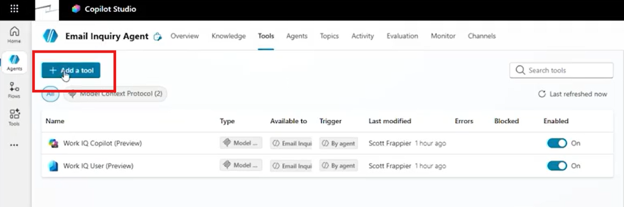
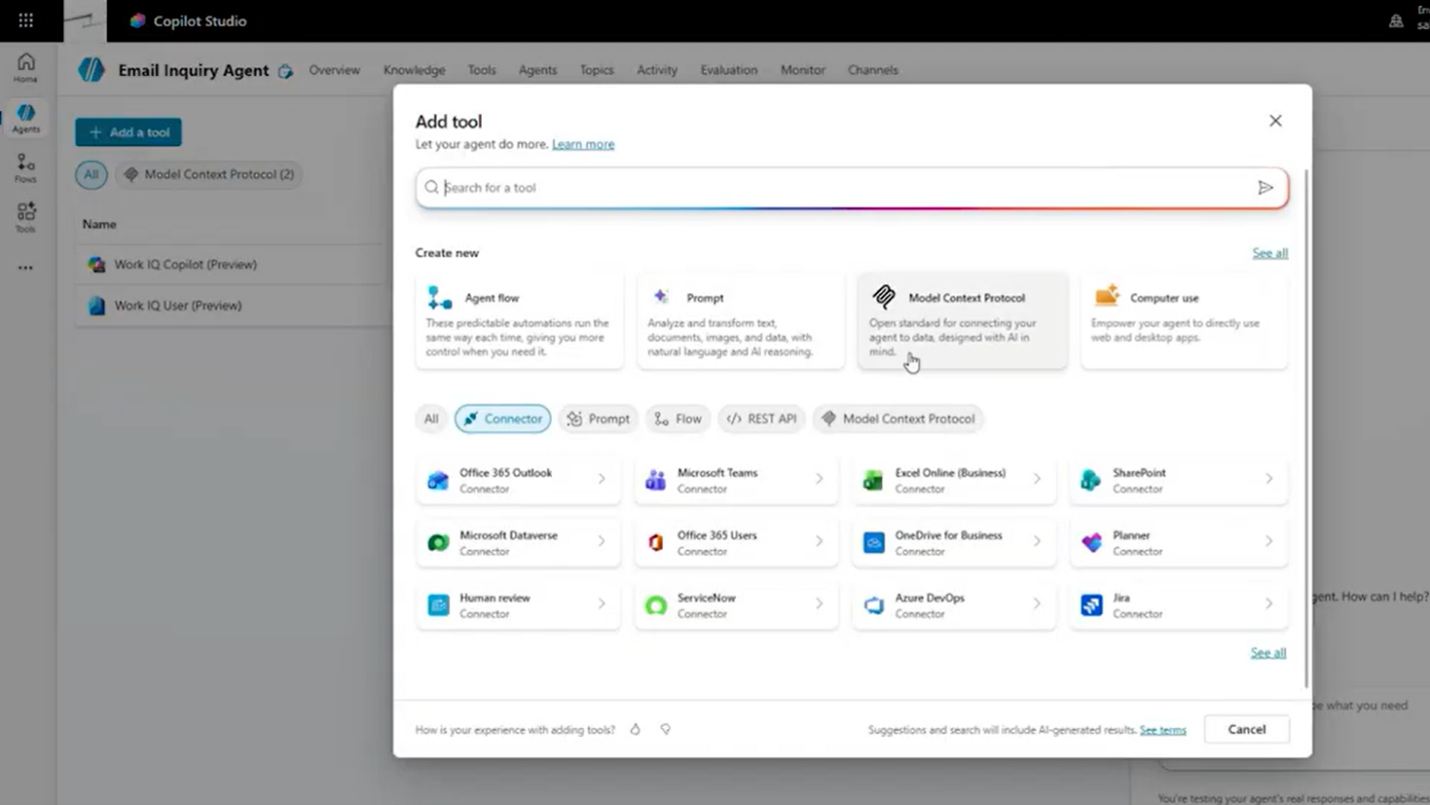
- In the Tools section, select Create Tool or Add Tool.
- Review the available tool types.
- Locate the option for Model Context Protocol (MCP).
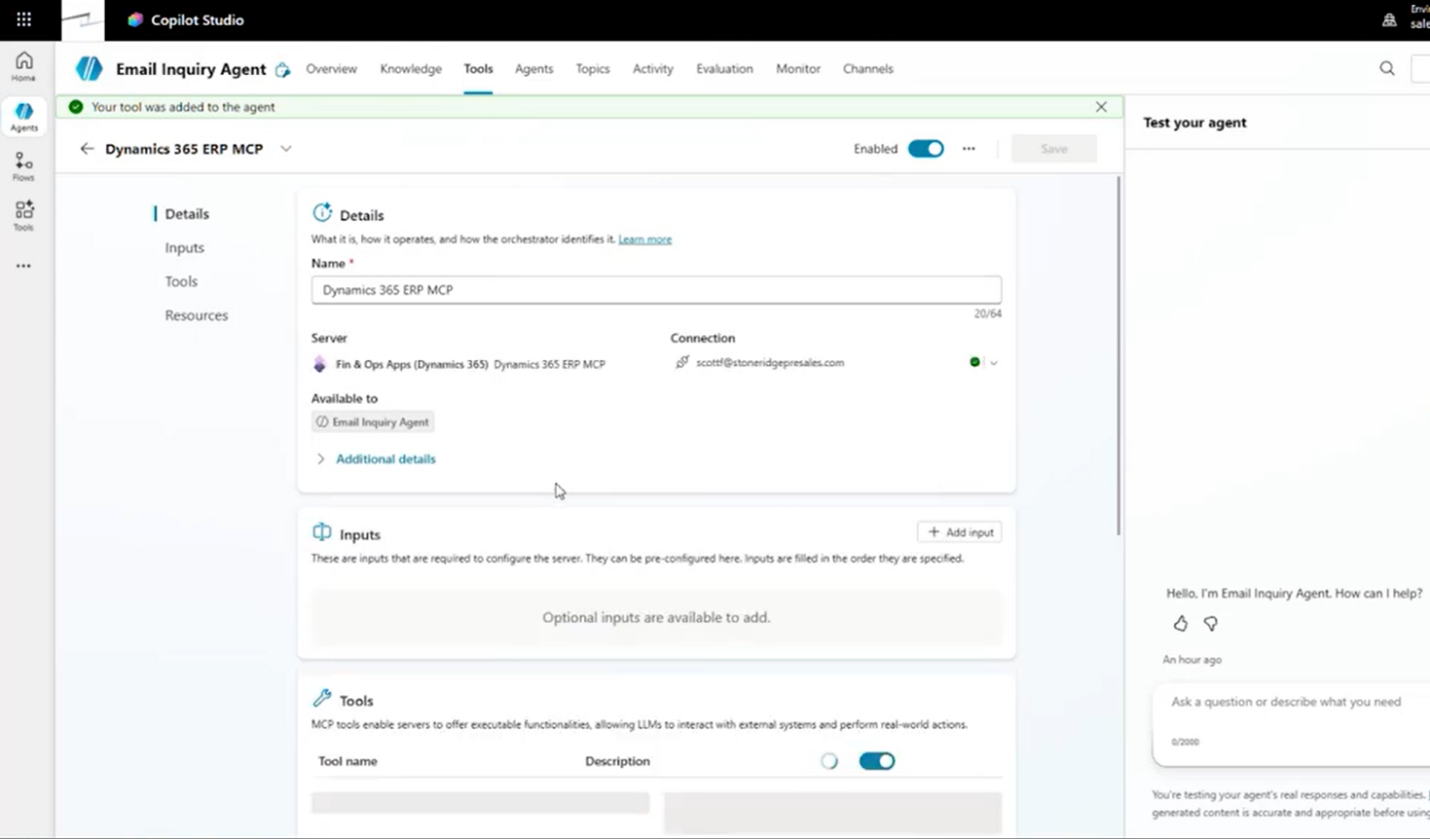
- Select the appropriate MCP connection for Dynamics 365.
Copilot Studio will display the available connection options. For this example, we're connecting to the Dynamics 365 Finance and Operations ERP environment.
This MCP connection will allow our agent to interact with the capabilities exposed by that system.
Step 3: Configure Your Dynamics 365 Connection
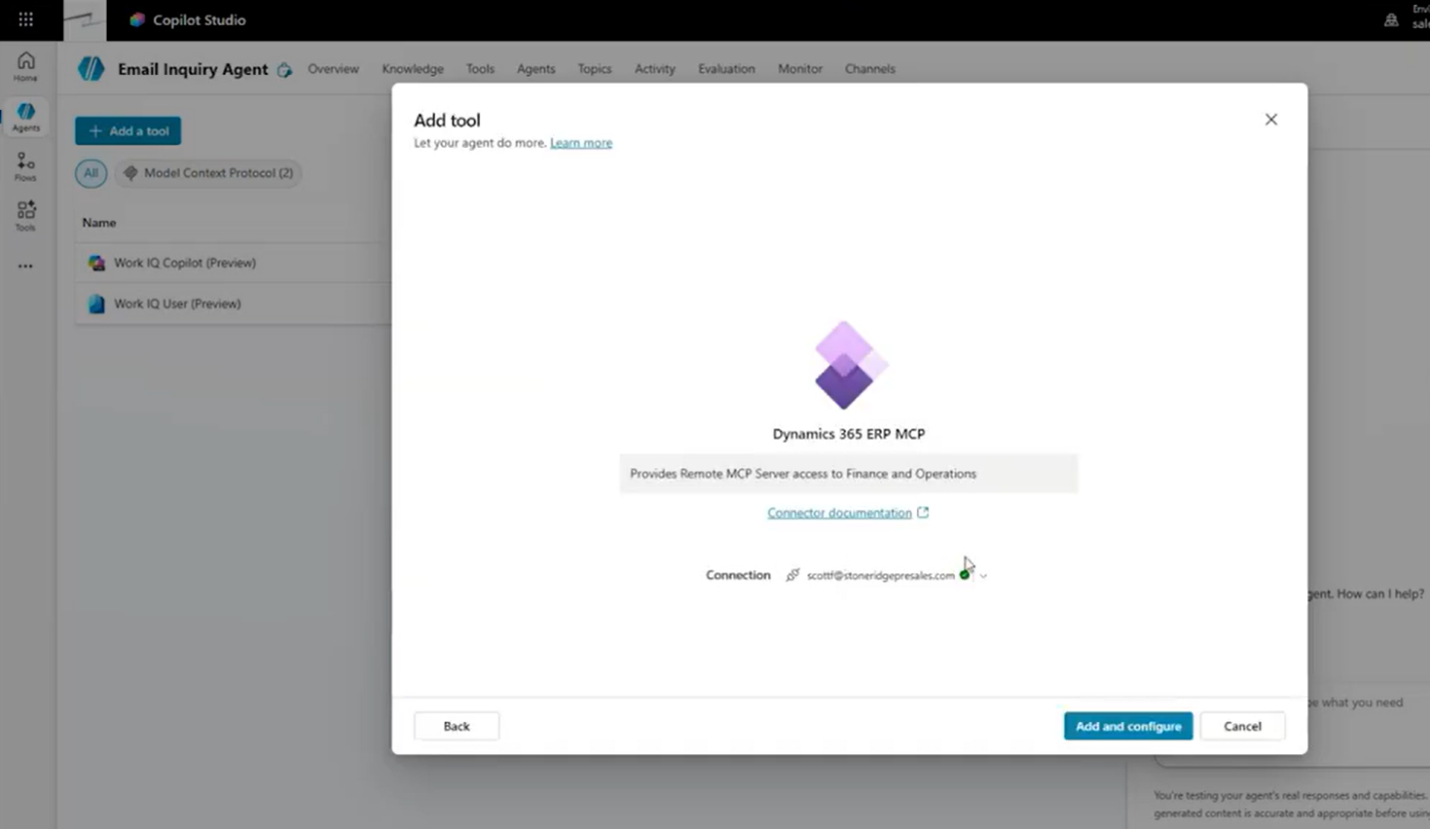
After selecting the MCP server, you'll need to configure the connection and consider authentication.
Different MCP servers may support different authentication methods, including:
- User-based credentials: The connection operates using the context of the individual user.
- Application-based credentials: The connection uses an application registration or service principal configured for the integration.
The appropriate approach depends on your business requirements and how the connection is intended to operate. In our example, we’ll keep things simple by using the credentials of the user making the request:
- Select the appropriate user-based connection.
- Review the credentials associated with it.
- Select Add and Configure.
- Allow Copilot Studio to establish the connection.
- Return to the Tools section to confirm that the MCP server has been added.
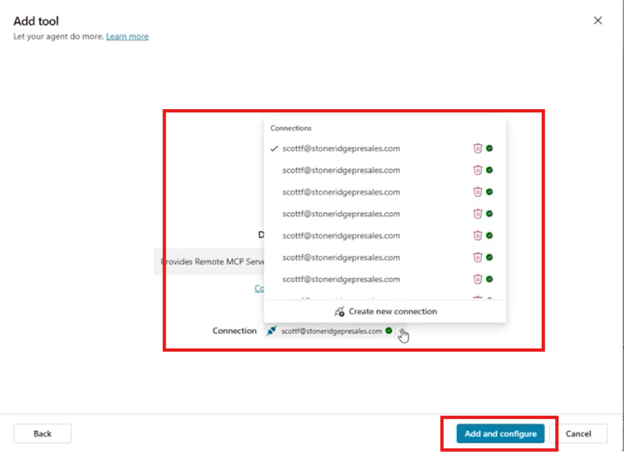
Once the connection is established, Copilot Studio makes the MCP server's available tools accessible to your agent.
Step 4: Understand What Your MCP Server Can Do
Every MCP server can expose different capabilities. For example, a Dynamics 365 connection might provide tools for:
- Looking up business records.
- Retrieving customer information.
- Opening forms.
- Invoking supported APIs.
- Creating data through available operations.
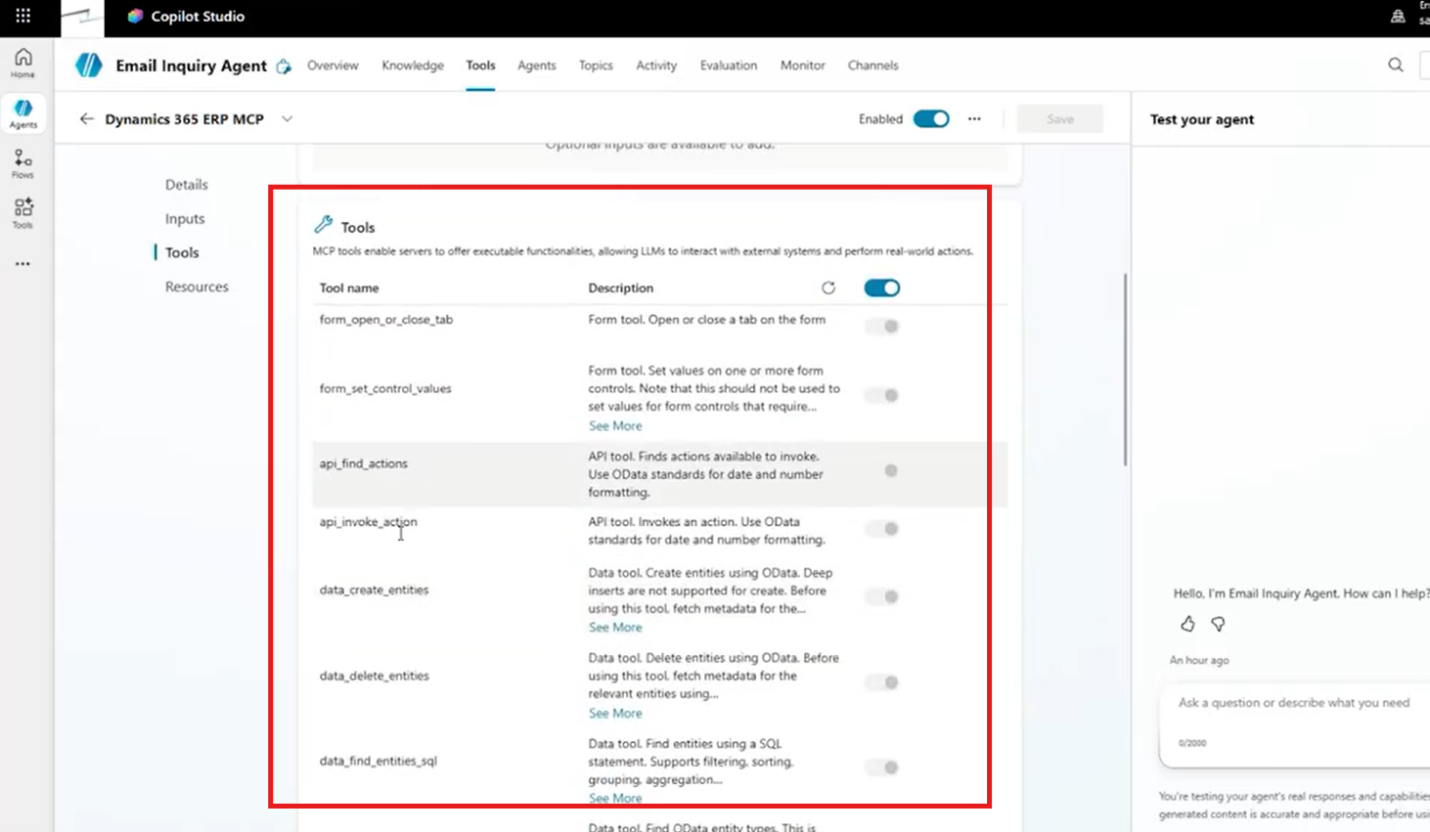
The specific capabilities depend on the server and how it's configured. When you connect an MCP server, its tools section exposes the operations that are available for your agent to use. This means your agent can discover the functionality offered by the connected system.
However, access to a tool doesn't automatically mean your agent knows exactly when or how to use it.
That's why the next step is particularly important.
Step 5: Update Your Agent's Instructions
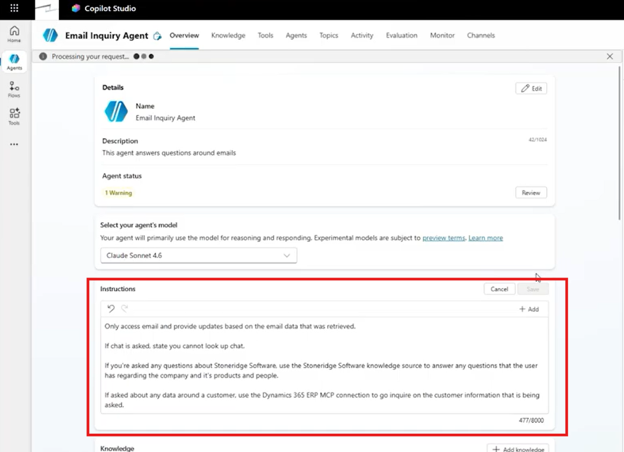
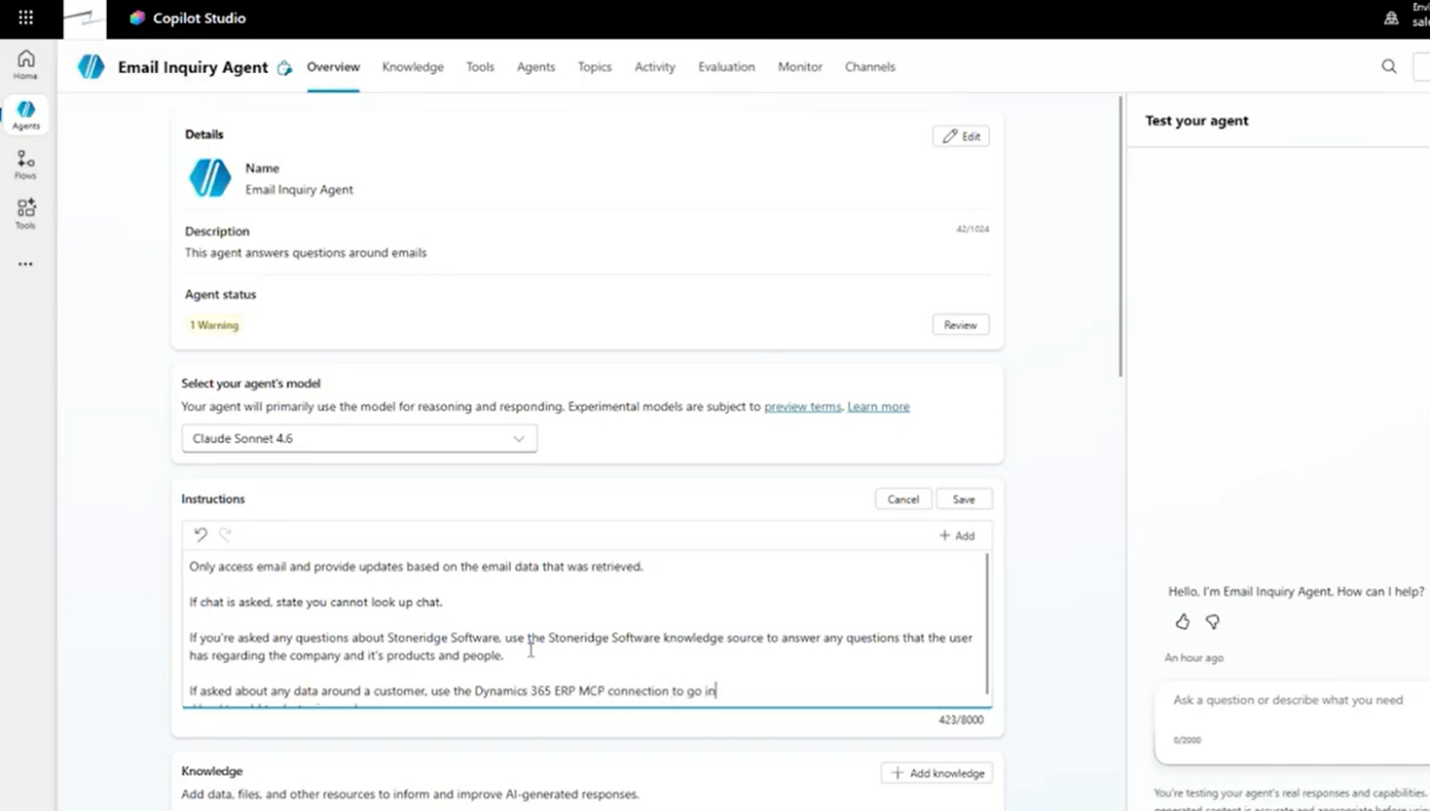
Now that our agent can access Dynamics 365, we need to establish when it should use that connection. To do this, follow these steps:
- Return to your agent's Overview tab.
- Locate the Instructions section.
- Select Edit.
- Add an instruction directing the agent to use Dynamics 365 when responding to customer-related questions.
- Save the updated instructions.
For example, we could add:
If asked about customer information, use the Dynamics 365 ERP MCP connection to retrieve the requested customer details.
This gives our agent additional guidance.
It can continue using Work IQ for relevant Microsoft 365 requests while using Dynamics 365 for customer inquiries.
It's a relatively simple instruction, but it establishes an important connection between the user's request and the appropriate business system.
Step 6: Test Your Dynamics 365 MCP Connection
Now comes the fun part! Let’s test to see if our agent can retrieve information directly from Dynamics 365 Finance and Supply Chain Management:
- Open your agent's testing interface.
- Start a new test session.
- Enter the prompt: "Do we have a customer named Cave Wholesales in Dynamics 365?"
- Submit the question.
- Review any authentication or permission requests.
- Authorize the appropriate Dynamics 365 connection.
- Observe how the agent processes the request.
- Review the information returned.
The agent evaluates its available connections, including Work IQ and the Dynamics 365 MCP server. It then uses the Dynamics 365 Finance and Operations connection to investigate the customer inquiry.
As the agent processes the request, you can observe the steps it takes to retrieve the information.
The agent successfully identifies the customer record and returns the customer identifier along with additional attributes.
We've taken an agent that originally focused on email inquiries and expanded its capabilities to retrieve customer information from Dynamics 365 – all without building a separate custom workflow.
What Makes MCP Different from Power Automate?
At this point, you might be wondering why you'd use an MCP server instead of a Power Automate flow. While both interact with external systems, they approach the problem differently.
With Power Automate, you can establish a defined workflow that performs particular actions.
For example, you might configure a flow to retrieve information through a specific sequence of steps.
MCP, on the other hand, exposes capabilities from a connected system that an agent can discover and use.
Rather than defining every possible action as a separate flow, the MCP server describes the available operations.
Here's a simple comparison:
| Power Automate flows | MCP servers |
| Support defined workflows | Expose available tools and capabilities |
| Useful for known sequences of actions | Useful for agent-directed interactions with supported systems |
| Execute configured process steps | Allow agents to select from exposed operations |
| Can be called by Copilot Studio agents | Can be connected as tools in Copilot Studio |
Neither approach is automatically better. The right choice depends on the task you're trying to accomplish, the capabilities available through your connected systems, and how much structure the process requires.
Why Clear Instructions Still Matter
Although MCP provides a flexible way to connect agents to business systems, it isn't magic. Simply connecting an MCP server doesn't mean your agent will automatically understand every business process.
For example, looking up a customer record is a relatively straightforward task.
Completing a more complex transaction may require additional instructions, specific business rules, or a structured sequence of actions.
That's why you should think carefully about how your agent is expected to interact with the connected system.
As your requirements become more advanced, you may need to refine your instructions to establish:
- Which types of requests should use a particular connection.
- What information needs to be retrieved.
- How the agent should approach specific business scenarios.
- Which actions are appropriate for the task.
- What information should be returned to the user.
Testing also remains essential. Start with simple requests, confirm that your agent is selecting the appropriate tools, and gradually introduce more complex functionalities.
This allows you to understand how the agent behaves before expanding its responsibilities.
Key Takeaways: Extending Copilot Studio Beyond Conversations
Connectors, Power Automate flows, and MCP servers can significantly expand what your Copilot Studio agents can accomplish.
As you explore these tools, keep a few important principles in mind:
- Tools extend your agent's capabilities. They allow agents to retrieve information and interact with connected applications.
- Different tools serve different purposes. Connectors, prompts, flows, and MCP servers each provide different ways to extend functionality.
- MCP can simplify certain integrations. It exposes available capabilities from connected systems without requiring a separate workflow for every interaction.
- Instructions remain essential. Your agent still needs guidance about when and how to use its connected tools.
- Testing is part of the process. Start with straightforward use cases and refine your configuration before expanding into more complex tasks.
Most importantly, focus on the business outcome you're trying to achieve. Whether you are retrieving customer information, accessing organizational data, or supporting more advanced processes, your main goal is to create agents that make work easier and more effective.
Unlock the Full Potential of Copilot Studio with Stoneridge Software
Building an AI agent is one thing. Connecting it to the systems that run your business is where the real value begins. Whether you're exploring MCP servers, integrating Copilot Studio with Dynamics 365, or looking for ways to automate business processes, Stoneridge Software is the best partner to help you make it happen.
Are you ready to take your Copilot Studio agents to the next level? Contact Stoneridge Software today, and let's build AI solutions that deliver meaningful results for your business.

Under the terms of this license, you are authorized to share and redistribute the content across various mediums, subject to adherence to the specified conditions: you must provide proper attribution to Stoneridge as the original creator in a manner that does not imply their endorsement of your use, the material is to be utilized solely for non-commercial purposes, and alterations, modifications, or derivative works based on the original material are strictly prohibited.
Responsibility rests with the licensee to ensure that their use of the material does not violate any other rights.